How to open several PDFs at once in tabs
Open a PDF in PDFluent Editor, press Command-O, pick the next PDF in the "Open PDF" window and click "Open". It opens in a new tab, and you switch between documents by clicking a tab. This is for anyone who reads or edits several PDFs side by side and wants one window instead of many. The editor is free for everyone, including commercial use, and you do not need an account.

You have a report, a product sheet and a contract to check together. Each one opens in its own window, and the windows pile up. Tabs keep all of them in one window, so the next document is one click away.
This guide shows how to open several PDFs at once in tabs in PDFluent Editor 1.1, with the real labels from the app. PDFluent Editor is free for everyone, including at work, and you do not need an account.
Open PDFs in tabs, step by step
The steps and screenshots use PDFluent Editor 1.1 on a Mac. The editor also runs on Windows. We used three sample PDFs: a quarterly report, a product sheet and a services agreement.
Press Command-O and pick the next PDF
Open the first PDF in the editor. Press Command-O and the "Open PDF" window appears. Select the next PDF and click "Open".
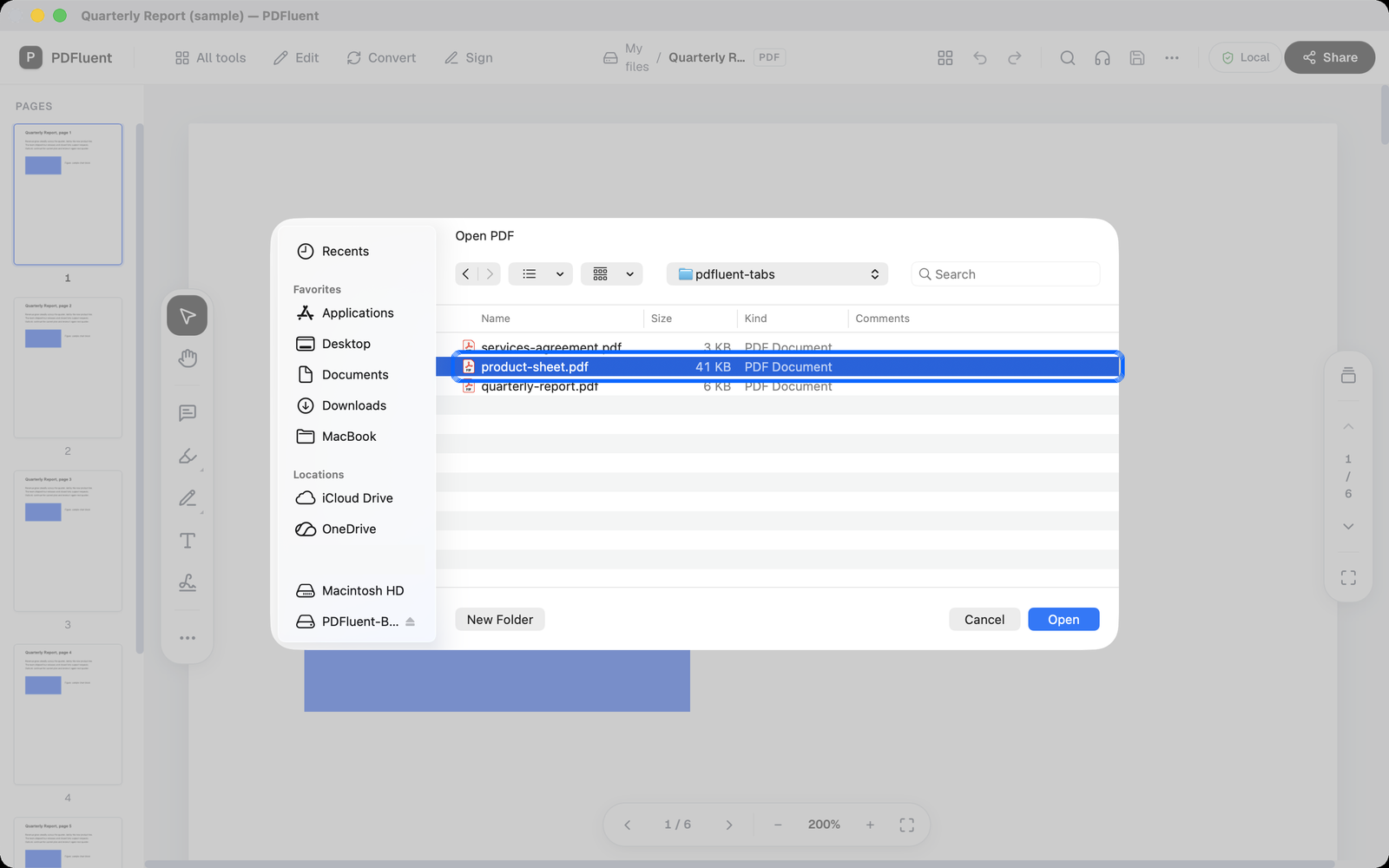
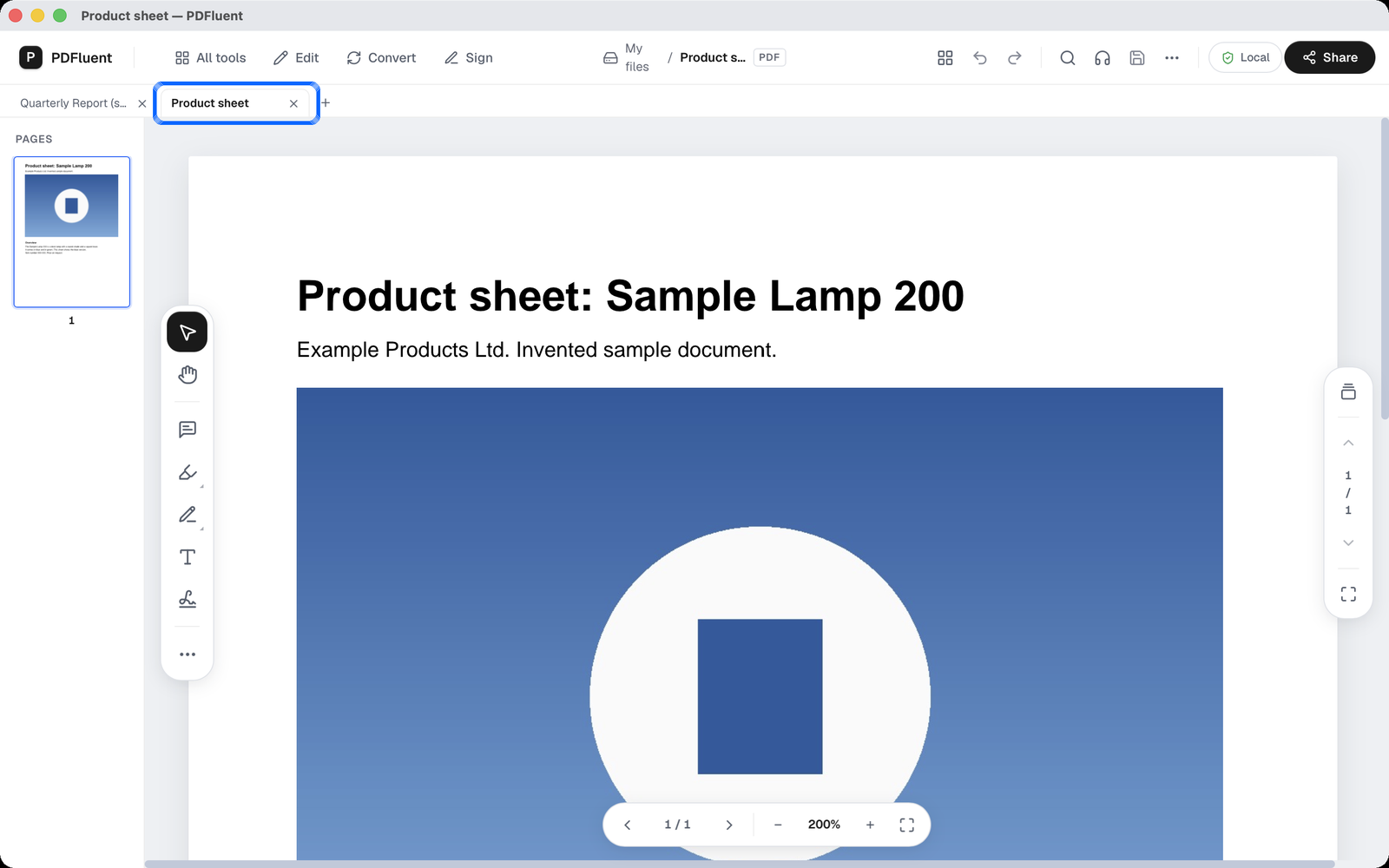
The PDF opens in a new tab
The second PDF opens in its own tab. A tab bar appears under the top bar with the name of each document, an X on each tab and a "+" at the end.
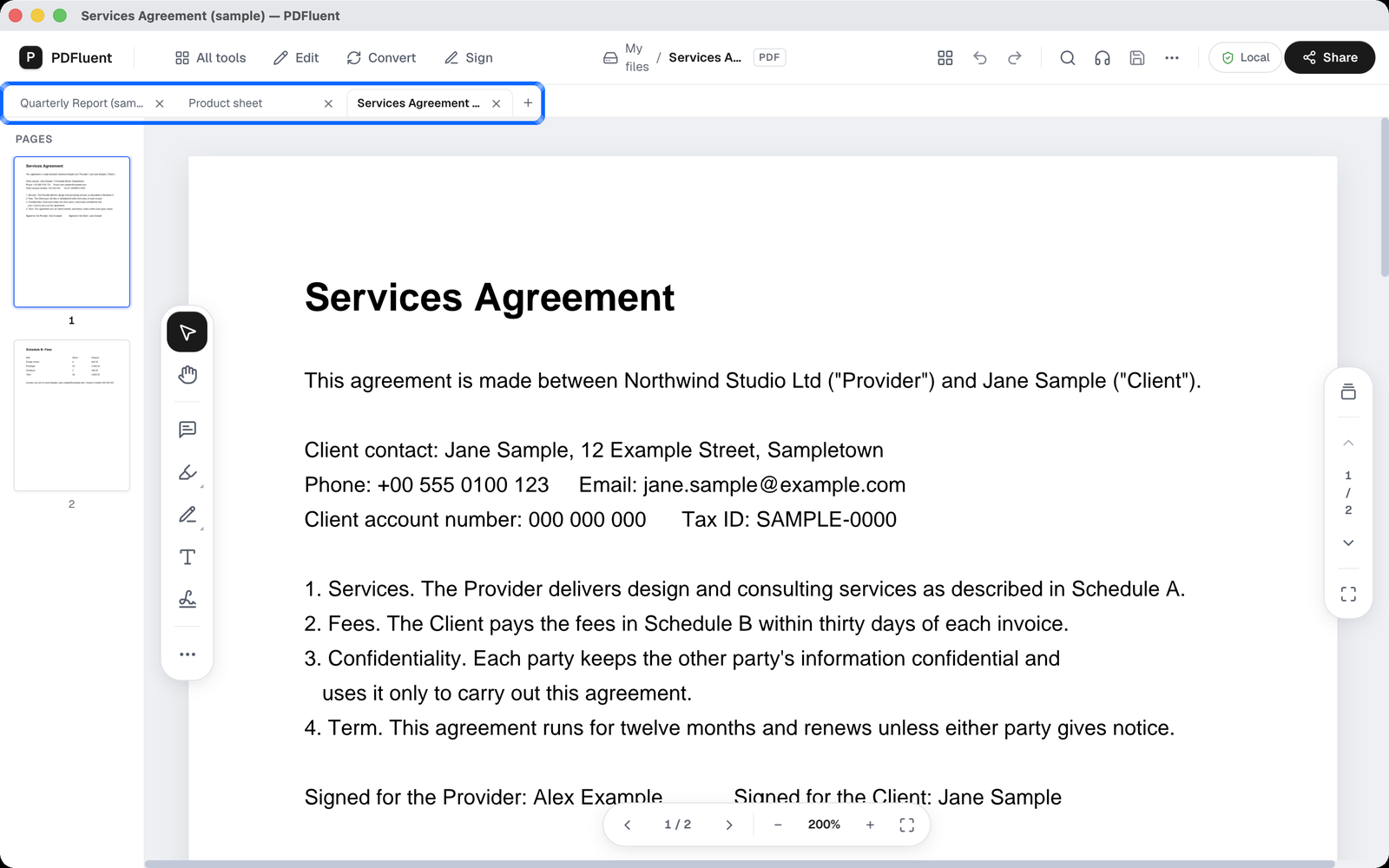
Add more with the + button
Click the "+" at the end of the tab bar. It opens the same "Open PDF" window. Pick the next PDF and click "Open". We opened the services agreement this way as a third tab.
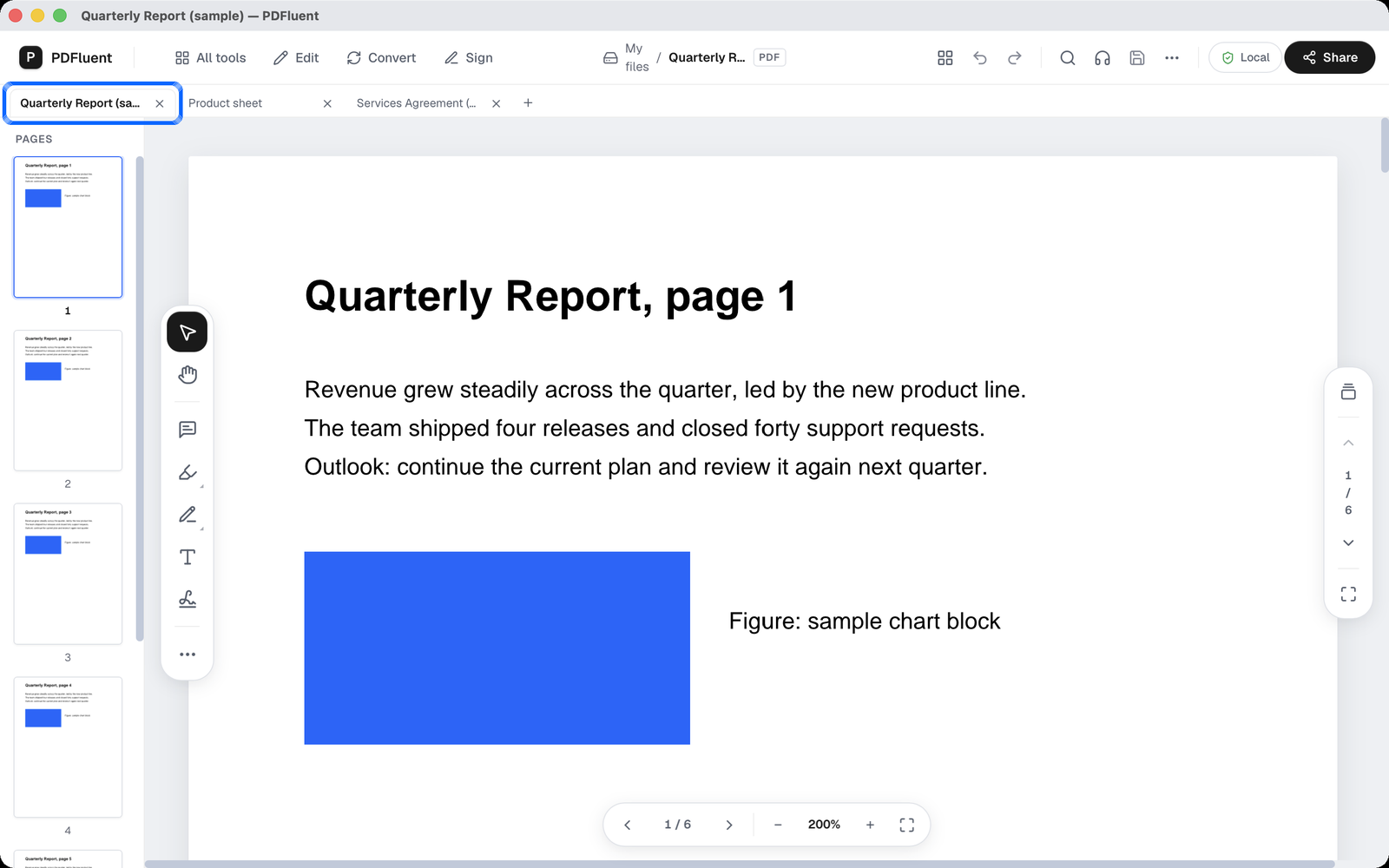
Click a tab to switch
Click a tab to go back to that document. Each tab has its own pages in the Pages panel on the left and its own page count.


PDFluent Editor is free for everyone, including commercial use. There is no licence key, no trial, no tier and no subscription, and you do not need an account.
PDFluent Editor is free for everyone, including commercial use, and your documents stay on your computer.
What it does and does not do
- It opens each PDF in its own tab in one window.
- It keeps the pages of each document apart. A tab shows only its own pages.
- The X on a tab closes that document.
- A tab with unsaved changes shows a dot next to its name.
- It does not join the files. To make one PDF out of several, merge them instead.
Free, at home and at work
PDFluent Editor is free for everyone, including commercial use, and you do not need an account. On macOS your documents never leave your device, and the editor works without an internet connection.
Frequently asked questions
How do I open multiple PDFs in tabs on a Mac?
Open a PDF in PDFluent Editor and press Command-O. In the "Open PDF" window pick the next PDF and click "Open". It opens in a new tab. Repeat for each file, or use the "+" at the end of the tab bar.
How do I switch between open PDFs?
Click the tab with the name of the document. The Pages panel on the left then shows the pages of that document.
How do I close one PDF and keep the others open?
Click the X on its tab. That closes only that document.
How can I tell which PDF has unsaved changes?
A tab with unsaved changes shows a dot next to the document name.
Does this work on Windows?
Yes. PDFluent Editor 1.1 runs on macOS and Windows. The steps and screenshots in this guide are from a Mac.
Is PDFluent Editor free?
Yes. It is free for everyone, including commercial use. There is no licence key, no trial and no subscription, and you do not need an account.
Keep reading
Building software? Get the SDK.