How to rotate PDF pages and save them that way
Open the PDF in PDFluent Editor, go to "All tools" and choose "Organize pages". Point at the page you want to turn and press "Rotate left" or "Rotate right" under it. Then press "Save" in the top bar: a message says "Saved on this device." and the turn is part of the file. The editor is free for everyone, including commercial use, and you do not need an account.
You scanned a stack of papers and one sheet went through sideways. Or a contract came back with a landscape page that opens upside down. You want the page to read the right way up, in the file itself, so it also looks right for whoever opens it next.
This guide shows how to rotate PDF pages in PDFluent Editor 1.1, using the real labels from the app. You turn a single page with the small buttons under it, or turn several pages at once, and then save. It also covers how to check the saved file.
PDFluent Editor is free for everyone, including at work, and you do not need an account. Version 1.1 is available for macOS and Windows.
Rotate a PDF page, step by step
The steps use PDFluent Editor 1.1 and a sample report of 6 pages. The goal is to turn page 3 a quarter turn to the right and save the file.
Open the file and go to All tools
Open the PDF. Open "All tools". Under the group "PAGES" you see "Organize pages" with the subtitle "Sort, rotate, delete".
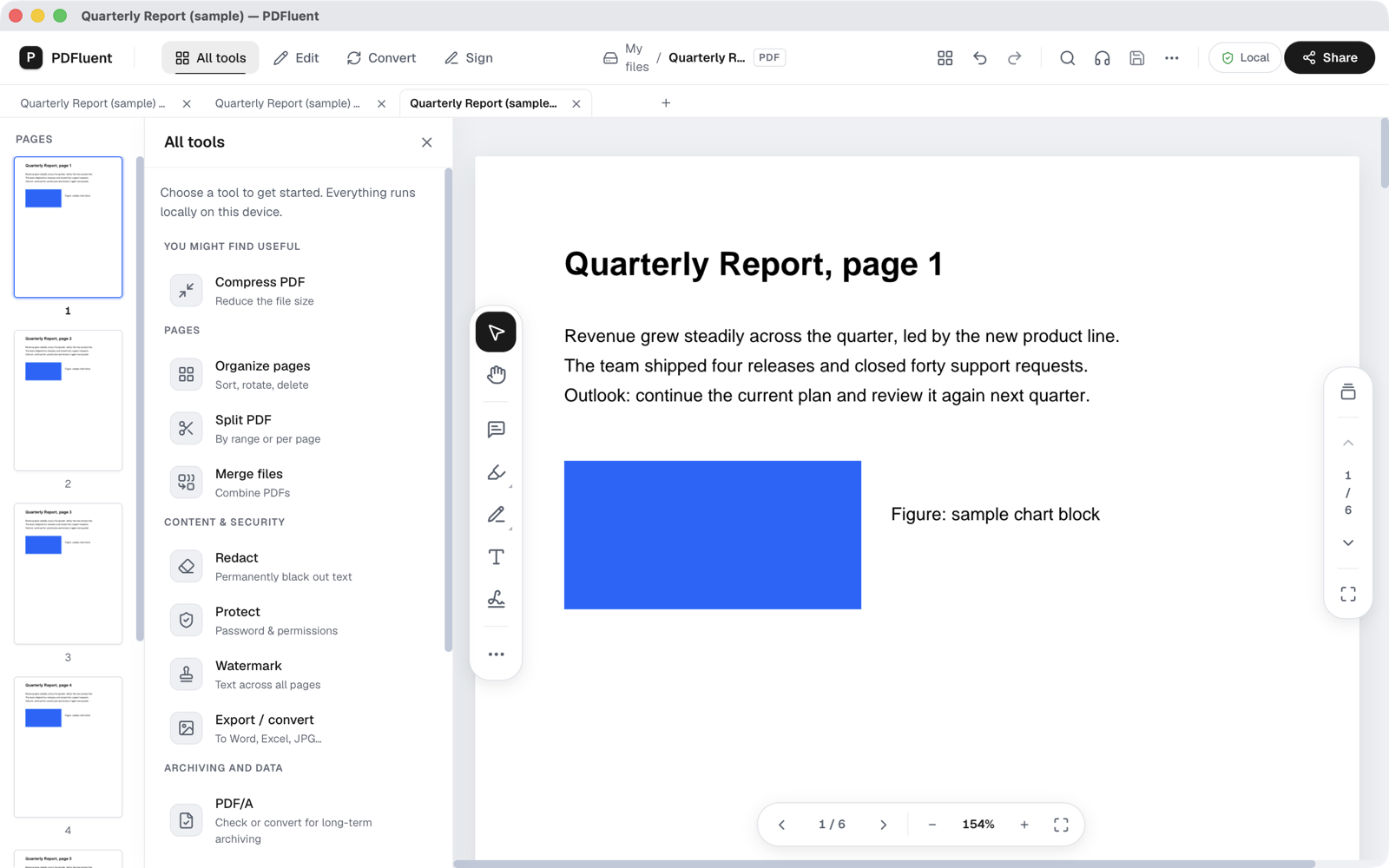
Choose Organize pages
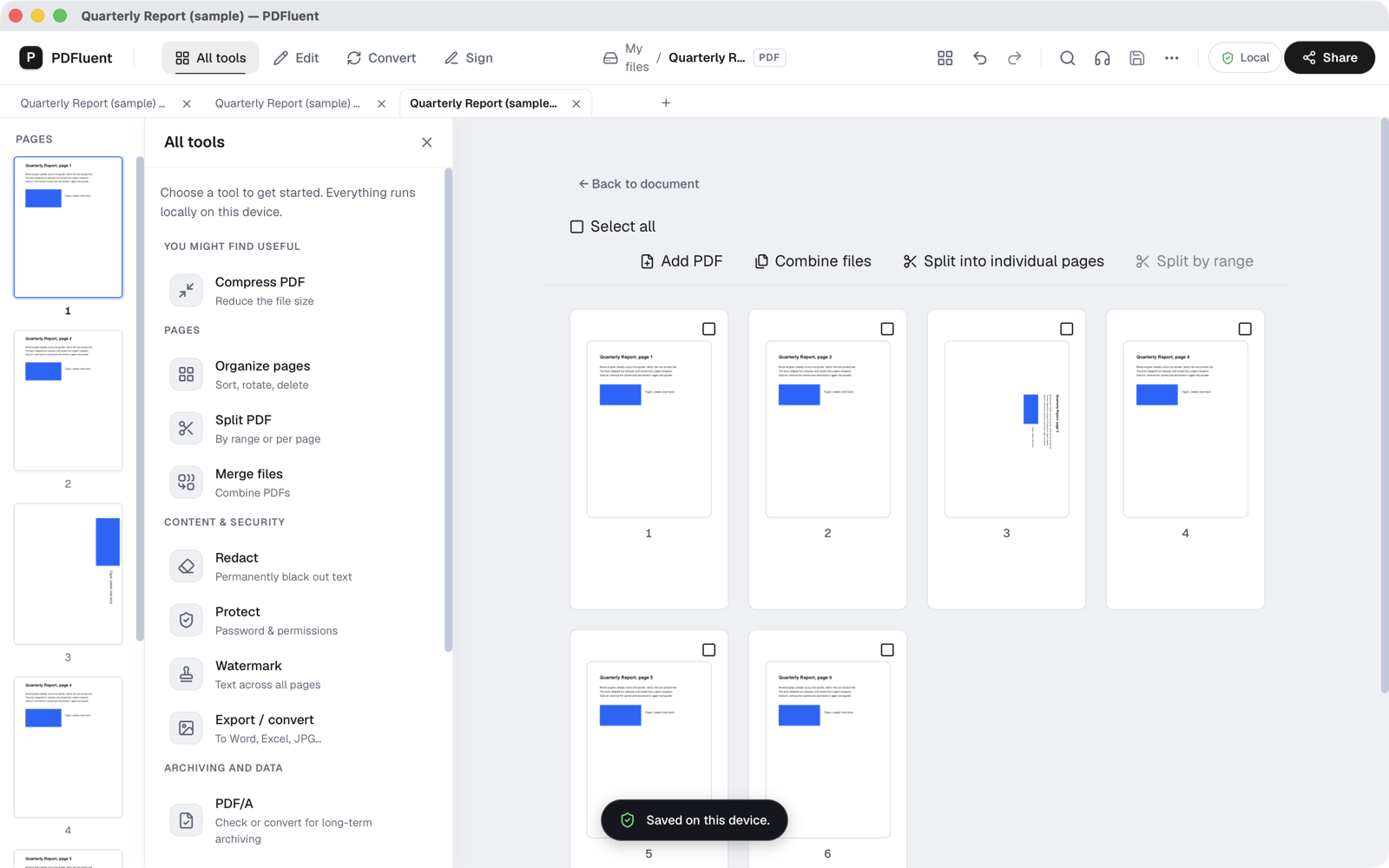
Choose "Organize pages". The document opens as a grid of page thumbnails, one card per page, each with its page number. Above the grid you see "Select all", "Add PDF", "Combine files" and the split buttons.
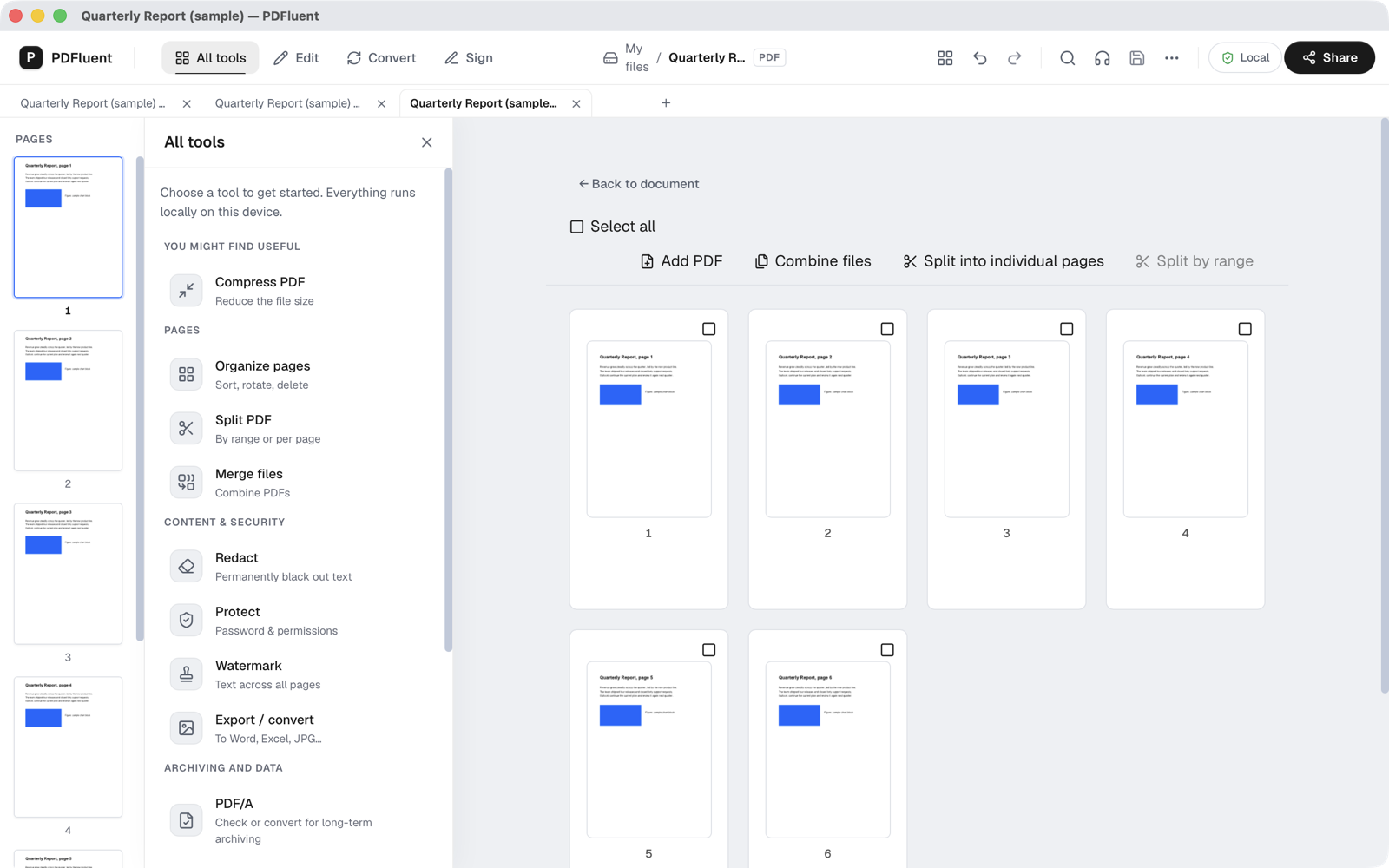
Point at the page you want to turn
Move the pointer over page 3. Three small buttons appear under the card: "Rotate left", "Rotate right" and "Delete page". Be careful with the third one: it takes the page out of the file.
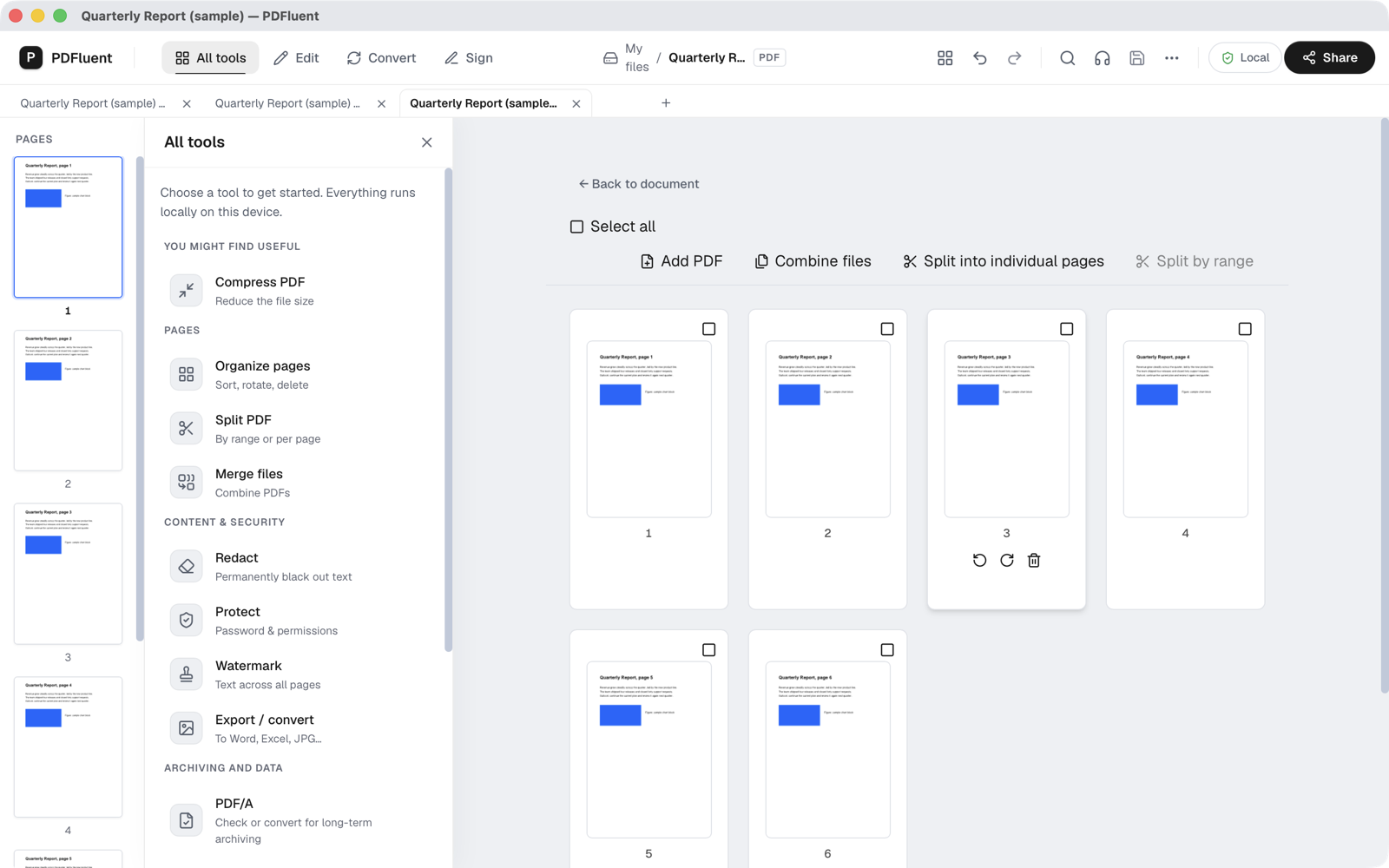
Press Rotate right
Press "Rotate right". The thumbnail turns a quarter turn clockwise. Press it again for a half turn, or press "Rotate left" to go back. The window title now starts with an asterisk, which means the change is not saved yet.
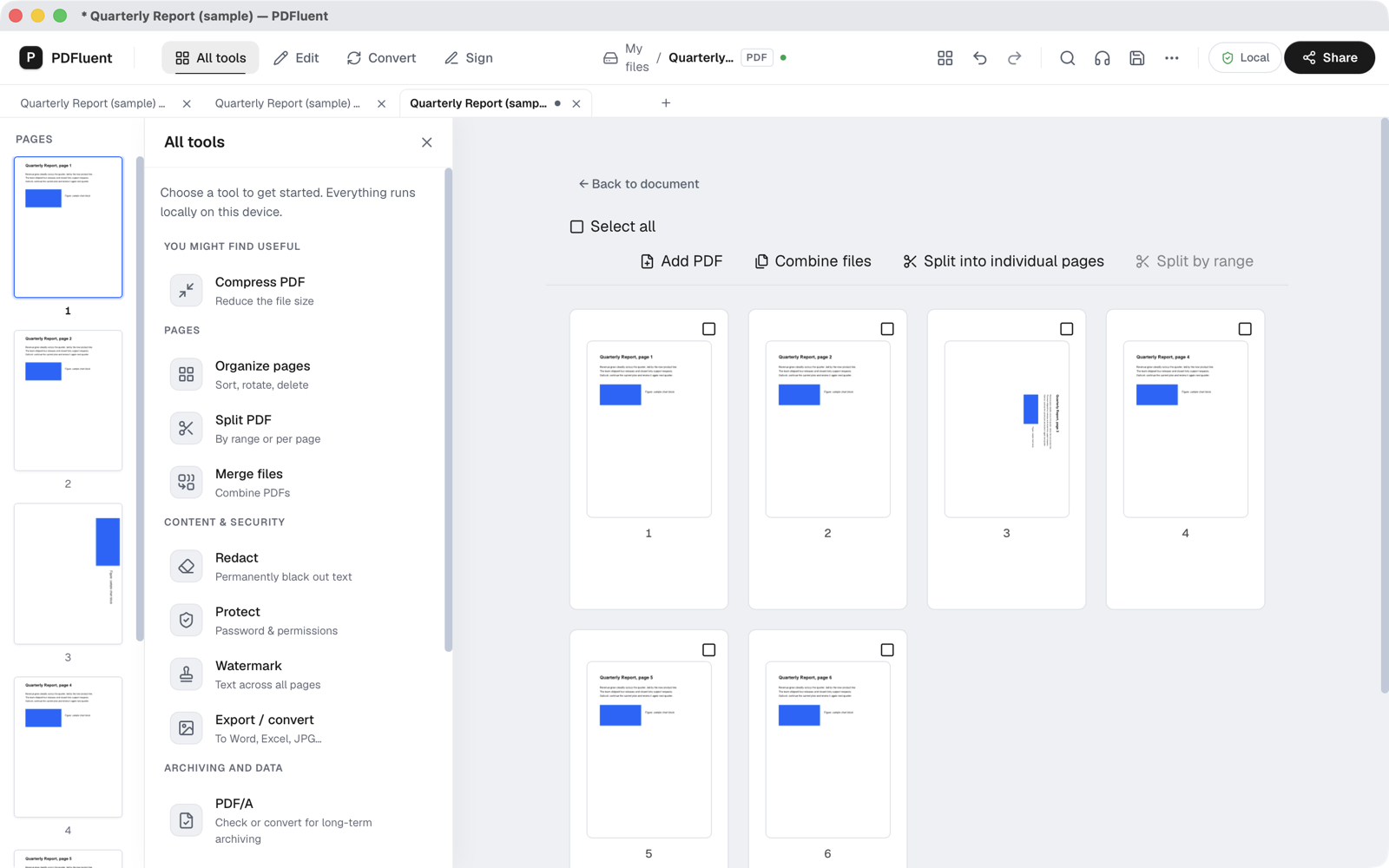
Press Save
Press "Save" in the top bar. A message at the bottom says "Saved on this device." and the asterisk in the window title is gone. The turn is now stored in the PDF.
Open the page and check it
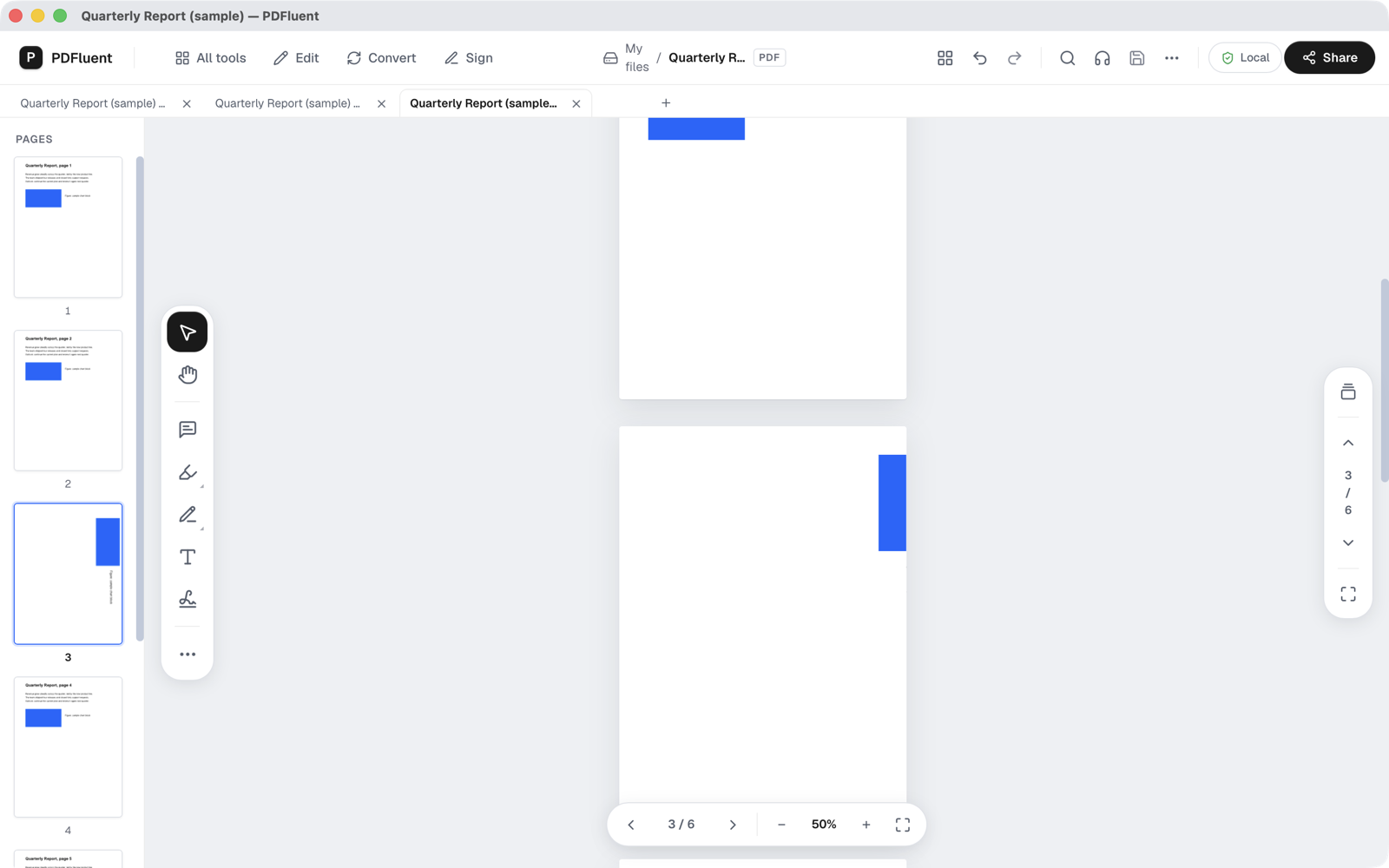
Choose "Back to document" and click the thumbnail of page 3 on the left. The page now shows the way you turned it. The other pages still have their original direction.
How do I rotate several pages at once?
In "Organize pages", tick the small box in the corner of each page you want to turn, or press "Select all" to tick every page. A bar above the grid shows how many pages are selected. In that bar, the two buttons with a curved arrow, labelled "Left" and "Right", turn all selected pages together. The two buttons with a chevron next to them move the selected pages in the page order instead, so check the arrow before you press.
After the turn the selection is cleared and the thumbnails show the new direction. Press "Save" to keep it. If you turned the wrong pages, press "Rotate left" on them before you save, or leave the file unsaved and open it again.
PDFluent Editor is free for everyone, including commercial use, and your documents stay on your computer.
What to know before you rotate
- "Save" writes the change into the file you have open. Work on a copy if the original must stay as it is, as you would before any change to an important document.
- A page turns a quarter turn at a time. Two presses make a half turn, which is what you need for an upside-down page.
- Turning a page changes how it is shown, not what is on it. Text, images and scans on the page stay as they were.
- If the file is protected with a password, open it with the password first.
- To change the order of pages afterwards, or to remove a page, use "Organize pages" on the same file.
How to check the rotated file
Check the file before you send or store it.
- Look at the thumbnails in "Organize pages" or in the list on the left of the document. Every page you turned should show the new direction.
- Open the pages you turned one by one and read them. A page can be turned the right way and still be the wrong page.
- Close the file and open it again. If the pages still show the new direction, the turn was saved. If the window title started with an asterisk when you closed it, press "Save" first.
Free, and on your own computer
PDFluent Editor is free for everyone, at home and at work, including commercial use. No account is needed. Version 1.1 runs on macOS and Windows.
On macOS, documents are processed on your computer and the editor works without an internet connection. On a Mac, the pages you turn and the file you save stay with you.
Frequently asked questions
Is it free to rotate PDF pages with PDFluent Editor?
Yes. PDFluent Editor is free for everyone, including commercial and business use, and you do not need an account.
How do I rotate just one page of a PDF?
Open "All tools", choose "Organize pages", point at the page and press "Rotate left" or "Rotate right" under it. Then press "Save". The other pages keep their direction.
How do I turn a page upside down?
Press "Rotate right" twice on that page. Each press is a quarter turn, so two presses make a half turn.
Does the rotation stay when I send the file to someone else?
Yes, once you have pressed "Save". The message "Saved on this device." confirms that the turn is stored in the PDF, so the page opens the same way for the next reader.
Do my PDFs get uploaded to rotate them?
On macOS, documents are processed on your computer and the editor works without an internet connection, so the files do not go to a website. Turning pages happens on your own machine.
Can I rotate all pages at once?
Yes. In "Organize pages" press "Select all", then press the curved-arrow button labelled "Right" or "Left" in the bar above the pages, and save.
Keep reading
Building software? Get the SDK.