How to convert PDF pages to JPG images on your computer
Open the PDF in PDFluent Editor, click "Convert" and choose "Image". In the "Export" window keep "JPEG (image)", pick "Current page" or "All pages" under "Page range" and press "Export". Then choose the output folder: the editor saves one JPG per page there. The editor is free for everyone, including commercial use, and you do not need an account.
You need a page of a PDF as a picture: for a slide, a web page, a chat or a form that only takes images. A JPG does that, and you can make one without uploading the file to a website.
This guide shows how to convert a PDF to JPG in PDFluent Editor 1.1, with the real labels from the app. PDFluent Editor is free for everyone, including at work, and you do not need an account.
Convert PDF pages to JPG, step by step
The steps use PDFluent Editor 1.1 on a Mac. The export writes new image files and leaves the PDF as it is.
Click Convert and choose Image
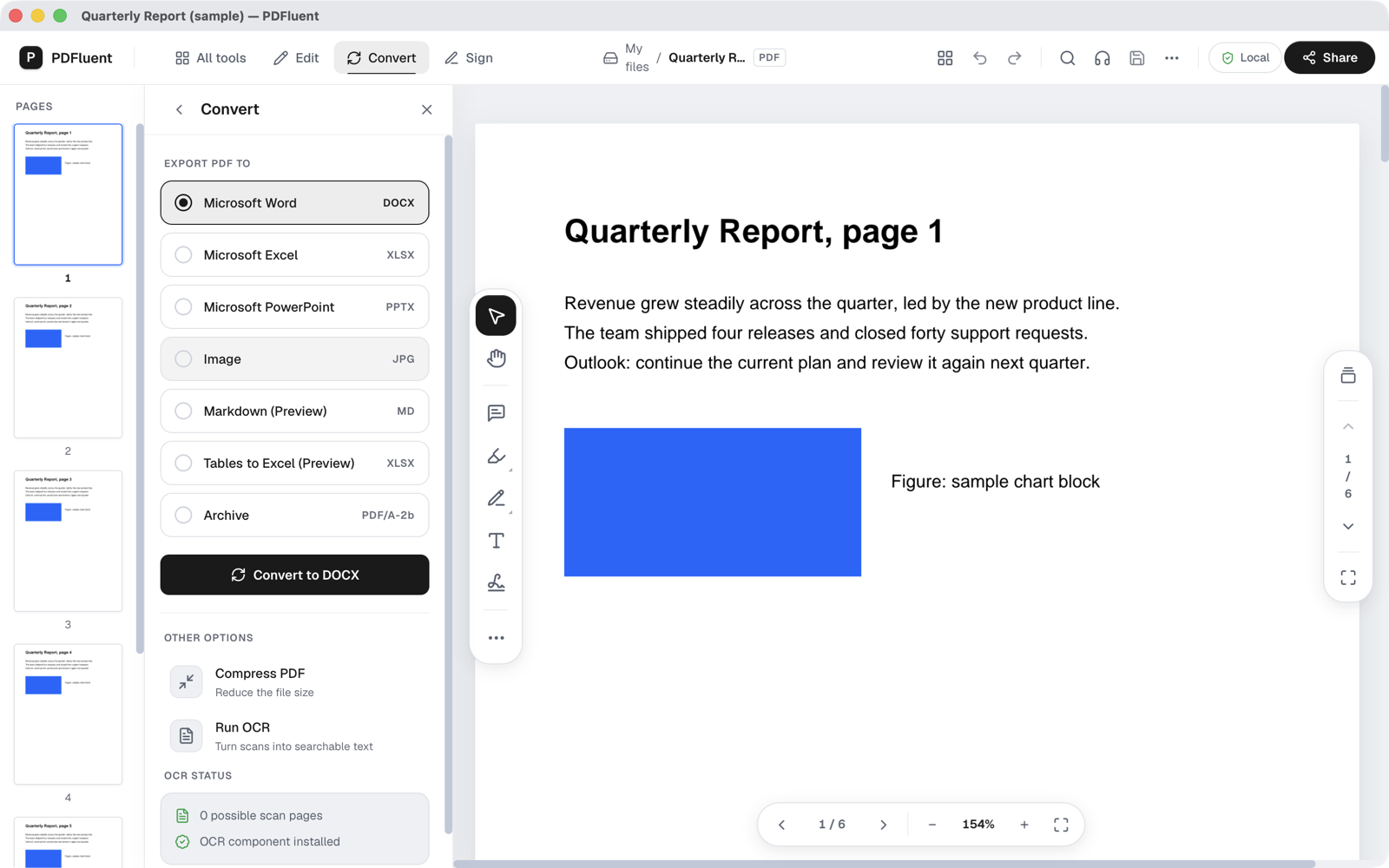
Open the PDF in the editor and click "Convert" in the top bar. In the list "EXPORT PDF TO", click "Image", the row labelled JPG.
Choose the pages
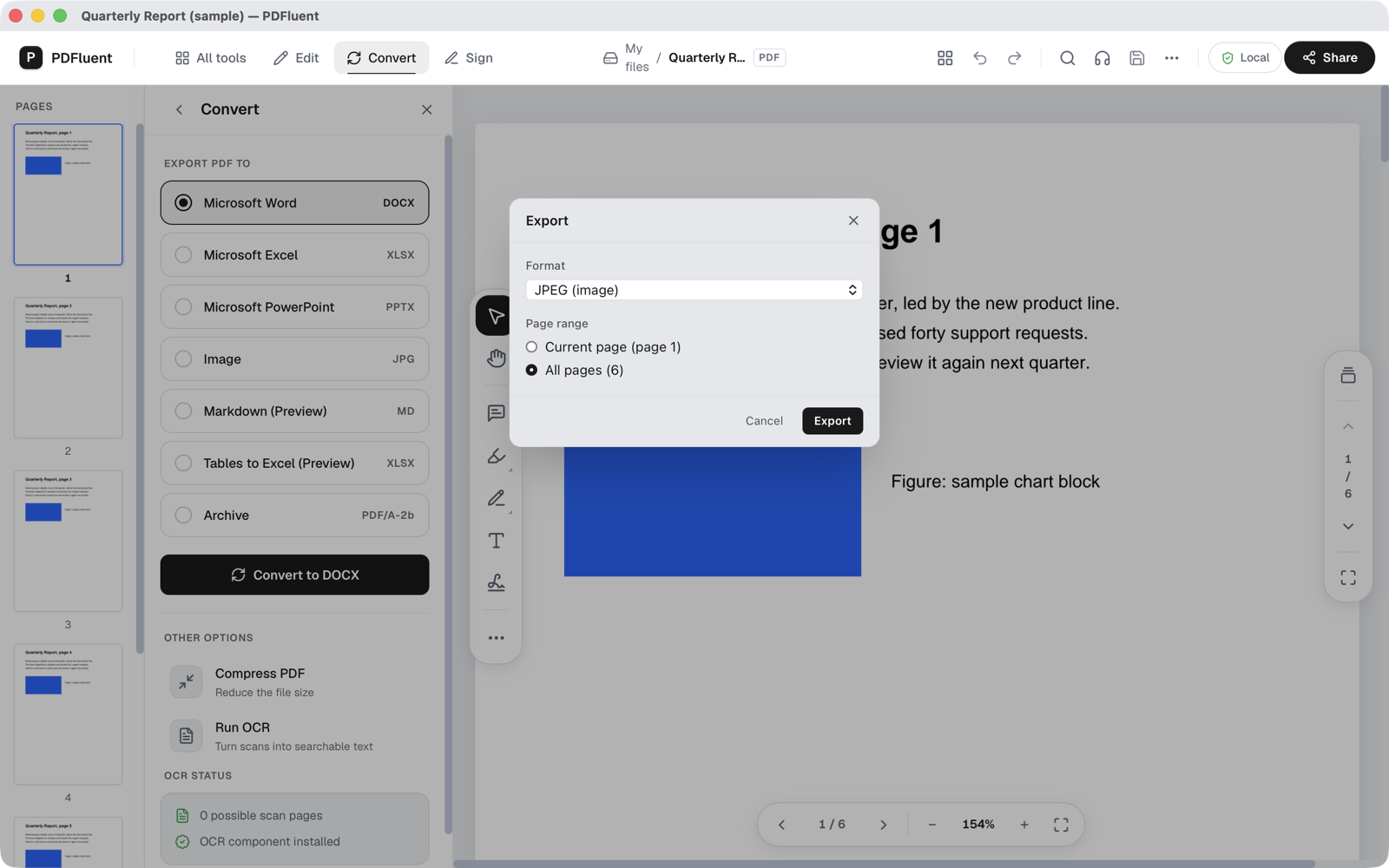
The "Export" window opens with "Format" set to "JPEG (image)". Under "Page range" pick "Current page" for the page you are looking at, or "All pages" for the whole document. Press "Export".
Choose the output folder
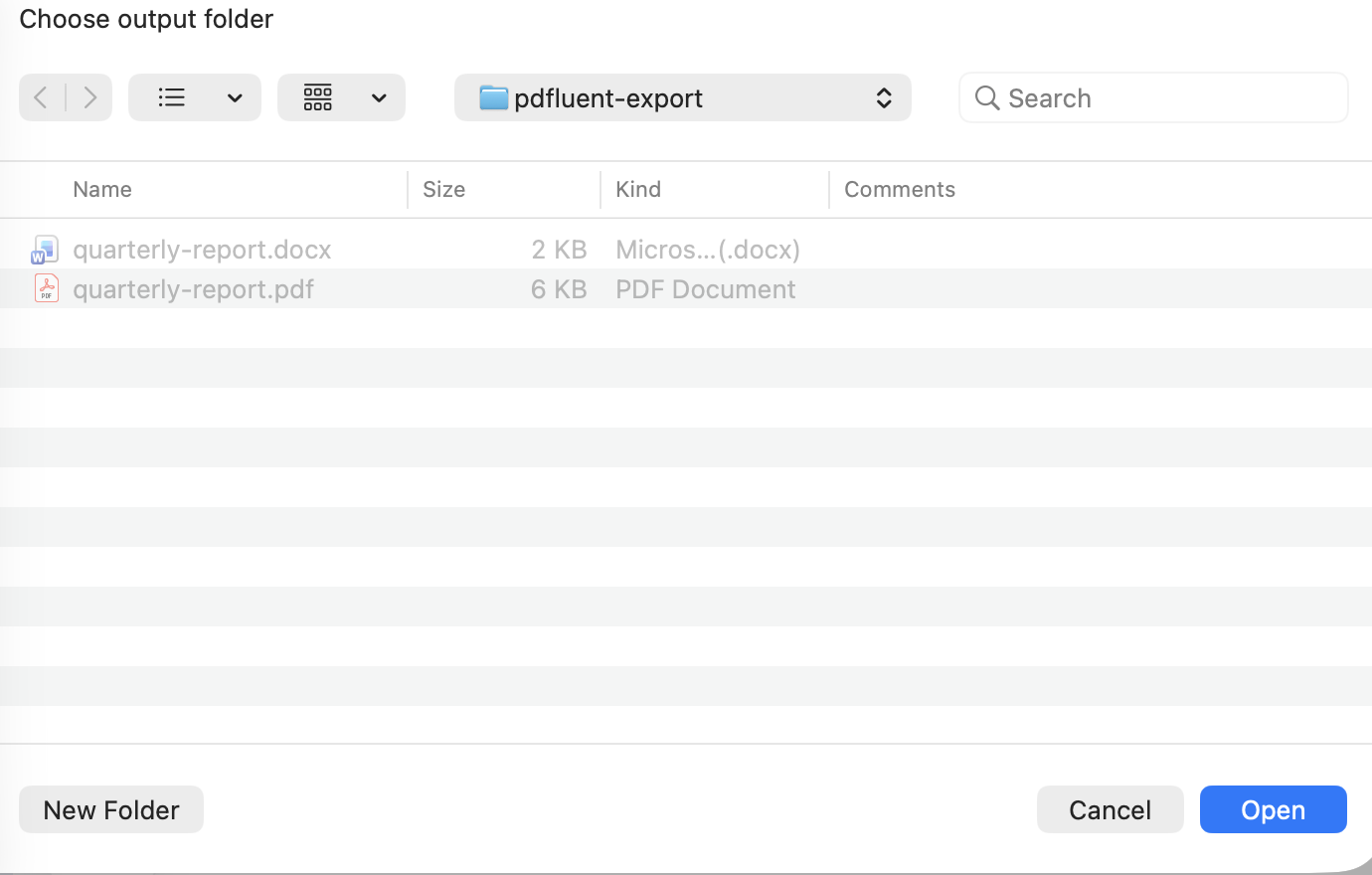
The editor asks "Choose output folder". Pick a folder, or make a new one with "New Folder", and press "Open". The editor saves one JPG per page there, named page-0001, page-0002 and so on.
PDFluent Editor is free for everyone, including commercial use, and your documents stay on your computer.
How to check it worked
- Open the output folder and count the files. One page gives one image.
- Open the first image and look at the page. Text is now part of the picture, so you cannot select it any more.
What it does and does not do
- It saves pages as image files. The "Format" field also offers "PNG (image)".
- It writes new files and leaves the PDF as it is.
- A picture has no text layer. If you need the words, export to Word instead.
- It runs on your computer. The file does not go to a website.
PDFluent Editor is free for everyone, including commercial use. On macOS, documents are processed on your computer and the editor works without an internet connection.
Frequently asked questions
How do I convert a PDF to JPG for free?
Open the PDF in PDFluent Editor, click "Convert", choose "Image", pick the pages and press "Export", then choose the output folder. The editor is free for everyone, including commercial use, and needs no account.
Can I convert only one page?
Yes. In the "Export" window choose "Current page" under "Page range". It exports the page you have open.
Do I get one image per page?
Yes. With "All pages" the editor saves one JPG for each page in the folder you choose.
Can I export PNG instead of JPG?
Yes. The "Format" field in the "Export" window also offers "PNG (image)".
Is the PDF uploaded anywhere?
No. The export happens on your own computer. On macOS the editor also works without an internet connection.
Keep reading
Building software? Get the SDK.