How to convert a PDF to a Word document on your computer
Open the PDF in PDFluent Editor, click "Convert" in the top bar, choose "Microsoft Word" and press "Convert to DOCX". In the "Export" window leave the format on "Word document (.docx)", press "Export" and pick a name and a folder. The editor writes a new Word file and leaves your PDF as it is. The editor is free for everyone, including commercial use, and you do not need an account.
Someone sent you a PDF and you need to change the text, reuse a paragraph or send it back with your edits. A Word document is the easiest place to do that, and the PDF will not let you type into it.
This guide shows how to convert a PDF to Word in PDFluent Editor 1.1, using the real labels from the app. It covers the steps, what the saved file is, what the export does not promise, and how to check the result.
PDFluent Editor is free for everyone, including at work, and you do not need an account. Version 1.1 is available for macOS and Windows.
When to convert a PDF to Word, and where the editor does it
Convert a PDF to Word when you want to rewrite or reuse the text in a word processor. If you only need to fix a word or two in the PDF itself, editing the PDF directly keeps the page exactly as it is.
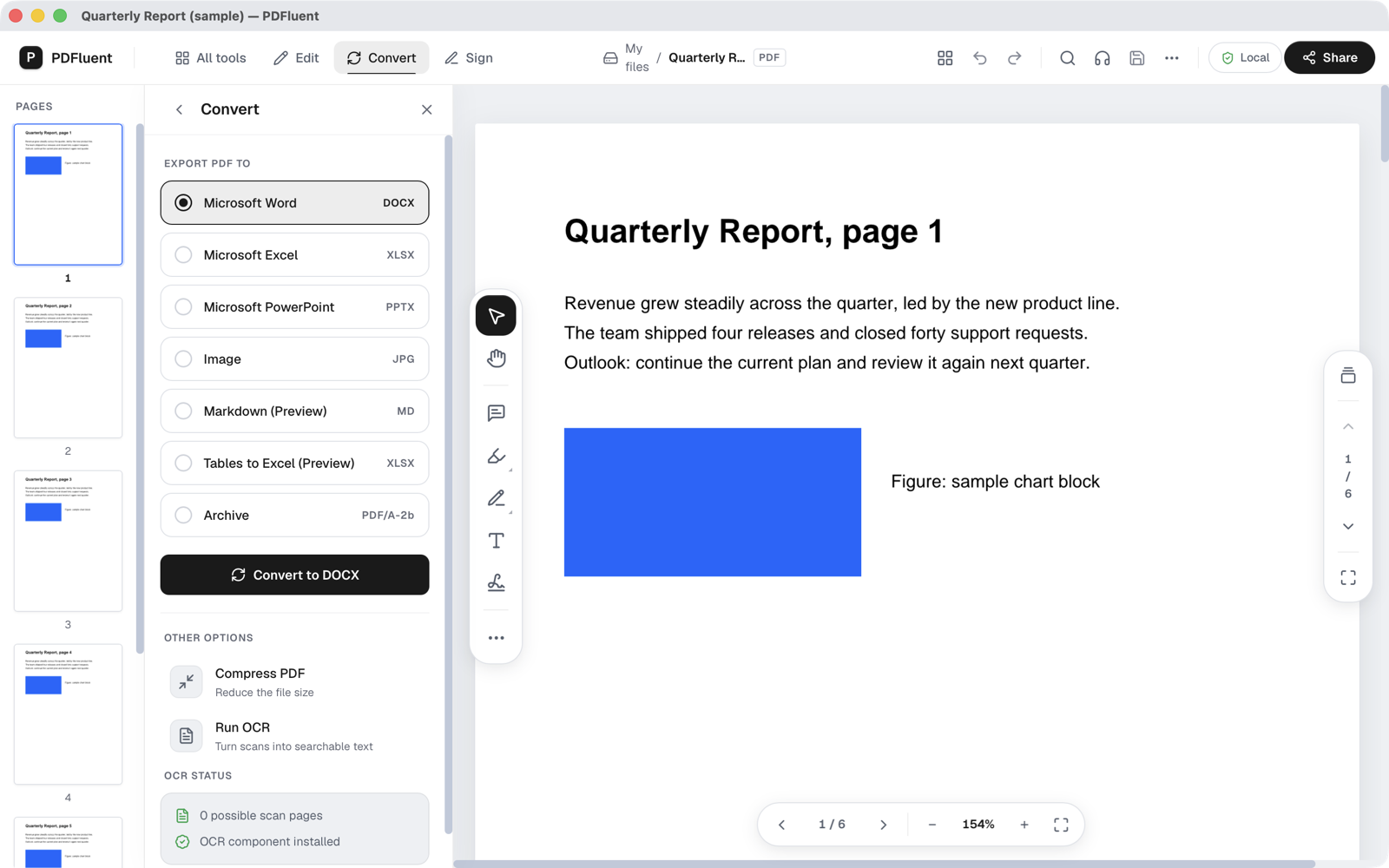
In PDFluent Editor, the export lives in the "Convert" panel. Click "Convert" in the top bar and the panel lists the formats under "EXPORT PDF TO": "Microsoft Word" (DOCX), "Microsoft Excel", "Microsoft PowerPoint", "Image", "Markdown (Preview)", "Tables to Excel (Preview)" and "Archive".
PDFluent Editor is free for everyone, including commercial and business use. No account is needed. Download it, open the PDF and export it to Word.
Convert a PDF to Word, step by step
The steps use PDFluent Editor 1.1 on a Mac. The conversion creates a new file, so the PDF you opened is not changed.
Open the PDF
Open the file in PDFluent Editor. If it asks for a password, type the password to open it first. The top bar shows "Convert" next to "Edit" and "Sign".
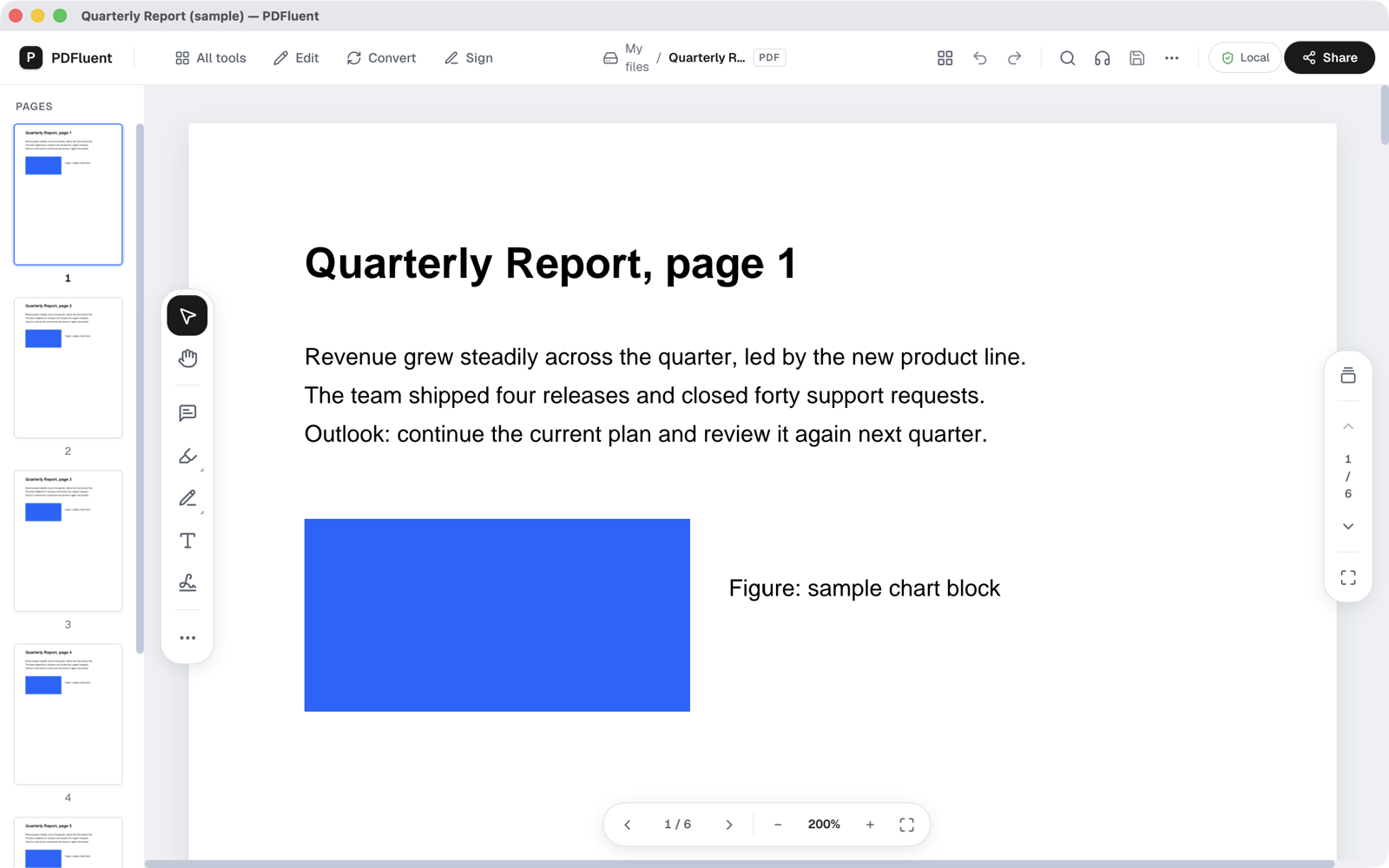
Click Convert and choose Microsoft Word
Click "Convert". The panel opens with the list "EXPORT PDF TO". "Microsoft Word" with the label DOCX comes first. The button at the bottom of the list reads "Convert to DOCX". Press it.
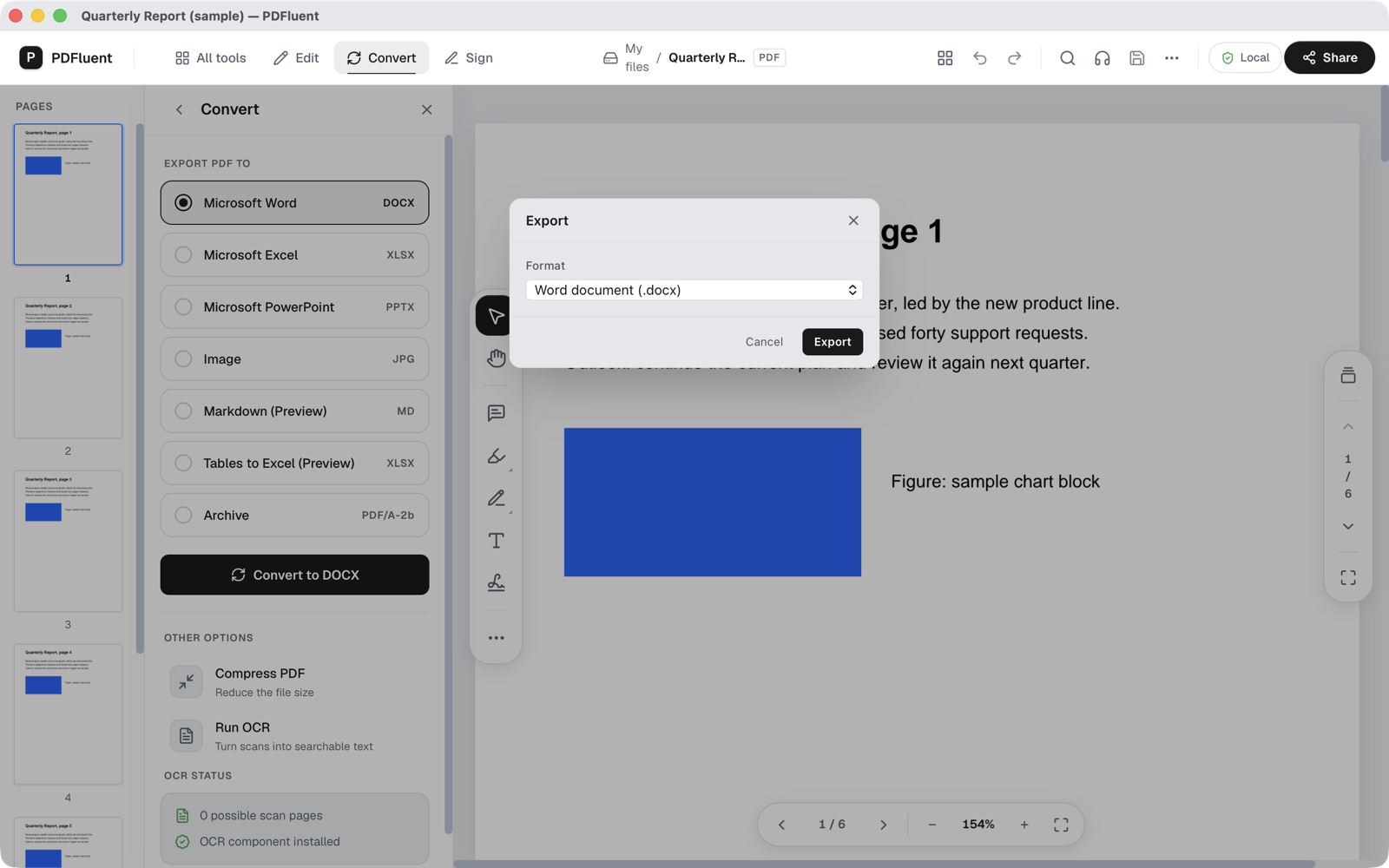
Check the format in the Export window
A small window called "Export" opens. Under "Format" it shows "Word document (.docx)". Press "Export". Press "Cancel" if you changed your mind.
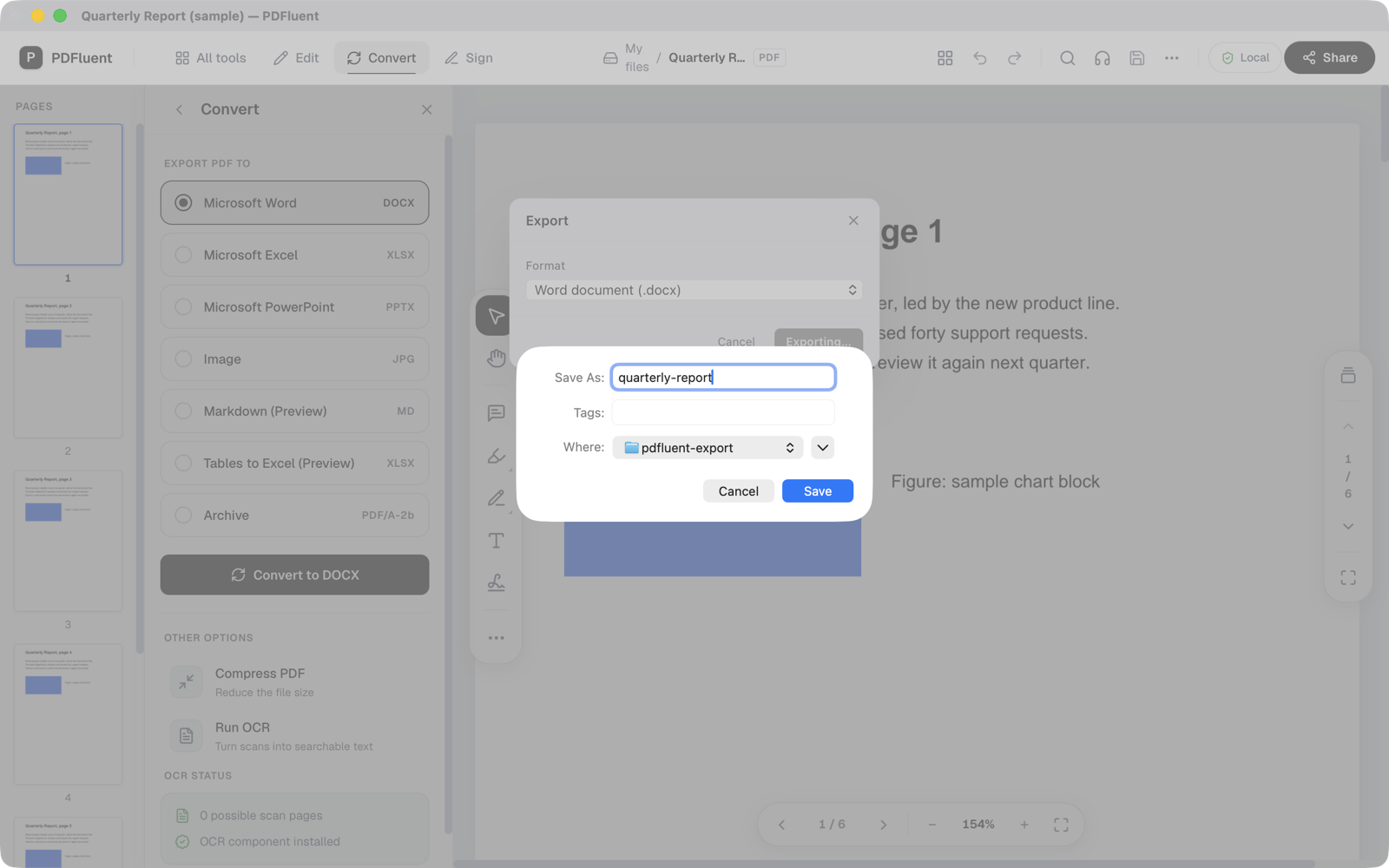
Name the file and choose a folder
Your Mac shows its save window. Type a name, choose the folder in the "Where" field and press "Save". The editor adds .docx to the name and writes the file there.
PDFluent Editor is free for everyone, including commercial use, and your documents stay on your computer.
How to check it worked
- Find the new .docx file in the folder you chose and open it in Word or another word processor.
- Read through it. The words of the PDF should be there as text you can select and change.
- Compare the first and last page with the PDF, so you know nothing is missing before you send it on.
- Look at anything with a complicated layout, such as columns or boxes, and fix it by hand if it moved.
If a page came out empty, the PDF page may be a scan. A scan is a picture of text, so there are no words to export. Make it searchable first with "Run OCR" in the same "Convert" panel, then export again.
What it does and does not do
- It turns the PDF into a Word document (.docx) that you can open and edit in a word processor.
- It writes a new file. The PDF you opened is not replaced.
- It exports the text of the document. This guide does not promise that tables, columns or page layout look the same in Word as in the PDF.
- It works on text. A scanned PDF needs "Run OCR" first.
- The same panel has "Microsoft PowerPoint" for slides, and the Excel option is marked "Preview" for tables.
- It runs on your computer. The file does not go to a website.
Free, and on your own computer
PDFluent Editor is free for everyone, at home and at work, including commercial use. No account is needed. Version 1.1 runs on macOS and Windows.
On macOS, documents are processed on your computer and the editor works without an internet connection. The file you convert does not have to go to a website first.
Frequently asked questions
How do I convert a PDF to Word for free?
Open the PDF in PDFluent Editor, click "Convert", choose "Microsoft Word", press "Convert to DOCX" and then "Export". Pick a name and a folder and save. The editor is free for everyone, including commercial use, and needs no account.
Does converting change my PDF?
No. The export writes a new .docx file in the folder you choose. The PDF you opened stays as it is.
Will the Word file look exactly like the PDF?
Do not count on it. The export carries the text into the Word file, but this guide makes no promise about tables, columns or page layout. Check the result and fix what moved.
Can I convert a scanned PDF to Word?
A scan is a picture, so it has no text to export. Use "Run OCR" in the "Convert" panel to make it searchable first, then export it to Word.
Can I convert a PDF to PowerPoint too?
Yes. The "Convert" panel lists "Microsoft PowerPoint" next to "Microsoft Word". The steps are the same.
Is the PDF uploaded anywhere?
No. The conversion happens on your own computer. On macOS the editor also works without an internet connection.
Is the editor free to use at work?
Yes. PDFluent Editor is free for everyone, including commercial and business use, and you do not need an account.
Keep reading
Building software? Get the SDK.