How to edit text in a PDF on a Mac for free
Open the PDF in PDFluent Editor and click "Edit" in the top bar. Click the line you want to change, choose "Edit text", type the new text and confirm with the check mark. Then save with Command-S. The editor is free for everyone, including commercial use, and you do not need an account.
A date is wrong in a letter. A company name changed after the contract was drafted. A title has a typo that everyone will see. You have the PDF, you have a Mac, and you do not want to pay for a subscription or upload the file to a website just to fix one line.
This guide shows how to edit text in a PDF on a Mac with PDFluent Editor 1.1. It walks through the exact steps and labels, explains why the new text cannot be longer than the old text, and shows how to check that the change is really in the saved file.
PDFluent Editor is free for everyone, including at work, and there is no account to create. Version 1.1 is available for macOS and Windows.
What you can change in a PDF, and how
Text editing in PDFluent Editor works right on the page. You double-click a line or a paragraph, rewrite it and save. You can also pick a font from the fonts installed on your computer, and set the size and colour.
It is made for corrections: a wrong date, a misspelled name, a title that needs a different word. The new text replaces the old text in the same place, so the rest of the page stays where it was. That is also why there is a limit on length, explained further down.
To add something new instead of changing what is there, the "Edit" panel has a section "Add content" with "Insert text box", "Place image" and "Place stamp".
PDFluent Editor is free for everyone, including commercial and business use. You do not need an account. Download it, open the PDF you want to fix and start.
Edit text in a PDF on a Mac, step by step
The steps below use PDFluent Editor 1.1 on macOS and a 2-page sample agreement. The goal is to change the title Services Agreement into Services Contract.
Open the file
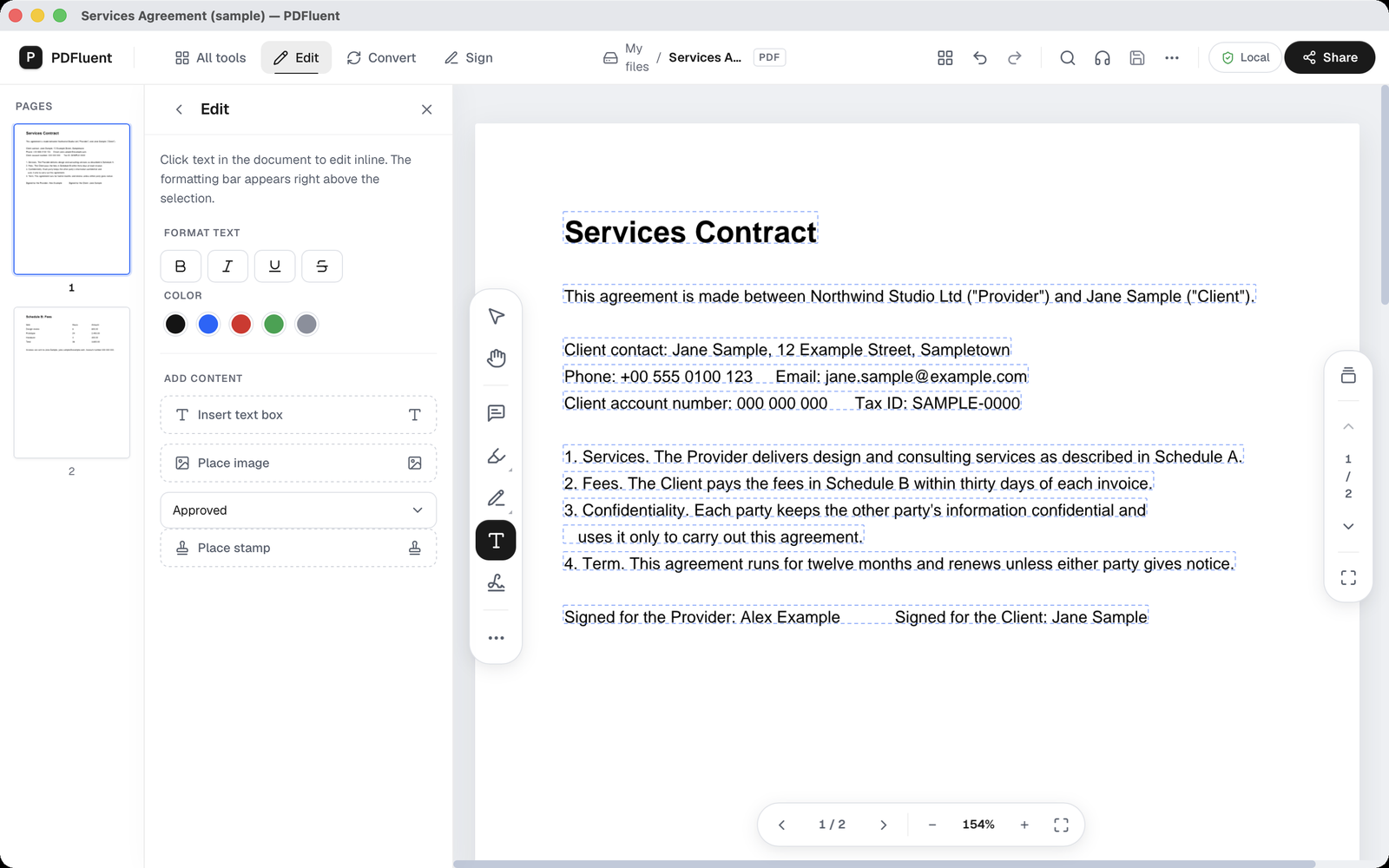
Open the PDF in PDFluent Editor. The top bar shows the tabs "All tools", "Edit", "Convert" and "Sign". Nothing on the page is selected yet.
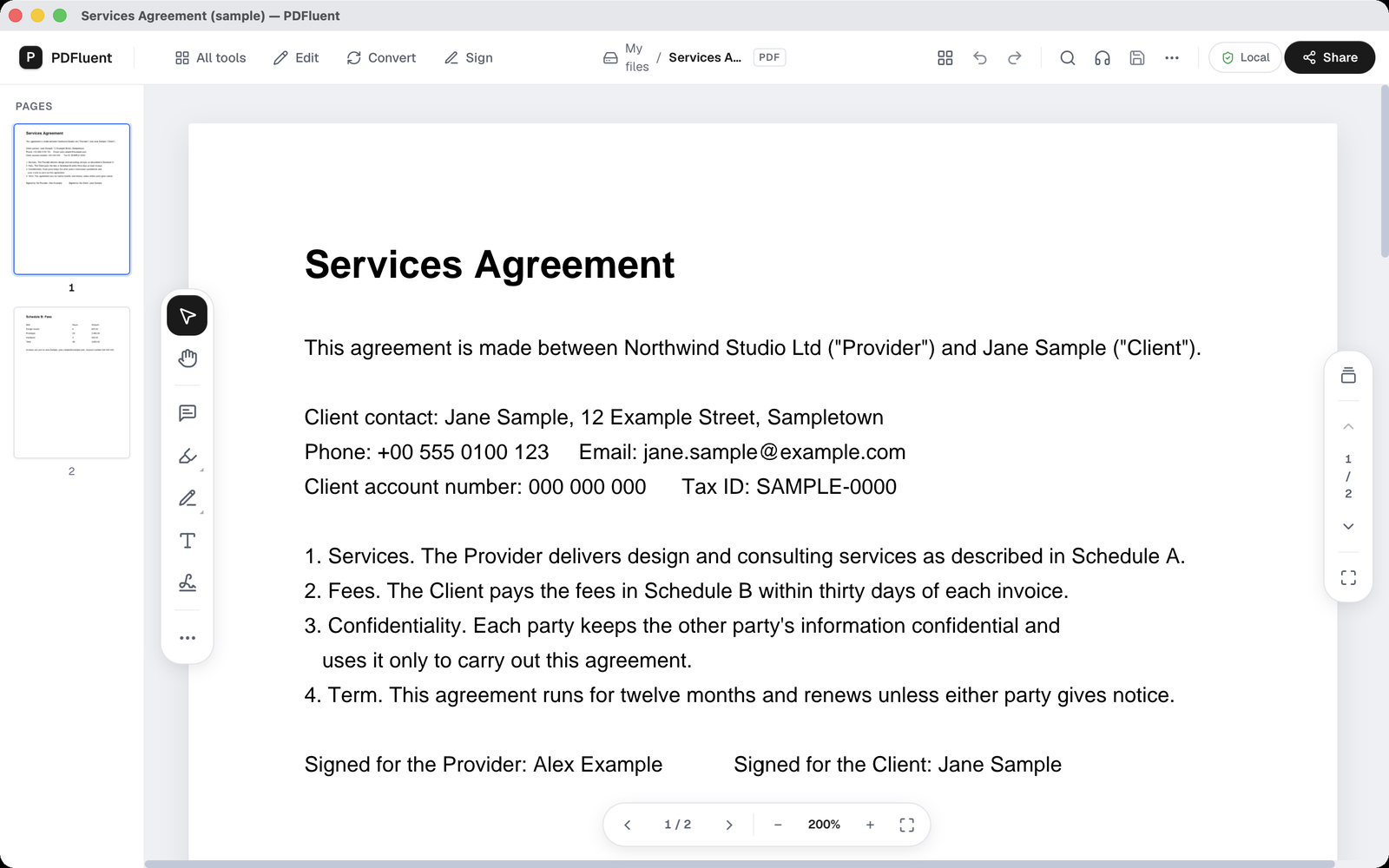
Click Edit
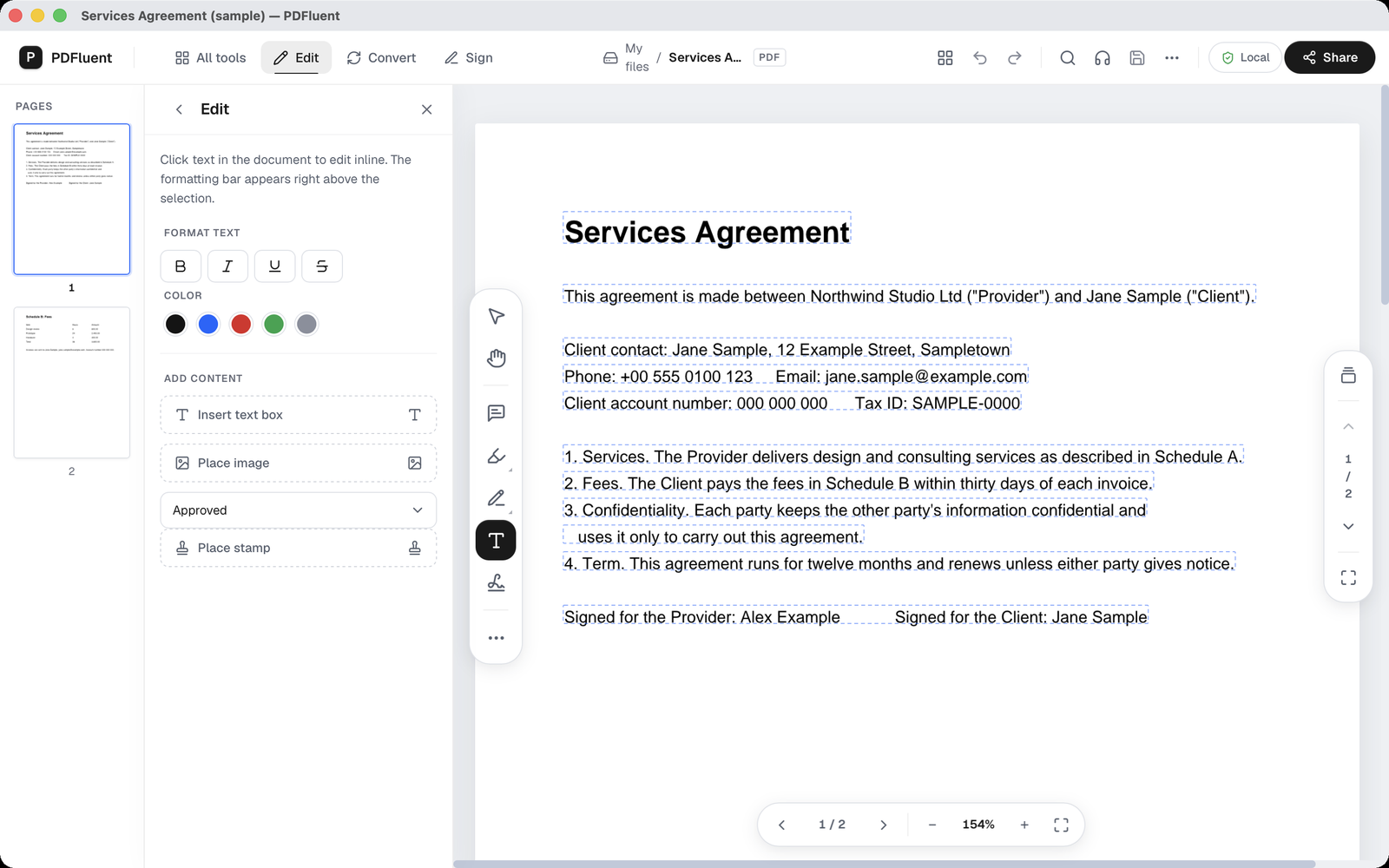
Click "Edit" in the top bar. A panel "Edit" opens with the text "Click text in the document to edit inline. The formatting bar appears right above the selection." Every line of real text on the page now has a dashed outline. The panel also holds "Format text" with the buttons B, I, U and S, "Color" with five swatches, and "Add content".
Click the line
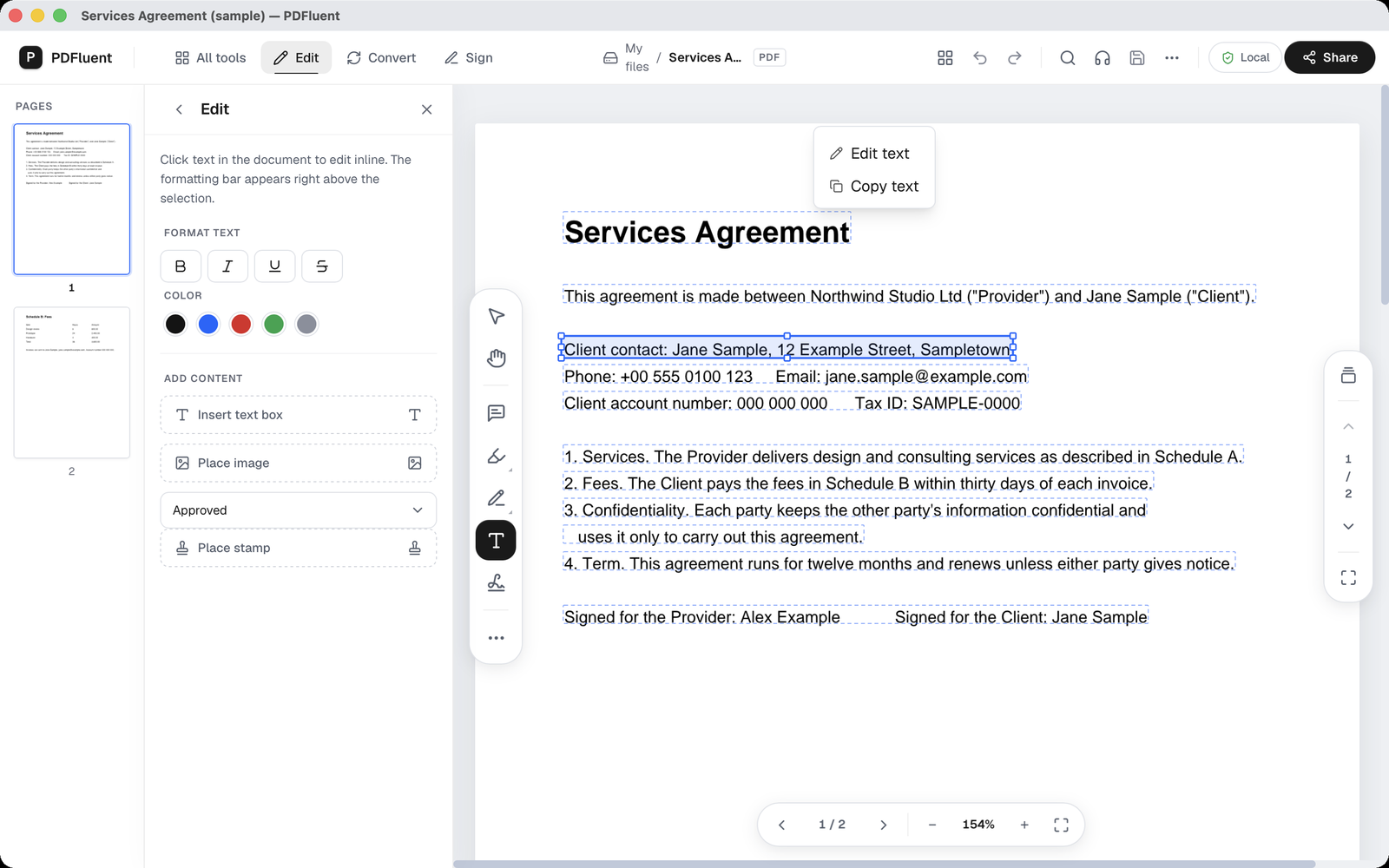
Click once on the line you want to change. The line gets a blue box with handles, and a small menu with "Edit text" and "Copy text" appears above it. In the screenshot, the selected line is the client contact line. You can also double-click a line to go straight to editing.
Type the new text
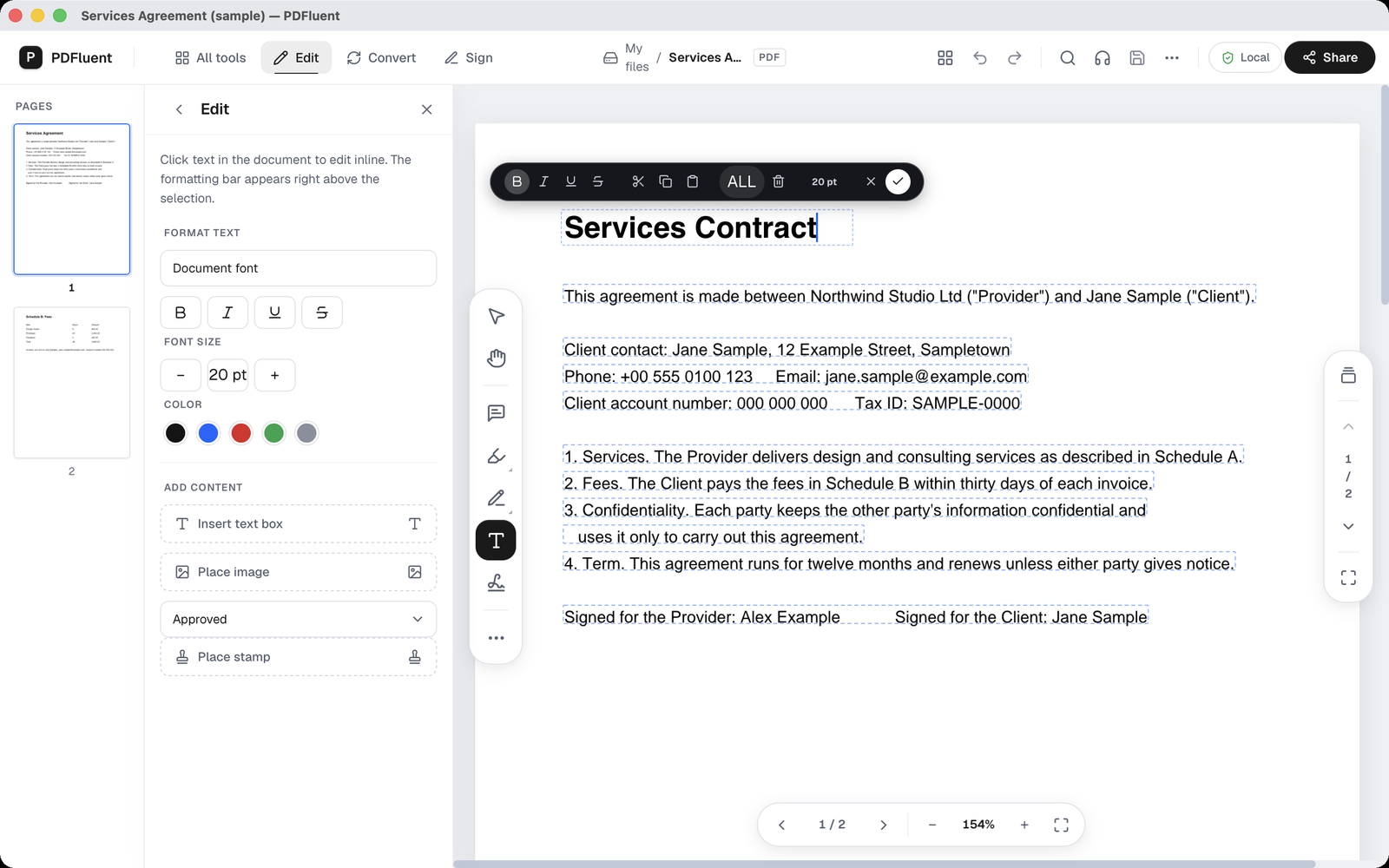
Choose "Edit text". A formatting bar appears right above the line, with bold, italic, underline and strikethrough, cut, copy and paste, a button marked ALL that selects all text of the block, a delete icon, the font size, an X to cancel and a check mark to confirm. The panel now also shows "Document font" and "Font size" with minus and plus. In the example, the title was selected with ALL and replaced by typing Services Contract.
Confirm and save
Click the check mark. The title bar gets an asterisk, which means the file has unsaved changes, and a green dot appears next to the PDF label. Press Command-S to save. The asterisk disappears. In a test, the text of the saved file was read back afterwards: page 1 started with Services Contract, and the old title was gone from the file, not hidden under the new one.
PDFluent Editor is free for everyone, including commercial use, and your documents stay on your computer.
What to know before you start
- You can only edit text that is really text. In Edit mode, every line of real text gets a dashed outline. If a line has no outline and you cannot click it, the page may hold a picture of text, and a picture has no text to edit.
- The new text must be the same length as the old text, or shorter. The panel says so: "Note: Text editing is limited to replacing existing words with equal or shorter text to prevent layout shifts." That is why the example shortens Services Agreement (18 characters) to Services Contract (17).
- You cannot write a long new paragraph in place of a short line. For a longer addition, use "Insert text box" under "Add content".
- A protected file has to be unlocked first. The editor then shows "Remove the protection to edit text." The guide on removing a password from a PDF shows how.
- Some fonts cannot be edited safely. This is about how the font is stored inside the PDF, not about how it looks. Only text in Latin-encoded fonts can be replaced.
- If the original font lacks a character you typed, the editor uses Helvetica for the replacement. The words are right, but the line may look slightly different.
- Your change becomes part of the saved file. Keep a copy of the original before you save.
| Message | What it means | What to do |
|---|---|---|
| Replacement is too long | The new text is longer than the text it replaces | Shorten it to the same length or less, or add the extra words with Insert text box |
| Remove the protection to edit text. | The file is protected | Remove the password first, then edit |
| The font behind this text uses an encoding (CID, Identity-H/V) that makes a direct replacement unsafe. Only Latin-encoded fonts can be edited. | This text is stored in a way that cannot be replaced safely | Leave this text as it is and edit other lines |
| The original font of this text has no glyph for one or more characters you typed, so Helvetica was used for the replacement. The text is correct; it may look slightly different from the rest of the line. | A character you typed is missing from the original font | Check the line; the words are correct |
How to check the result
Check the change before you send the file to anyone.
- Look at the title bar. No asterisk means the change is saved.
- Read the edited line in full, including the words around it. They should sit where they were before.
- Look at the font. If the editor used Helvetica for a missing character, the line may look slightly different from the rest.
- Close the file and open it again, so you see what a reader will see.
- Keep the original version in a safe place, in case you need the old wording back.
If the result is not right, open your copy of the original and make the change again, with shorter text if needed.
Free, and on your own Mac
PDFluent Editor is free for everyone, at home and at work, including commercial use. No account is needed. Version 1.1 runs on macOS and Windows.
On macOS, documents are processed on your computer and the editor works without an internet connection. The PDF you edit does not have to go to a website first. It stays on your Mac.
Frequently asked questions
How do I edit text in a PDF on a Mac for free?
Open the PDF in PDFluent Editor and click "Edit" in the top bar. Click the line, choose "Edit text" (or double-click the line), type the new text and confirm with the check mark. Then press Command-S to save.
Is it free to use at work?
Yes. PDFluent Editor is free for everyone, including commercial and business use.
Do I need an account, or do I have to upload the file?
No account is needed. On macOS, documents are processed on your computer and the editor works without an internet connection, so the file does not go to a website.
Why do I see "Replacement is too long"?
The new text is longer than the text it replaces. Text editing is limited to equal or shorter text, so the rest of the page keeps its layout. Shorten the text, or add the extra words with "Insert text box".
Can I change the font, size or colour?
Yes. You can pick a font from the fonts installed on your computer, and set the size and colour. While you edit, the formatting bar shows the current size, for example 20 pt, and the panel shows "Document font" and "Font size" with minus and plus.
Why can't I edit the text in my PDF?
There are a few common reasons. The file may be protected; remove the password first. The text may use a font that cannot be replaced safely. Or the page may hold a picture of text rather than real text. Real text gets a dashed outline when you click "Edit".
Does the old text stay hidden in the file?
In a test, the text of the saved file was read back after the edit. Page 1 started with the new title, and the old words were gone, not covered.
Keep reading
Building software? Get the SDK.