How to remove a password from a PDF you can open
Open the PDF in PDFluent Editor with its owner password, go to "All tools" > "Protect", press "Decrypt" and save the file. You need the owner password, the one that guards permissions; a password that only opens the file is not enough unless it is also the owner password. The editor is free for everyone, including commercial use, and it removes a password you know. It does not guess or crack one.
You have a PDF that asks for a password every time you open it. Maybe you set the password yourself before sending the file. Maybe it arrived that way from a bank, an employer or a client. Now the file sits in your own folder, and the password only gets in the way.
This guide shows how to remove the password in PDFluent Editor: open the file with its password, turn the protection off, and save. It explains the two kinds of PDF password and which one you need. It also covers what the editor cannot do, and how to check the saved file.
PDFluent Editor is free for everyone, including at work, and you do not need an account. Version 1.1 is available for macOS and Windows.
Why remove a password, and which one
A password on a PDF makes sense while the file travels. Once the file is in your own archive, it costs you a step every time you open it. Anyone else who needs the file needs the password too. And a password sent in the same email as the file protects very little.
A PDF can carry two different passwords. The user password, also called the open password, is required to open and view the document. The owner password, also called the permissions password, is required to later change permissions such as printing, copying text or allowing edits.
To remove the protection in PDFluent Editor, you need the owner password. The password you opened the file with is not enough unless it is also the owner password. Some files use one password for both, so the one you have may already be the right one.
| User password | Owner password | |
|---|---|---|
| Also called | Open password | Permissions password |
| What it controls | Opening and viewing the document | Changing permissions later, such as printing, copying text or allowing edits |
| What you need to remove protection | The owner password, unless this password is also the owner password | This password. Open the file with it, then press "Decrypt" |
PDFluent Editor is free for everyone, including commercial and business use. There is no account to create. Download it, open a copy of the protected PDF and start.
Remove the password, step by step
Before you start, make a copy of the protected file and keep the original. The steps below use the PDFluent Editor 1.1 interface.
Open the file
Open the protected PDF in PDFluent Editor. A dialog titled "This PDF is protected" appears, with the text "Enter the password to open" followed by the file name.
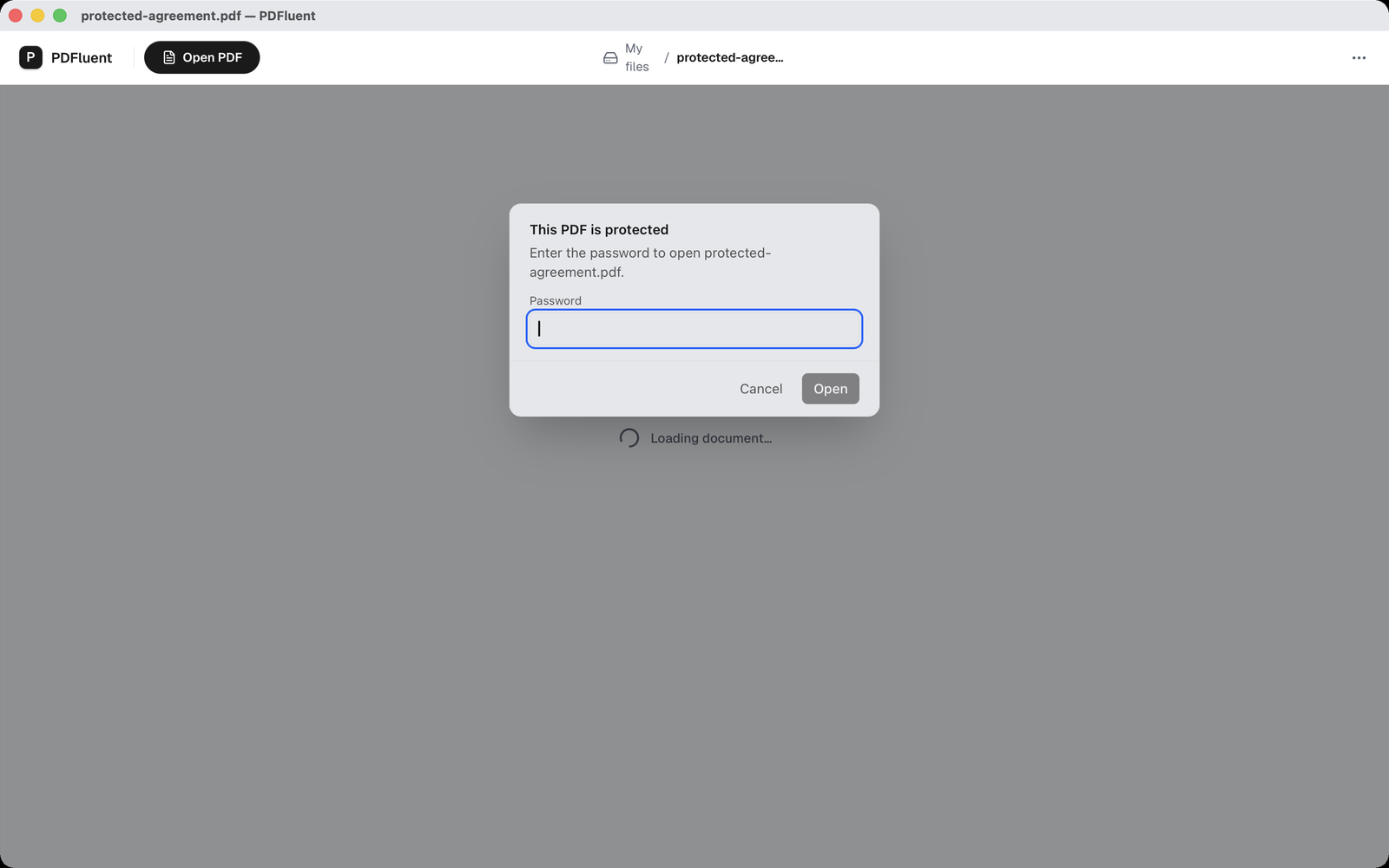
Type the owner password
Type the owner password in the "Password" field. The user password also opens the file, but removing the protection needs the owner password.
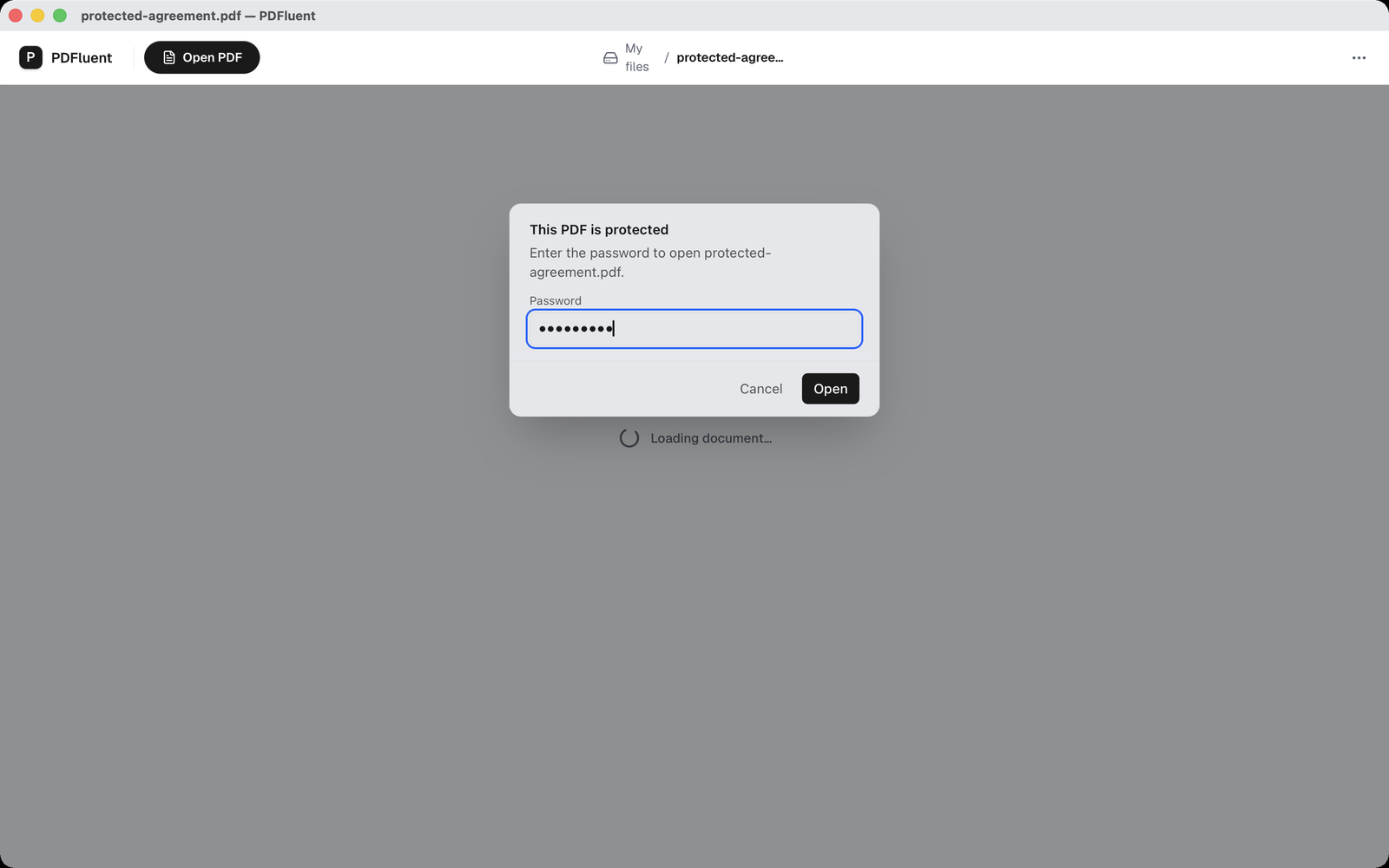
Click Open
Click "Open". If the password is wrong, the dialog says "That password does not open this PDF. Try again." and you can type it again.
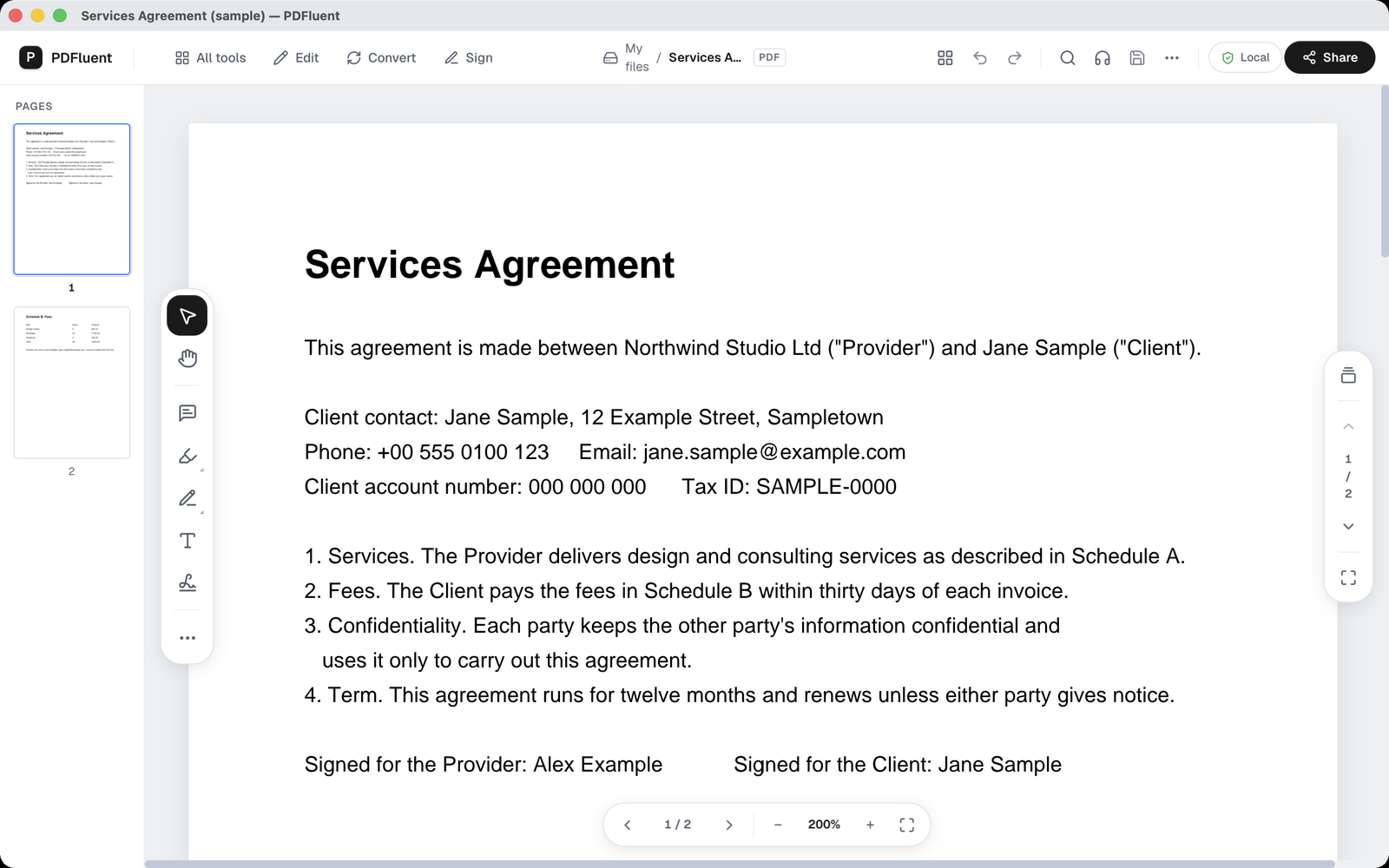
Choose Protect
Open "All tools" and choose "Protect". Its subtitle is "Password & permissions".
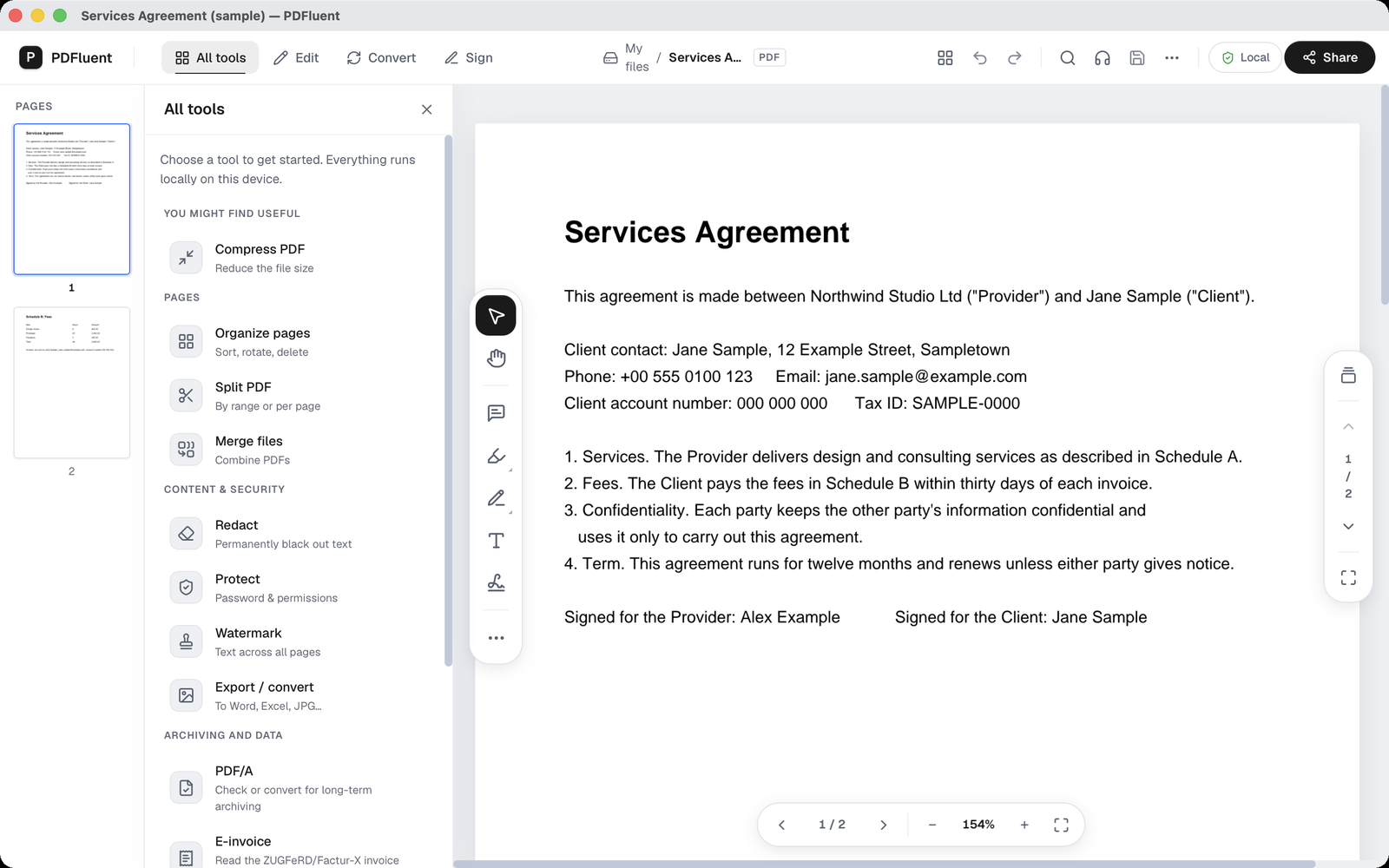
Read the panel
The panel has a section "Password protection" with "Encrypt" and "Decrypt". Because you opened the file with the owner password, it says "You opened this file with the owner password, so the protection can be removed without typing it again."
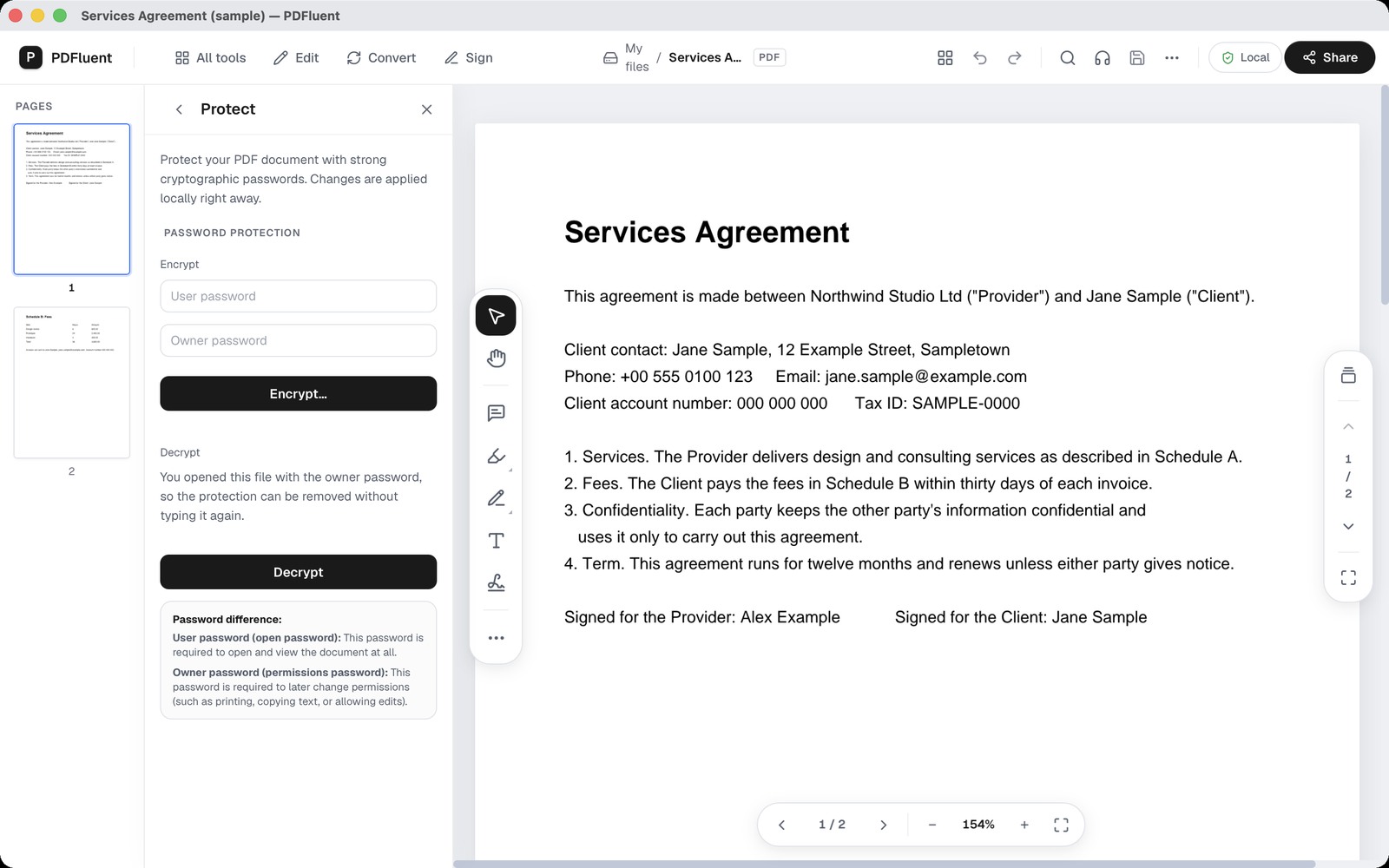
Press Decrypt
Press "Decrypt". The text in the panel changes to "This document has no password protection."
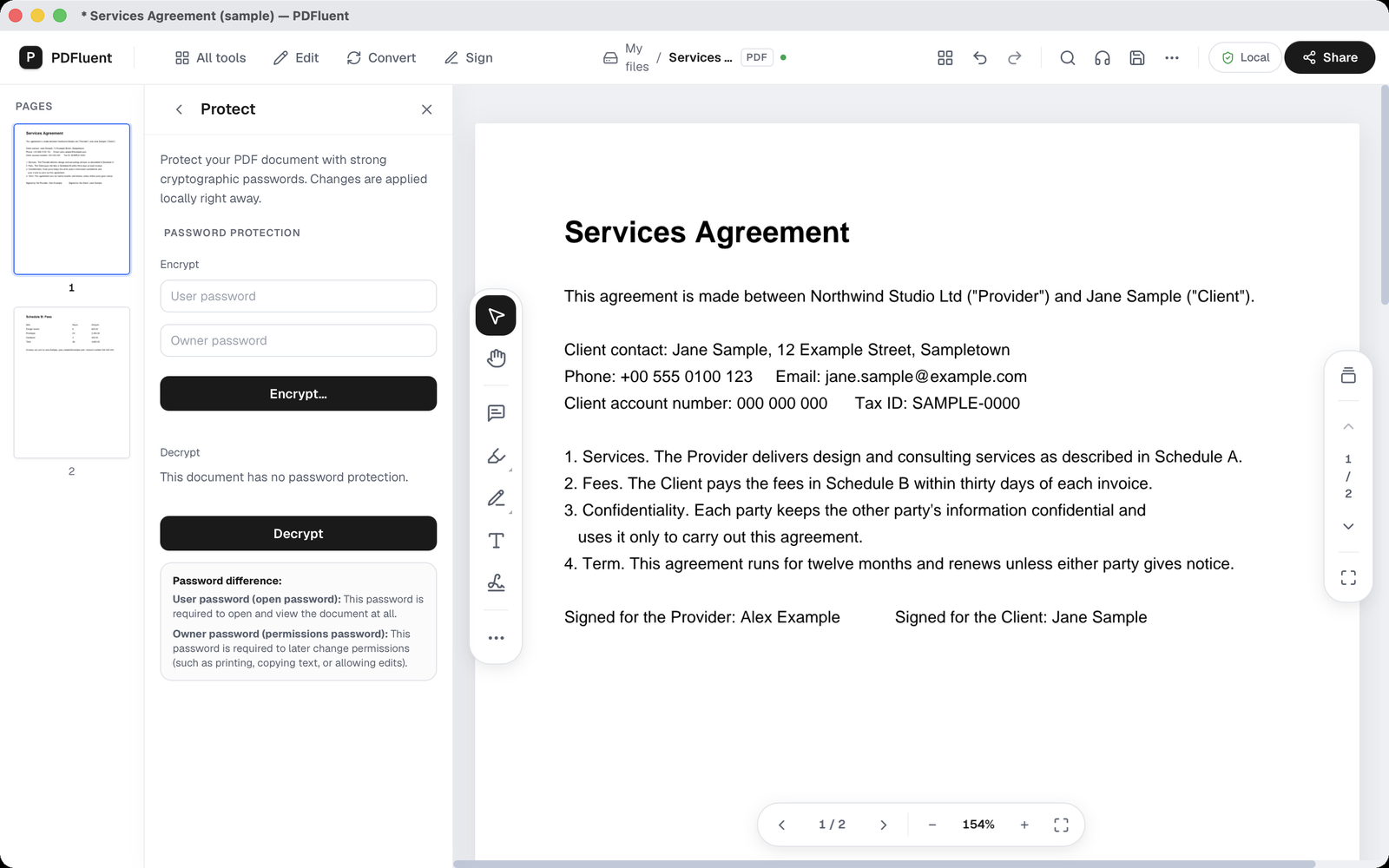
Save the file
Save the file. Saving writes it without protection. Until you save, the file on your disk still has its password.
PDFluent Editor is free for everyone, including commercial use, and your documents stay on your computer.
What it does not do
Removing a password in PDFluent Editor does one thing: it takes off protection you can already open. A few things sit outside that.
- It does not guess or crack passwords. It removes a password you know. If the owner password is lost, the editor cannot recover it.
- Only unlock files you have the right to unlock, such as your own documents or files you were given the password for so you could use them this way.
- The open password alone may not be enough. Removing protection needs the owner password, unless the file uses the same password for both.
- Some protection cannot be opened at all. A file protected with a certificate, or with a method the editor does not support, does not open. The editor says "PDFluent cannot open this kind of protection" and suggests asking the sender for a copy without protection, or one protected with a password.
- Nothing changes on disk until you save. Pressing "Decrypt" changes the document you have open. Close it without saving and the file on your disk keeps its password.
- Keep the original. If you save over the protected file, the protected version is gone. Work on a copy and keep the original somewhere safe.
- A password keeps a file closed. It is not a guarantee against everyone. Once you remove it, anyone who gets the copy can open it, so decide who receives the unprotected file.
How to check that it worked
Check the saved file, not the document you still have open.
- Close the file in PDFluent Editor.
- Open the saved copy again.
- It should open without the "This PDF is protected" dialog.
- That copy is the one to send or store. Keep the protected original separately.
If the dialog still appears, you opened the original, or the file was not saved after "Decrypt". Open it with the owner password, press "Decrypt" again, save, and check once more.
Free, and on your own computer
PDFluent Editor is free for everyone, at home and at work, including commercial use. No account is needed. Version 1.1 runs on macOS and Windows.
On macOS, documents are processed on your computer and the editor works without an internet connection. On a Mac, the protected file and its password stay with you while you unlock it.
Frequently asked questions
Can I remove a password from a PDF if I forgot it?
No. PDFluent Editor removes a password you know. It does not guess or crack passwords. If you have lost the owner password, ask the person who sent the file for a copy without protection.
What is the difference between the user password and the owner password?
The user password, or open password, is required to open and view the document. The owner password, or permissions password, is required to later change permissions such as printing, copying text or allowing edits. To remove the protection, you need the owner password.
Does it work offline?
On macOS, yes. The editor works there without an internet connection, and documents are processed on your computer. This page only makes that statement for macOS.
Is it free to use at work?
Yes. PDFluent Editor is free for everyone, including commercial and business use, and you do not need an account.
Will the original file change?
Not until you save. Pressing "Decrypt" changes the document you have open, not the file on your disk. If you save over the original, the protected version is gone, so make a copy before you start.
What if it says it cannot open this kind of protection?
Then the file is protected with a certificate or with a method the editor does not support, and it cannot be opened. The editor shows "PDFluent cannot open this kind of protection". Ask the sender for a copy without protection, or one protected with a password.
Keep reading
PDFluent Editor is free for everyone.
Including at work. No account, and your documents stay on your computer.