How to make a scanned PDF searchable (OCR)
Open the scanned PDF in PDFluent Editor, click the "Convert" tab in the top bar and press "Run OCR" under "Other options". The editor reads the page and adds the words it finds as searchable text. Search for a word to check it worked, then save. OCR is built in, so there is nothing to download, and it reads six languages. The editor is free for everyone, including commercial use, and you do not need an account.
You scanned a page, or someone sent you a scan. It looks like text. But search finds nothing, and when you try to select a sentence, you get the whole page or nothing at all.
This guide shows how to make a scanned PDF searchable with PDFluent Editor 1.1. It follows the real app on a one-page scan called Meeting notes, a picture of a typed page with invented content. You run OCR, check the result with search, and save.
PDFluent Editor is free for everyone, including at work. There is no account to create. Version 1.1 is available for macOS and Windows.
Why a scan is not searchable, and what OCR does
A scanner takes a photo of the paper. The PDF it makes holds that photo, nothing more. To you the page shows words. To the computer it is a grid of dots, so there is no text to search, select or copy.
OCR, short for optical character recognition, looks at that picture and works out which letters are on it. PDFluent Editor then puts the recognised words on the page as an invisible text layer, lined up over the picture. The page looks exactly as before. The difference is that search and copy now have something to work with.
PDFluent Editor is free for everyone, including commercial and business use. No account is needed, and OCR is part of the app. Download it, open the scan and run OCR.
Make a scanned PDF searchable, step by step
The steps use PDFluent Editor 1.1 on macOS and the one-page Meeting notes scan.
Open the scan
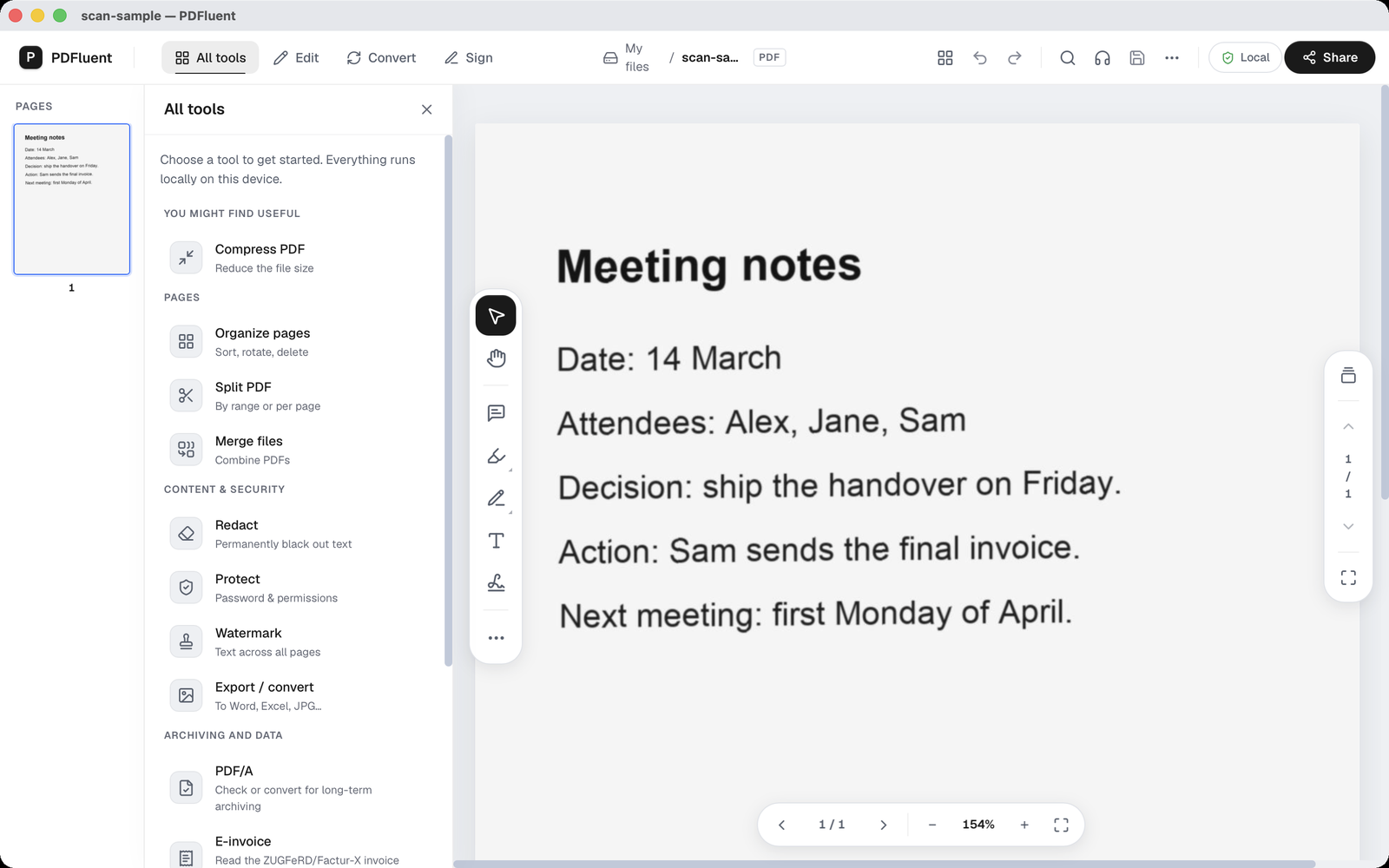
Open the PDF in PDFluent Editor. The page looks normal, but nothing on it is text. It is one picture. The "All tools" panel sits next to the page. You do not need it for this job.
Open the Convert tab
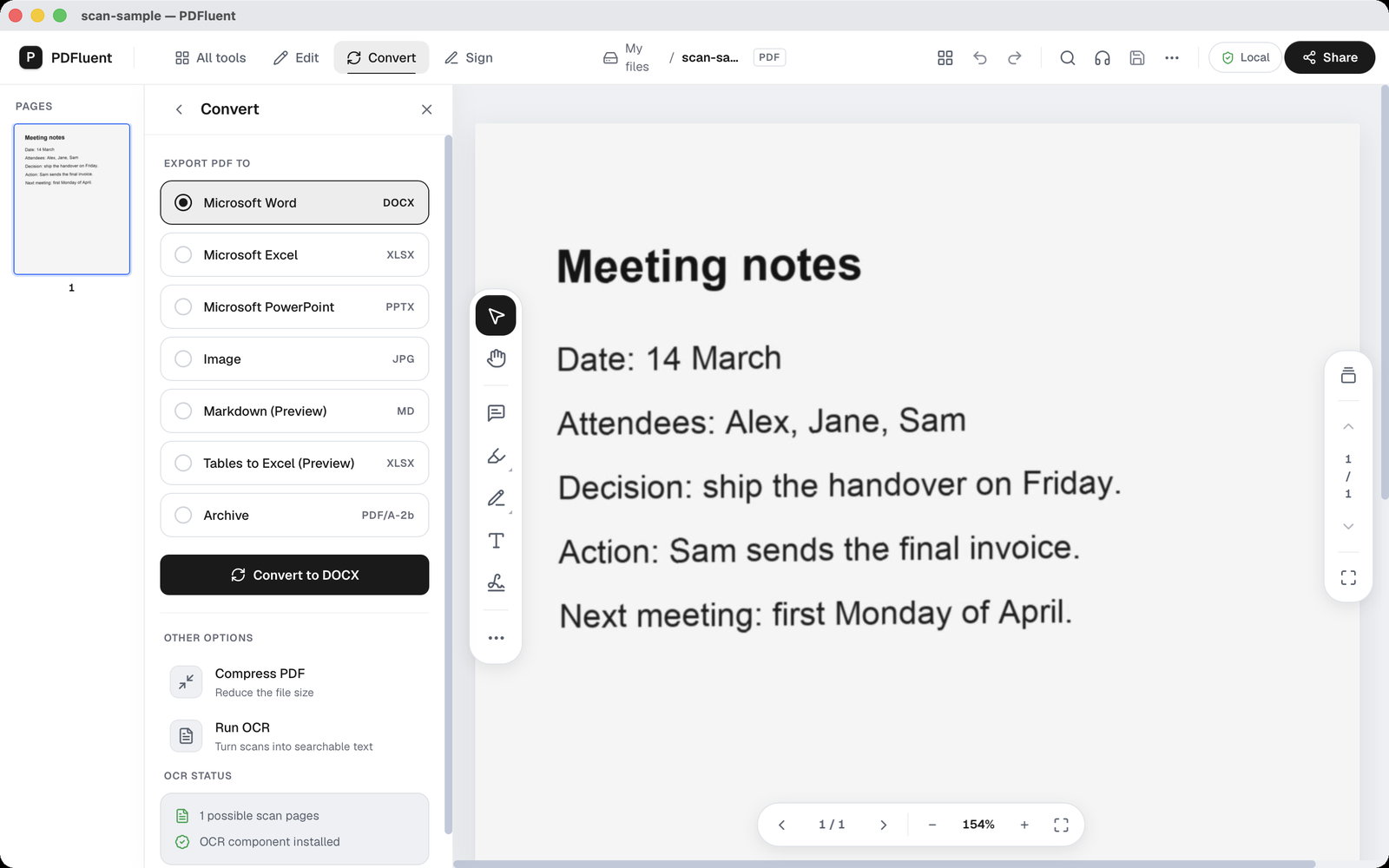
Click the "Convert" tab in the top bar. The panel opens with "Export PDF to" and a list of formats. Skip those and look further down, at the group "Other options". It holds "Compress PDF" and "Run OCR", with the line "Turn scans into searchable text" under it. Below that is a box called "OCR status". For this file it said one page looked like a scan, and it showed "OCR component installed".
Run OCR
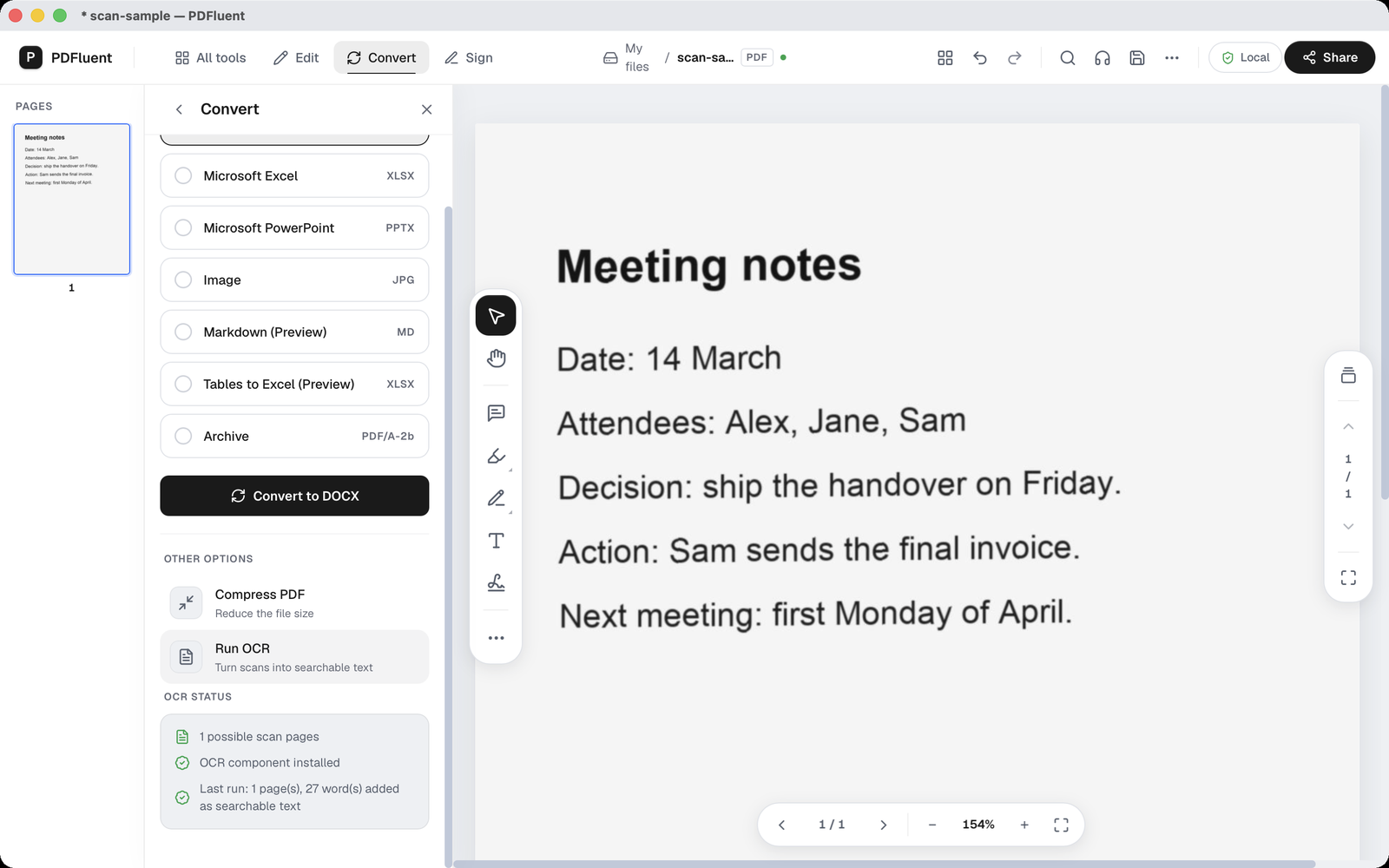
Press "Run OCR". On a single page it finished quickly. On a longer file the app shows progress page by page while it works. When it is done, an asterisk appears in the title bar. That means the document has changes you have not saved yet.
Read the status
Look at the "OCR status" box again. It now has a third line, of the form "Last run: N page(s), N word(s) added as searchable text", with the real counts filled in. It tells you how many pages the editor read and how many words it added.
Check it with search
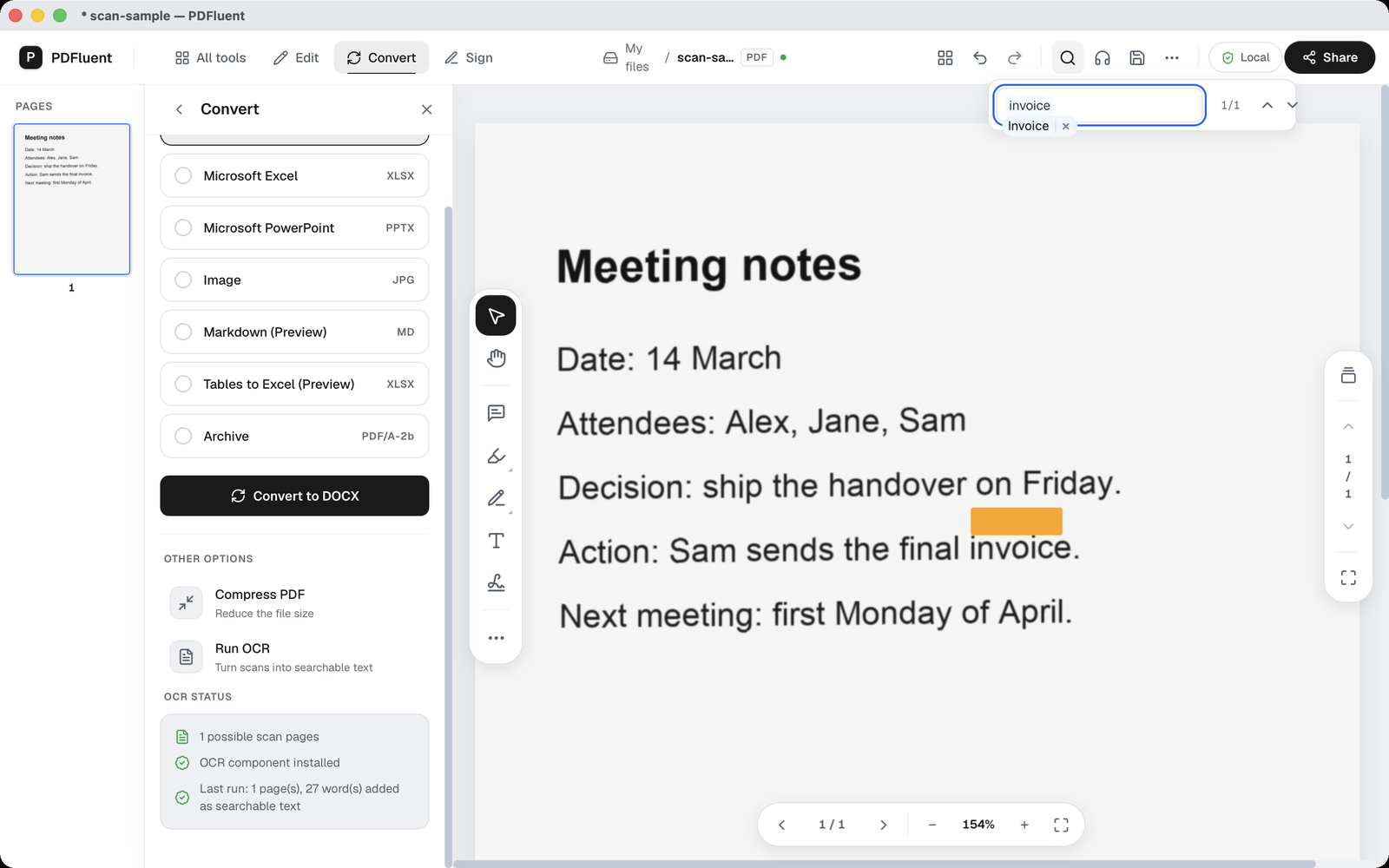
Click the magnifier icon in the top bar, type a word you can see on the page and press Return. In the example the word was invoice. The search showed 1/1 and marked the match on the page, near the word. Before OCR, the same search found nothing, because the page had no text.
Save
Press Command-S on a Mac. The asterisk in the title bar goes away. The text layer is now saved in the file. If you want to keep the scan as it came in, save a copy under a new name instead.
In a test, the saved copy was read back with the PDFluent SDK. It contained the text of the page: the title, the date, the attendees, the decision, the action and the next meeting. The original scan had no text at all.
PDFluent Editor is free for everyone, including commercial use, and your documents stay on your computer.
What to know before you start
- OCR reads six languages: English, Dutch, German, French, Spanish and Italian.
- OCR is built in. There is nothing extra to download or install. While it works, the app can show "OCR running locally…".
- Recognition is not perfect, and no accuracy is promised. Read the text through before you rely on it.
- Signed documents are left alone. OCR would change the signed pages, so the app shows "This document is signed. OCR would change the signed pages, so it is not run."
- The recognised text is a layer for search and copy. You cannot edit it in place with the text editor. The app says "Editing and saving is not possible for OCR text."
- If you change the document while OCR is running, you see "The document changed while OCR was running. Run OCR again." Do what it says.
- Keep a copy of the original scan before you save over it.
How to check the result
A searchable PDF is only useful if the words it found are the right ones. Two short checks cover most of it.
- Search for a few words you can see on the page, including names and numbers. Each one should be found.
- Select a paragraph, copy it and paste it into a plain text file. Read it against the page.
- Look for words that ran together. In the test, a few did: handover and on came out as handoveron, and Sam and sends as Samsends. A search for one of those words on its own may then miss.
- If something went wrong, the app shows "OCR failed". Try again on a cleaner, straighter scan if you can make one.
Free, and on your own computer
PDFluent Editor is free for everyone, at home and at work, including commercial use. No account is needed. Version 1.1 runs on macOS and Windows.
On macOS, documents are processed on your computer and the editor works without an internet connection. OCR is built in, so the scan does not have to go to a website to become searchable.
Frequently asked questions
How do I make a scanned PDF searchable for free?
Open the scan in PDFluent Editor, click the "Convert" tab and press "Run OCR". The editor adds the words it finds as searchable text. Save the file. It is free, including for commercial use.
Do I need an account, or do I have to upload the file?
No account is needed. On macOS, documents are processed on your computer and the editor works without an internet connection. OCR is built in, with nothing to download.
Which languages does the OCR read?
Six: English, Dutch, German, French, Spanish and Italian.
Does OCR change how the page looks?
No. The picture stays as it was. The words are added as searchable text in an invisible layer over the picture, so you can search and copy them.
Why does it say No scanned pages detected?
The app shows "No scanned pages detected" when it finds no page that looks like a scan. Usually the PDF already has real text. Try searching it first. If search finds the words, the file is searchable already.
Can I edit the recognised text?
No. You can search and copy it, but not change it in place. The app says "Editing and saving is not possible for OCR text."
Is it free to use at work?
Yes. PDFluent Editor is free for everyone, including commercial and business use.
Keep reading
Building software? Get the SDK.