How to convert a PDF to PDF/A (and check it)
Open the PDF in PDFluent Editor, click "All tools" and choose "PDF/A" under "Archiving and data". Press "Check this document" to see where the file falls short, then press "Save as PDF/A…" and pick a name and a folder. The editor writes a new file and leaves the original alone. A green line "Conforms to PDF/A-2B" means the copy passed the check. The editor is free for everyone, including commercial use, and you do not need an account.
Someone asked for the file in PDF/A. Maybe an archive or an upload form asked for it. You have an ordinary PDF, and it does not fit.
This guide shows how to convert a PDF to PDF/A with PDFluent Editor 1.1. It uses the real labels from the app and a 6-page sample called Quarterly Report (sample). You check the file first, save a PDF/A copy, and then read what the editor changed to get there.
PDFluent Editor is free for everyone, including at work. There is no account to create. Version 1.1 is available for macOS and Windows.
What PDF/A is and when you need it
The editor puts it in one sentence: "PDF/A is the archival form of PDF: fonts embedded, colours defined, nothing that depends on the outside world." A PDF/A file carries everything it needs to look the same years from now, on a computer that has none of your fonts installed.
You usually need it because someone else asks for it. Archives, public bodies and some submission systems want PDF/A so they can store the file for a long time. If nobody asked, a normal PDF is fine. Which PDF/A level a recipient wants is something to ask them.
PDFluent Editor is free for everyone, including commercial and business use. No account is needed. Download it, open the PDF and convert it.
Convert a PDF to PDF/A, step by step
The steps use PDFluent Editor 1.1 on macOS and the 6-page sample report. The goal: find out whether the file is PDF/A already, then save a copy that is.
Open the PDF and click All tools
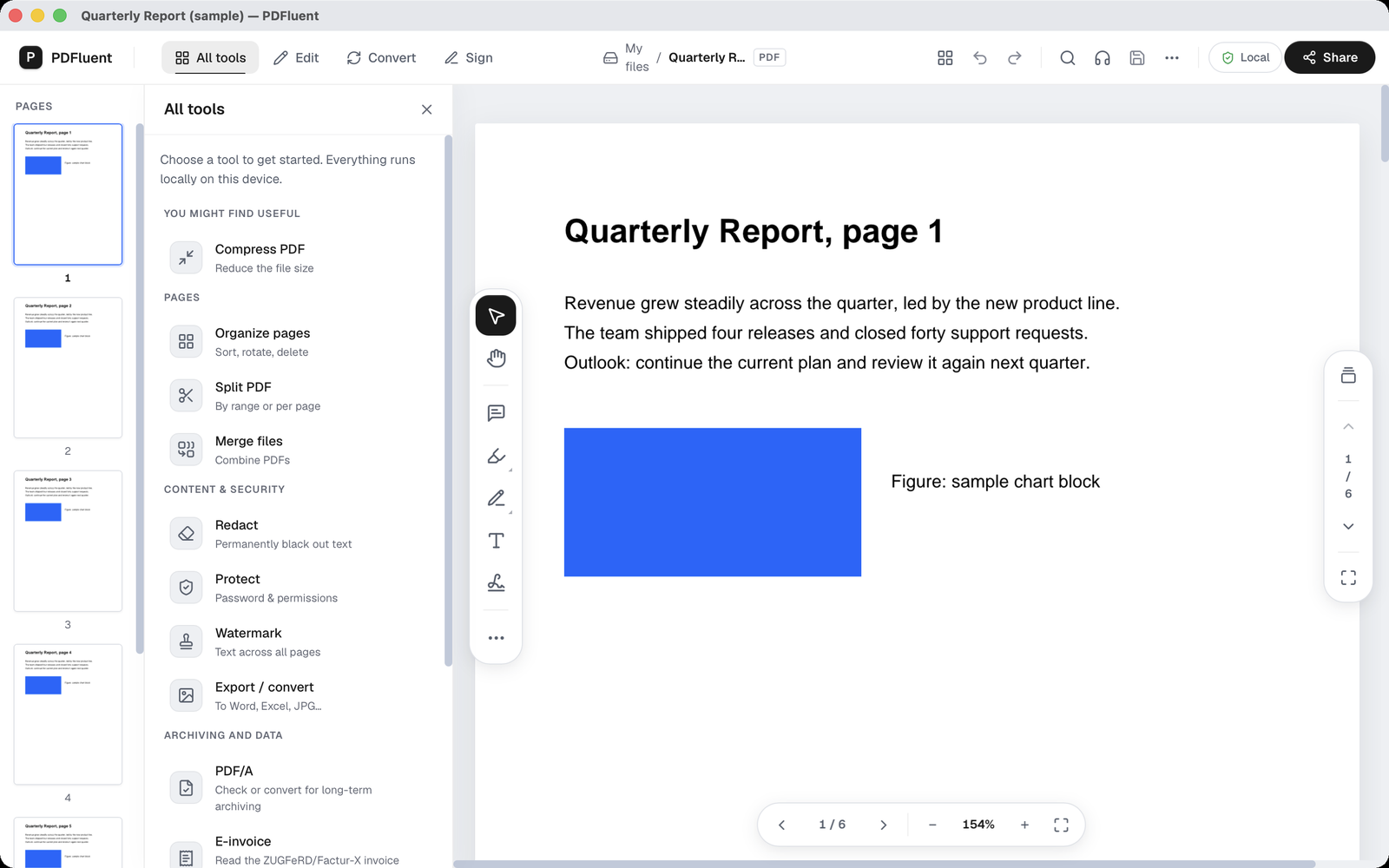
Open the file in PDFluent Editor and click "All tools". A list of tools appears, sorted into groups. Scroll to the group "Archiving and data". The first entry there is "PDF/A", with the line "Check or convert for long-term archiving" under it.
Open the PDF/A panel and look at Level
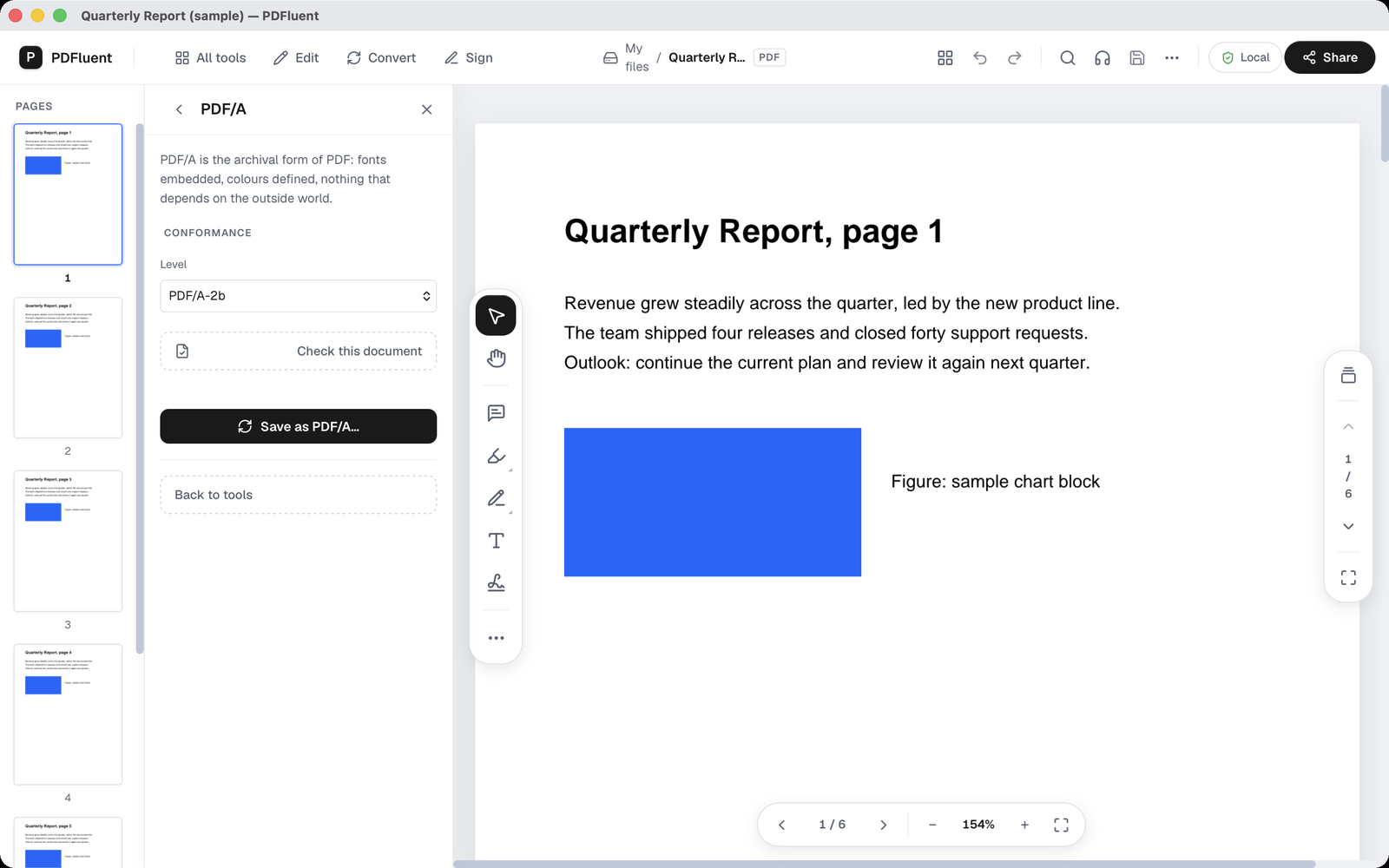
Click "PDF/A". The panel opens with the sentence about the archival form of PDF at the top. Below it sits a section "Conformance", shown in capitals, with a drop-down "Level". In the example it shows PDF/A-2b. Under that are a button "Check this document", a dark button "Save as PDF/A…" and a link "Back to tools".
Check the document first
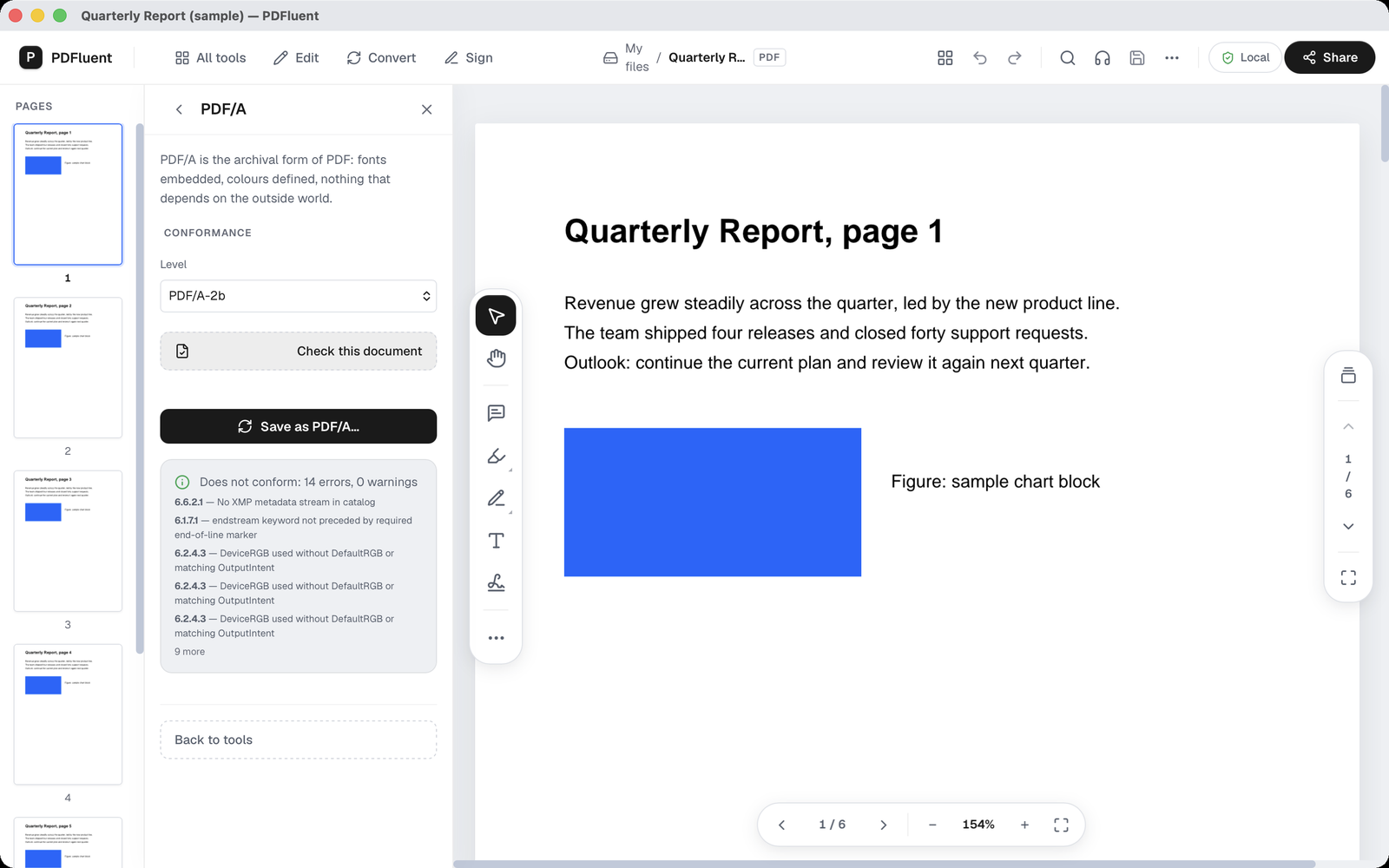
Press "Check this document". A grey box gives the verdict. For the sample it read "Does not conform: 14 errors, 0 warnings", followed by the first findings, each with a rule number. Among them: 6.6.2.1, no XMP metadata stream in the catalog, and several times 6.2.4.3, DeviceRGB used without a matching colour definition. The rest is folded into a line saying 9 more. Nothing is wrong with the report. It just is not PDF/A yet.
Save as PDF/A
Press "Save as PDF/A…". The Mac save dialog opens. Type a file name, choose a folder under Where and click Save. The editor writes the PDF/A version as a new file. The PDF you have open stays as it was.
Read the result
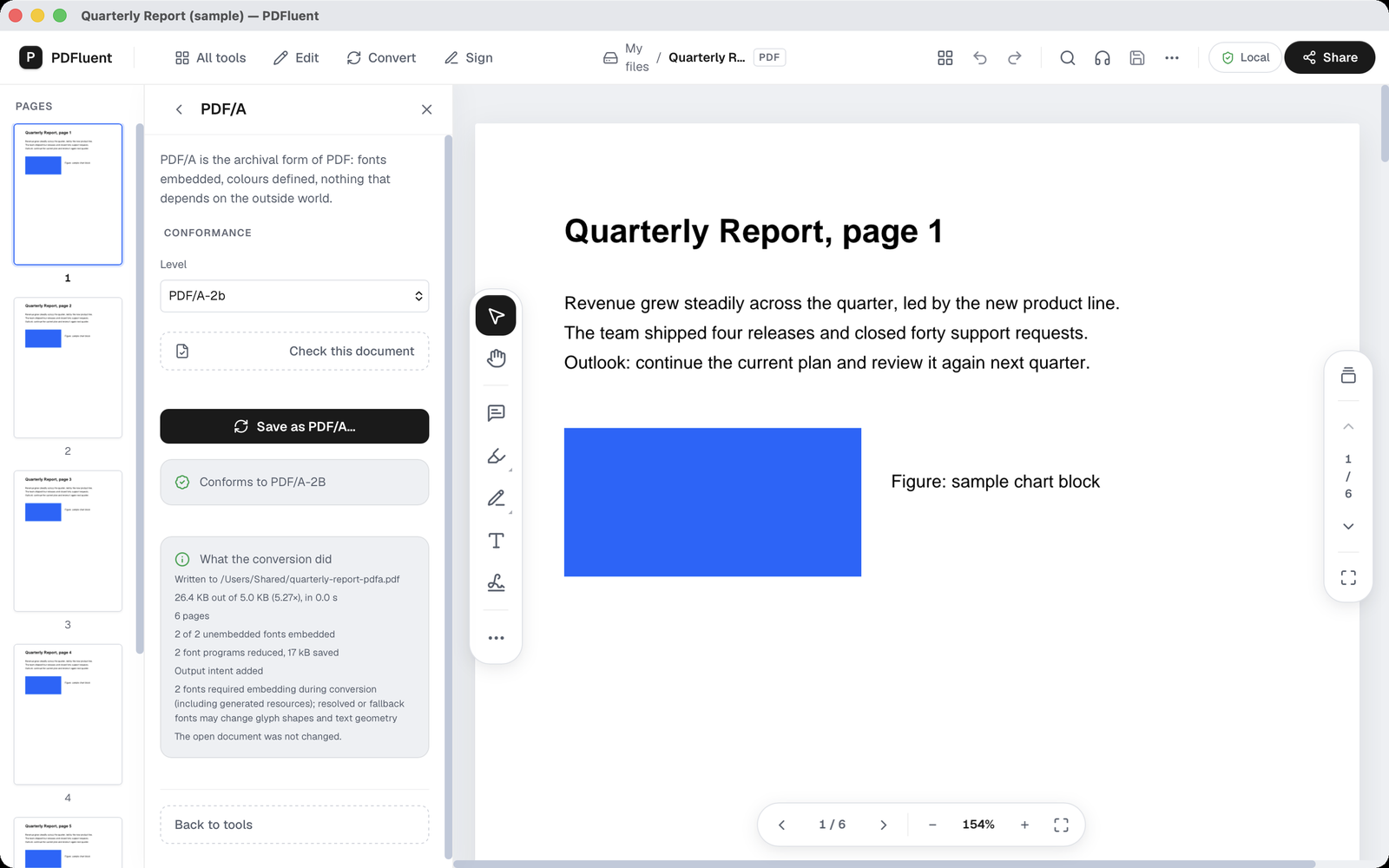
A green line appears: "Conforms to PDF/A-2B". Below it, a box "What the conversion did" lists the changes. In the example it said "Written to /Users/Shared/quarterly-report-pdfa.pdf", 6 pages, "2 of 2 unembedded fonts embedded", "2 font programs reduced, 17 kB saved" and "Output intent added". It also warned that two fonts had to be embedded during the conversion, and that a replaced font can change the shape of letters slightly. The last line reads "The open document was not changed."
In a test, the SDK's own validator also reported the saved copy as compliant, with 0 errors, 0 warnings and 6 pages.
PDFluent Editor is free for everyone, including commercial use, and your documents stay on your computer.
What to know before you start
- "Check this document" is a separate button. You can run it before you convert, just to see where the file stands.
- The conversion writes a new file. Your original stays untouched, so keep it as the version you edit.
- PDF/A needs every font inside the file. Where a font was missing, the editor embeds it or uses a replacement, and the app says so in the result. Letters can then look a little different.
- The file can get bigger. In the example it grew several times over, because the fonts were added to it. That is expected here.
- The conversion can remove things PDF/A does not allow. The result then shows a line of the form "Removed: N items that PDF/A does not allow", with the real count in place of N.
- While it works, the app shows "Converting to PDF/A…" and then "Converted to PDF/A". If something goes wrong, you see "PDF/A conversion failed" or "PDF/A validation failed" instead.
- Not every document comes out clean. The check can still report problems, and then the result says so.
How to check the result
Before you send the file anywhere, spend two minutes on it.
- Look for the green line "Conforms to PDF/A-2B" in the panel after saving.
- Open the new file in PDFluent Editor. Not the original, the copy you just saved.
- Go to "All tools", open "PDF/A" and press "Check this document" on the new file.
- Compare the page count with the original. The sample had 6 pages before and after.
- Scroll through the pages where fonts were embedded or replaced and read a few lines. Check that names, numbers and special characters look right.
If the check still says "Does not conform", read the rule numbers it lists. They point to what the file still lacks.
Free, and on your own computer
PDFluent Editor is free for everyone, at home and at work, including commercial use. No account is needed. Version 1.1 runs on macOS and Windows.
On macOS, documents are processed on your computer and the editor works without an internet connection. The file you convert does not have to go to a website first.
Frequently asked questions
How do I convert a PDF to PDF/A for free?
Open the PDF in PDFluent Editor, click "All tools" and choose "PDF/A". Press "Save as PDF/A…", pick a name and a folder, and save. The editor writes a PDF/A copy. It is free, including for commercial use.
Do I need an account, or do I have to upload the file?
No account is needed. On macOS, documents are processed on your computer and the editor works without an internet connection, so the file does not go to a website.
Which PDF/A level should I pick?
The panel has a drop-down "Level" under "Conformance". In this guide it shows PDF/A-2b. If the place you send the file to asks for a specific level, pick that one.
Will it change my original PDF?
No. The editor saves the PDF/A version as a new file, and after the conversion it says "The open document was not changed."
Why did my file get bigger?
PDF/A wants every font inside the file. In the example, two fonts were embedded and the file grew several times over. How much a file grows depends on its fonts.
Why does the check say Does not conform?
Because the original is not PDF/A yet. The check lists what is missing, each with a rule number, such as metadata or colour definitions. Save as PDF/A and run the check again on the new file.
Is it free to use at work?
Yes. PDFluent Editor is free for everyone, including commercial and business use.
Keep reading
Building software? Get the SDK.