How to insert pages into a PDF from another PDF
Open the PDF in PDFluent Editor, click "All tools" and then "Insert page". Click "Add PDF" to put another PDF after the last page, or tick a page and click "Insert before" to put it in front of that page. This works for anyone who needs to add pages to a PDF today, and the editor is free for everyone, including commercial use, with no account. Save the file and the editor shows "Saved on this device."
Someone sends you a signed annex that belongs in the middle of a contract. A report needs two extra pages from another file before the appendix. You already have both PDFs and you want one document with the pages in the right place.
This guide shows how to insert pages into a PDF in PDFluent Editor 1.1, with the labels the app uses. You can add the other PDF at the end or put it before any page you pick. It also covers saving, undoing, and checking the result.
PDFluent Editor is free for everyone, including at work. There is no licence key, no trial and no subscription. It runs on macOS and Windows.
Insert pages into a PDF, step by step
The example below uses a six-page quarterly report and a two-page services agreement. The agreement goes in before page 3 of the report. Work on a copy of the report if you want to keep the original as it is, because saving writes into the file you opened.
Open the PDF and go to All tools
Open the PDF you want to add pages to. Click "All tools". The Organize section lists "Insert page" next to the other page tools.
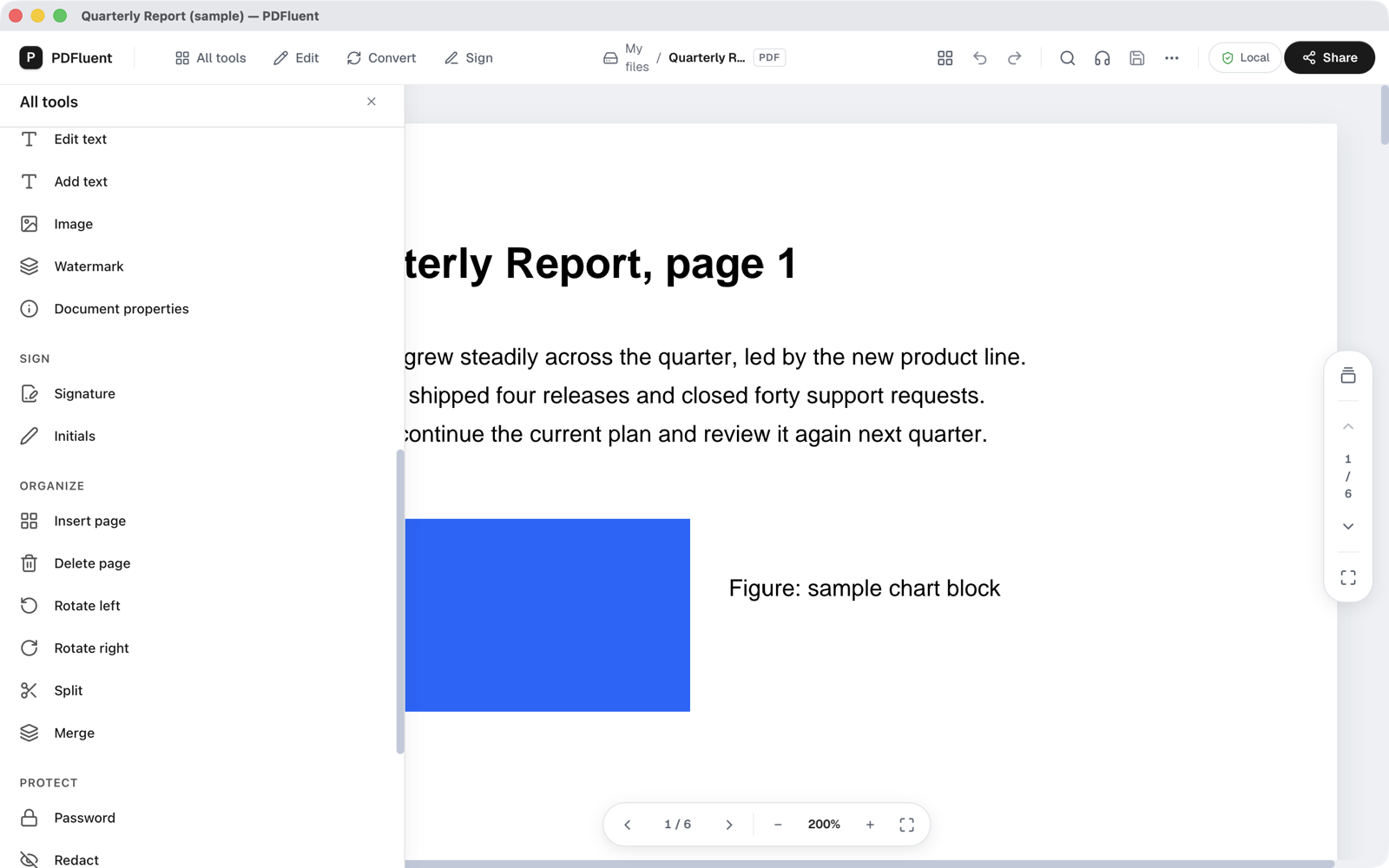
Click Insert page
Click "Insert page". You get a grid of every page in the file, with "Back to document" at the top. The bar above the grid has "Select all" and "Add PDF", among other options.
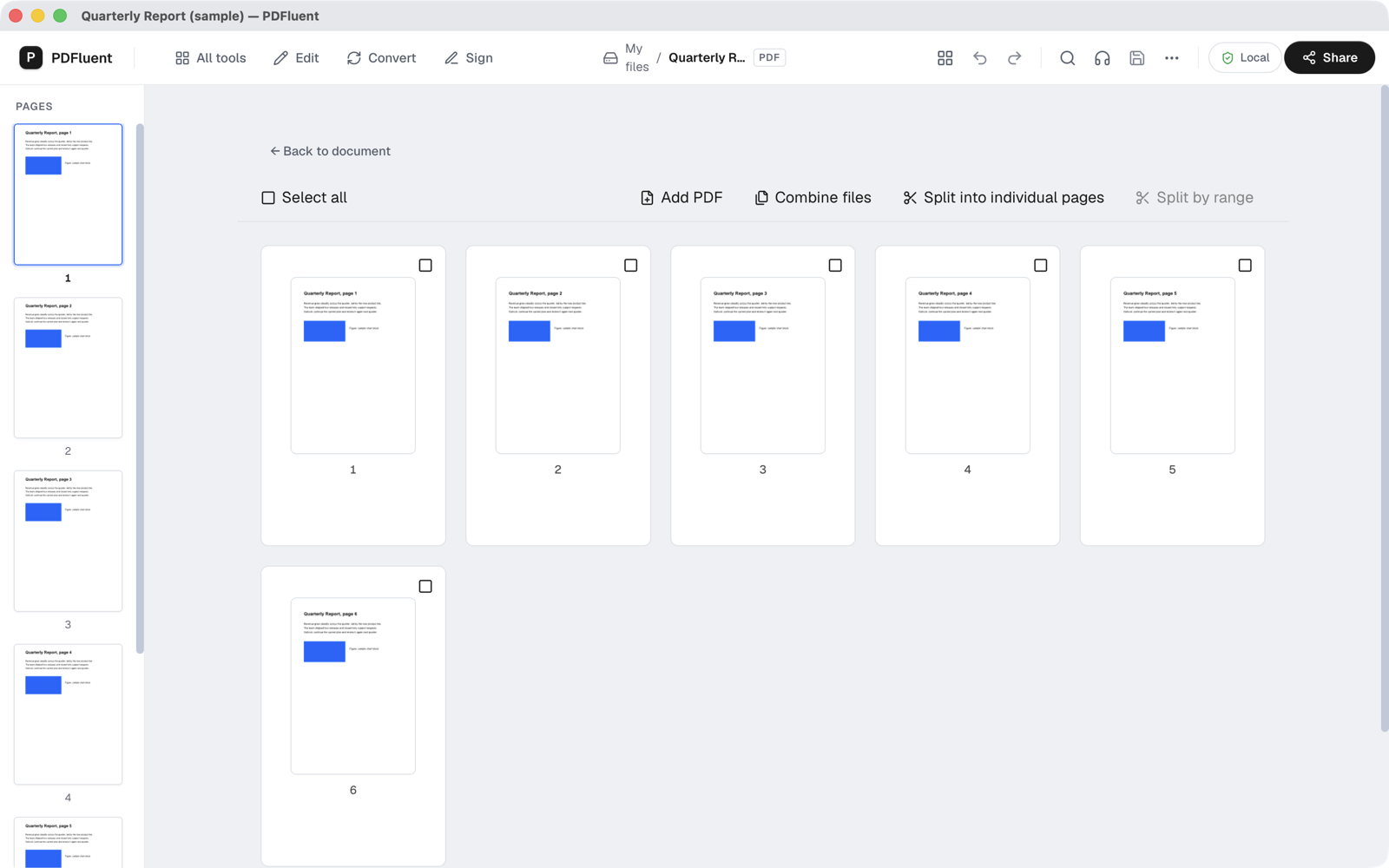
To add pages at the end, click Add PDF
Click "Add PDF" and pick the other file in the macOS open window. Every page of that file lands after the last page of your document. If that is where you want them, skip to the save step.
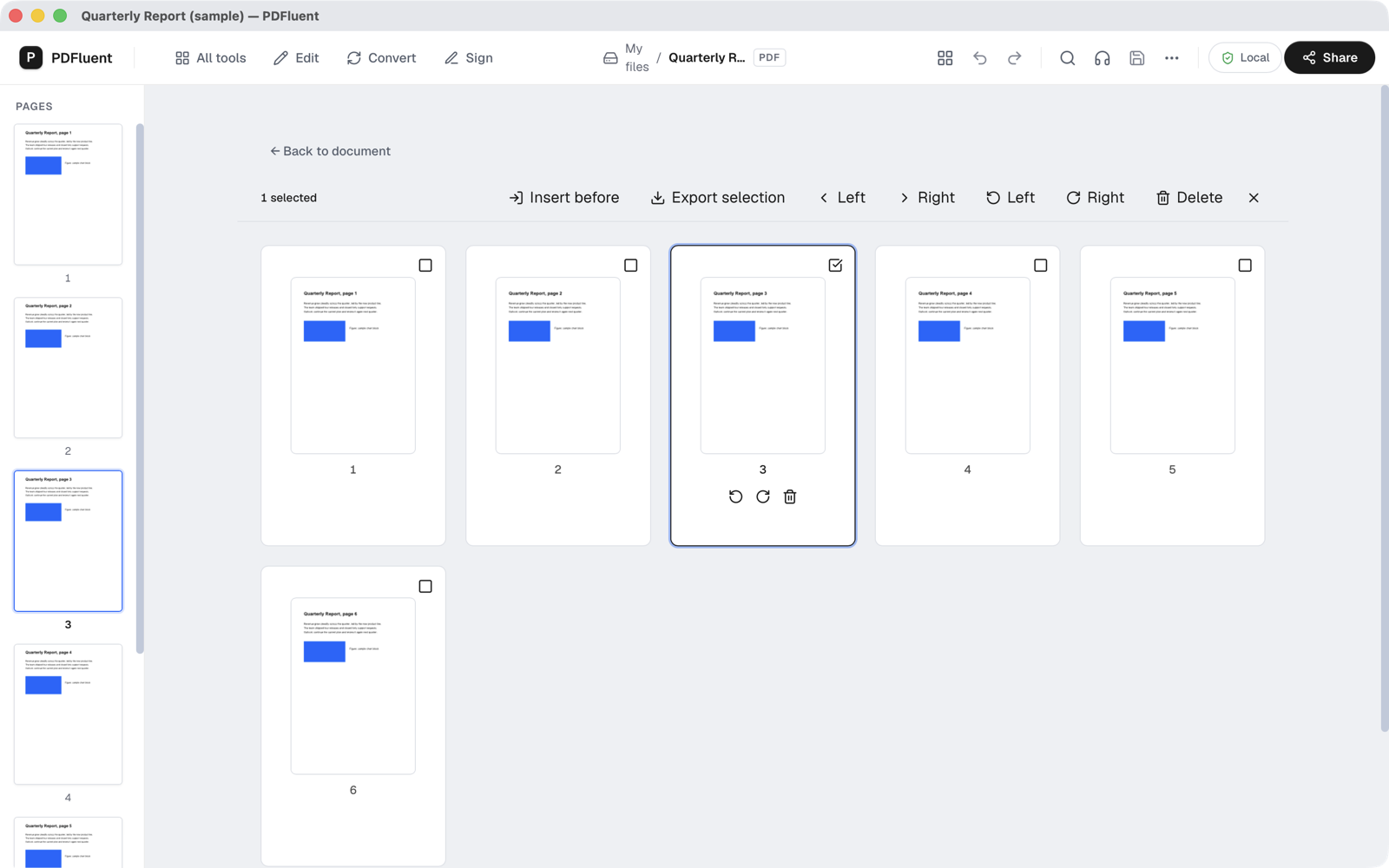
To add pages at a set spot, tick a page and click Insert before
Tick the check box on the page that the new pages should go in front of. The bar changes to "1 selected" and shows "Insert before". Click it and pick the other PDF. In the example, page 3 of the report is ticked.
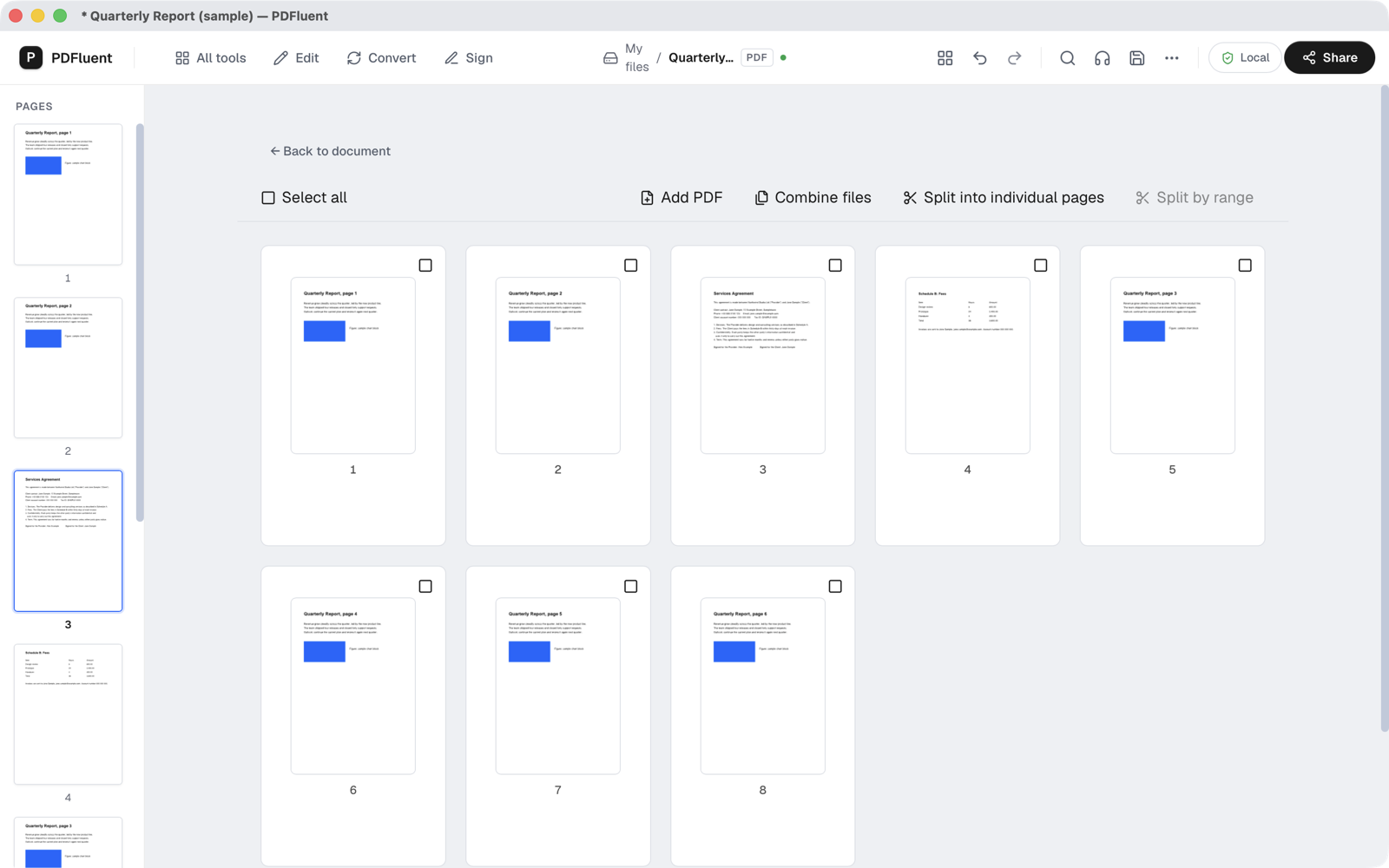
Look at the new page order
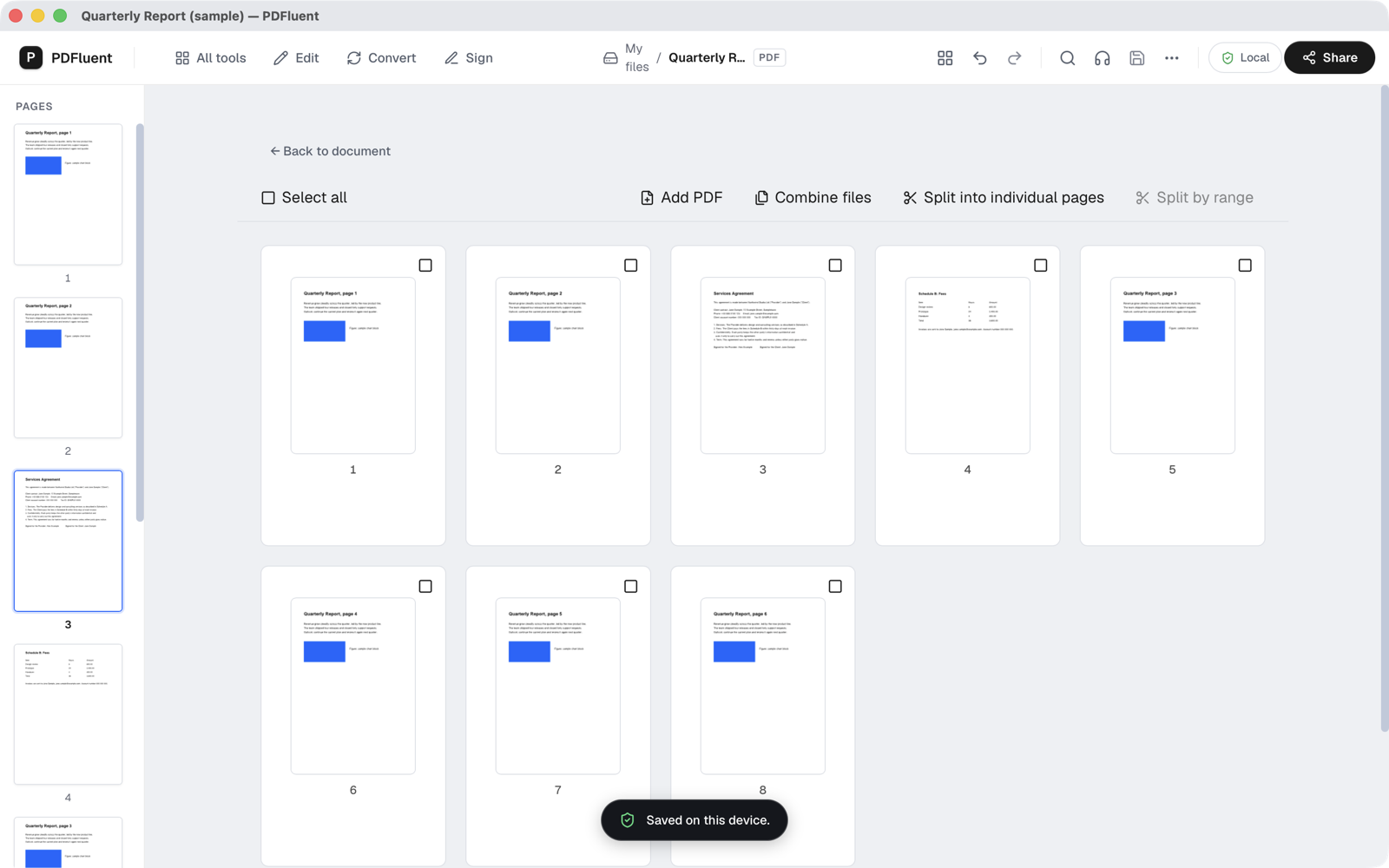
All pages of the other PDF now sit in front of the page you ticked. The example ends up with eight pages: report pages 1 and 2, the two agreement pages, then report pages 3 to 6. An asterisk in the window title means the change is not saved yet. Command-Z undoes the insert.
Save the file
Click the Save icon in the top bar, or press Command-S. The message "Saved on this device." appears at the bottom and the asterisk goes away. Click "Back to document" to return to the normal view.
At the end or in the middle
Use "Add PDF" when the extra pages belong after everything else, such as an appendix or a signed last page. Use "Insert before" when they belong somewhere inside the document. Pick the page that should come right after the new pages, then insert.
If the pages land one spot off, you can move them afterwards. Tick a page and use the move buttons in the bar, or follow the guide on reordering pages.
PDFluent Editor is free for everyone, including commercial use, and your documents stay on your computer.
What it does and does not do
- It inserts the whole PDF you pick, every page of it. To use only some pages, insert the file and delete the pages you do not need, or split the other file first.
- The PDF you insert from stays as it was. Only the document you have open changes.
- Saving writes into the same file you opened. Make a copy first if you want to keep the original version.
- Command-Z reverses an insert as long as you have not saved.
How to check it worked
- Look at the page count in the sidebar. It should have gone up by the number of pages in the file you inserted.
- Scroll to where the new pages should be and check the pages on either side of them.
- Close the file and open it again. If the new pages are still there in the right place, the save worked.
If something is in the wrong place and you have not saved, press Command-Z and try again. If you already saved, move the pages or go back to the copy you kept.
PDFluent Editor is free for everyone, including commercial use. You do not need an account, a licence key or a subscription.
Where your files go
On macOS, the editor runs entirely on your device and works without an internet connection. The only request it makes by itself is the optional update check. Both PDFs stay on your Mac while you insert pages.
Frequently asked questions
How do I add pages from another PDF in the middle of my PDF?
Open your PDF, click "All tools" and then "Insert page". Tick the page the new pages should go in front of, click "Insert before" and pick the other PDF. Its pages go in before the page you ticked.
Can I add a scanned page to a PDF?
Yes, if the scan is saved as a PDF. Insert it like any other PDF, with "Add PDF" for the end or "Insert before" for a set spot.
Does inserting change the other PDF?
No. The file you insert from is not changed. Only the document you have open gets the new pages, and only after you save.
Can I undo an insert?
Yes, before you save. Press Command-Z and the inserted pages go away. After saving, the pages are part of the file, so keep a copy of the original if you may need it.
Can I insert only some pages of the other PDF?
The editor inserts every page of the file you pick. Insert it and then delete the pages you do not want, or split the other file first and insert only the part you need.
Does this work on Mac and Windows, and is it free?
PDFluent Editor runs on macOS and Windows. It is free for everyone, including commercial use, with no account, no trial and no subscription.
Keep reading
Building software? Get the SDK.