How to reorder PDF pages and save the new order
Open the PDF in PDFluent Editor, go to "All tools", then "Organize pages", select a page and move it with "Left" or "Right". Nothing changes in the file until you press "Apply" and then save it. Each press moves the page one place, and the editor is free for everyone, including commercial use.
A scan came out in the wrong order. An appendix sits in the middle of a report. A cover page ended up last. All the pages are there, but some are in the wrong place.
This guide shows how to reorder PDF pages in PDFluent Editor 1.1. It covers the exact steps and labels, why you press "Apply" and then save, and how to check the new order before you send the file.
PDFluent Editor is free for everyone, including at work, and you do not need an account. Version 1.1 is available for macOS and Windows.
When to reorder pages, and what the editor offers
Reorder pages when the content is right but the order is wrong. Common cases are scans fed in the wrong way round, a page added at the end that belongs at the front, or two parts of a document that swapped places.
In PDFluent Editor, page order lives in "Organize pages". You find it under "All tools" in the "PAGES" group, with the subtitle "Sort, rotate, delete". It opens a grid of page thumbnails. You select a page with its check box and move it one place at a time with "Move selected page left" or "Move selected page right".
| Action in Organize pages | What it does | Needs Apply |
|---|---|---|
| "Left" or "Right" (move) | Moves the selected page one place earlier or later | Yes. A bar says "Order changed, click Apply to save" |
| "Left" or "Right" (rotate) | Turns the selected page with "Rotate left" or "Rotate right" | Not covered here |
| "Delete" | Removes the selected page | Not covered here |
| "Insert before" | Inserts before the selected page; details not covered here | Not covered here |
| "Export selection" | Exports the selected pages; details not covered here | Not covered here |
PDFluent Editor is free for everyone, including commercial and business use. There is no account to create. Download it, open the PDF you want to reorder and start.
Reorder PDF pages, step by step
The steps below use PDFluent Editor 1.1 and a 5-page sample file. Its pages are Welcome, Working hours, Expenses, Equipment and Contacts, numbered 1 to 5. The goal is to move page 3, Expenses, to the front.
Open the file
Open the PDF in PDFluent Editor. If it asks for a password, type the password to open it first.
Choose Organize pages
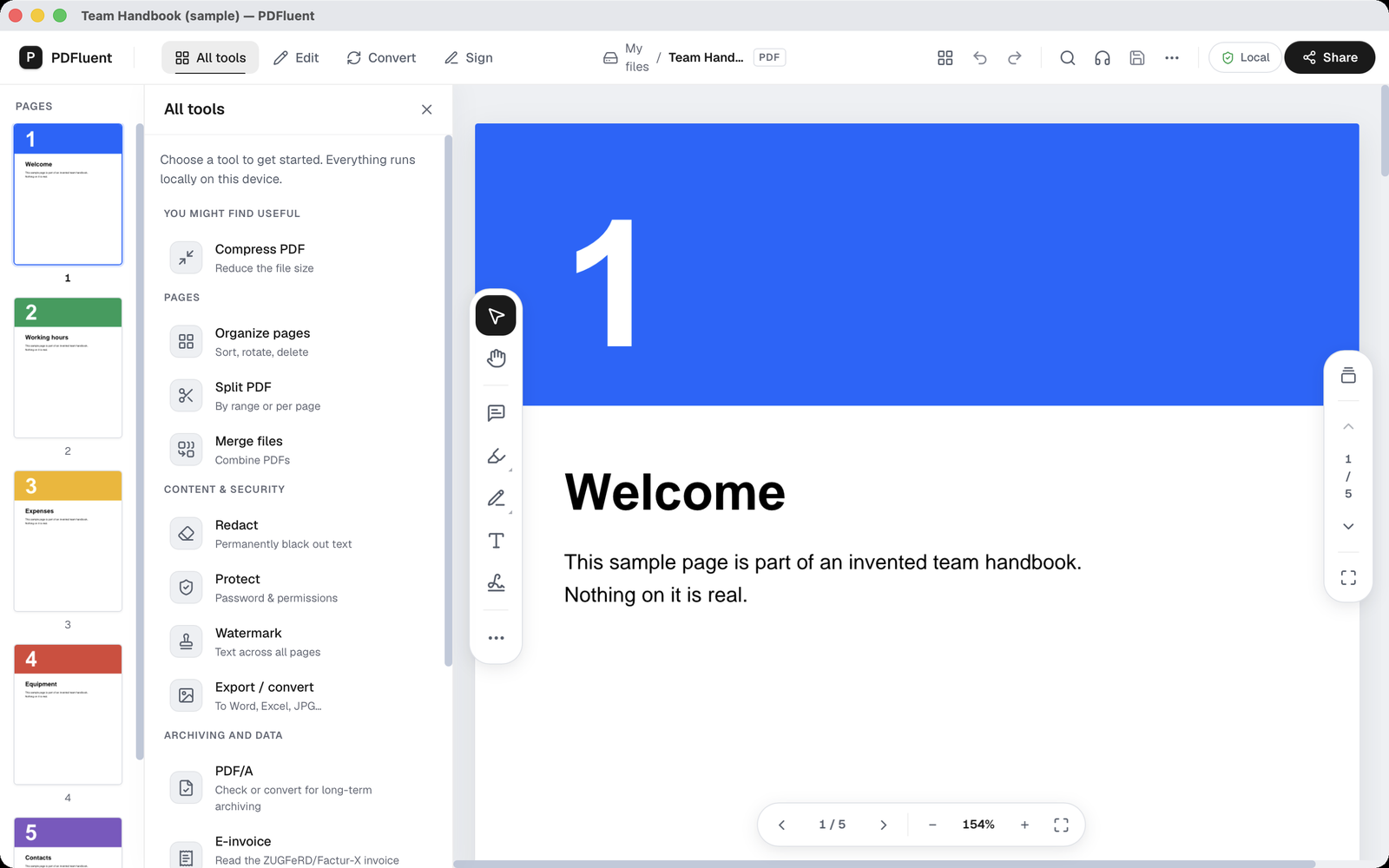
Open "All tools". Under the group "PAGES", choose "Organize pages", with the subtitle "Sort, rotate, delete".
Look at the page grid
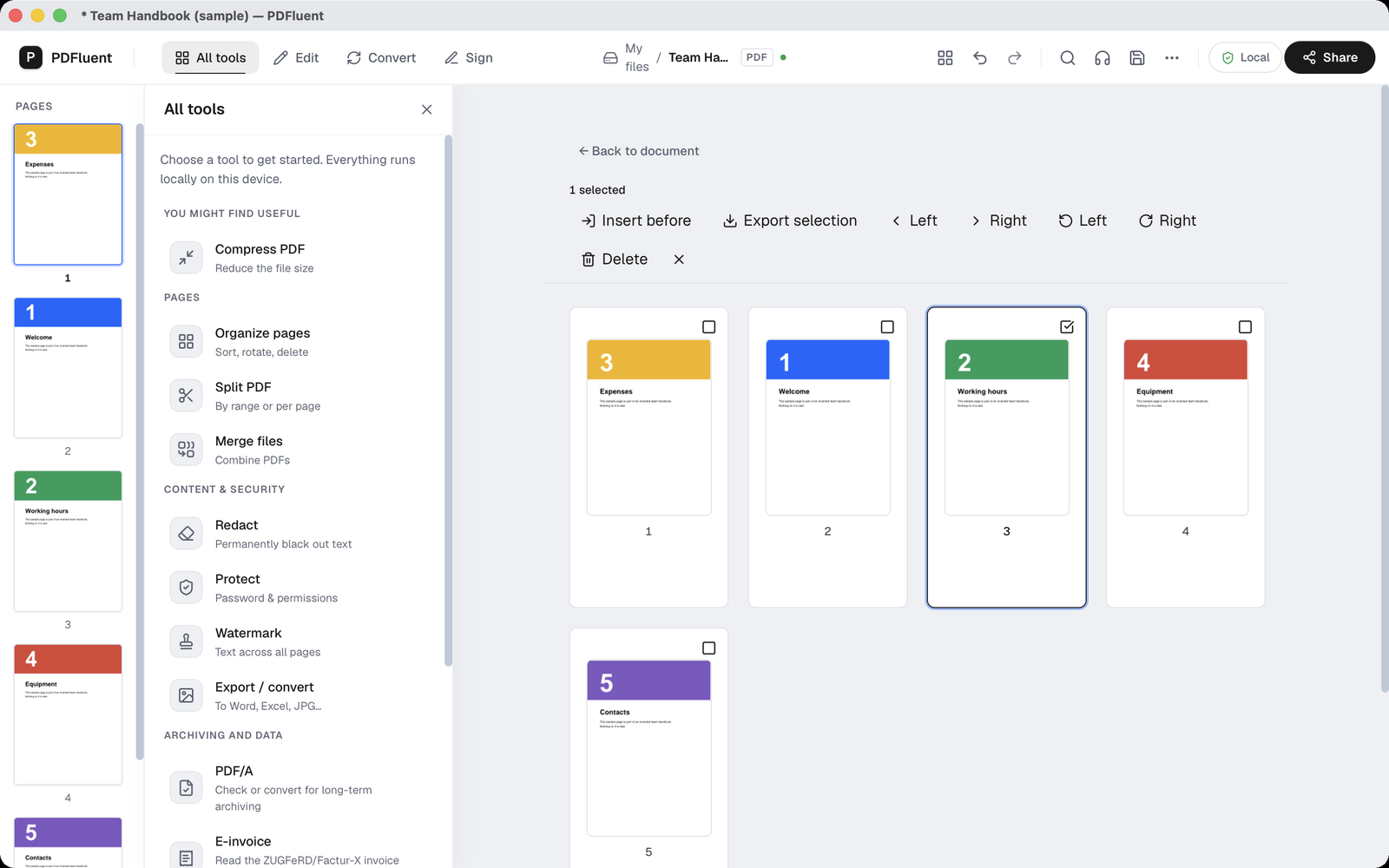
A grid of page thumbnails opens, with the links "Back to document", "Select all", "Add PDF", "Combine files", "Split into individual pages" and "Split by range". Each page has a check box.
Select the page
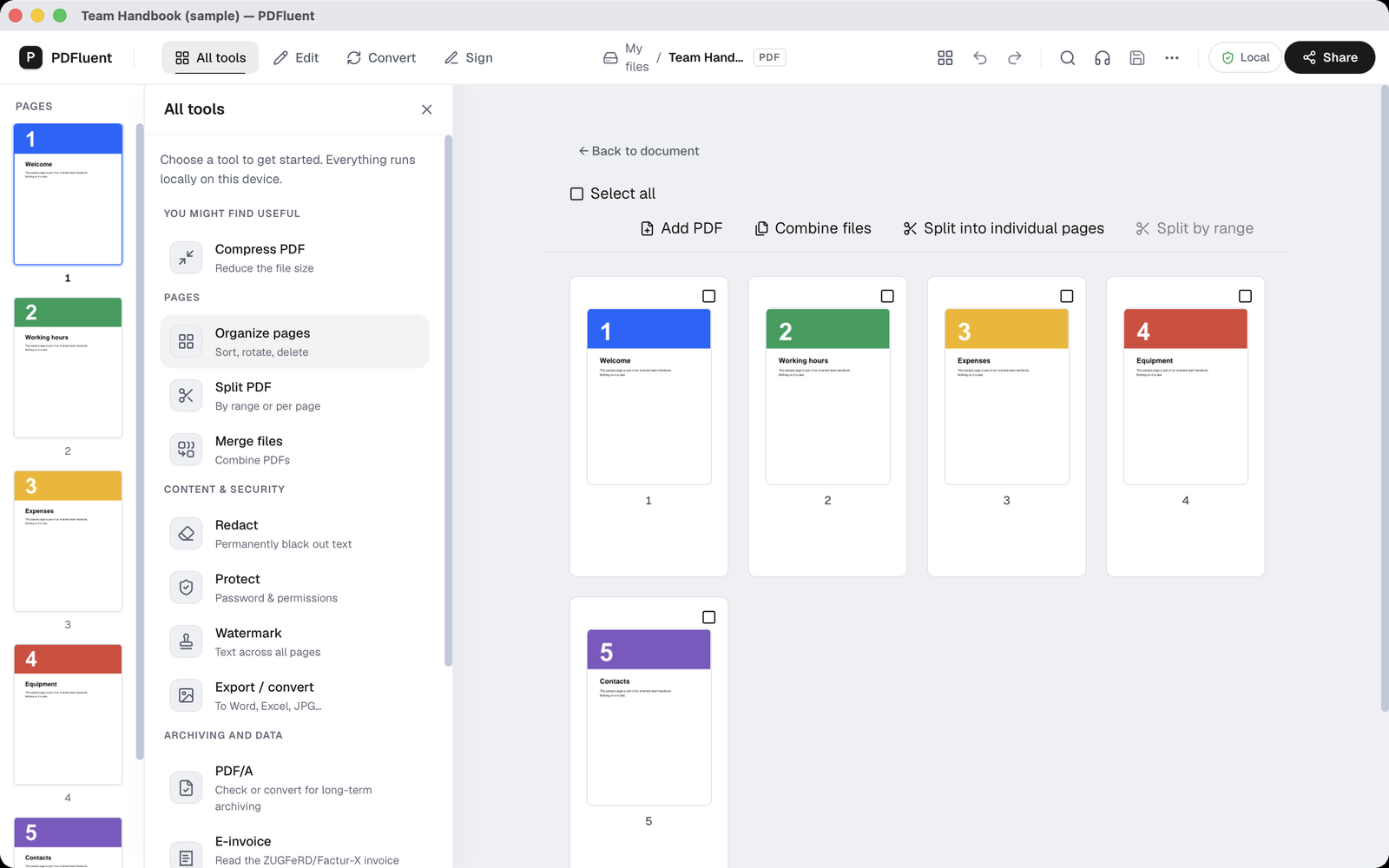
Tick the check box on page 3. The view shows "1 selected" and the actions for that page: "Insert before", "Export selection", move "Left" and "Right", rotate "Left" and "Right", and "Delete".
Move it with Left
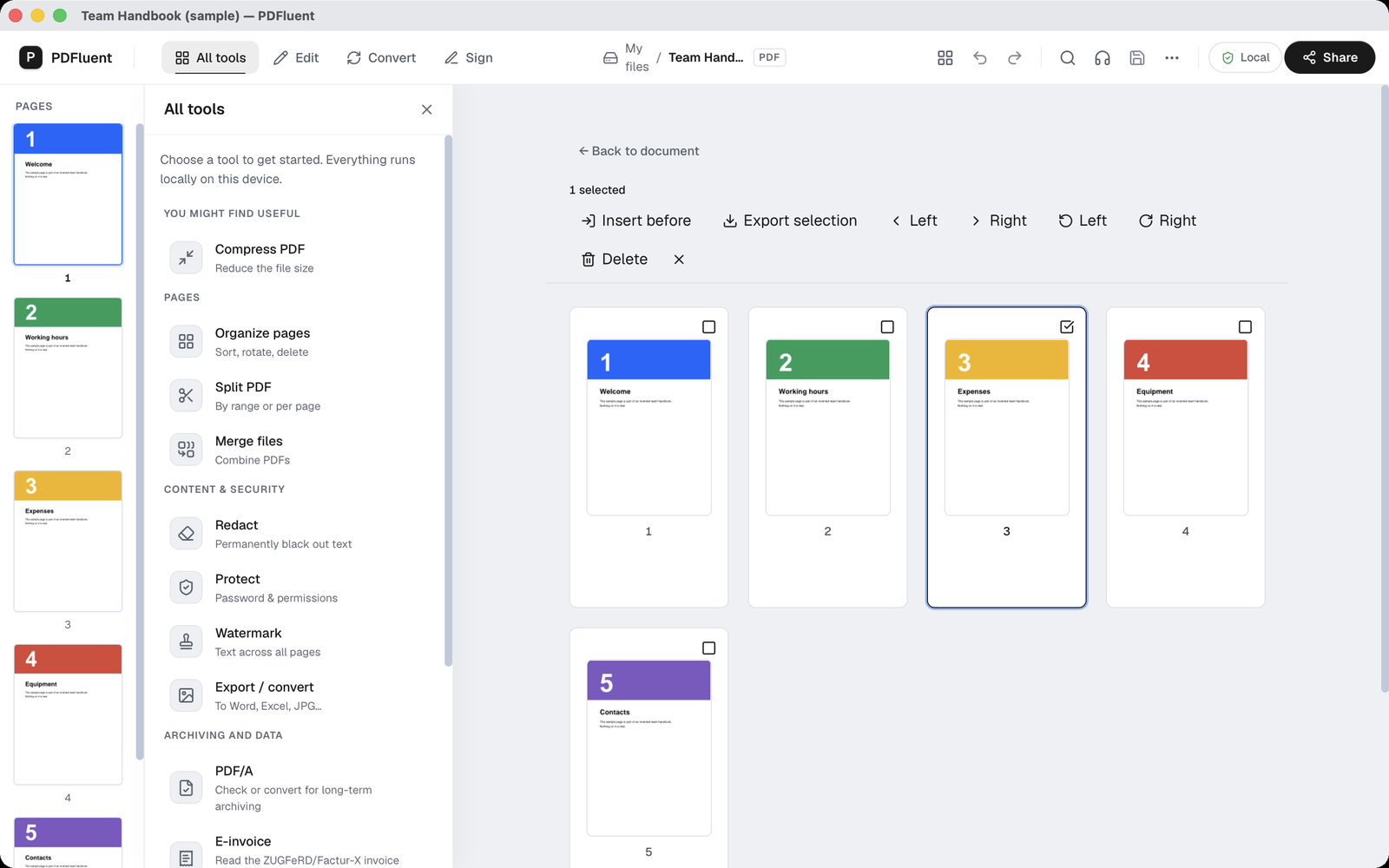
Press "Move selected page left" twice. Each press moves the page one place, so Expenses is now first. A bar says "Order changed, click Apply to save", with "Cancel" and "Apply".
Press Apply
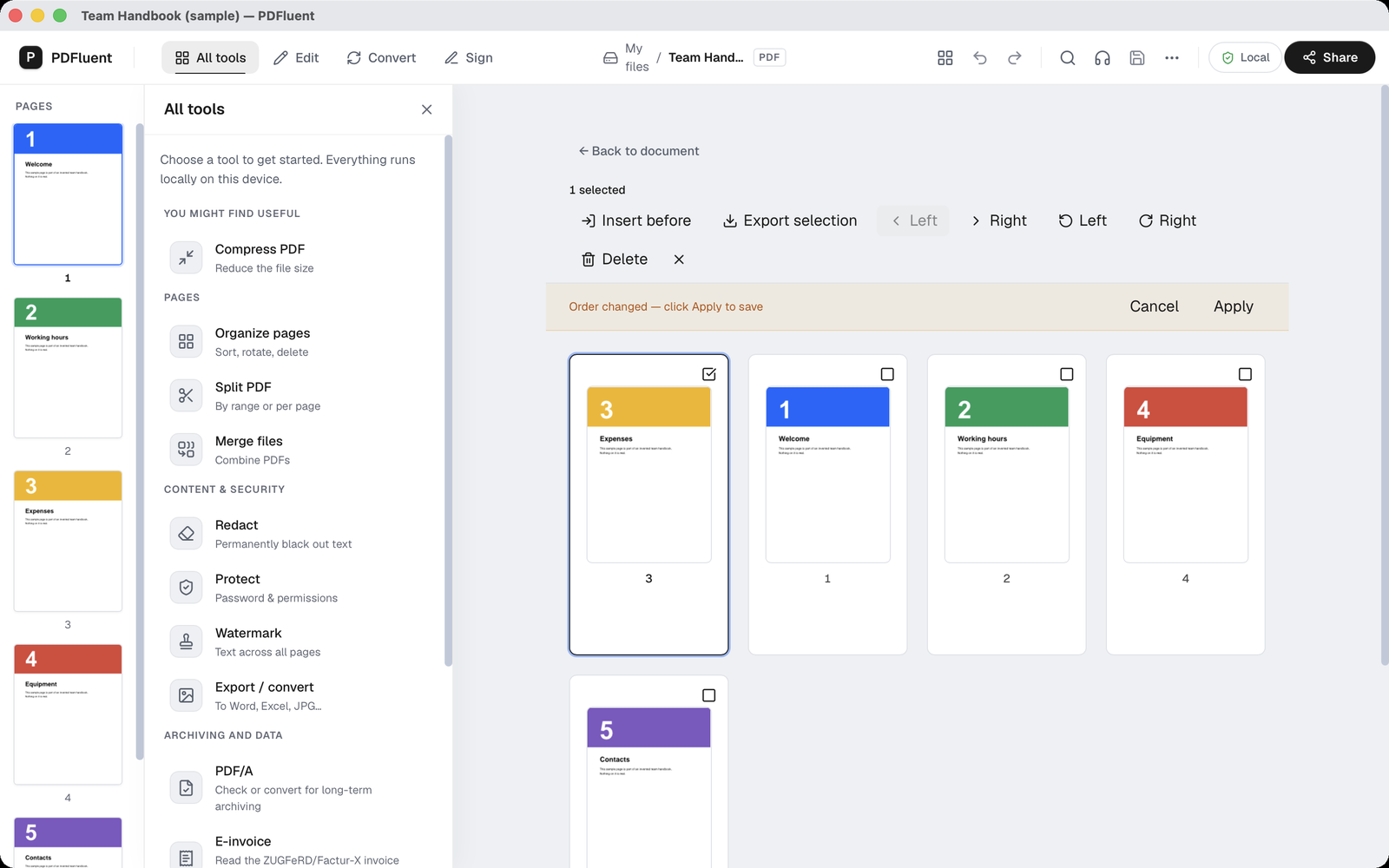
Press "Apply". The editor shows "Applying page order…" and then "Order applied". The page thumbnails in the left strip now follow the new order.
Save the file
Save the file. Only then is the new order in the file. In the test, the saved file had its pages in the order 3, 1, 2, 4, 5.
PDFluent Editor is free for everyone, including commercial use, and your documents stay on your computer.
What to know before you reorder
- Each press of "Left" or "Right" moves the selected page one place. Moving page 3 to the front took two presses. For big moves, write down the order you want first and count the steps.
- Nothing changes in the file until you press "Apply" and then save.
- "Cancel" drops the new order, and the pages stay as they were.
- The move and rotate buttons are both labelled "Left" and "Right". The move buttons are "Move selected page left" and "Move selected page right". The rotate buttons are "Rotate left" and "Rotate right".
- Page numbers printed on the pages are part of their content. They do not change when you reorder, so a moved page keeps its old number.
- If the file is protected with a password, open it with the password first.
- If the editor shows "Reorder failed", the new order was not applied. Check the thumbnails before you save.
- Keep a copy of the original before you reorder an important document.
How to check the result
Check the order before you send or store the file.
- After "Order applied", look at the page thumbnails in the left strip. They should show the new order.
- Save, close the file and open the saved file again.
- Check the first page. In the example, it is Expenses, the page with the number 3 on it.
- Check the last page. In the example, it is still Contacts, page 5.
- Page through once and confirm the order 3, 1, 2, 4, 5.
If a page is in the wrong place, go back to "Organize pages", move it again, press "Apply" and save.
Free, and on your own computer
PDFluent Editor is free for everyone, at home and at work, including commercial use. No account is needed. Version 1.1 runs on macOS and Windows.
On macOS, documents are processed on your computer and the editor works without an internet connection. On a Mac, the file you reorder stays with you.
Frequently asked questions
How do I move one page to the front of a PDF?
Open "All tools", then "Organize pages", and tick the check box on the page. Press "Move selected page left" until the page is first; each press moves it one place. Then press "Apply" and save the file.
Can I undo a reorder before saving?
Yes, before you press "Apply". Press "Cancel" to drop the new order. Nothing changes in the file until you press "Apply" and then save.
Does reordering change the original PDF?
Only after you press "Apply" and save the file. Keep a copy of the original first if you may need the old order.
Why did my page numbers not change?
Page numbers printed on a page are part of its content. Reordering moves whole pages and does not rewrite what is on them, so a moved page keeps the number it had.
Can I reorder a password-protected PDF?
Yes, once it is open. Open it with its password first, then follow the steps above.
Is it free to use at work?
Yes. PDFluent Editor is free for everyone, including commercial and business use, and you do not need an account.
Keep reading
Building software? Get the SDK.