How to split a PDF by pages, per page or by range
Open the PDF in PDFluent Editor, go to "All tools" > "Split PDF", choose "Split per page" or "Split by page range", and press "Split PDF". For ranges, type page numbers starting at 1, separated by commas, such as "1-2, 3-6", then pick an empty folder when the editor asks where to save. The editor is free for everyone, including commercial use, and the original file stays unchanged.
You have one PDF and you need several. A scanned stack of invoices that should be one file per invoice. A report where only the appendix has to go to a client. A long contract where each section goes to a different person.
This guide shows how to split a PDF by pages in PDFluent Editor. It covers both methods, one file per page and one file per range, with the exact steps and labels. It also explains the folder prompt, how the new files are named, and how to check them.
PDFluent Editor is free for everyone, including at work, and you do not need an account. Version 1.1 is available for macOS and Windows.
When to split a PDF, and the two methods
Split a PDF when parts of it belong in different places. Each part becomes its own file that you can send, store or print on its own.
PDFluent Editor offers two methods under "Split PDF". "Split per page" turns every page into a separate file. "Split by page range" makes one file for each range you type, so you decide where each file starts and ends.
| Split per page | Split by page range | |
|---|---|---|
| What you get | One PDF file for every page | One PDF file for every range you type |
| When to use | Each page stands alone, such as one-page invoices or forms | Parts span several pages, such as chapters, sections or an appendix |
| Example | A 6-page file gives 6 files of 1 page each | "1-2, 3-6" on a 6-page file gives 2 files: pages 1 and 2, and pages 3 to 6 |
PDFluent Editor is free for everyone, including commercial and business use. There is no account to create. Download it, open the PDF you want to split and start.
Split a PDF by page range, step by step
The steps below use the PDFluent Editor 1.1 interface and a 6-page file. The goal is two files: pages 1 to 2, and pages 3 to 6.
Open the file
Open the PDF you want to split in PDFluent Editor. If it asks for a password, type the password to open it first.
Open All tools
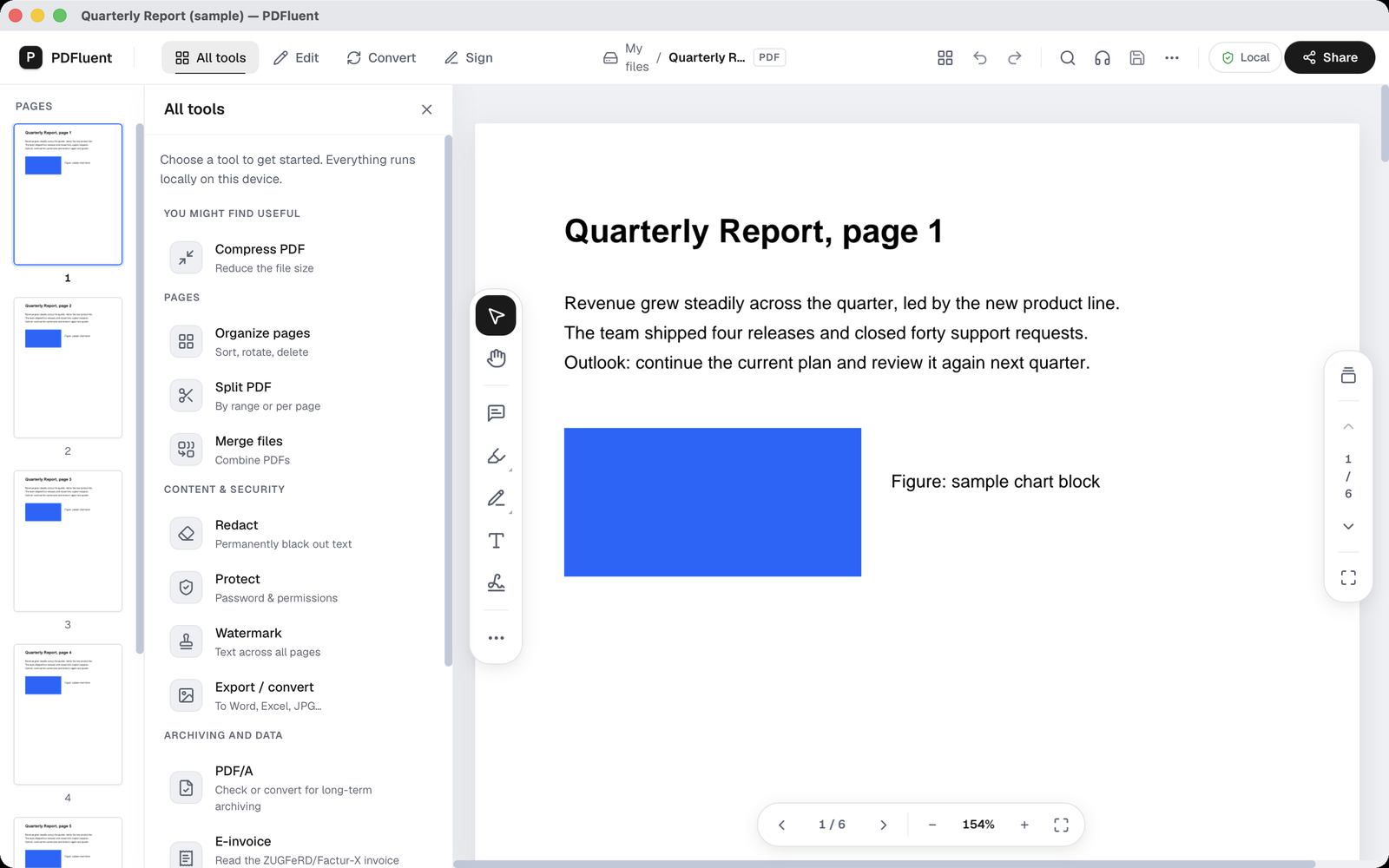
Open "All tools". Under the group "PAGES" you see "Organize pages", "Split PDF" and "Merge files".
Choose Split PDF
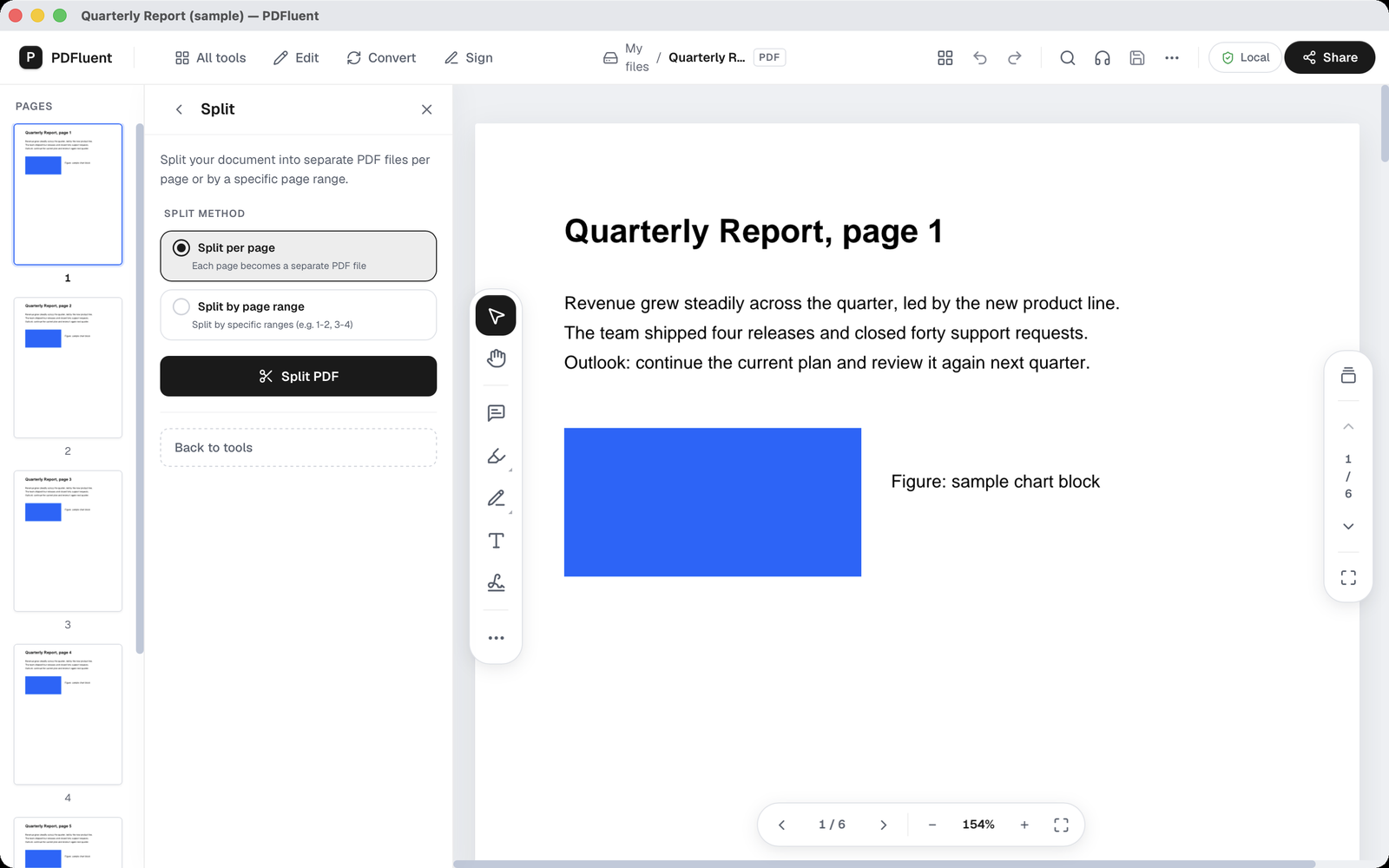
Choose "Split PDF". A panel titled "Split" opens with the text "Split your document into separate PDF files per page or by a specific page range."
Choose Split by page range
Under "SPLIT METHOD", choose "Split by page range". A field "Ranges (comma-separated)" appears, with the example "1-2, 3-4".
Type the ranges
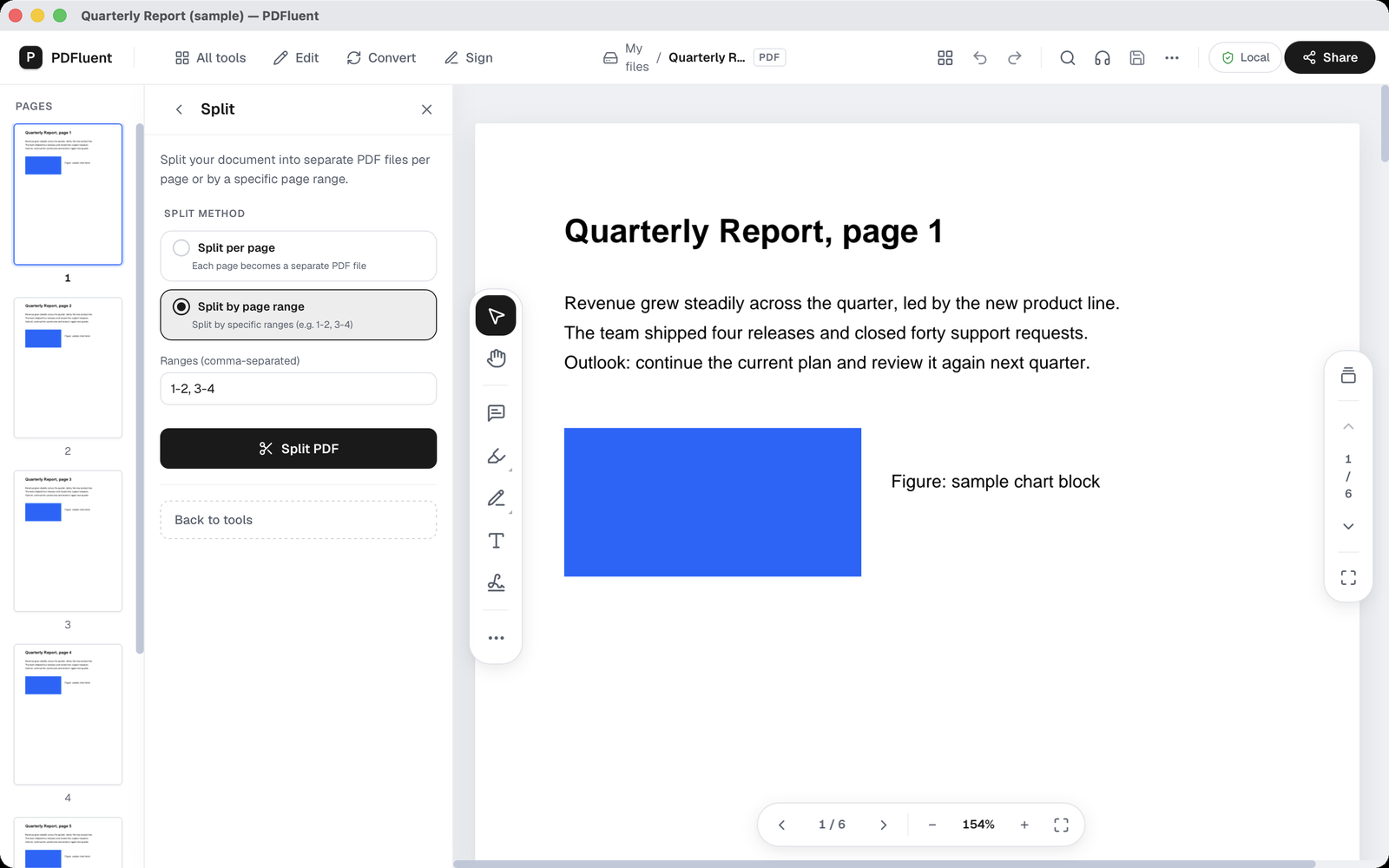
Type "1-2, 3-6" in the field. Each range becomes one file. Page numbers start at 1, and a comma separates the ranges.
Press Split PDF and pick a folder
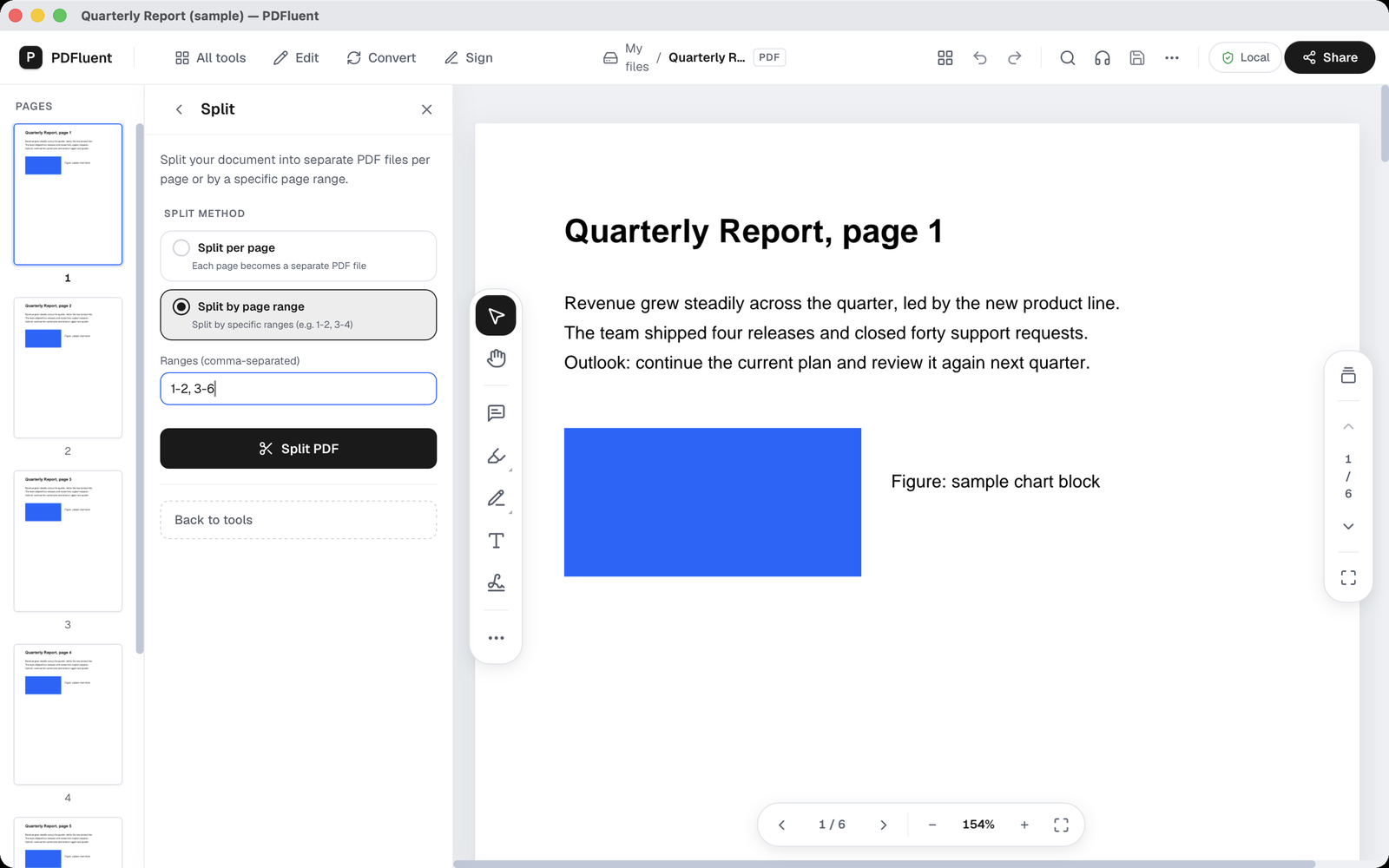
Press "Split PDF". The panel shows "Splitting document…" while it works. On macOS, a dialog titled "Folder for split PDF files" then asks where to save the files. Pick an empty folder.
Check the files
Open the folder. It holds split_1.pdf with pages 1 and 2, and split_2.pdf with pages 3 to 6. The files are numbered in the order of the ranges you typed.
Split a PDF into single pages
To get one file for every page, open the PDF, go to "All tools" > "Split PDF" and choose "Split per page". The panel describes it as "Each page becomes a separate PDF file". There are no ranges to type.
Press "Split PDF" and pick an empty folder when the editor asks where to save. A 6-page file gives six files of one page each.
PDFluent Editor is free for everyone, including commercial use, and your documents stay on your computer.
What to know before you split
- Ranges use page numbers that start at 1, separated by commas. "1-2, 3-6" means pages 1 to 2 and pages 3 to 6.
- The files are named split_1, split_2 and so on, in the order of the ranges. Rename them afterwards so the names say what each file holds.
- The editor asks for a folder to save the files in. Pick an empty one, so the new files do not mix with others.
- If the file is protected with a password, open it with the password first.
- Splitting does not change the original file. Keep a copy anyway, as you would before any change to an important document.
- Scanned pages stay images after the split. If you need text you can search or copy, run OCR separately.
How to check the result
Check the new files before you send or store them.
- Open split_1.pdf and split_2.pdf from the folder you picked.
- Count the pages in each file. In the example, split_1 has 2 pages and split_2 has 4.
- Look at the first and last page of each file. split_1 should start at page 1 and end at page 2. split_2 should start at page 3 and end at page 6.
- Rename the files so each name says what it holds.
If a file starts or ends on the wrong page, check the ranges you typed. Run the split again into a new empty folder with the corrected ranges.
Free, and on your own computer
PDFluent Editor is free for everyone, at home and at work, including commercial use. No account is needed. Version 1.1 runs on macOS and Windows.
On macOS, documents are processed on your computer and the editor works without an internet connection. On a Mac, the file you split and the new files stay with you.
Frequently asked questions
How do I split a PDF into single pages?
Open the PDF in PDFluent Editor, go to "All tools" > "Split PDF" and choose "Split per page". Press "Split PDF" and pick an empty folder. Each page becomes a separate PDF file.
How do I split pages 1-5 and 6-10 into two files?
Choose "Split by page range" and type "1-5, 6-10" in the "Ranges (comma-separated)" field. Press "Split PDF" and pick a folder. You get split_1 with pages 1 to 5 and split_2 with pages 6 to 10.
Does splitting change the original PDF?
No. Splitting writes new files and leaves the original unchanged. Keep a copy of important files anyway.
Where do the split files go?
Into the folder you pick after pressing "Split PDF". On macOS, the dialog is titled "Folder for split PDF files". Pick an empty folder so the new files are easy to find.
Can I split a password-protected PDF?
Yes, once it is open. Open it with its password first, then split it with the steps above.
Is it free to use at work?
Yes. PDFluent Editor is free for everyone, including commercial and business use, and you do not need an account.
Keep reading
PDFluent Editor is free for everyone.
Including at work. No account, and your documents stay on your computer.