How to put a password on a PDF
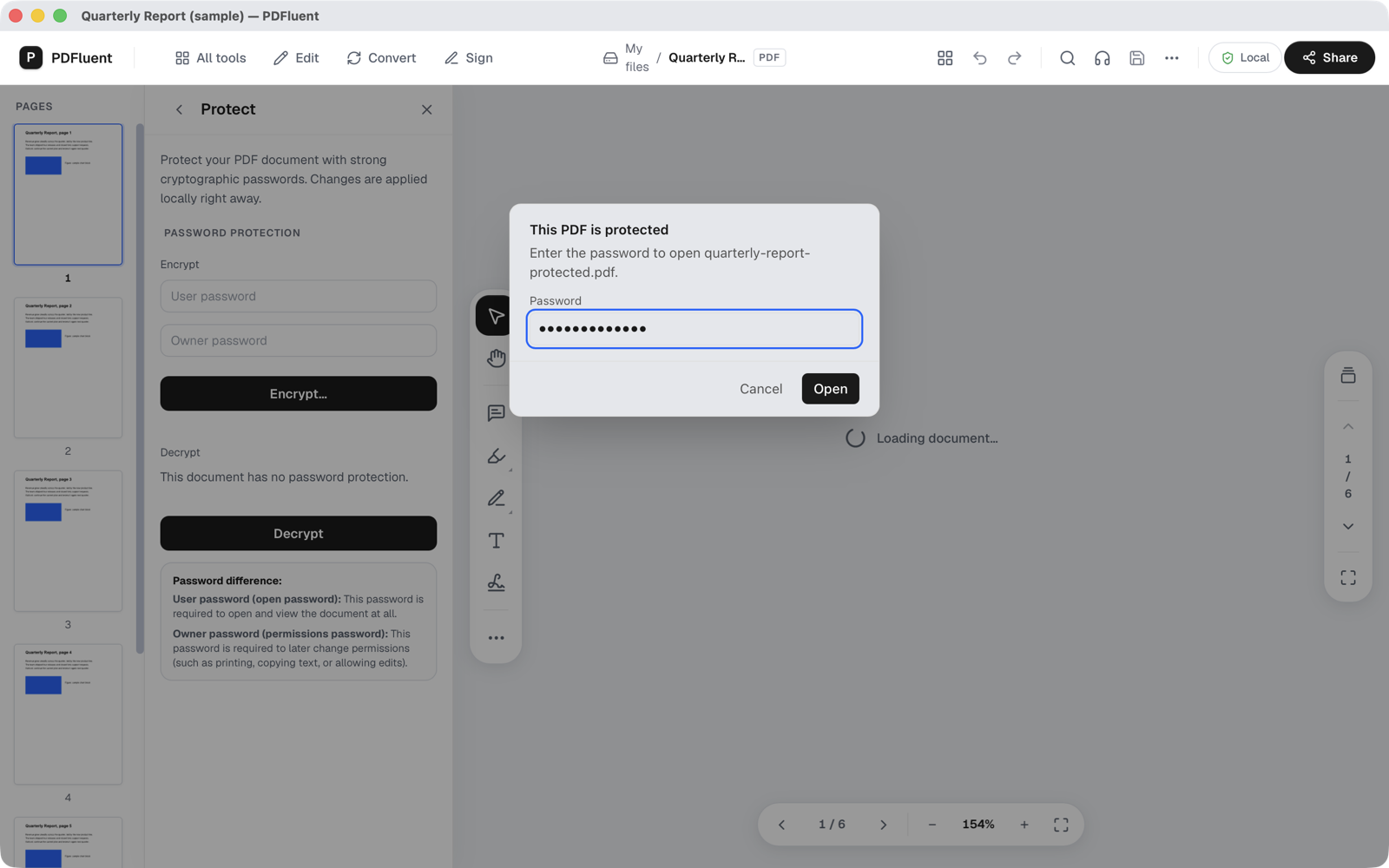
Open the PDF in PDFluent Editor, go to "All tools" and choose "Protect". Type a password in "User password", type a second one in "Owner password", press "Encrypt…" and save the protected copy under a new name. When you open that copy, a dialog titled "This PDF is protected" asks for the password. The editor is free for everyone, including commercial use, and you do not need an account.
You are about to email a contract, a payslip or a medical form, and you want only the right person to be able to open it. A password on the file is the simplest way to do that, and you can add it yourself in a few clicks.
This guide shows how to password protect a PDF in PDFluent Editor 1.1, using the real labels from the app. It explains the difference between the two passwords the editor asks for, where the protected file ends up, and how to check that the password is asked.
PDFluent Editor is free for everyone, including at work, and you do not need an account. Version 1.1 is available for macOS and Windows.
Put a password on a PDF, step by step
The steps use PDFluent Editor 1.1 and a sample report of 6 pages. Work on the file you want to protect; the editor saves the protected version as a new file, so the open document stays as it is.
Open the file and go to All tools
Open the PDF. Open "All tools". Under "CONTENT & SECURITY" you see "Protect" with the subtitle "Password & permissions".
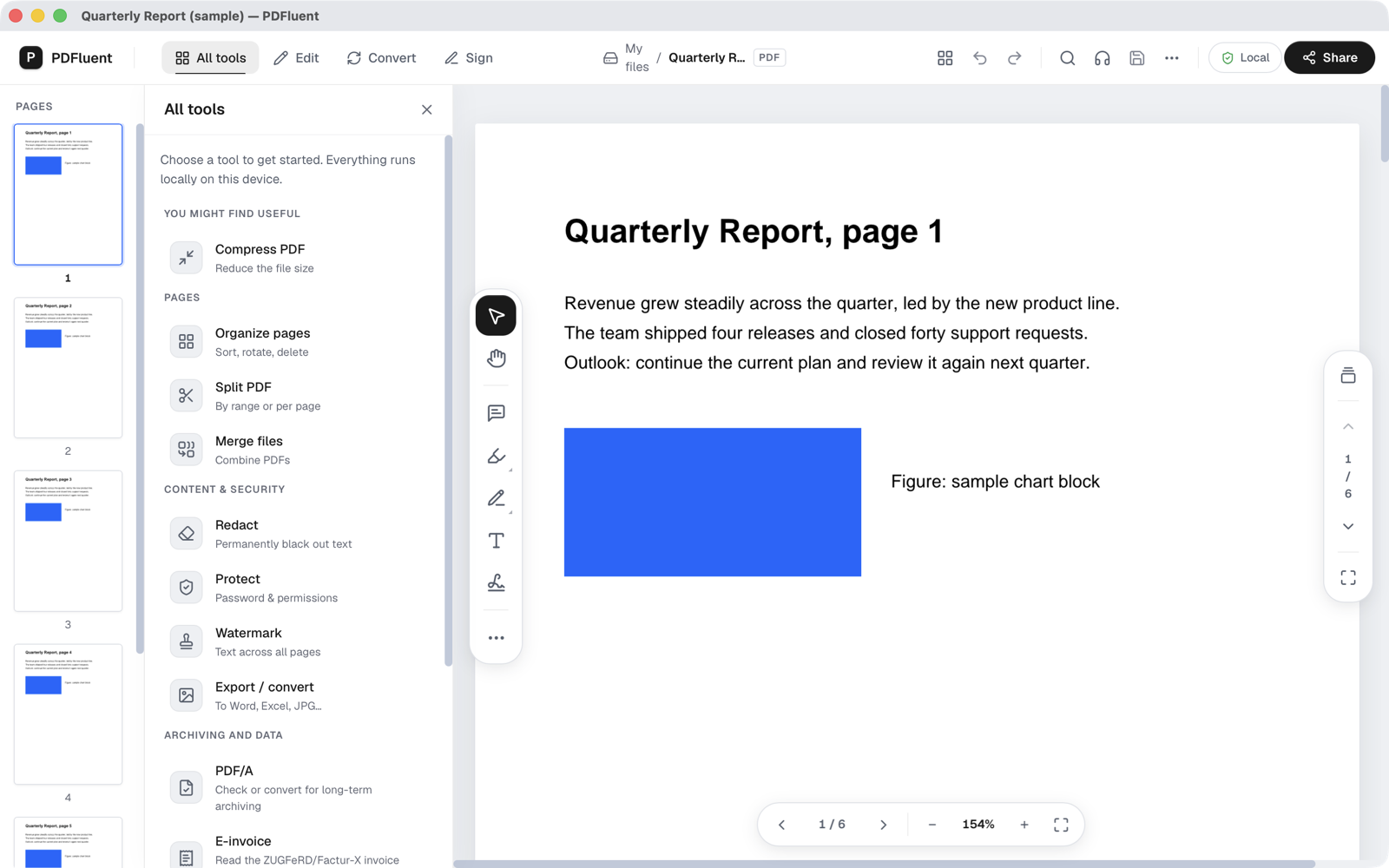
Choose Protect
Choose "Protect". The panel has a section "Password protection" with an "Encrypt" part, two password fields and the button "Encrypt…". Below it, a "Decrypt" part is for removing a password again.
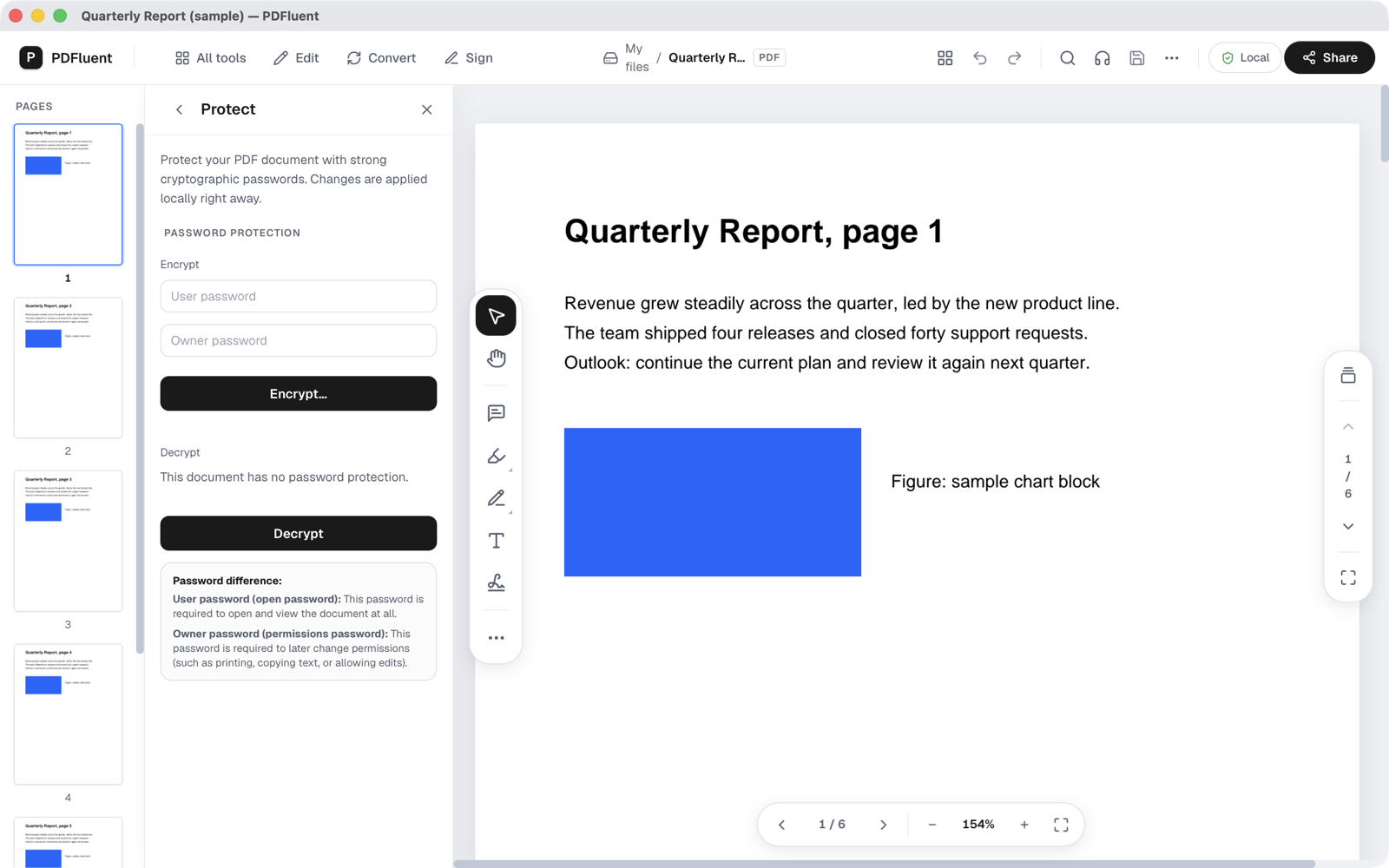
Type the passwords
Type the password people must enter to open the file in "User password". Type a second password in "Owner password". The note at the bottom of the panel explains the difference: the user password, also called the open password, is needed to open and view the document, and the owner password, also called the permissions password, is needed to change permissions later. Choose passwords you can recover, because the editor cannot find a lost one for you.
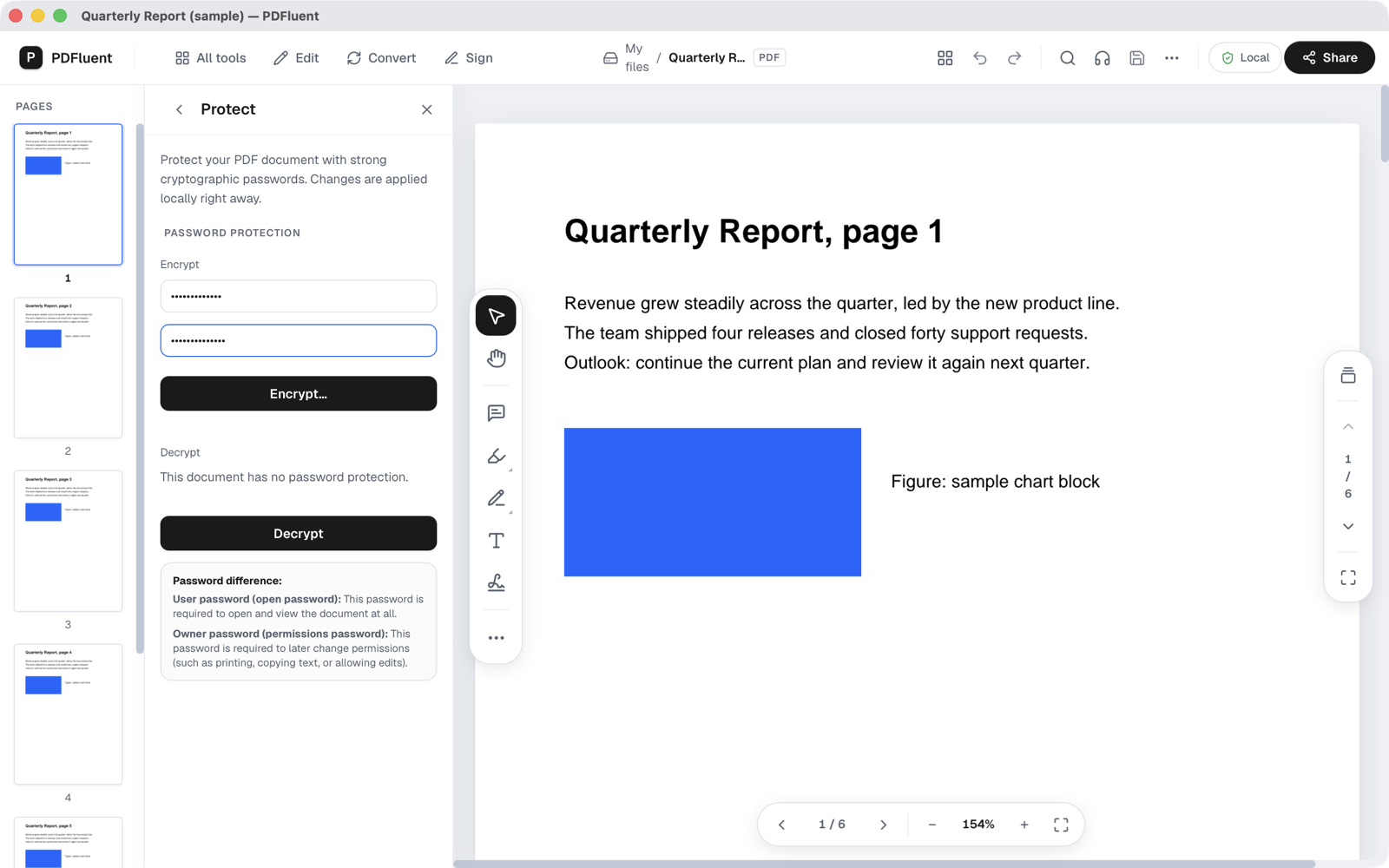
Press Encrypt…
Press "Encrypt…". A save window called "Save As" opens. Give the protected copy a new name, for example the original name with "-protected" at the end, choose a folder and press "Save".
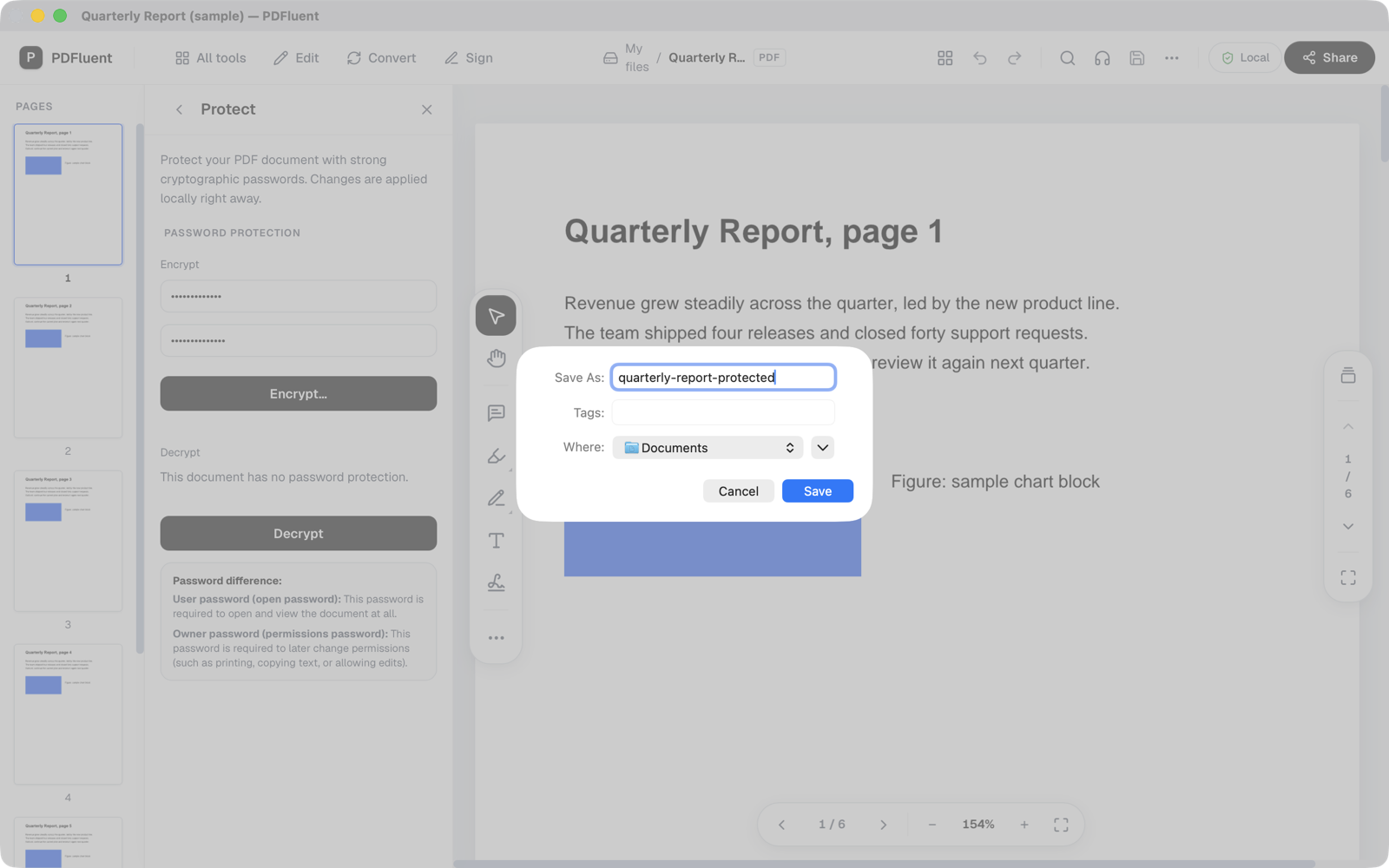
Open the protected copy and check it
Open the new file in PDFluent Editor. A dialog titled "This PDF is protected" appears with the text "Enter the password to open" followed by the file name. Type the user password in the "Password" field and press "Open". The document opens in a new tab.
What is the difference between the user and the owner password?
A PDF can carry two passwords, and the editor has a field for each. The user password is the one a reader types to open the file. The owner password is the one that guards the permissions of the file, such as printing, copying text or allowing edits.
If you only want to keep the file closed for people who should not read it, the user password is the one that matters. Keep the owner password as well, because it is the one you need later to take the protection off with "Decrypt".
PDFluent Editor is free for everyone, including commercial use, and your documents stay on your computer.
What to know before you protect a file
- "Encrypt…" writes a new file. The document you had open is not changed, so the original stays without a password until you decide otherwise.
- Write the passwords down somewhere safe. The editor cannot recover a password you have forgotten.
- Send the password by another route than the file. A password in the same email as the file protects very little.
- Test the protected copy before you send it, as described below.
- To take the password off again, open the file with its password, go to "All tools", "Protect" and press "Decrypt". The guide on removing a password shows every step.
How to check that the password works
Check the protected copy, not the document you still have open.
- Open the new file in PDFluent Editor. It should show the "This PDF is protected" dialog before any page appears.
- Type the user password and press "Open". The document should open. A wrong password gives the message "That password does not open this PDF. Try again."
- Send or store that copy, and keep the unprotected original somewhere safe or remove it, as you decide.
Free, and on your own computer
PDFluent Editor is free for everyone, at home and at work, including commercial use. No account is needed. Version 1.1 runs on macOS and Windows.
On macOS, documents are processed on your computer and the editor works without an internet connection. On a Mac, the file you protect and the passwords you type stay with you.
Frequently asked questions
Is it free to password protect a PDF with PDFluent Editor?
Yes. PDFluent Editor is free for everyone, including commercial and business use, and you do not need an account.
How do I password protect a PDF?
Open the PDF, go to "All tools" and choose "Protect". Type a password in "User password" and one in "Owner password", press "Encrypt…" and save the protected copy under a new name.
What is the difference between the user password and the owner password?
The user password, or open password, is needed to open and view the document. The owner password, or permissions password, is needed to change permissions later, such as printing, copying text or allowing edits.
Does the original file get a password too?
No. "Encrypt…" saves a new file through the "Save As" window, so the document you had open keeps its state. Open the new copy to see the password prompt.
What if I forget the password?
The editor cannot recover it. Keep the passwords somewhere safe, and keep an unprotected original if you may need it later.
Do my PDFs get uploaded to add a password?
On macOS, documents are processed on your computer and the editor works without an internet connection, so the files do not go to a website. This page only makes that statement for macOS.
Keep reading
Building software? Get the SDK.