How to compress a PDF on your own computer
Open the PDF in PDFluent Editor, go to "All tools" and choose "Compress PDF". Press "Save compressed copy as…", name the new file in the "Save compressed PDF" window and save. The editor shows the size before and after, and the open document is unchanged. The editor is free for everyone, including commercial use, and you do not need an account.
An email bounces because the attachment is too big, or a portal refuses your upload. The PDF is a scan, a report with many pictures or something that went through several editors. You want it lighter, and you would rather not hand a private document to a website to get that.
This guide shows how to compress a PDF in PDFluent Editor 1.1, using the real labels from the app. The work happens on your own computer, the result is a new file, and the original stays as it was.
PDFluent Editor is free for everyone, including at work. There is no account to create. Version 1.1 is available for macOS and Windows.
What the Compress tool does
The panel describes it as native optimization of streams and unused objects. In plain words, it rewrites the parts of the file that can be stored more compactly and drops objects that nothing in the document uses any more.
How much that saves depends on the file. A PDF that was saved carelessly, or that carries leftovers from earlier edits, can shrink a lot. A PDF that is already tight may barely change. The editor does not promise a size, but it tells you the size before and after, so you can see the result right away.
PDFluent Editor is free for everyone, including commercial and business use. No account is needed. Download it, open the PDF and compress it on your own machine.
Compress a PDF, step by step
The steps use PDFluent Editor 1.1. Keep the heavy PDF somewhere you can find it.
Open the PDF
Open the file in PDFluent Editor. If it asks for a password, type the password to open it first.
Open All tools and choose Compress PDF
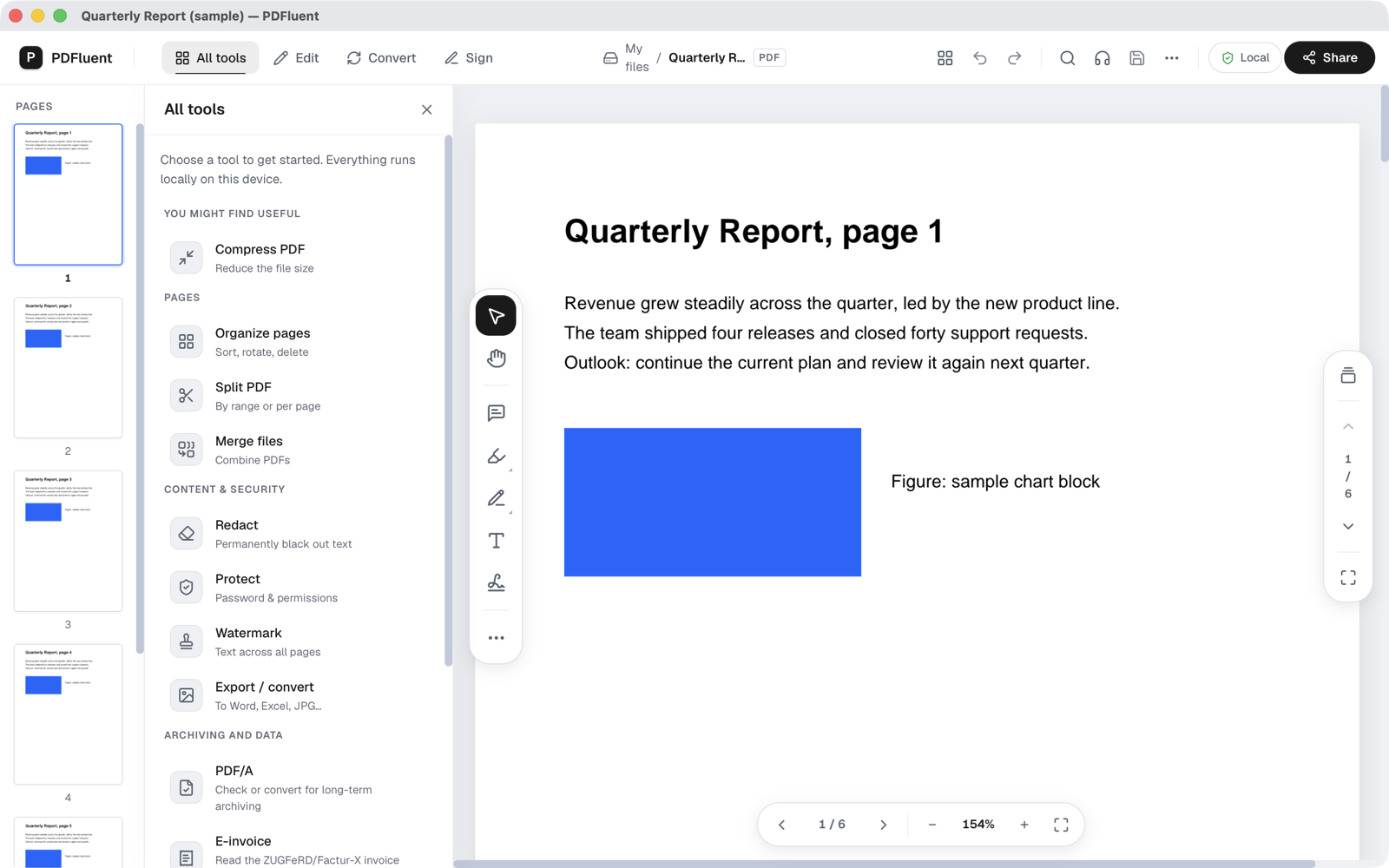
Go to "All tools". Near the top, under "You might find useful", the tile "Compress PDF" carries the line "Reduce the file size". Click it to open the compress panel. If you change your mind, "Back to tools" takes you back.
Read the Compression section
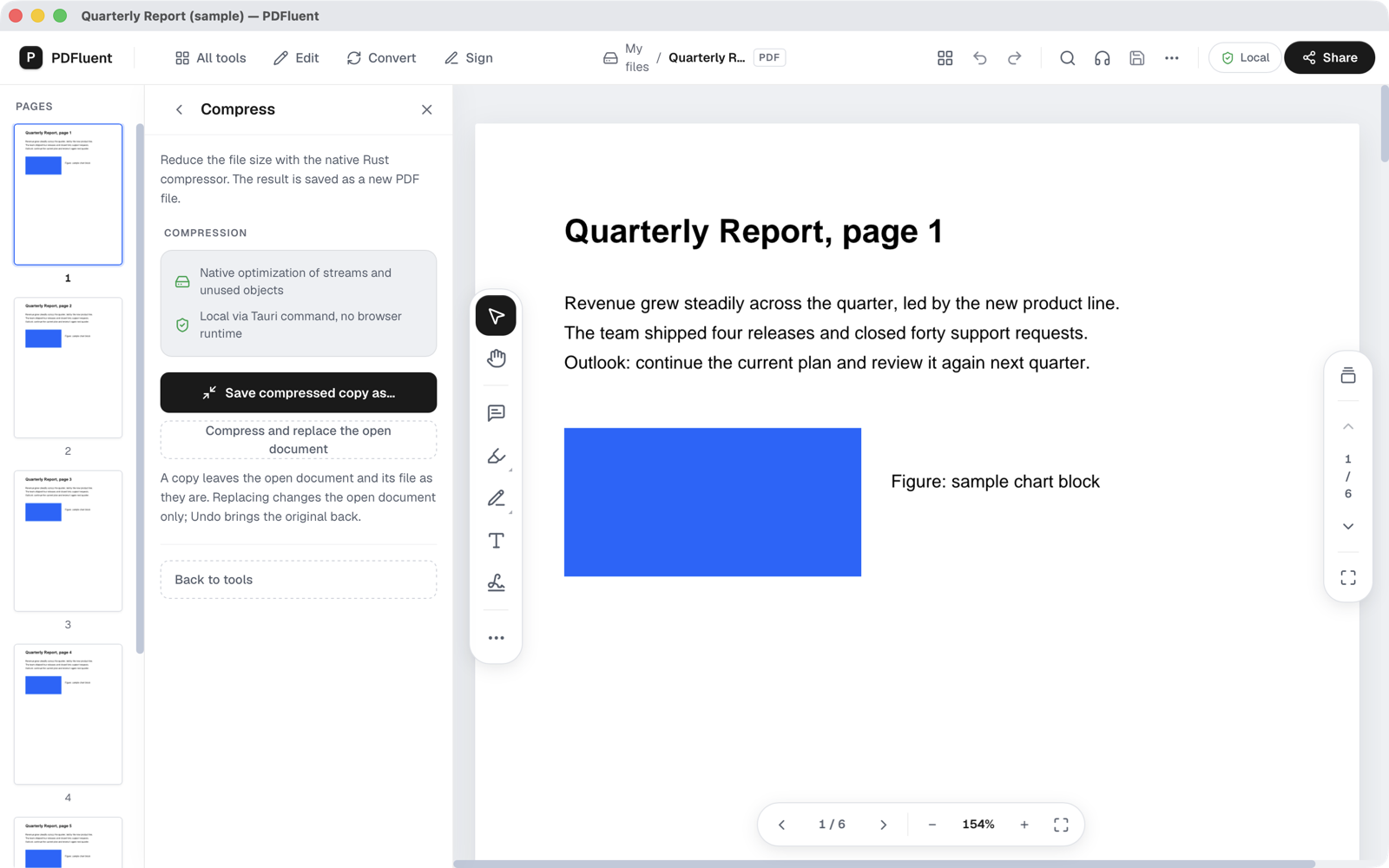
The panel explains what happens: native optimization of streams and unused objects. Below it are two buttons. "Save compressed copy as…" writes a new file. "Compress and replace the open document" changes the open document instead. For a first try, use the copy.
Name the new file
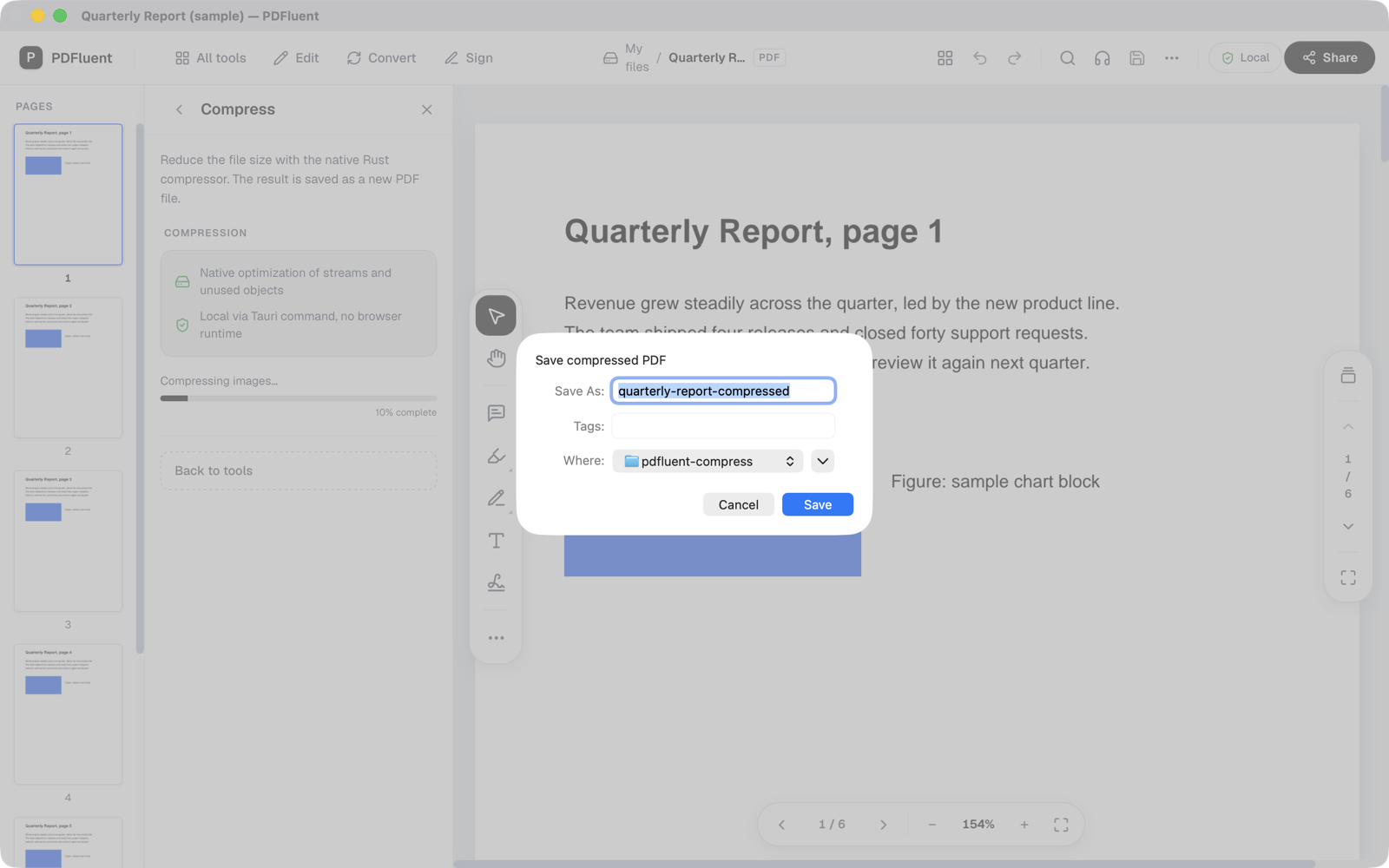
Press "Save compressed copy as…". A window titled "Save compressed PDF" asks for a name and a folder. The editor suggests the old name with -compressed at the end. Press Save. While it works, the panel shows "Compressing images…" with a percentage. Large files take longer.
Read the confirmation
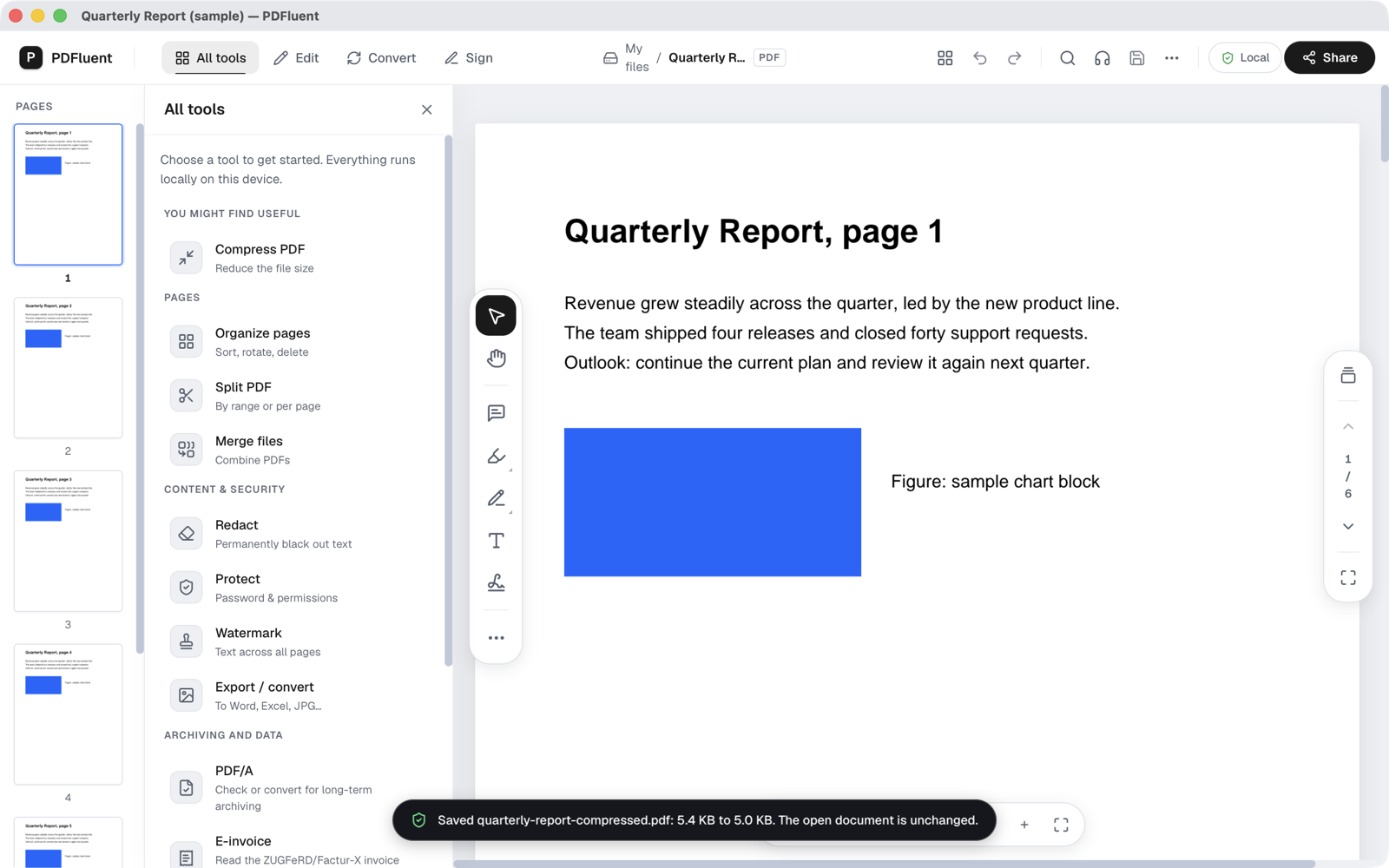
A message at the bottom says "Saved", followed by the file name, the size before and the size after, and that the open document is unchanged. That is the number that counts for your attachment limit.
PDFluent Editor is free for everyone, including commercial use, and your documents stay on your computer.
How to check it worked
- Read the size before and after in the confirmation message, or compare the two files in Finder or Explorer.
- Open the compressed copy in PDFluent Editor and page through it. Text, pictures and links should look as they did.
- Check that the copy is under the limit you were trying to meet, such as the attachment limit of your mail provider.
- Keep the original until you have looked at the copy. A copy never overwrites it.
If the copy is about as big as the original, the file was already compact. Splitting it into parts or removing pages you do not need will do more than another compression pass.
What it does and does not do
- "Save compressed copy as…" saves a new file. The PDF you opened and its file stay as they were.
- "Compress and replace the open document" changes the open document only, and the panel says Undo brings the original back. The file on disk changes when you save it.
- It runs on your computer. The panel says everything runs locally on this device and the tool is available in the desktop app, so the file is not sent to a website.
- It does not promise a smaller file. Savings depend on how the PDF was made.
- If something goes wrong, the editor shows "Compression failed:" followed by the reason, and you keep your original.
- A document that is protected with a password has to be opened first, with its password, before it can be compressed.
Free, and on your own computer
PDFluent Editor is free for everyone, at home and at work, including commercial use. No account is needed. Version 1.1 runs on macOS and Windows.
On macOS, documents are processed on your computer and the editor works without an internet connection, so your PDF does not go to a website to be compressed.
Frequently asked questions
How do I compress a PDF for free?
Open it in PDFluent Editor, choose "Compress PDF" under "All tools", press "Save compressed copy as…" and save the copy. The editor is free for everyone, including commercial use, and needs no account.
Does compressing change my original file?
No. "Save compressed copy as…" writes a new file in the "Save compressed PDF" window, and the confirmation says the open document is unchanged. Only the option "Compress and replace the open document" changes the open document, and Undo brings the original back.
How much smaller will the PDF be?
That depends on the file. The editor does not promise a size. The confirmation message shows the size before and after.
Is my PDF uploaded anywhere?
No. The compress tool works on your own computer and is available in the desktop app. On macOS the editor also works without an internet connection.
What if the compressed file is not much smaller?
Then the PDF was already compact. Try splitting it into parts, or remove pages you do not need, and compare again.
Can I compress a password-protected PDF?
Open it first with its password. The editor asks for the password when you open the file.
Is the editor free?
Yes. PDFluent Editor is free for everyone, including commercial and business use. There is no account to create.
Keep reading
Building software? Get the SDK.