How to delete pages from a PDF and save the result
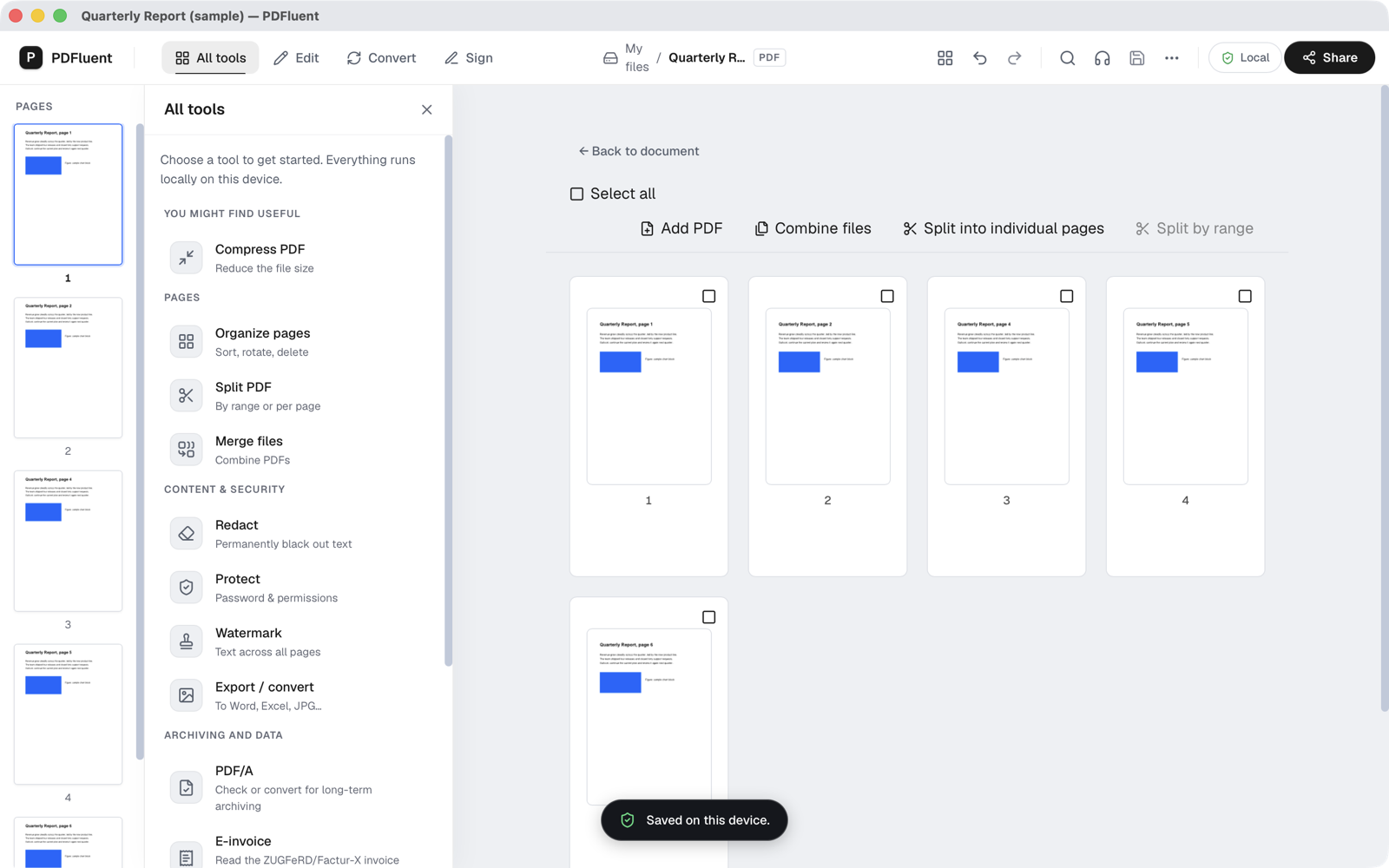
Open the PDF in PDFluent Editor, go to "All tools", then "Organize pages", tick the check box on the page you want to remove and press "Delete". The page disappears at once and the remaining pages are renumbered. Save the file to keep the change: the editor then shows "Saved on this device." The editor is free for everyone, including commercial use, and you do not need an account.
A report has a blank page at the end. A contract carries a cover sheet you do not want to send. A scan picked up a page from the wrong document. The rest of the file is fine, you only need some pages gone.
This guide shows how to delete pages from a PDF in PDFluent Editor 1.1, using the real labels from the app. It covers the steps, what happens to the file when you save, and how to get a page back before you do.
PDFluent Editor is free for everyone, including at work, and you do not need an account. Version 1.1 is available for macOS and Windows.
When to delete pages, and where the editor does it
Delete a page when it should not be in the file at all: a blank page, a duplicate, a page with private details, a cover sheet or an appendix the reader does not need. If you only want to move pages around, reordering is the better tool.
In PDFluent Editor, deleting pages lives in "Organize pages". You find it under "All tools" in the "PAGES" group, with the subtitle "Sort, rotate, delete". It opens a grid of page thumbnails with a check box on each page.
PDFluent Editor is free for everyone, including commercial and business use. No account is needed. Download it, open the PDF and remove the pages you do not want.
Delete pages from a PDF, step by step
The steps use PDFluent Editor 1.1. Keep a copy of the original if you may need the deleted pages later, because saving writes the change into the file you opened.
Open the PDF and go to All tools
Open the file in PDFluent Editor. If it asks for a password, type the password to open it first. Then click "All tools" in the top bar.
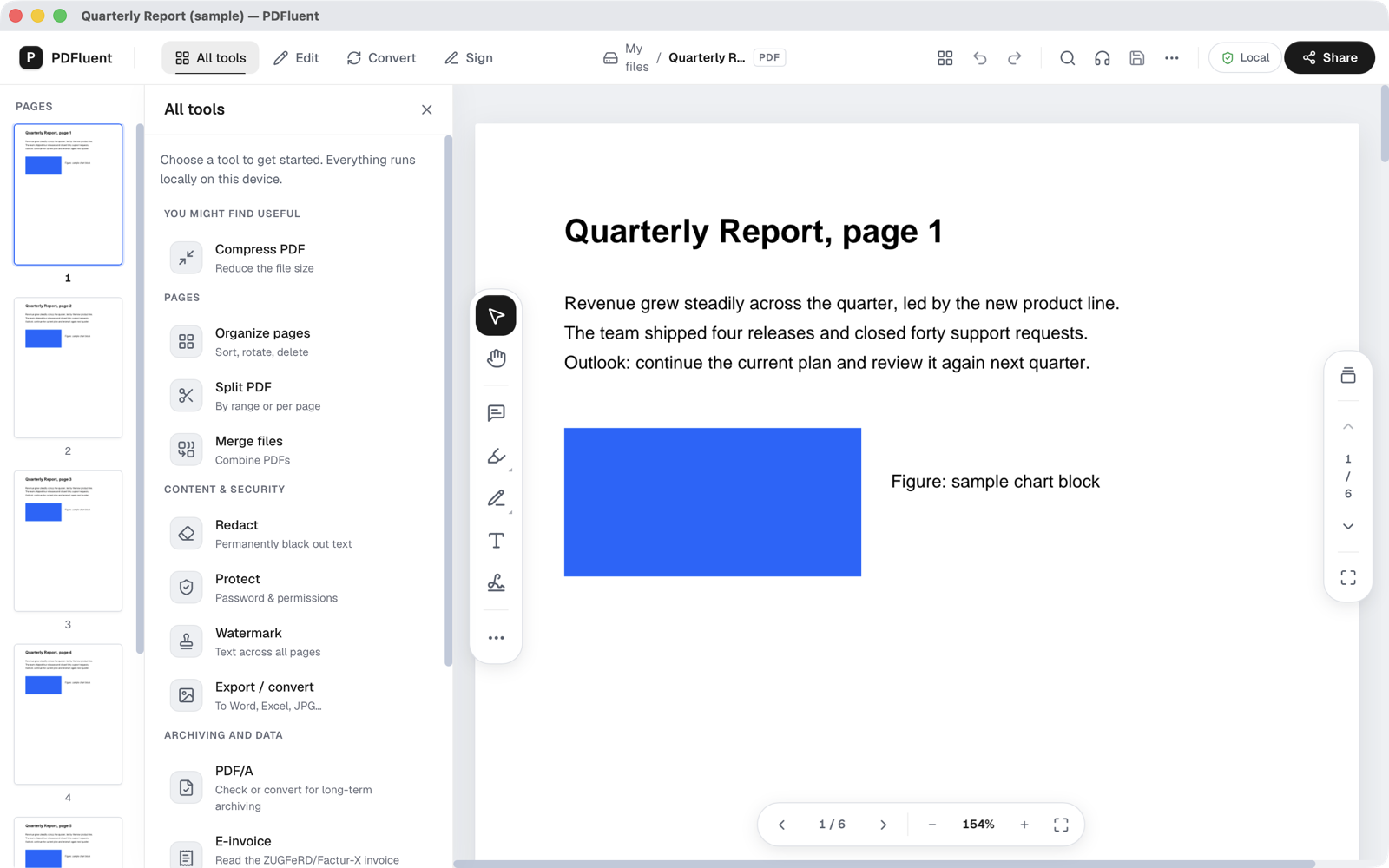
Choose Organize pages
Click "Organize pages" under "PAGES". The window shows every page as a thumbnail with a number and a check box. "Back to document" takes you back to the normal view.
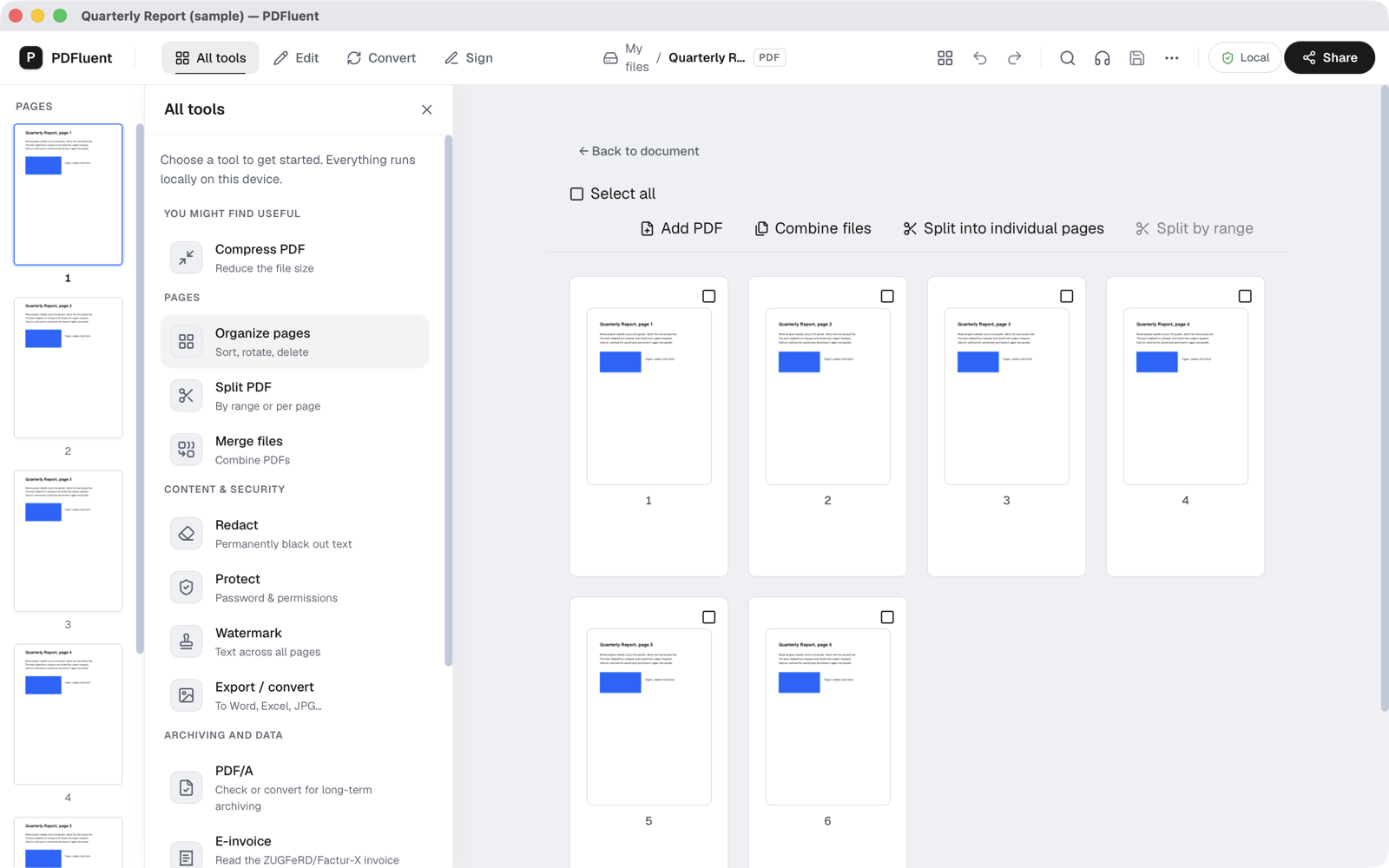
Tick the page you want to remove
Tick the check box on the page. The top of the window changes to "1 selected" and shows the page actions, including "Delete". The check boxes select one page at a time, so delete one page, then tick the next.
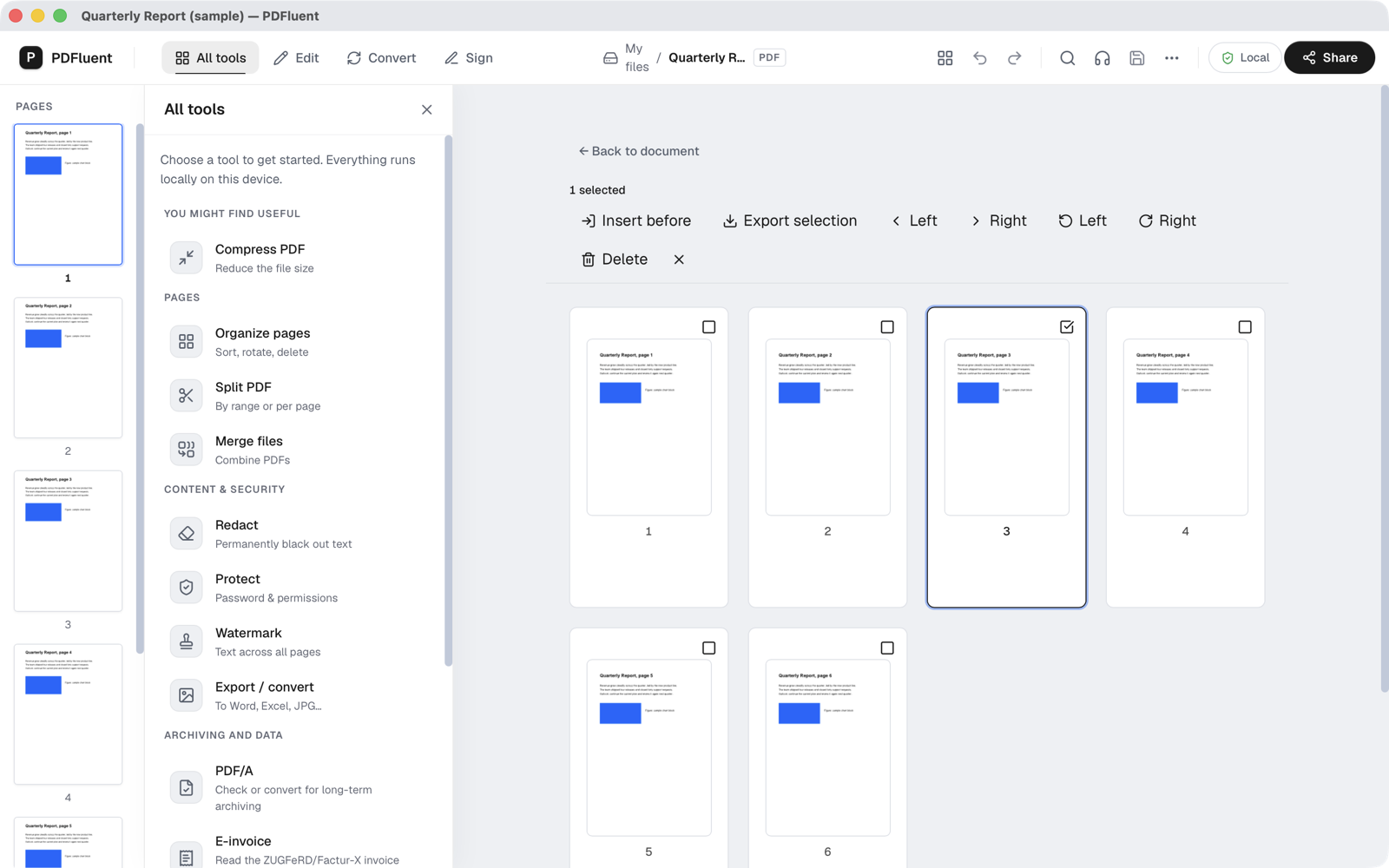
Press Delete
Press "Delete". The page leaves the grid at once and the pages after it move up, so the numbers run on without a gap. The title of the window gets an asterisk until you save. If you pressed it by mistake, press "Undo" (Command-Z on a Mac) before you save and the page comes back.
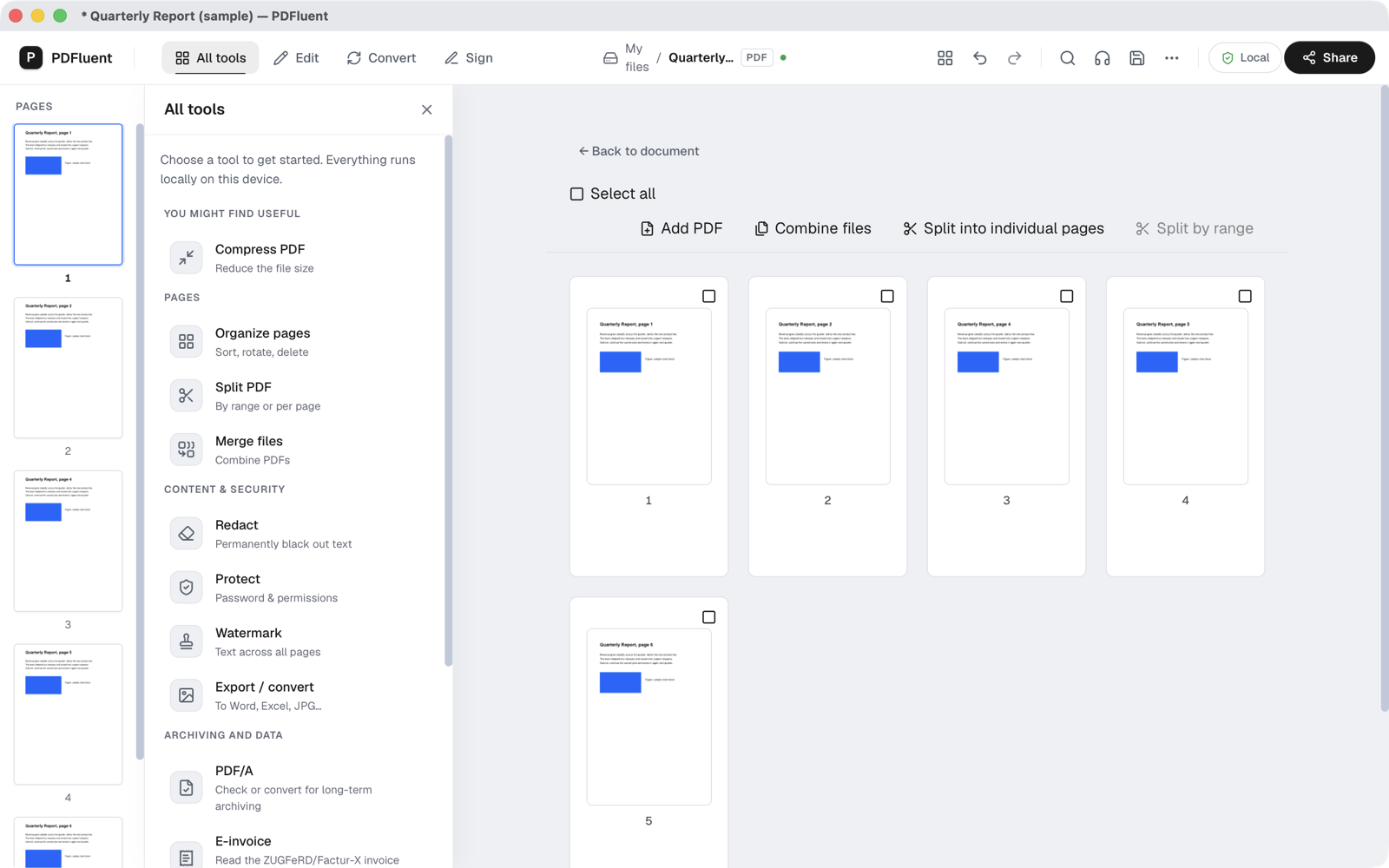
Save the file
Press the save icon in the top bar, or Command-S on a Mac. The editor shows "Saved on this device." The file you opened now has the shorter page list, so it replaces the old version.
PDFluent Editor is free for everyone, including commercial use, and your documents stay on your computer.
How to check it worked
- Look at the page count in the editor. It went down by the number of pages you deleted.
- Page through the document and check that the pages you wanted are all there and in order.
- Open the saved file in another PDF viewer if you want a second look before you send it.
- Before you send it, check that the file name is the one you mean to send. Saving replaces the file you opened.
If you deleted the wrong page and have not saved yet, press "Undo". If you already saved and closed the file, go back to the copy you kept.
What it does and does not do
- It removes the page from the PDF. The change lives in memory until you save, and "Undo" works until then.
- Saving writes the change into the same file. Keep a copy of the original when you may need the deleted pages.
- It works on one ticked page at a time. To remove several pages, delete them one after the other.
- It deletes whole pages only. To take out text or an image on a page and keep the page, use the redact tool instead.
- It runs on your computer. The file does not go to a website.
- A page that is deleted is no longer in the saved file. The editor does not keep it in a hidden layer.
Free, and on your own computer
PDFluent Editor is free for everyone, at home and at work, including commercial use. No account is needed. Version 1.1 runs on macOS and Windows.
On macOS, documents are processed on your computer and the editor works without an internet connection. On a Mac, the file you edit stays with you.
Frequently asked questions
How do I delete pages from a PDF for free?
Open the PDF in PDFluent Editor, go to "All tools", then "Organize pages", tick the page and press "Delete". Then save the file. The editor is free for everyone, including commercial use, and needs no account.
Can I get a deleted page back?
Yes, as long as you have not saved. Press "Undo" (Command-Z on a Mac) and the page returns. After you save and close the file, the page is gone from that file, so keep a copy of the original.
Does deleting a page change my original file?
After you save, yes. The editor writes the change into the file you opened and shows "Saved on this device." Keep a copy of the original if you may need the pages again.
Can I delete more than one page at once?
The check boxes select one page at a time. Delete a page, tick the next one and delete that too. The pages after a deleted page move up, so check the numbers before you tick.
Can I delete pages from a password-protected PDF?
Open the file first with its password. The editor asks for the password when you open the file. Then the steps are the same.
Is the PDF uploaded anywhere?
No. Deleting pages happens on your own computer. On macOS the editor also works without an internet connection.
Is the editor free to use at work?
Yes. PDFluent Editor is free for everyone, including commercial and business use, and you do not need an account.
Keep reading
Building software? Get the SDK.