How to export a PDF to a Markdown file on your computer
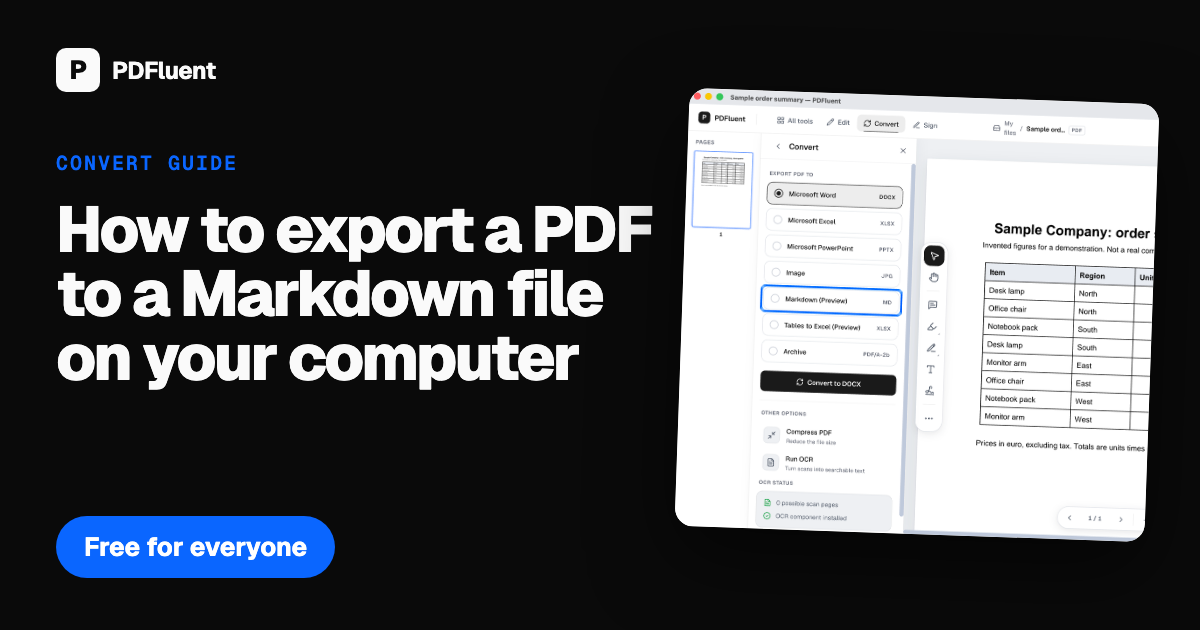
Open the PDF in PDFluent Editor, click "Convert", choose "Markdown (Preview)" and press "Export", then save the .md file. This is for anyone who wants the text of a PDF as plain Markdown for notes, a wiki or documentation, and the editor is free for everyone, including commercial use, with no account.
A PDF is good for reading and bad for reuse. When you want its text in your notes app, a team wiki or a docs folder, you need something plain that keeps the headings and tables. Markdown is that format: a text file with a few marks for structure.
This guide shows the Markdown export in PDFluent Editor 1.1, step by step, with every label as the app shows it. The export is a Preview feature, so the last section covers how to check what you get.
Export a PDF to Markdown, step by step
The steps use PDFluent Editor 1.1 on a Mac and a one-page sample order summary with a title, a short sentence, a table and a note. The editor writes a new .md file and does not touch the PDF.
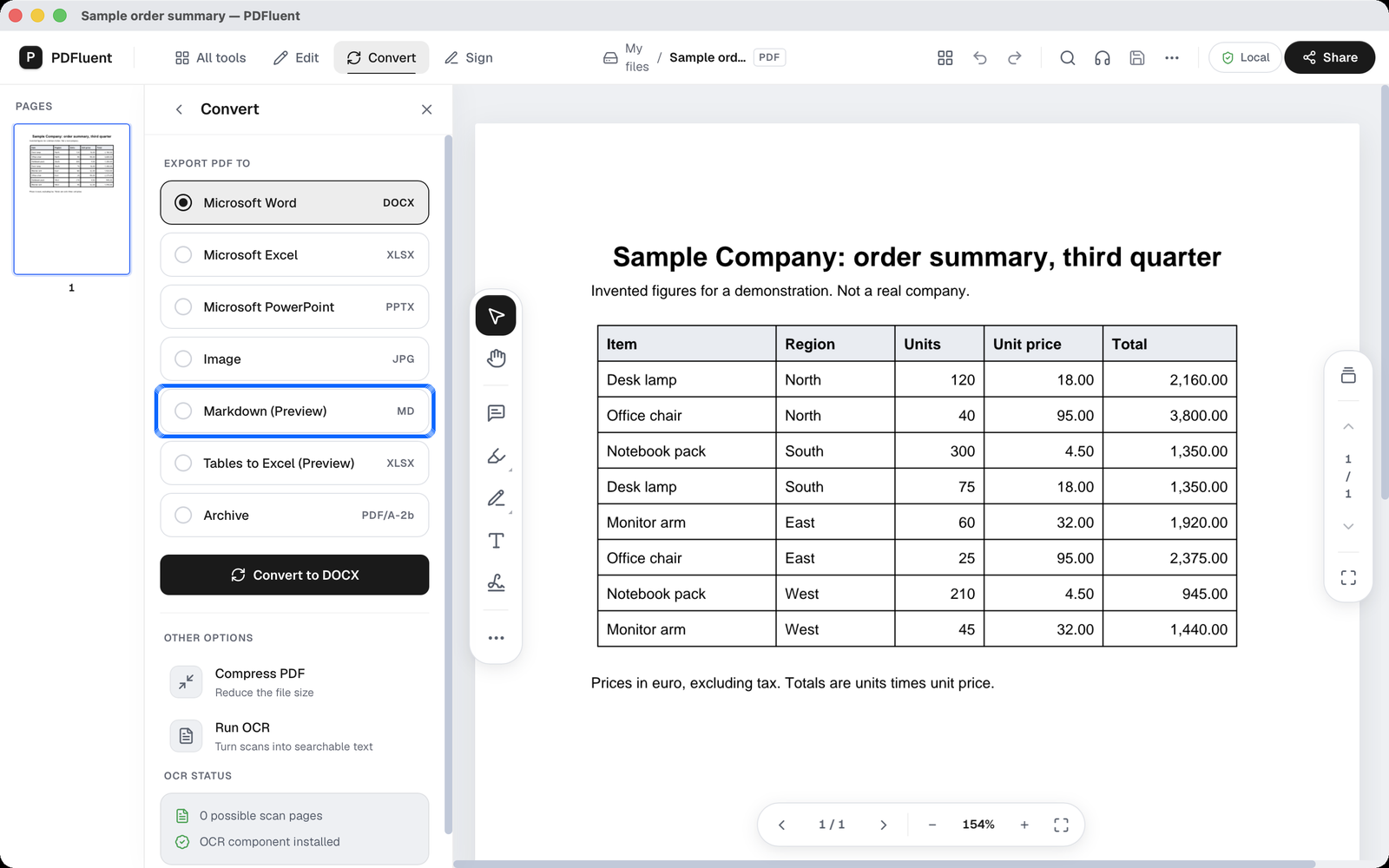
Click Convert and choose Markdown (Preview)
Open the PDF and click "Convert" in the top bar. Under EXPORT PDF TO, click the "Markdown (Preview)" row, marked MD.
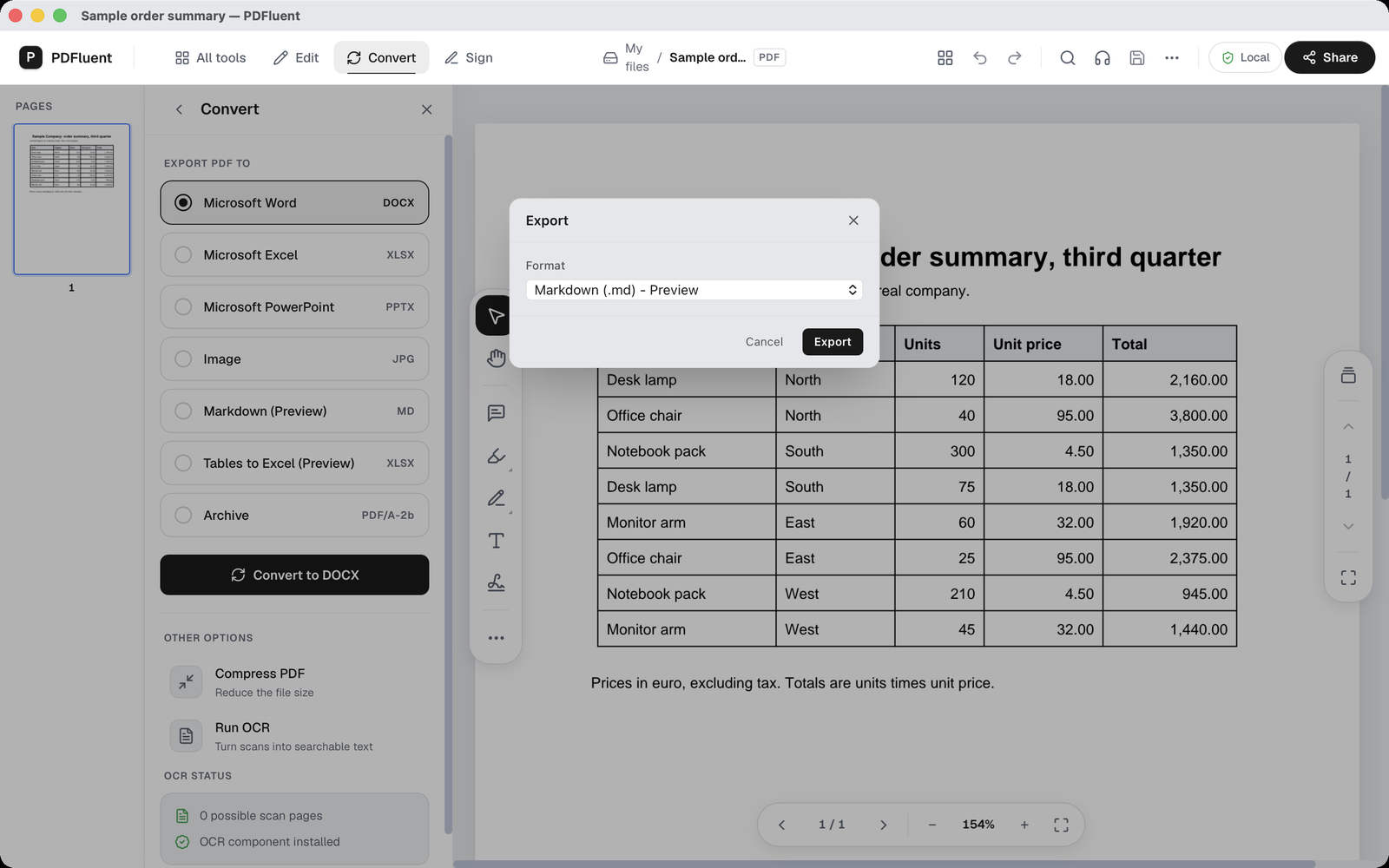
Press Export
The "Export" window opens with the format set to "Markdown (.md) - Preview". Press "Export" to continue, or "Cancel" to stop.
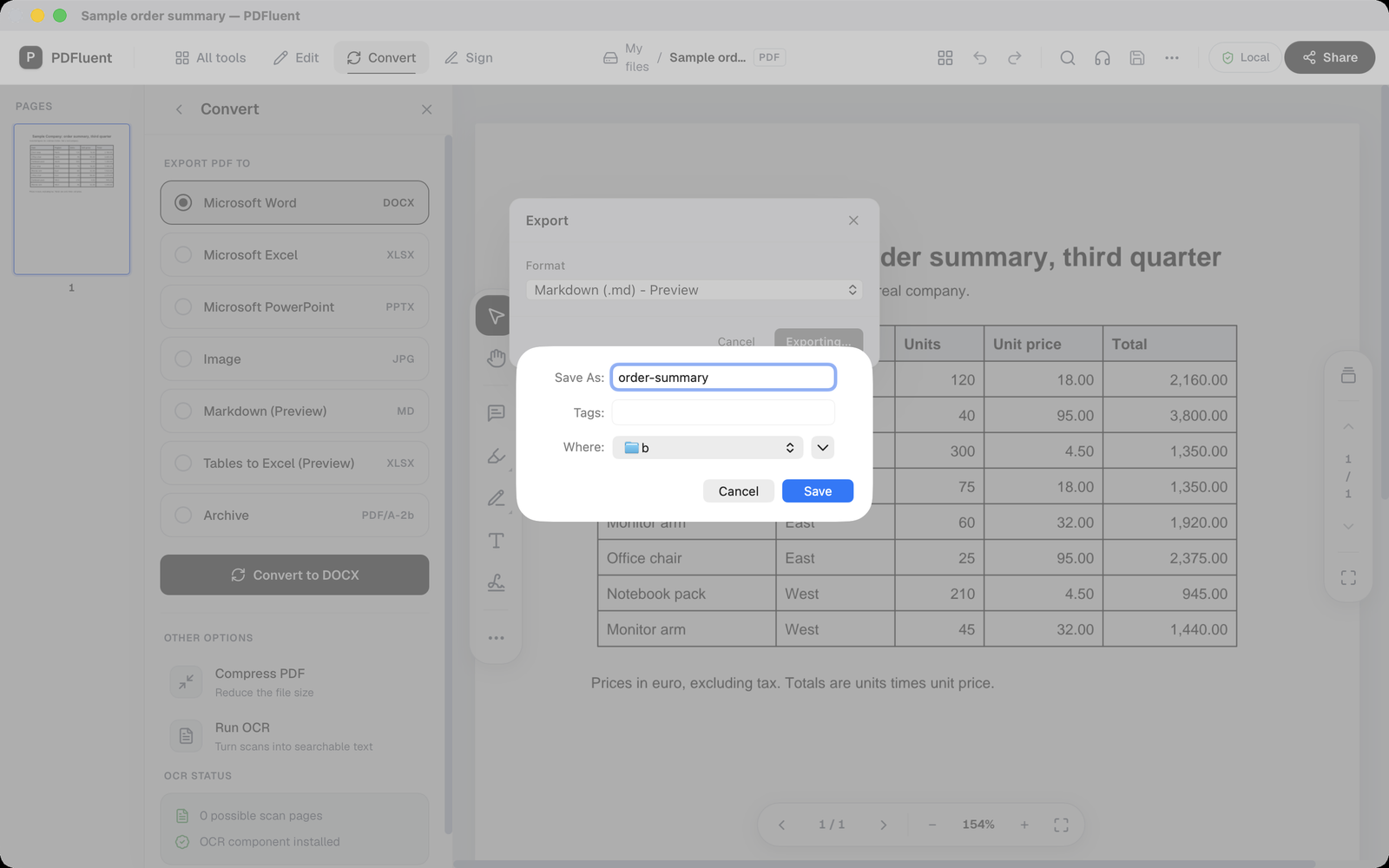
Name the file and save it
Your Mac shows its save window. Type a name, choose a folder and press Save. The editor adds .md to the name.
Open the .md file to check it
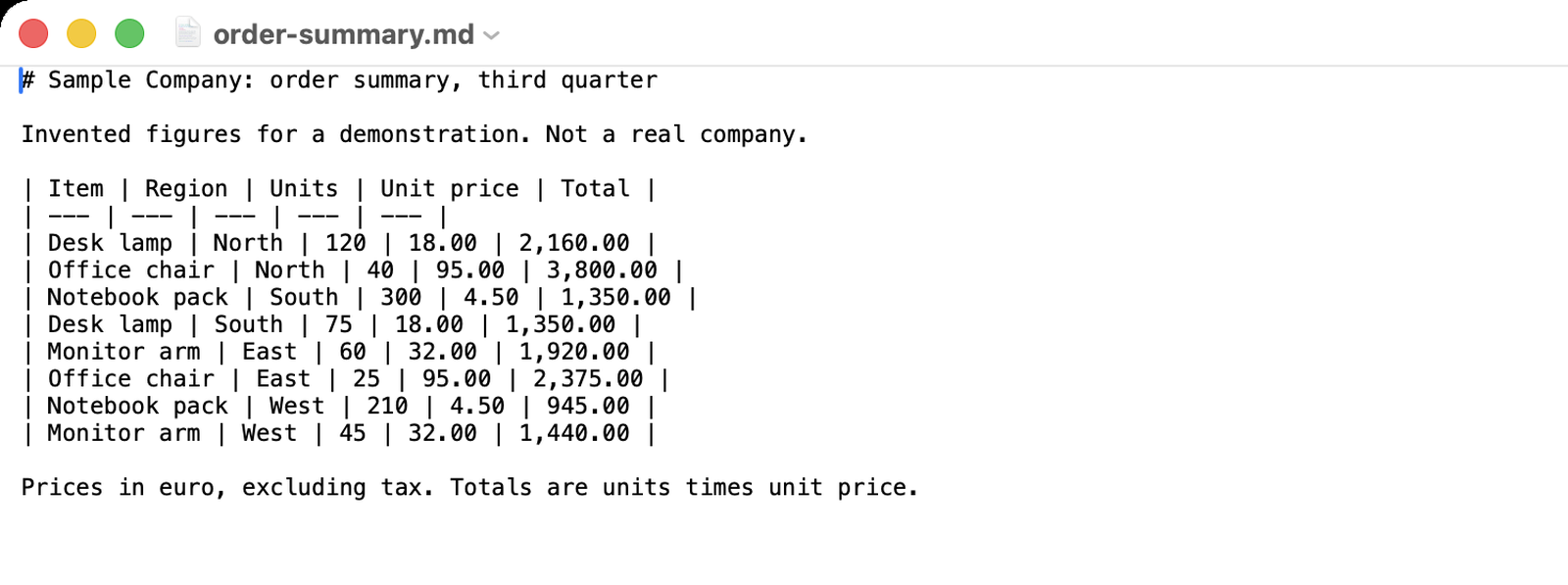
Open the new file in any text editor. You see plain text: a # in front of the heading, normal paragraphs, and tables drawn with | characters.
PDFluent Editor is free for everyone, including commercial use. There is no licence key, no trial, no tier and no subscription, and you do not need an account.
PDFluent Editor is free for everyone, including commercial use, and your documents stay on your computer.
What it does and does not do
- Markdown export is a Preview feature. The app marks it Preview, so open the file and check it before you rely on it.
- In our test the title of the order summary became a "#" heading. The sentence and the note became plain paragraphs, and the table became a Markdown pipe table with a header row and its 8 rows in the original order.
- It goes one way. It turns a PDF into Markdown and does not turn a Markdown file back into a PDF.
- It does not promise to keep the layout of the page. Markdown stores text and structure, not pictures or the exact place of things on a page, so do not expect those in the file.
- A scanned PDF is a picture of text, with nothing to export. Run OCR on it first: OCR is built into the editor, covers six languages and needs nothing extra to download, and it makes the scan searchable and copyable.
On macOS, your documents never leave your device, and PDFluent Editor works without an internet connection.
How to check the Markdown file
- Put the PDF and the .md file side by side. Read the headings in the file and see if they match the titles in the PDF.
- Find each table. Count the columns in the header row and compare the rows with the PDF, including their order.
- Paste the file into the place you want to use it, such as your notes app or wiki, and look at how it renders there. Fix anything that is off in the text before you share it.
Frequently asked questions
How do I convert a PDF to Markdown for free?
Open the PDF in PDFluent Editor, click "Convert", choose "Markdown (Preview)" and press "Export". Then name the file and save it. The editor is free for everyone, including commercial use, and needs no account.
Do tables come across?
In our test the table on the sample page became a Markdown pipe table with a header row and all 8 rows in order. Check each table in your own file against the PDF, because this is a Preview feature.
Are headings kept?
In our test the title of the page became a "#" heading. Read through the headings in your file to see that they match the PDF.
Can I export a scanned PDF to Markdown?
Not directly. A scan is a picture with no text in it. Run OCR in the editor first to make the scan searchable and copyable, then export it.
Is my PDF changed when I export it?
No. The editor writes a new .md file in the folder you choose and leaves the PDF as it was.
Does it work on Windows?
PDFluent Editor 1.1 is available for Windows as well as macOS. The steps and screenshots in this guide were taken on a Mac.
Keep reading
Building software? Get the SDK.