How to merge PDF files into one for free
Open the first PDF in PDFluent Editor, go to "All tools" and choose "Merge files". Press "Add file" for each PDF you want to put after it, then press "Merge files". The editor asks where to save the result in a dialog titled "Save merged PDF" and keeps your original files as they are. The editor is free for everyone, including commercial use, and you do not need an account.
You have two or more PDFs that belong together. A report and its appendix. A contract and the signed annex. Invoices from one month that have to go out as one file. You want one PDF, and you do not want to upload anything to a website for it.
This guide shows how to merge PDF files in PDFluent Editor 1.1, using the real labels from the app. You open the first file, add the others, press one button and save the result. It also covers the order of the files and how to check the merged file before you send it.
PDFluent Editor is free for everyone, including at work, and you do not need an account. Version 1.1 is available for macOS and Windows.
Merge PDF files, step by step
The steps use PDFluent Editor 1.1 and two sample files: a 6-page report and a 5-page handbook. The goal is one file of 11 pages, with the report first.
Open the first file and go to All tools
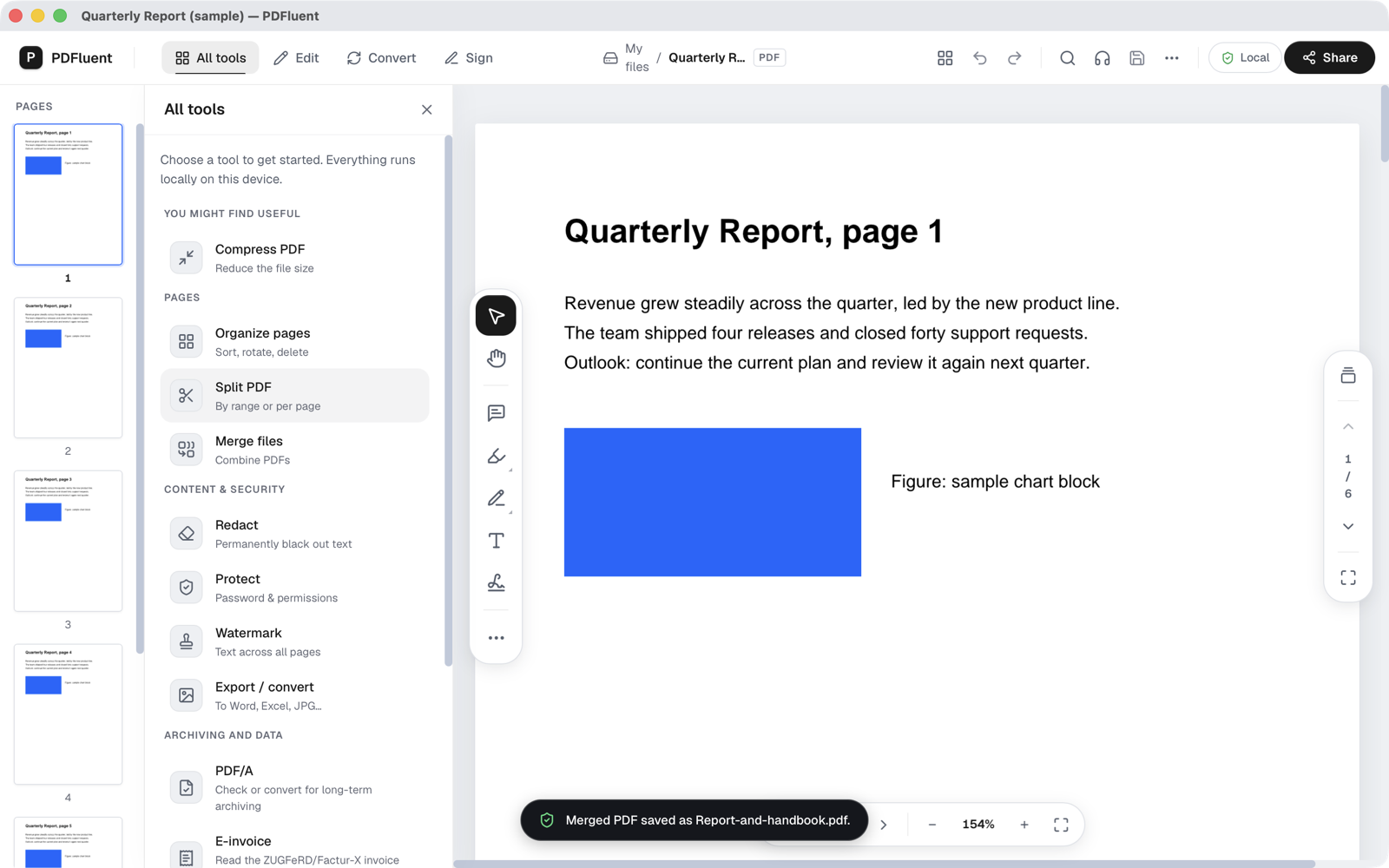
Open the PDF that should come first. Open "All tools". Under the group "PAGES" you see "Organize pages", "Split PDF" and "Merge files", the last with the subtitle "Combine PDFs".
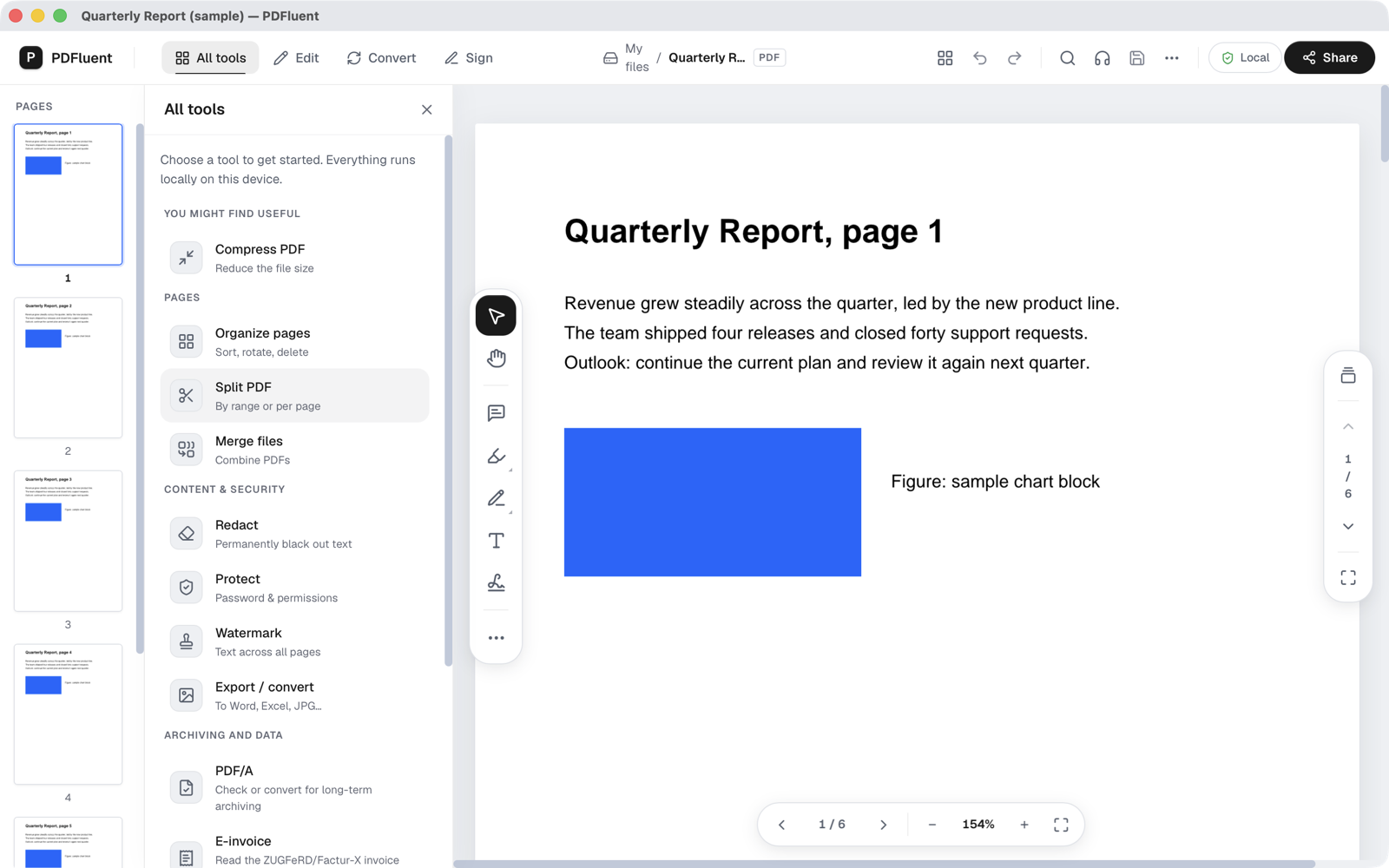
Choose Merge files
Choose "Merge files". A panel titled "Merge" opens with the text "Merge multiple PDF files and images into a single, clean PDF document." Under "FILES TO MERGE" the file you have open is already listed, marked "Current document".
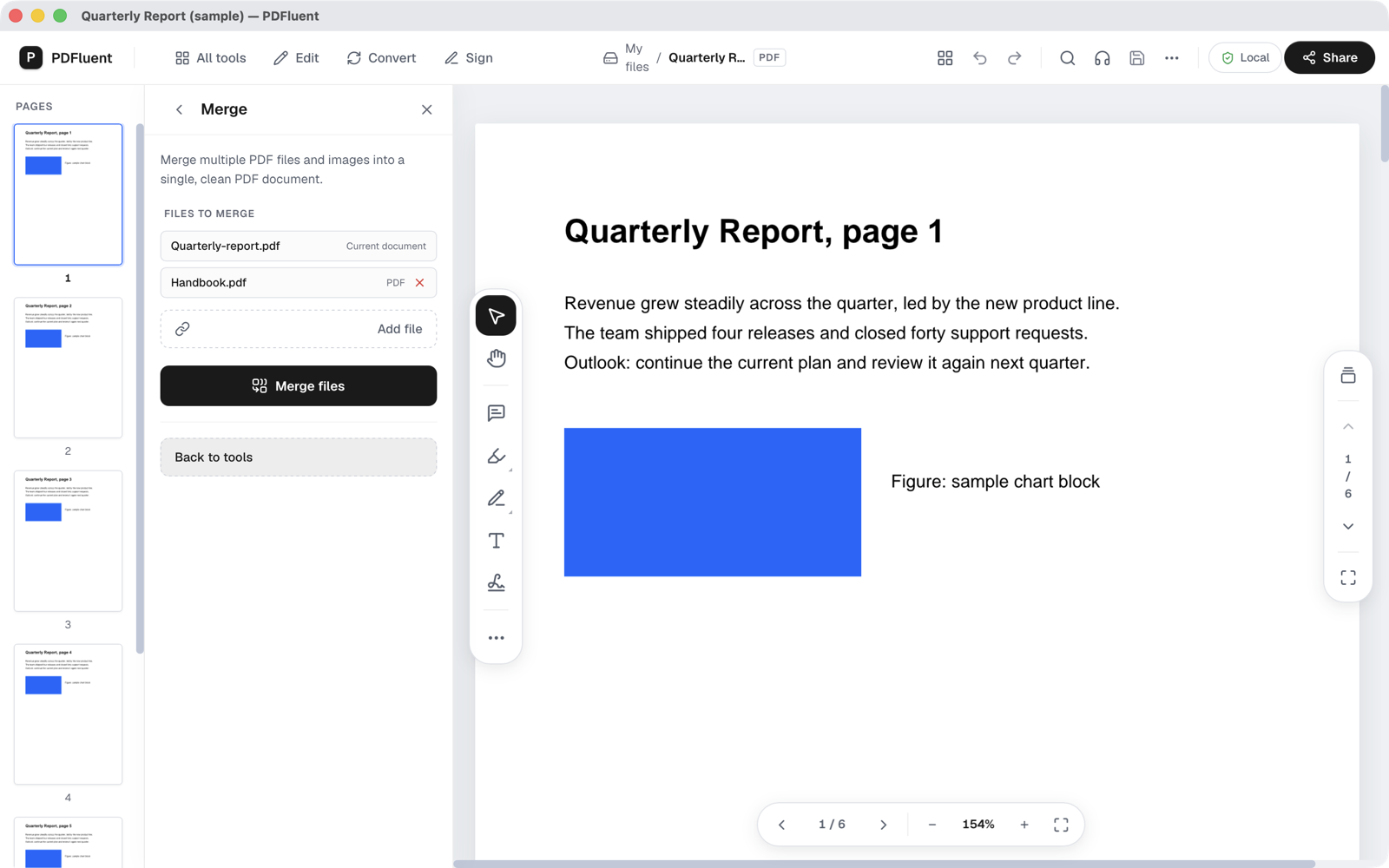
Add the other files
Press "Add file" and pick the next PDF in the file dialog. A message at the bottom says "1 file added to the merge list." and the file appears in the list under the current document. Repeat for every file you want to add. A red cross next to a file takes it out of the list again.
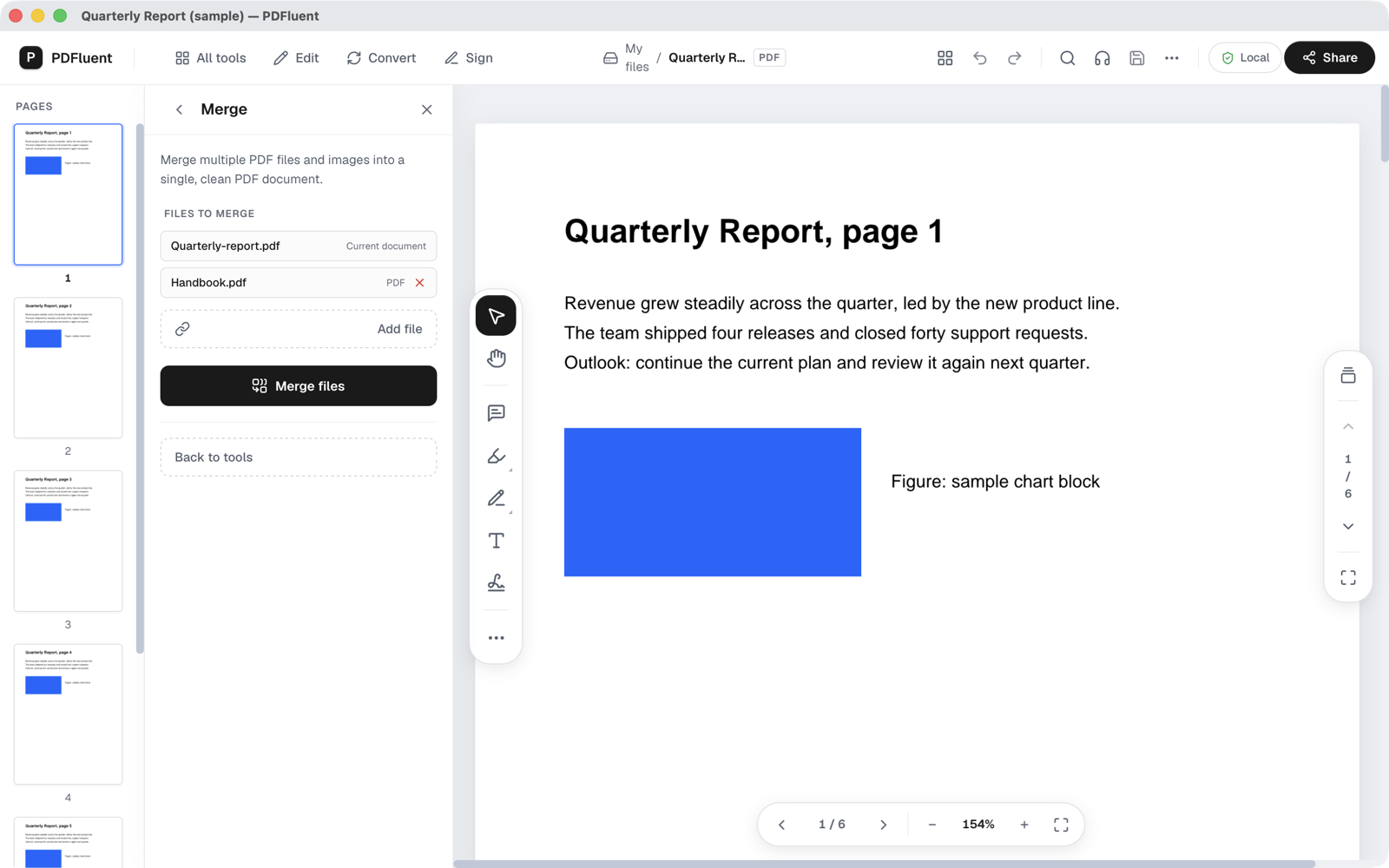
Press Merge files
Press "Merge files". The panel shows "Merging PDFs and fixing page numbers…" while it works. A dialog titled "Save merged PDF" then asks for a name and a place. It suggests "merged.pdf". Type a name that says what the file holds and press Save.
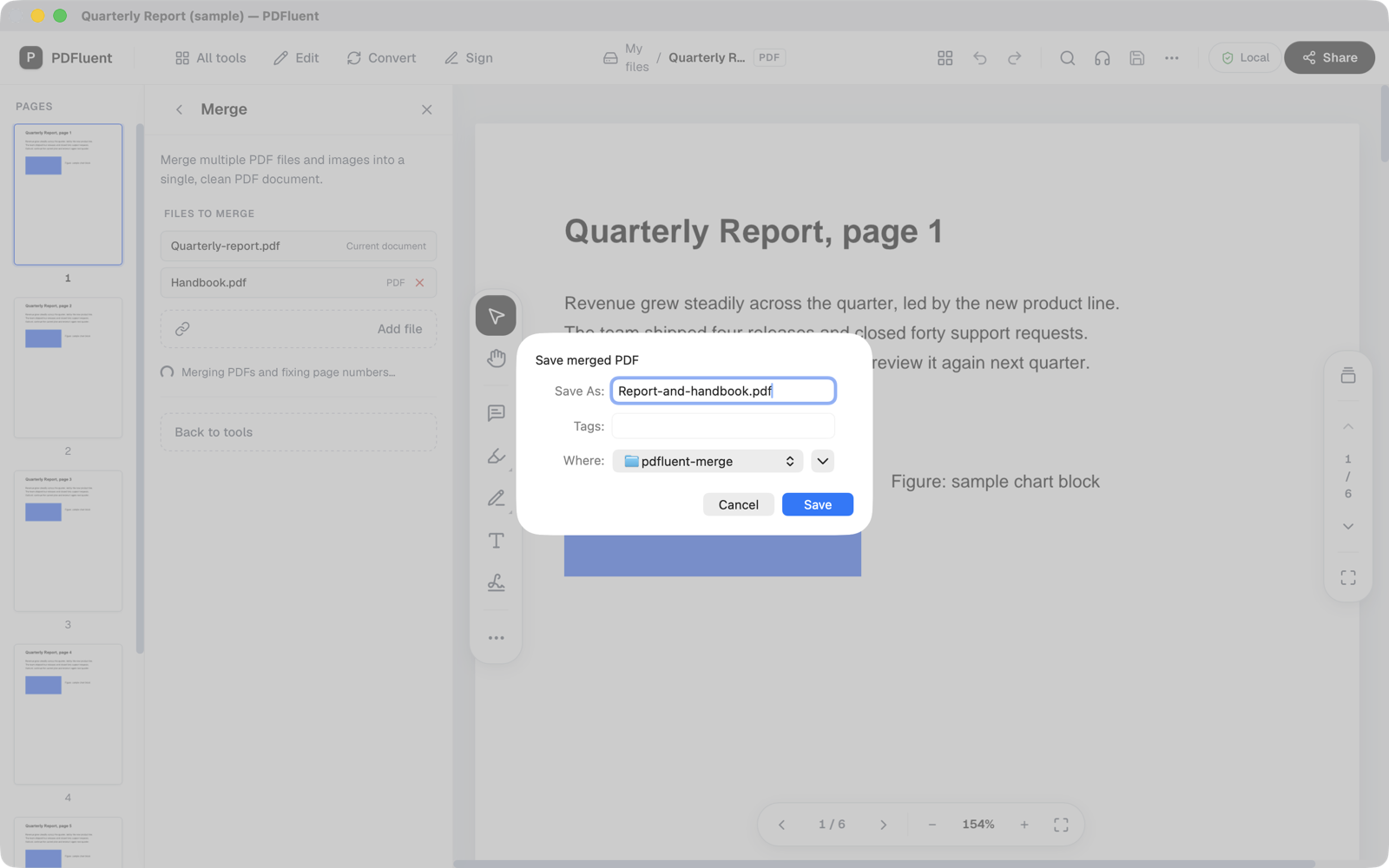
Read the confirmation
When the file is saved, a message at the bottom says "Merged PDF saved as", followed by the file name. The file you had open is not changed: it still has its own pages.
Open the merged file and check it
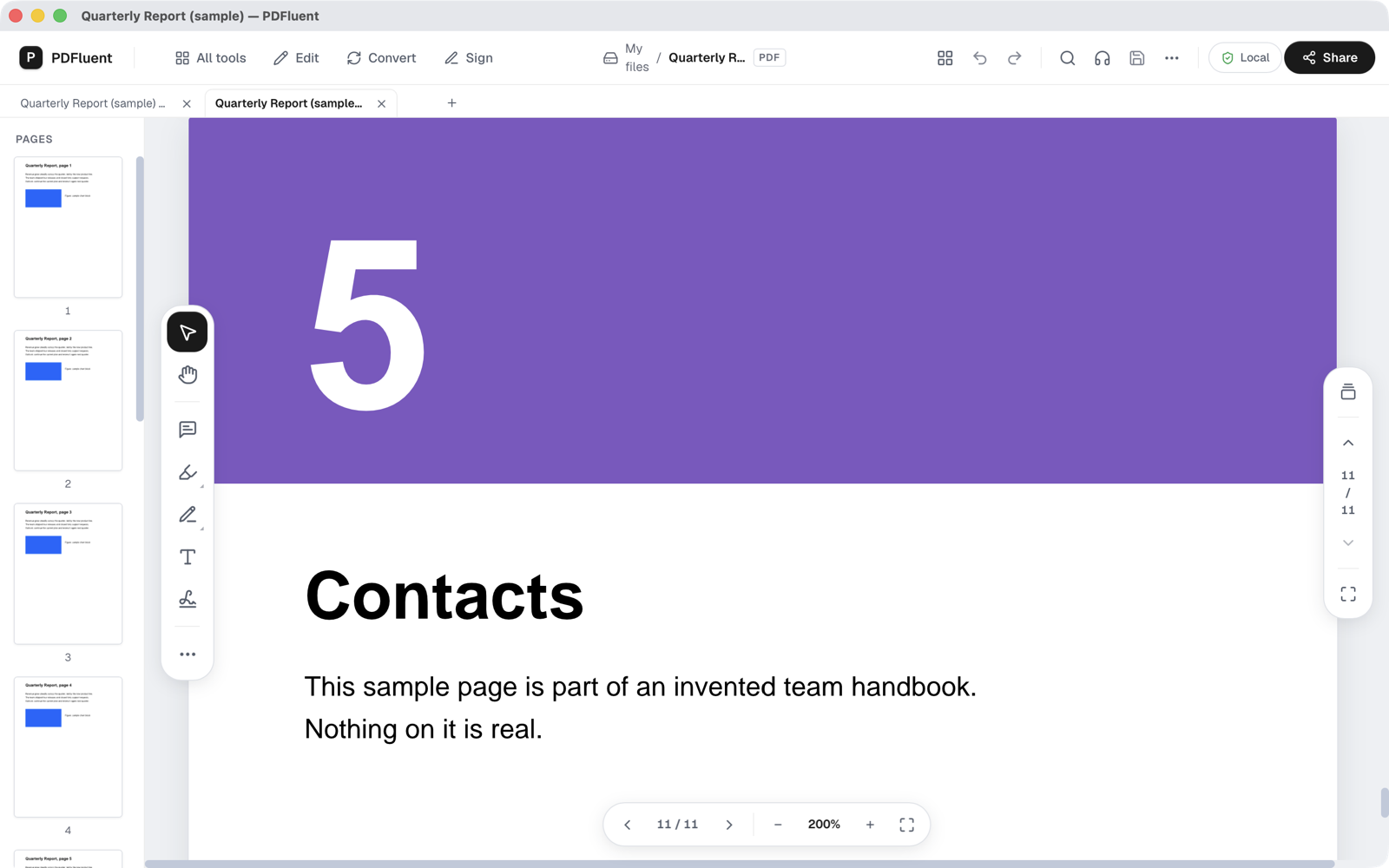
Open the saved file in PDFluent Editor. In the example the page counter reads 11 and the last page is the last page of the handbook. The first page is still the first page of the report.
In which order do the files end up?
The file you have open comes first, because the list starts with it. The files you add follow after it, and the merged PDF has the pages in that order. In the example the 6 pages of the report come first and the 5 pages of the handbook after them, so the last page of the merged file is page 11.
So start from the file that should open the merged document. If you opened the wrong one, close the panel, open the right file and add the others again.
PDFluent Editor is free for everyone, including commercial use, and your documents stay on your computer.
What to know before you merge
- The merge saves a new file. The files you started from are not changed, but keep a copy anyway, as you would before any change to an important document.
- Choose a clear name in the "Save merged PDF" dialog. The suggested "merged.pdf" is easy to overwrite the next time.
- If one of the files is protected with a password, open it with the password first.
- Scanned pages stay images after the merge. If you need text you can search or copy, run OCR separately.
- To change the order of pages afterwards, or to remove a page, use "Organize pages" on the merged file.
How to check the merged file
Open the merged file before you send or store it.
- Open the file you saved, the one named in "Merged PDF saved as".
- Check the page count. In the example it says 11 pages: 6 from the report and 5 from the handbook.
- Look at the first page and the last page. The first should be the first page of the file you started from, and the last should be the last page of the last file you added.
- Scroll through the thumbnails on the left to see that no file is missing.
If a file is missing or the order is wrong, run the merge again with the right files, and save it under a new name.
Free, and on your own computer
PDFluent Editor is free for everyone, at home and at work, including commercial use. No account is needed. Version 1.1 runs on macOS and Windows.
On macOS, documents are processed on your computer and the editor works without an internet connection. On a Mac, the files you merge and the merged file stay with you.
Frequently asked questions
Is it free to merge PDF files with PDFluent Editor?
Yes. PDFluent Editor is free for everyone, including commercial and business use, and you do not need an account.
Do my PDFs get uploaded to merge them?
On macOS, documents are processed on your computer and the editor works without an internet connection, so the files do not go to a website. Merging happens on your own machine.
In which order are the files merged?
The file you have open comes first. The files you add with "Add file" follow it, in the order of the list in the "Merge" panel.
Does merging change my original files?
No. The editor saves the result as a new file, in the "Save merged PDF" dialog. The files you started from keep their own pages.
How do I name the merged file?
In the "Save merged PDF" dialog the editor suggests "merged.pdf". Replace it with a name that says what the file holds, then press Save.
Can I merge a password-protected PDF?
Open it with its password first. After that it can be used in the merge like any other file.
How do I put the pages in a different order after merging?
Open the merged file and use "Organize pages" to move or remove pages. The guide on reordering pages shows the steps.
Keep reading
Building software? Get the SDK.