How to fill in a PDF form on your computer (and save it)
Open the form in PDFluent Editor. A banner that says "Fillable form" appears above the page. Click a field and type, click a check box to tick it, then save with Command-S on a Mac. Your answers are stored in the form's fields, so whoever opens the file sees them. No printing, no scanning. The editor is free for everyone, including commercial use, and you do not need an account.
Someone sent you a PDF form. A membership application, a registration sheet, an order form. You could print it, fill it in with a pen and scan it back. Or you could type into it.
This guide shows how to fill in a PDF form with PDFluent Editor 1.1. It follows the real app on a one-page Membership Application with invented content. You open the form, fill in the fields, tick a box and save.
PDFluent Editor is free for everyone, including at work. There is no account to create. Version 1.1 is available for macOS and Windows.
What a fillable PDF form is
A fillable PDF form has fields built into it: boxes for text, check boxes, and round buttons where you pick one option. The person who made the form placed them there. When you type into one, the answer goes into that field, not as loose text on top of the page.
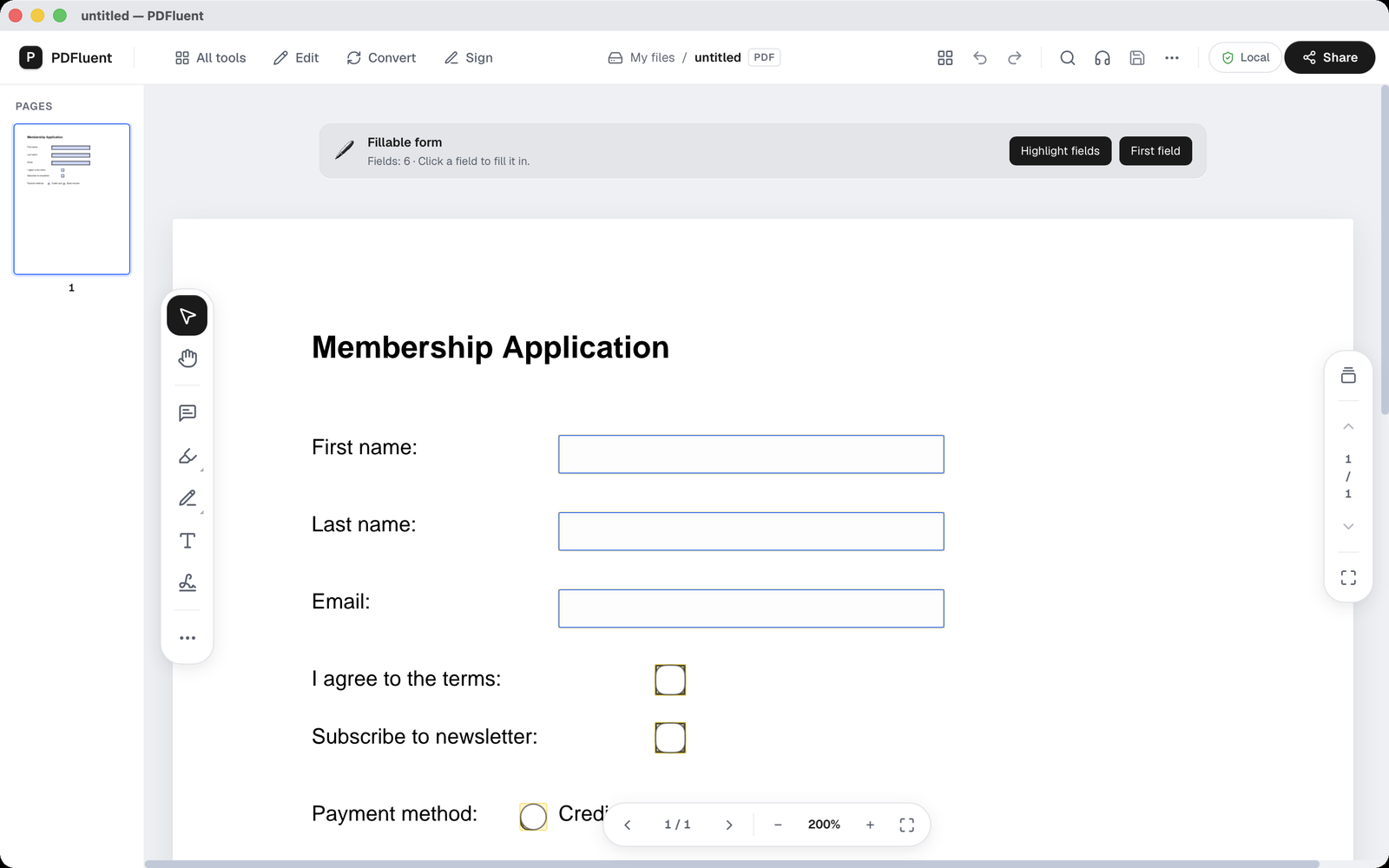
PDFluent Editor spots these fields when you open the file. A grey banner appears above the page with the title "Fillable form". Under it, a line gives the number of fields and says "Click a field to fill it in." Two buttons sit next to it. "Highlight fields" tints every field so you can see where they are. "First field" jumps to the first one.
PDFluent Editor is free for everyone, including commercial and business use. No account is needed. Download it, open the form and start typing.
Fill in a PDF form, step by step
The steps use PDFluent Editor 1.1 on macOS and the Membership Application form. It has three text fields (First name, Last name and Email), two check boxes and a choice of payment method.
Open the form and read the banner
Open the PDF in PDFluent Editor. The "Fillable form" banner shows up above the page, with the field count and the line "Click a field to fill it in." If you are not sure where the fields are, press "Highlight fields". To start at the top, press "First field".
Click a field and type
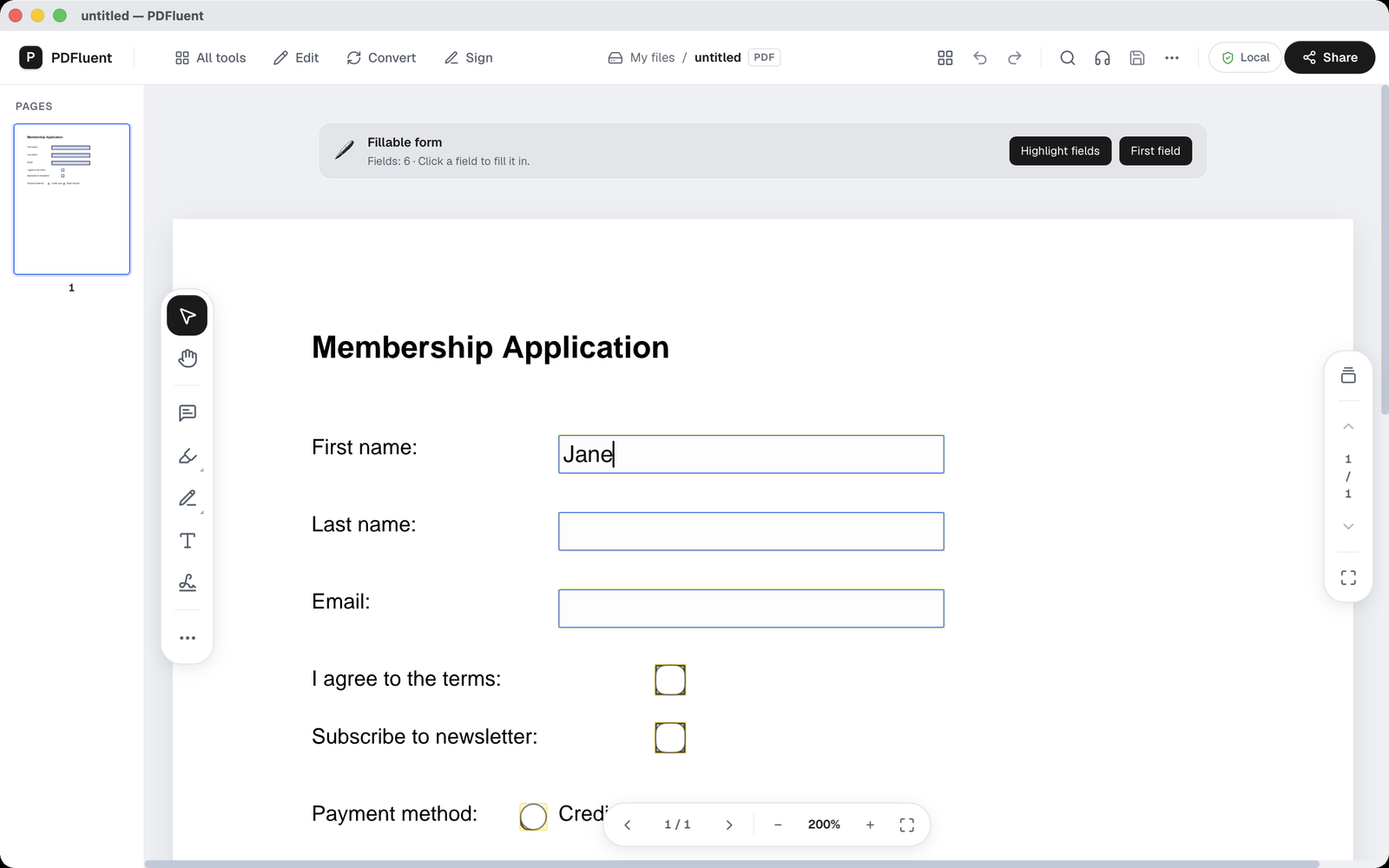
Click the First name field. A cursor appears in it. Type your answer and it shows up right on the page, inside the field. In the example the name typed was Jane.
Fill in the rest and tick the boxes
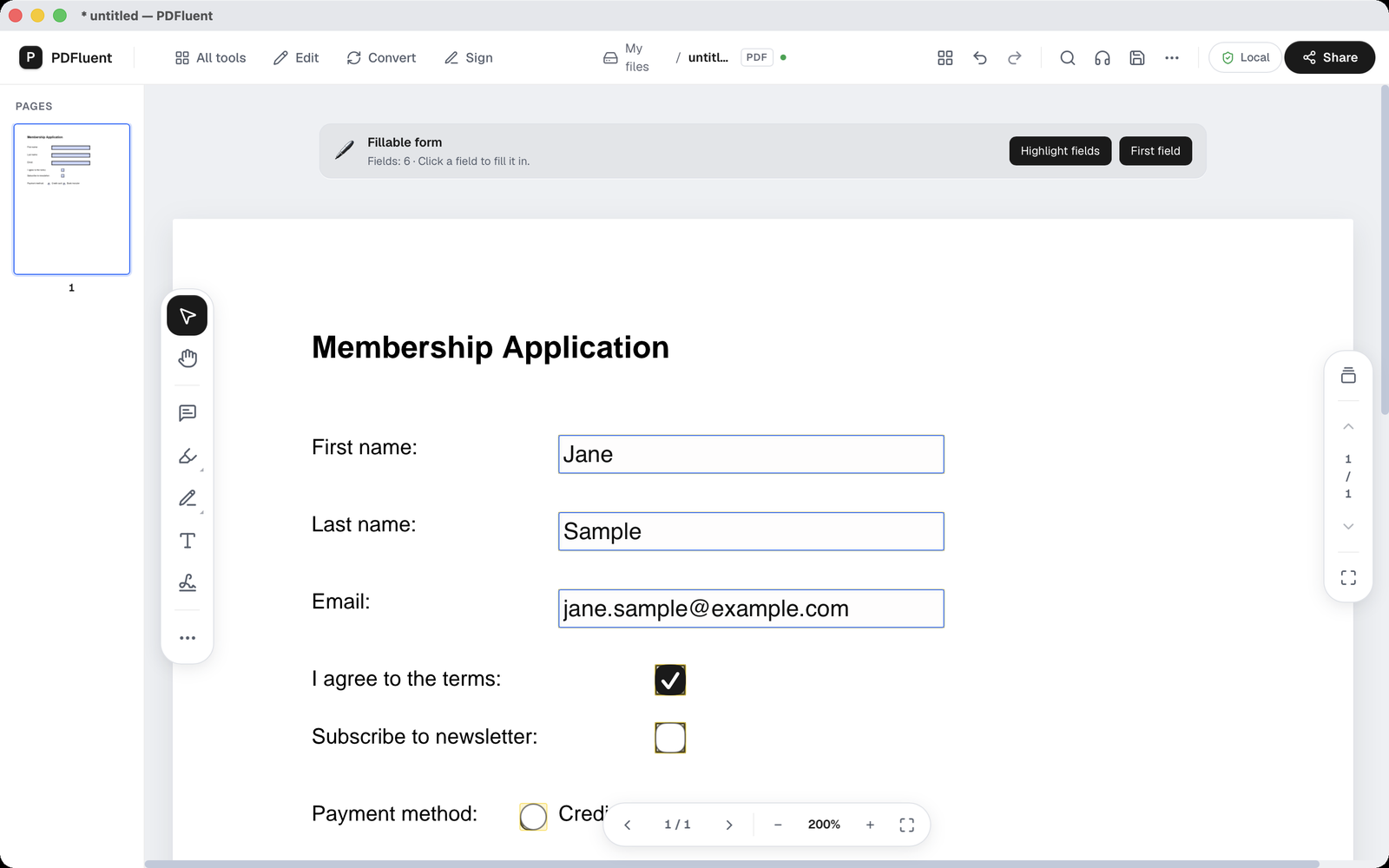
Fill in the other fields the same way. In the example, Last name got Sample and Email got [email protected]. To tick a check box, click it. Here the box for agreeing to the terms was ticked and the newsletter box was left empty. After your first change an asterisk appears in the title bar, and a small green dot shows next to the PDF label. Both mean there are changes you have not saved yet.
Save
Press Command-S on a Mac. The asterisk goes away. The answers are now in the file. If you want to keep the blank form, save a copy under a new name instead.
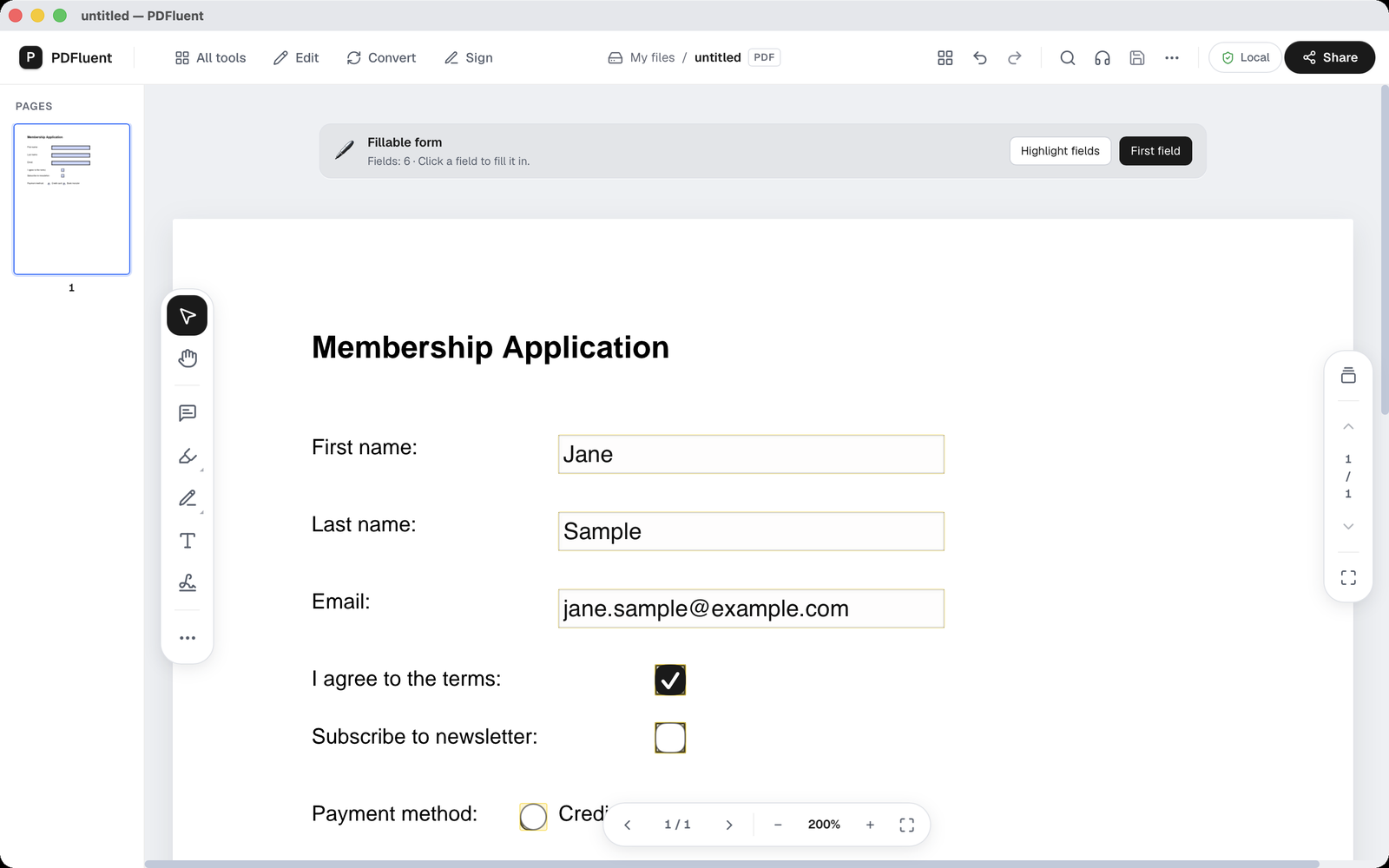
In a test, the saved copy was read back with the PDFluent SDK. The form's fields held Jane, Sample and [email protected]. The terms box was on and the newsletter box was off. So the answers are stored in the form's fields, the way the person who made the form expects to find them.
PDFluent Editor is free for everyone, including commercial use, and your documents stay on your computer.
What to know before you start
- Some forms carry scripts, for example to add up a total. PDFluent asks before anything runs. The question reads "This form contains scripts (for example calculations). Run them?"
- Totals and other calculations work once you allow the scripts. If you do not, the app can tell you so with messages such as "Form filled without recalculation" or "Some form scripts are not run". Check any totals by hand in that case.
- Older forms are sometimes made in a format called XFA. PDFluent Editor can open an XFA form, fill in its fields and save, and the values are in the file when you reopen it. The app does call this experimental in places. One message reads "This XFA form is shown as it is. Filling in fields is experimental; convert it to a standard PDF to fill in, edit and search reliably."
- There is also a "Flatten" option. The app describes it as "Flatten the form: the filled values become part of the page and the fields are removed". After that the answers can no longer be changed as fields. The app then says "Form flattened. Undo brings the fields back."
- Keep a copy of the original blank form before you save over it.
- Not every PDF that looks like a form has fields. If there are none, no banner appears, and the app can say "No form fields found." You would then add your answers with the text tools instead.
How to check the result
Before you send the form off, a quick look saves an awkward email later.
- Look at the title bar. If there is still an asterisk, something is not saved yet. Save again.
- Close the file and open it again. The answers should all still be there.
- Go through each field and read what you typed. Typos in an email address are easy to miss.
- Check the tick boxes and the round buttons. Make sure the right ones are on and the rest are off.
Free, and on your own computer
PDFluent Editor is free for everyone, at home and at work, including commercial use. No account is needed. Version 1.1 runs on macOS and Windows.
On macOS, documents are processed on your computer and the editor works without an internet connection. The form, and the personal details you type into it, do not have to go to a website to be filled in.
Frequently asked questions
How do I fill in a PDF form for free on a Mac?
Open the form in PDFluent Editor, click a field and type. Click a check box to tick it. Then press Command-S to save. It is free, including for commercial use.
Do I need an account, or do I have to upload the form?
No account is needed. On macOS, documents are processed on your computer and the editor works without an internet connection.
Are my answers saved in the file?
Yes. When you save, the answers are stored in the form's fields. Close the file and open it again to see them still there.
What if the form has calculations?
Totals and other form calculations work once you allow them. When a form carries scripts, PDFluent asks before anything runs, with the question "This form contains scripts (for example calculations). Run them?"
Can it open older XFA forms?
Yes. You can open an older XFA form, fill in its fields and save, and the values are in the file when you reopen it. The app calls filling XFA forms experimental in places, so check the saved file.
What does Flatten do?
In the app's own words: "Flatten the form: the filled values become part of the page and the fields are removed". Undo brings the fields back. Keep an unflattened copy if you may need to change an answer later.
Is it free to use at work?
Yes. PDFluent Editor is free for everyone, including commercial and business use.
Keep reading
Building software? Get the SDK.