How to delete comments from a PDF
Open the PDF in PDFluent Editor, click "All tools" and scroll to Document status & interaction. Click the X next to the comment, then press Command-S to save. This is for anyone who has to send a PDF on without the review notes in it. The editor is free for everyone, including commercial use, and you do not need an account.

A colleague left a note on page 1 of the report. The report now goes to a client, and the note should not go with it. You want the comment out of the file, not only hidden from view.
This guide shows how to delete comments from a PDF in PDFluent Editor 1.1.2, with the real labels from the app. PDFluent Editor is free for everyone, including at work, and you do not need an account.
Delete comments from a PDF, step by step
The steps and screenshots use PDFluent Editor 1.1.2 on a Mac. The editor also runs on Windows. We used an invented quarterly report with one sticky-note comment and one highlighted line on page 1.
Open the PDF with the comment
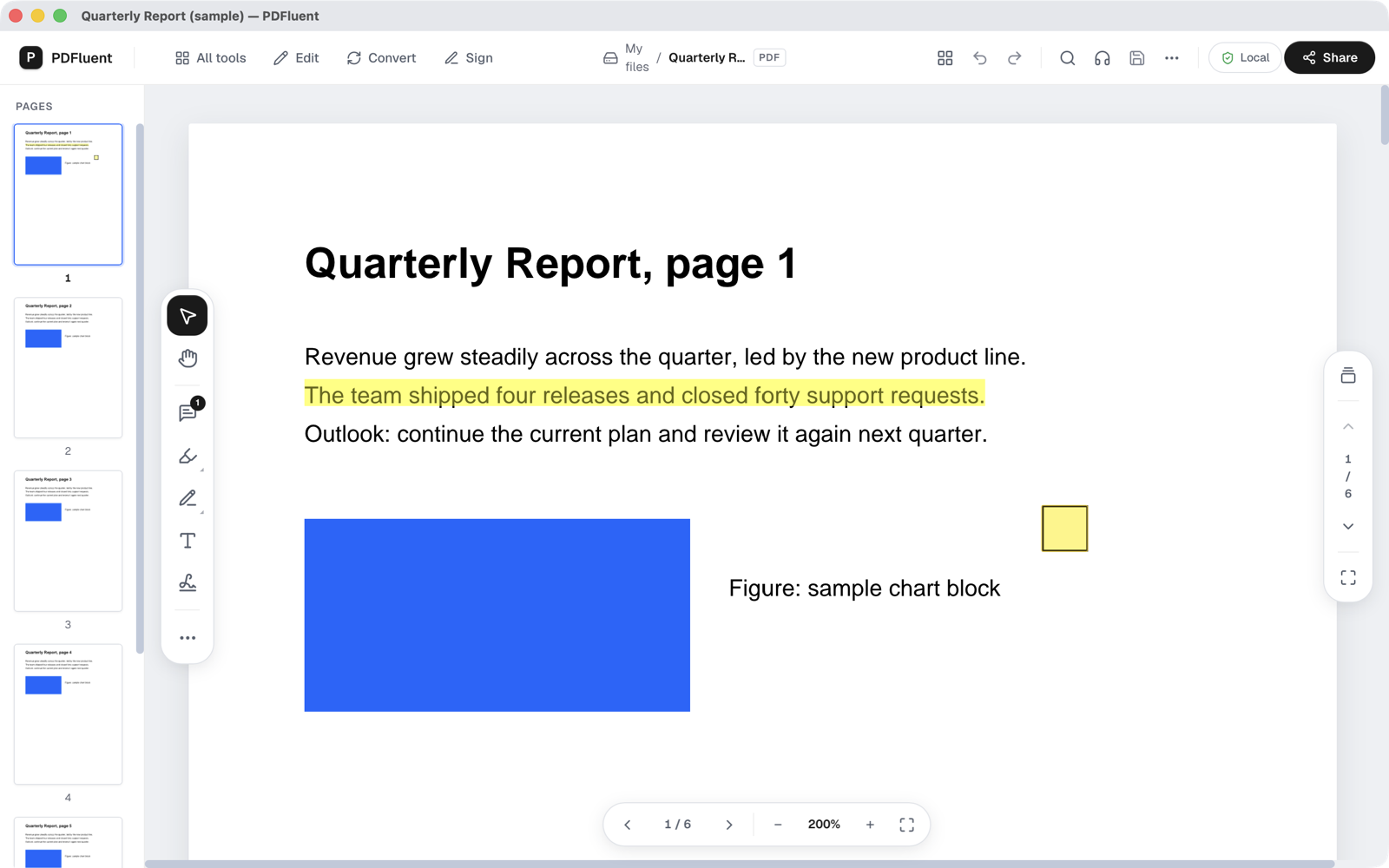
Open the file in PDFluent Editor. The comment shows as a yellow note icon on the page. The comment tool in the left tool bar shows a small number with how many comments the file has.
Find the comment under All tools
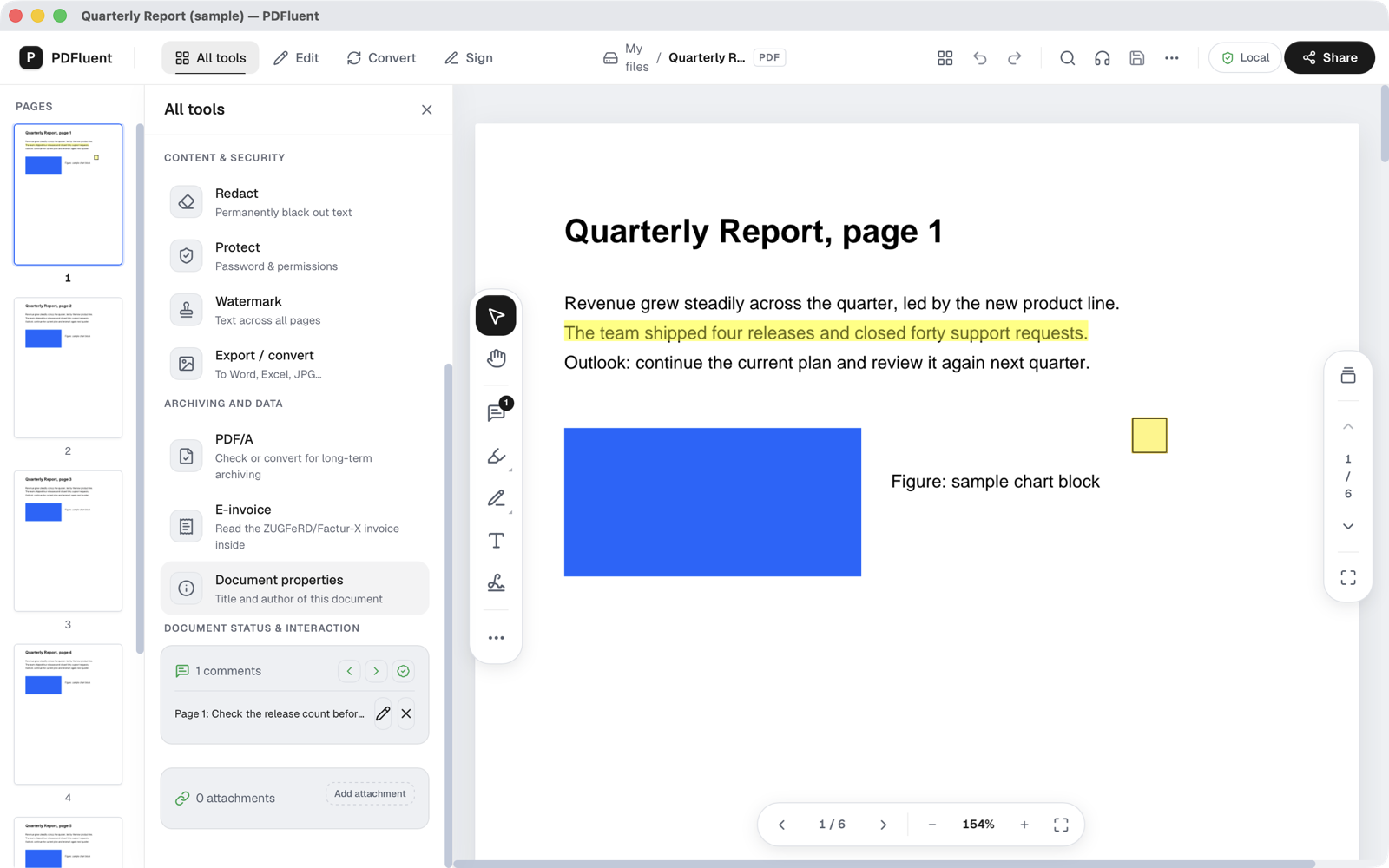
Click "All tools" in the top bar and scroll down to Document status & interaction. A card lists each comment with its page number and the start of its text, here "Page 1: Check the release count befor...". The card heading reads "1 comments".
Click the X, then save
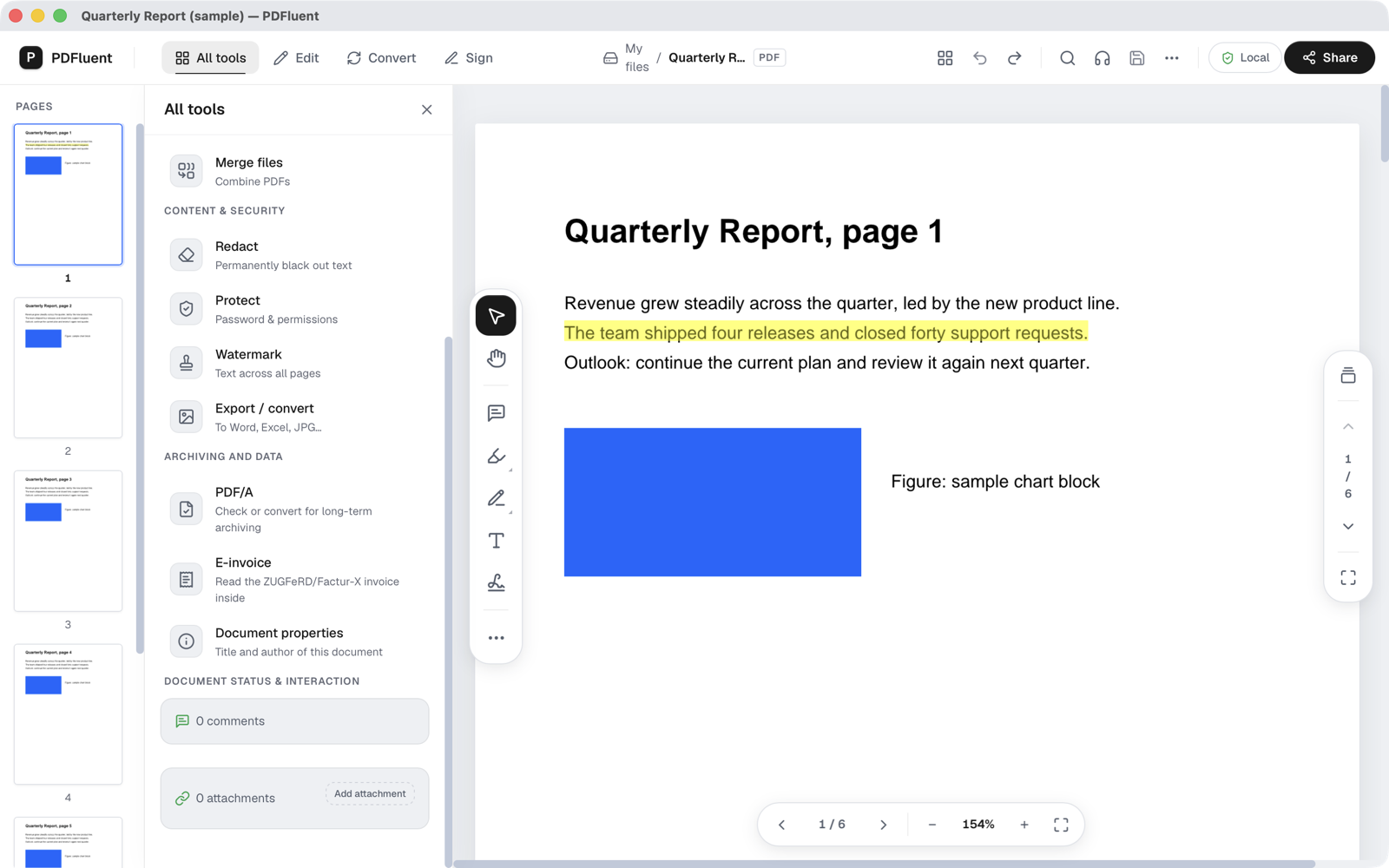
Click the X next to the comment. The pencil next to it edits the comment instead. The card now shows "0 comments" and the number on the comment tool disappears. Press Command-S. The editor shows "Saved on this device." and saves the file in place.


If a page thumbnail is selected in the Pages sidebar, the Delete key removes that page, not the comment. Use the X in the comments card. If a page went by mistake, press Command-Z before you save to bring it back.
PDFluent Editor is free for everyone, including commercial use, and your documents stay on your computer.
What it does and does not do
- It removes a sticky-note comment from the file once you save.
- It lists comments by page, so you can see which ones the file has before you send it.
- The card lists sticky-note comments. Highlights do not appear in it.
- In our test the yellow note icon stayed on the page until the file was reopened. The saved file no longer held the comment. If the icon still shows after saving, close and reopen the file to confirm it is gone.
PDFluent Editor is free for everyone, including commercial use. There is no licence key, no trial, no tier and no subscription, and you do not need an account.
Free, at home and at work
PDFluent Editor is free for everyone, including commercial use, and you do not need an account. On a Mac, documents are processed on your computer and the editor works without an internet connection.
Frequently asked questions
How do I remove all comments from a PDF?
Click "All tools" and scroll to Document status & interaction. Click the X next to each comment in the card until it shows "0 comments", then press Command-S.
Why is the note icon still on the page after I deleted the comment?
In our test the icon stayed on the page until the file was reopened, while the saved file no longer held the comment. Close the file and open it again to confirm.
I pressed Delete and a page disappeared. How do I get it back?
A selected page thumbnail in the Pages sidebar was deleted. Press Command-Z before you save and the page comes back. Use the X in the comments card to delete a comment.
Can I edit a comment instead of deleting it?
Yes. Click the pencil next to the comment in the card. To add a new comment, use "Add comment".
Is PDFluent Editor free?
Yes. It is free for everyone, including commercial use. There is no licence key, no trial and no subscription, and you do not need an account.
Keep reading
Building software? Get the SDK.