How to edit or clear the title and author of a PDF
Open the PDF in PDFluent Editor, click "All tools" and choose "Document properties". Edit the "Title" and "Author" fields, or empty them, then press "Save properties" and save the file. This changes the title and author stored inside the file, which other readers and search show. It does not search the file for other hidden data. The editor is free for everyone, including commercial use, and you do not need an account.
A PDF carries a few facts about itself that you do not see on the page: a title, an author and more. Other readers show them in the window title or the file info, and search tools use them. Sometimes they are wrong, like a title that still says "Draft v3", and sometimes they hold a name you would rather not send along.
This guide shows how to edit or clear the title and the author in PDFluent Editor 1.1, using the real labels from the app. Be clear about the scope: the "Document properties" tool covers those two fields, so it is not a scrub of everything a file might contain.
PDFluent Editor is free for everyone, including at work. There is no account to create. Version 1.1 is available for macOS and Windows.
What "Document properties" covers
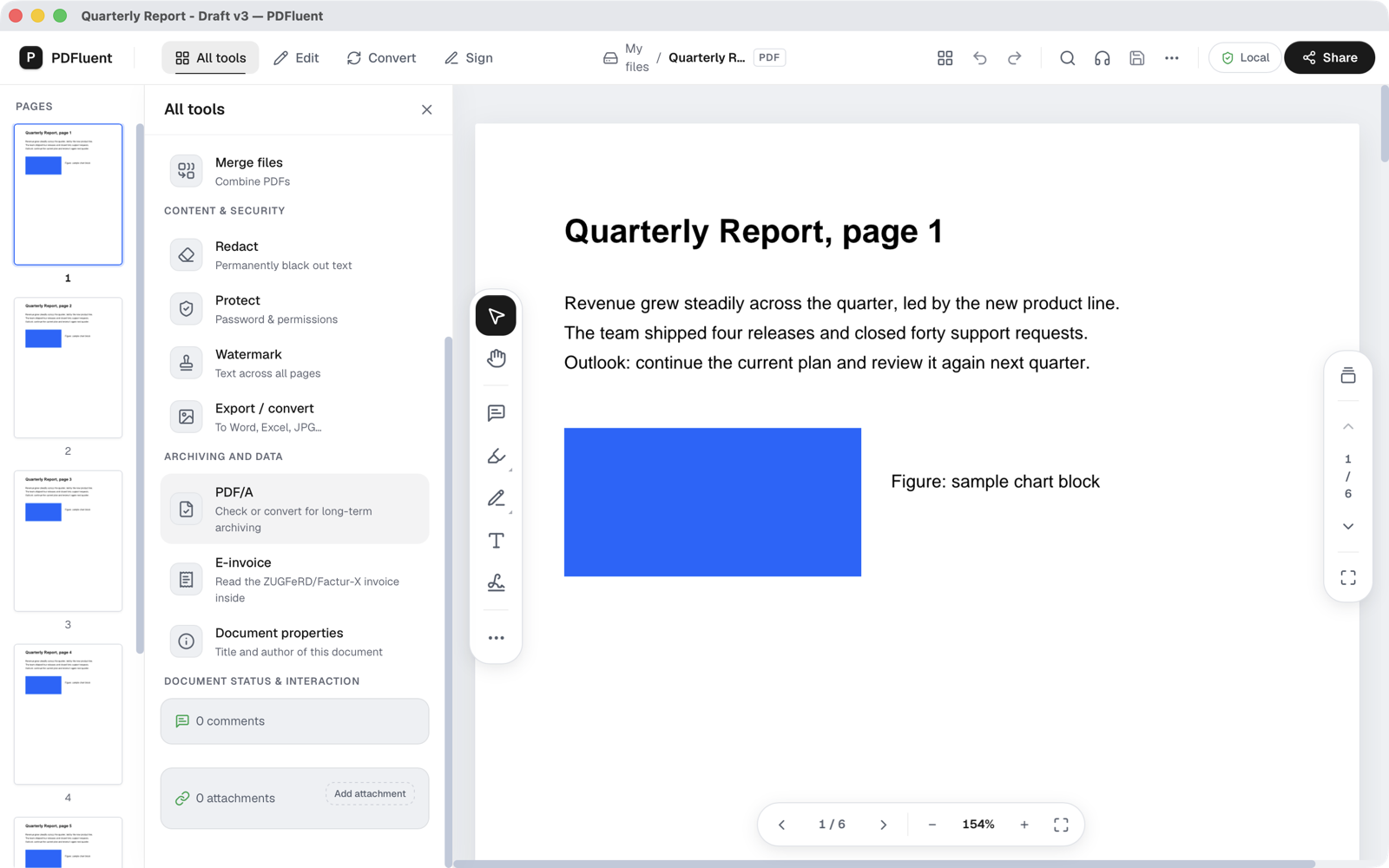
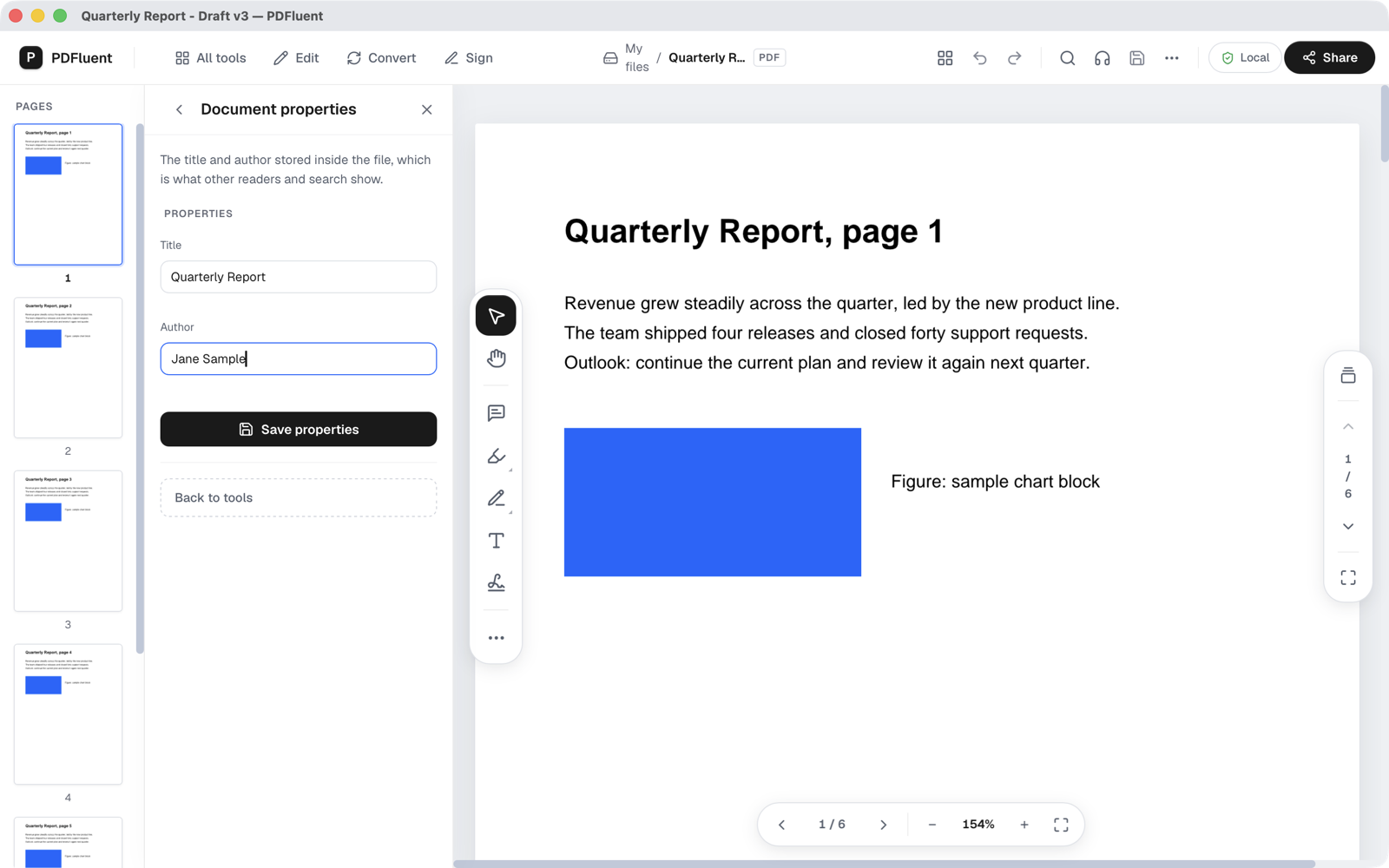
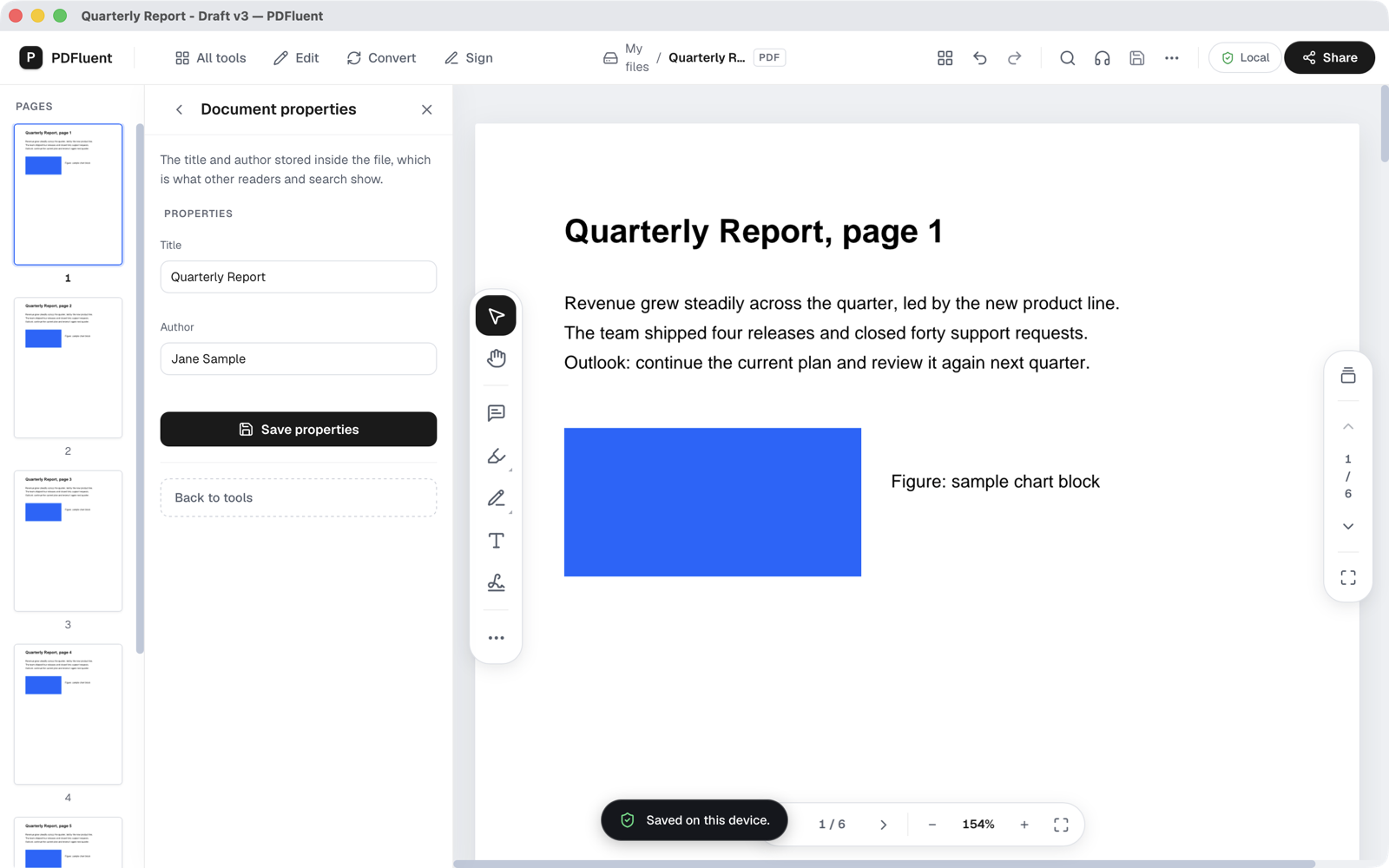
In PDFluent Editor, the tool is called "Document properties". You find it under "All tools", with the subtitle "Title and author of this document". It opens a panel called "Properties" with two fields.
| Field | What it is for |
|---|---|
| Title | The title stored inside the file. Other readers and search show it, which can differ from the file name. |
| Author | The author name stored inside the file. Empty it if the name should not travel with the document. |
This tool edits two fields: "Title" and "Author". Treat it as a way to correct or clear those two, not as a promise that nothing else is stored in the file.
Edit or clear the title and author, step by step
The steps use PDFluent Editor 1.1. Work on a copy if the original must stay as it is.
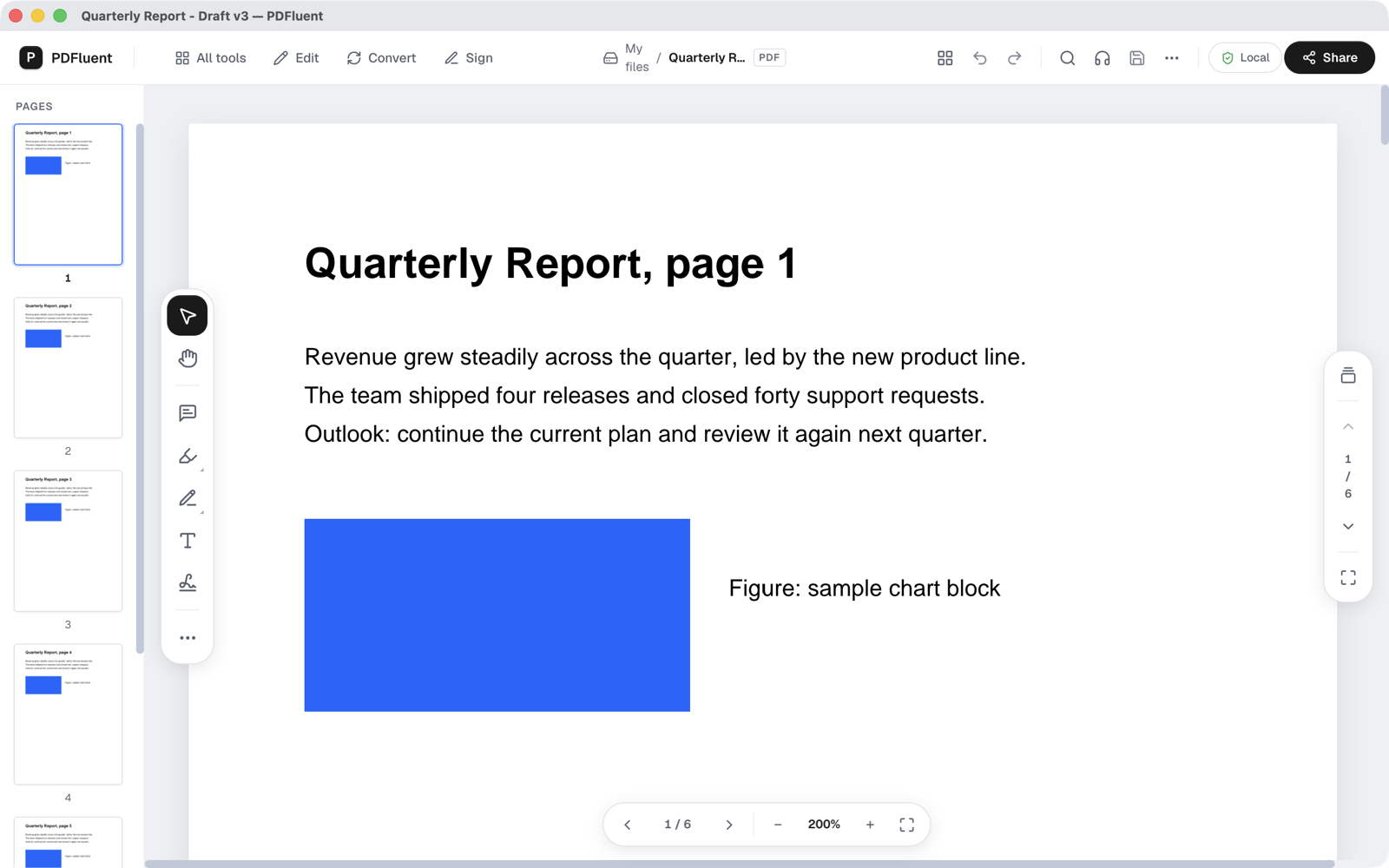
Open the PDF
Open the file in PDFluent Editor. If it asks for a password, type the password to open it first.
Open All tools and choose Document properties
Click "All tools" in the mode tabs. Choose "Document properties", the entry with the subtitle "Title and author of this document".
Change the title and the author
The panel is called "Properties". Edit the "Title" field and the "Author" field. To clear a name that should not travel with the file, empty the field. The panel explains what these two fields are for: "The title and author stored inside the file, which is what other readers and search show."
Press Save properties
Press "Save properties". While it works the editor shows "Saving properties…", and when it is done it shows "Properties saved". If something goes wrong you see "Could not save properties".
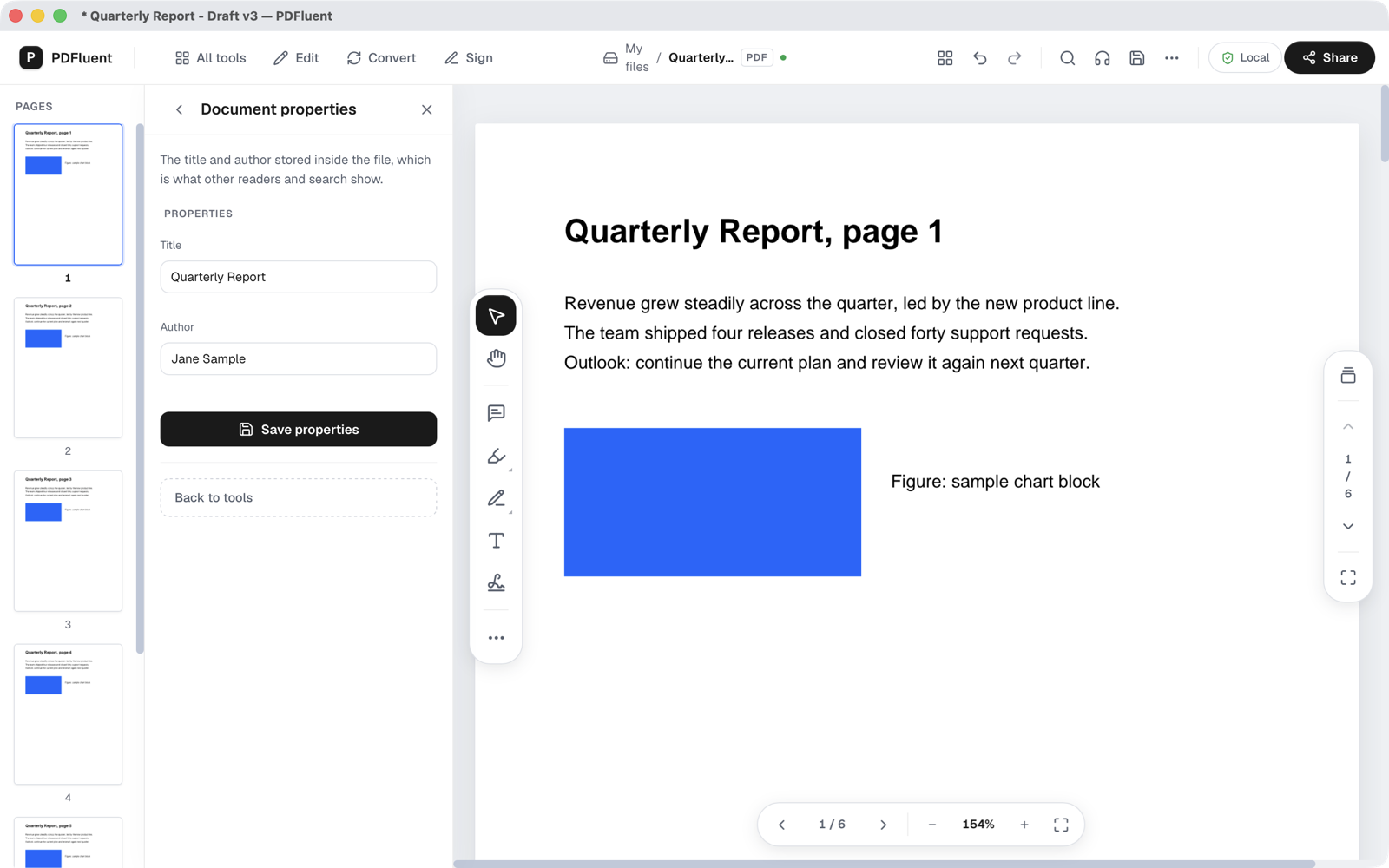
Save the file
Save the file. In the editor's own test, a title and an author set this way were in the saved file, where other readers and search see them.
PDFluent Editor is free for everyone, including commercial use, and your documents stay on your computer.
Check that it worked
Do not trust the panel alone. Check the saved file from the outside:
- Close the file and open it again. The title shows in the window title bar. Check the author in a second PDF reader too.
- Open the saved file in a second PDF reader and look at its document information. The title and author should match what you saved.
- Send nobody the file before you have looked at it once from the outside.
What this does and does not do
- It edits or clears the "Title" and the "Author" stored in the file.
- It does not claim to find or remove every other piece of hidden data. If a file must be clean of sensitive content, check the file itself.
- If the sensitive part is text on the page, that is a different job: see the guide on redacting a PDF.
- If saving fails, the editor shows "Could not save properties" and the file is not changed by that step.
Free, and on your own computer
PDFluent Editor is free for everyone, at home and at work, including commercial use. No account is needed. Version 1.1 runs on macOS and Windows.
On macOS, documents are processed on your computer and the editor works without an internet connection. On a Mac, the file you edit stays with you.
Frequently asked questions
How do I change the title of a PDF?
Open the PDF in PDFluent Editor, click "All tools" and choose "Document properties". Type the new text into "Title", press "Save properties" and save the file.
How do I remove the author name from a PDF?
Open "All tools", then "Document properties", empty the "Author" field, press "Save properties" and save the file. Then check the saved file in a second reader.
Does this remove all metadata from a PDF?
No claim is made for that. The tool edits two fields, "Title" and "Author". It does not promise to find every other piece of data a file may carry.
Is the editor free for work files?
Yes. PDFluent Editor is free for everyone, including commercial use, and needs no account.
Do I need an internet connection?
On macOS the editor works without an internet connection, and documents are processed on your computer.
Keep reading
Building software? Get the SDK.