How to recover unsaved PDF changes after a crash
Open PDFluent Editor again after the crash. If it kept a recovery copy, a window called "Recovery file found" appears: click "Restore", check your work and press Command-S to save it into the original file. This is for anyone whose PDF editor just closed with unsaved work, or who wants to know their work is safe before it happens, and the editor is free for everyone, including commercial use, with no account. The recovery copy is written on a timer, so the last moments before a crash may be missing.
Your PDF editor closed while you were in the middle of something. You added comments or filled in a form, and you had not saved yet. The question now is whether that work is gone.
If you use PDFluent Editor, it may not be. While a document has unsaved changes, the editor keeps a recovery copy of it in the background. If the app crashes, it offers your unsaved work back the next time it starts. This guide shows what that looks like, how to get the work back into your file, and where to check that the setting is on.
PDFluent Editor is a free desktop PDF editor for macOS and Windows. It is free for everyone, including at work, and you do not need an account. The steps below were taken with version 1.1 on a Mac.
Recover unsaved changes, step by step
In our test we opened a sample report we made up and added one comment. Then we force-quit the app to act like a crash, and opened the same PDF again.
Work on the PDF as usual
We picked the "Note" tool, clicked on the page, typed "Check the Q3 numbers" in the "Add comment" window and clicked "Save". That saves the comment into the open document, not into the file on disk. The window title now shows an asterisk before the document name. The asterisk means there are unsaved changes. While those changes are unsaved, the editor writes a recovery copy in the background.
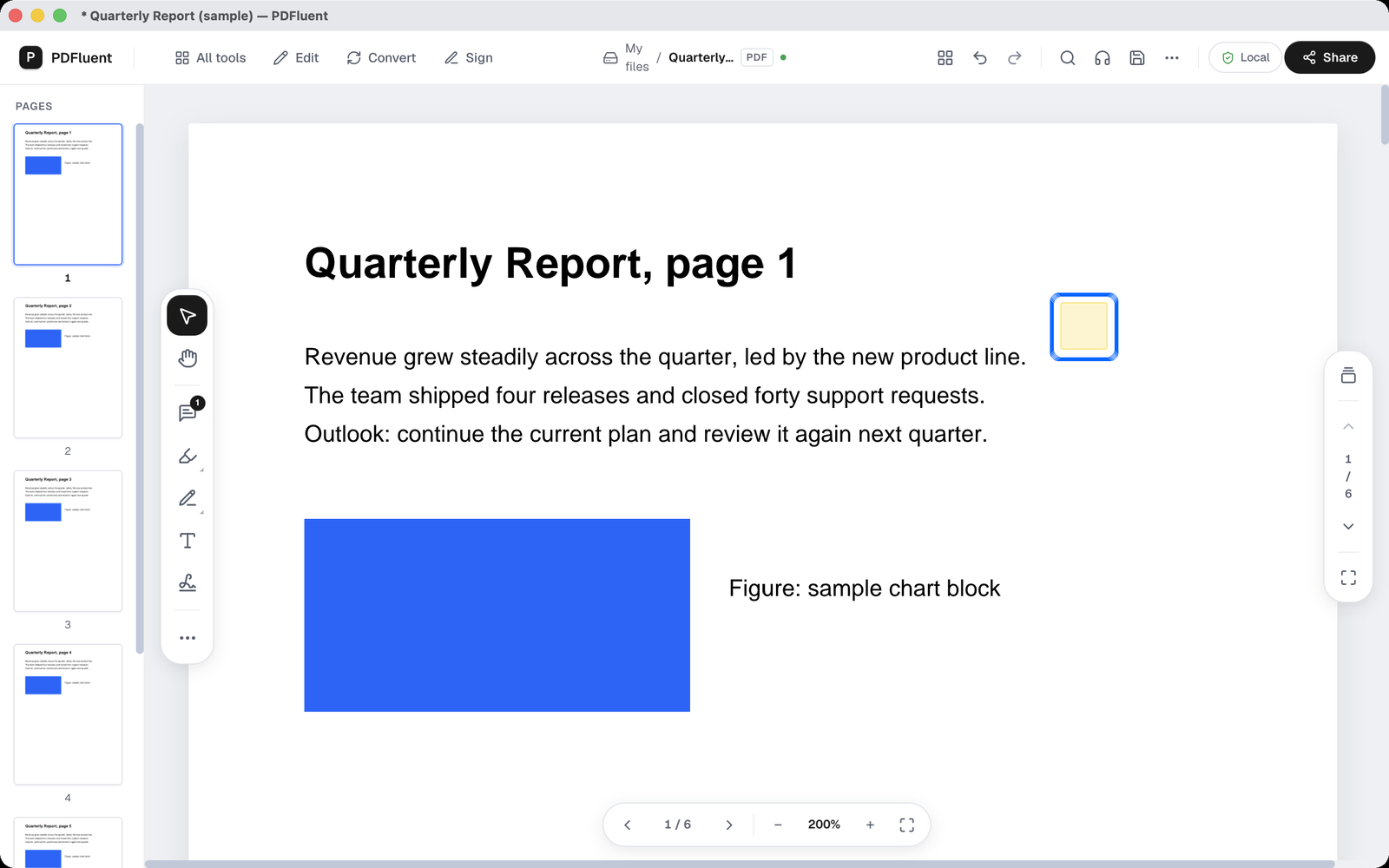
Open the editor again after the crash
After the crash, start PDFluent Editor and open the same PDF. A window called "Recovery file found" appears with the line "An auto-saved version is available.". It shows three rows: "Document:" with the file name, "Saved:" with the date and time of the recovery copy, and "Recovery path:" with a file path; in our test it showed the folder of the original PDF. Below them are two buttons, "Discard" and "Restore".
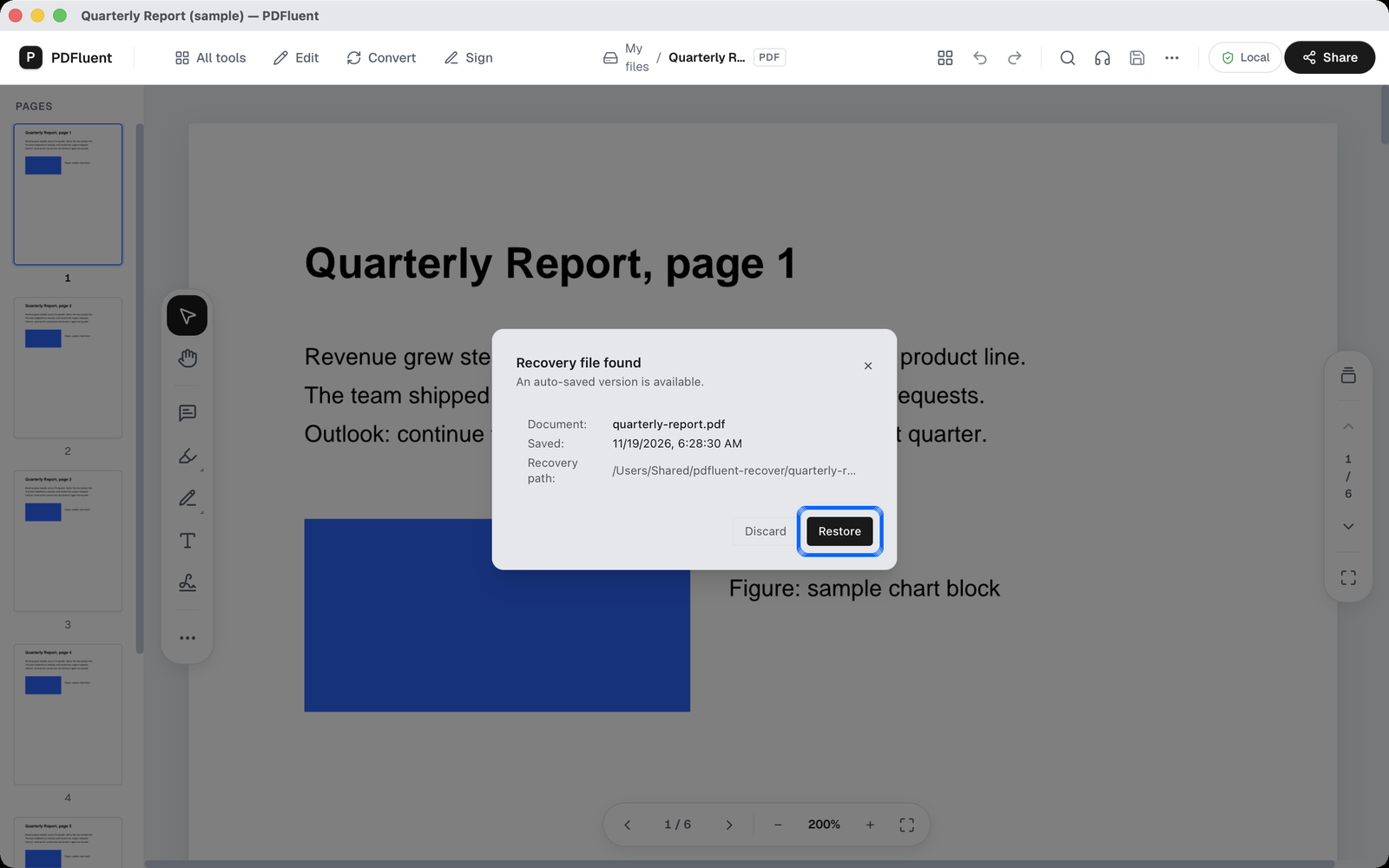
Click Restore
Click "Restore". The recovered document opens in its own tab, next to the file as it was last saved. The recovered tab has a dot and the window title has an asterisk. That means it is unsaved work on the original file. In our test the comment was there.
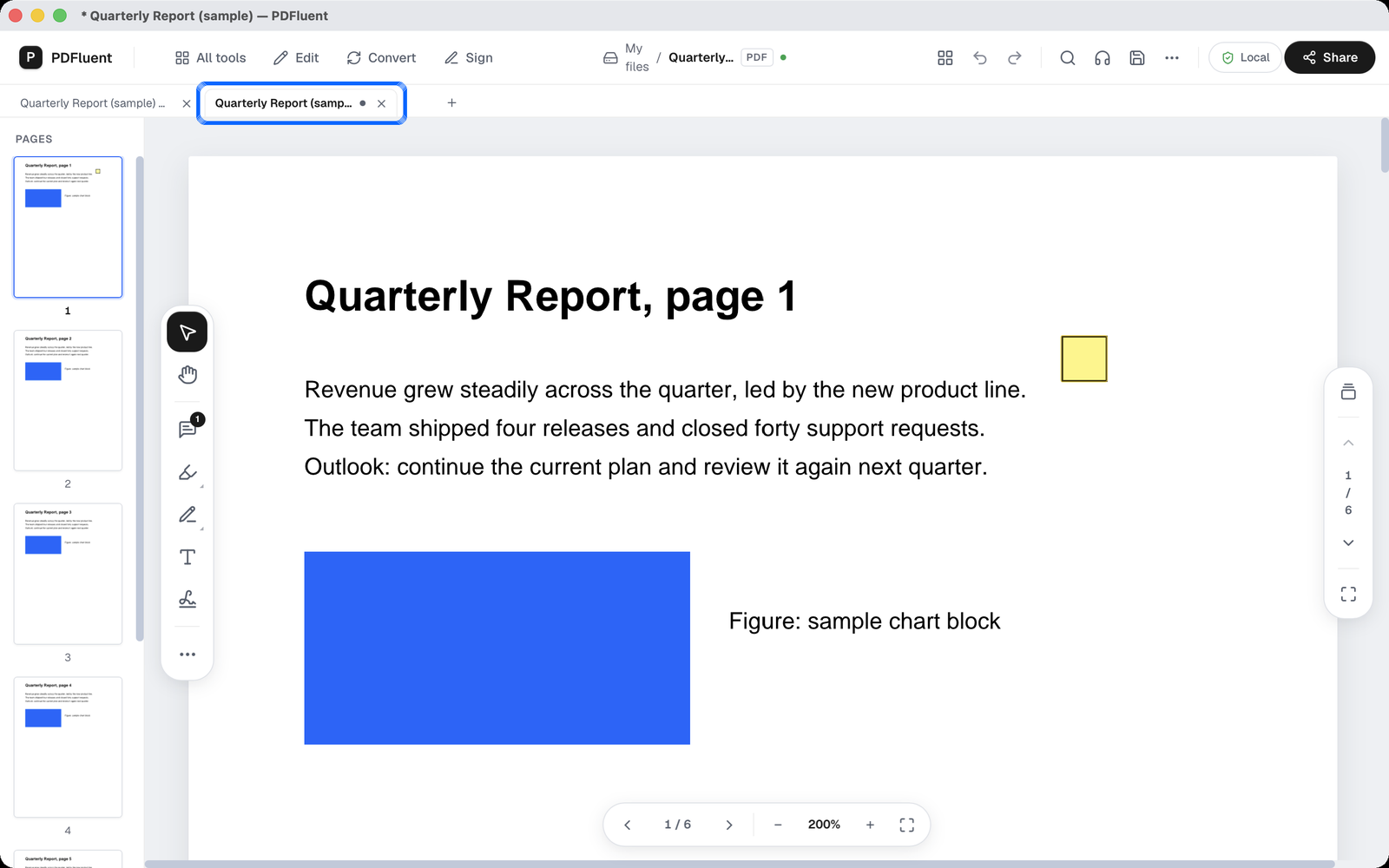
Save the recovered work
Press Command-S. The message "Saved on this device." appears. The save goes into the original PDF file. Until you do this, the file on disk is still the version you last saved.
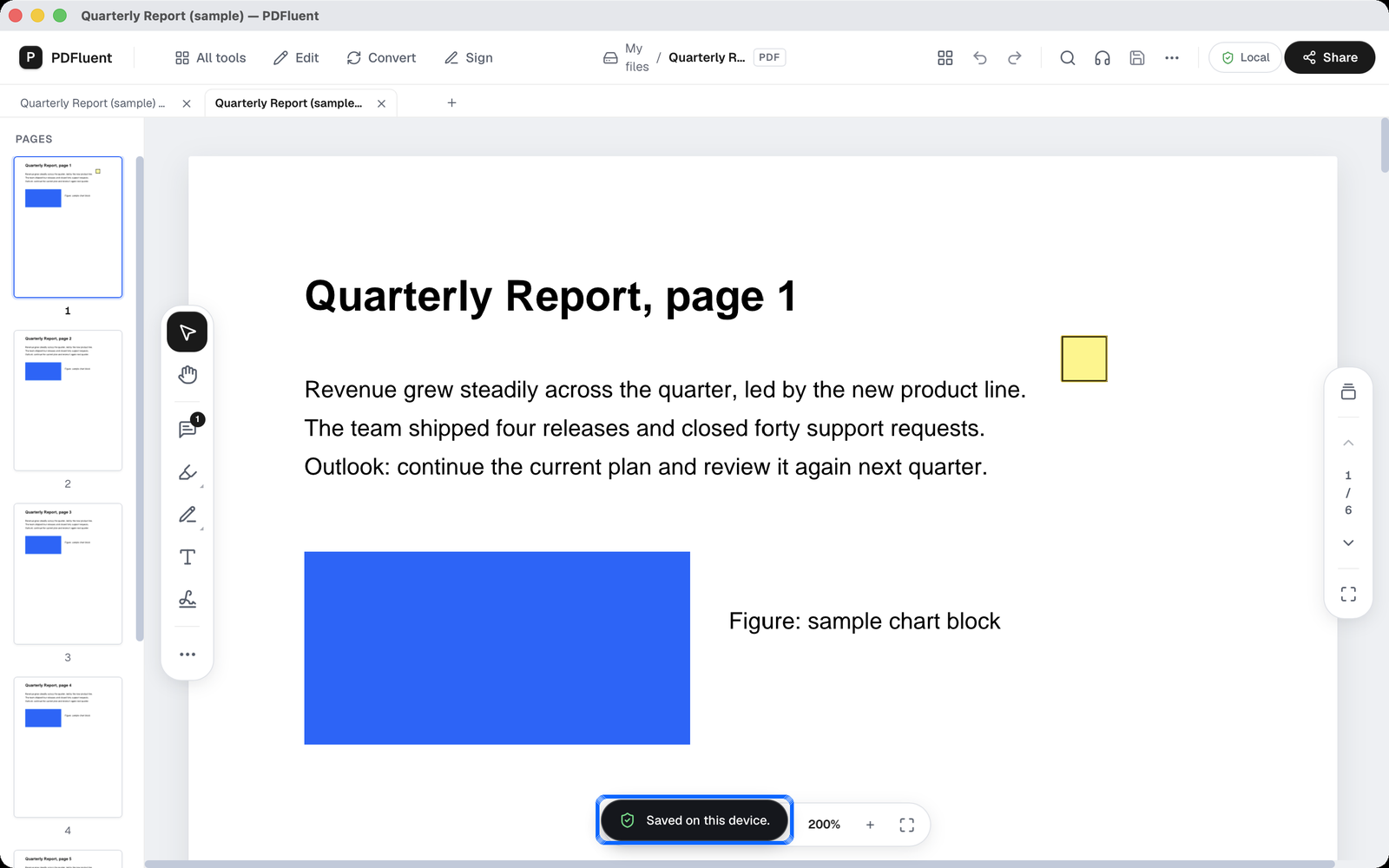


If more than one document had unsaved changes when the app crashed, the window names the first one and adds "and 1 more" for the other. In our test, "Restore" brought each document back in its own tab. Save each one.
Check that the recovery copy is on
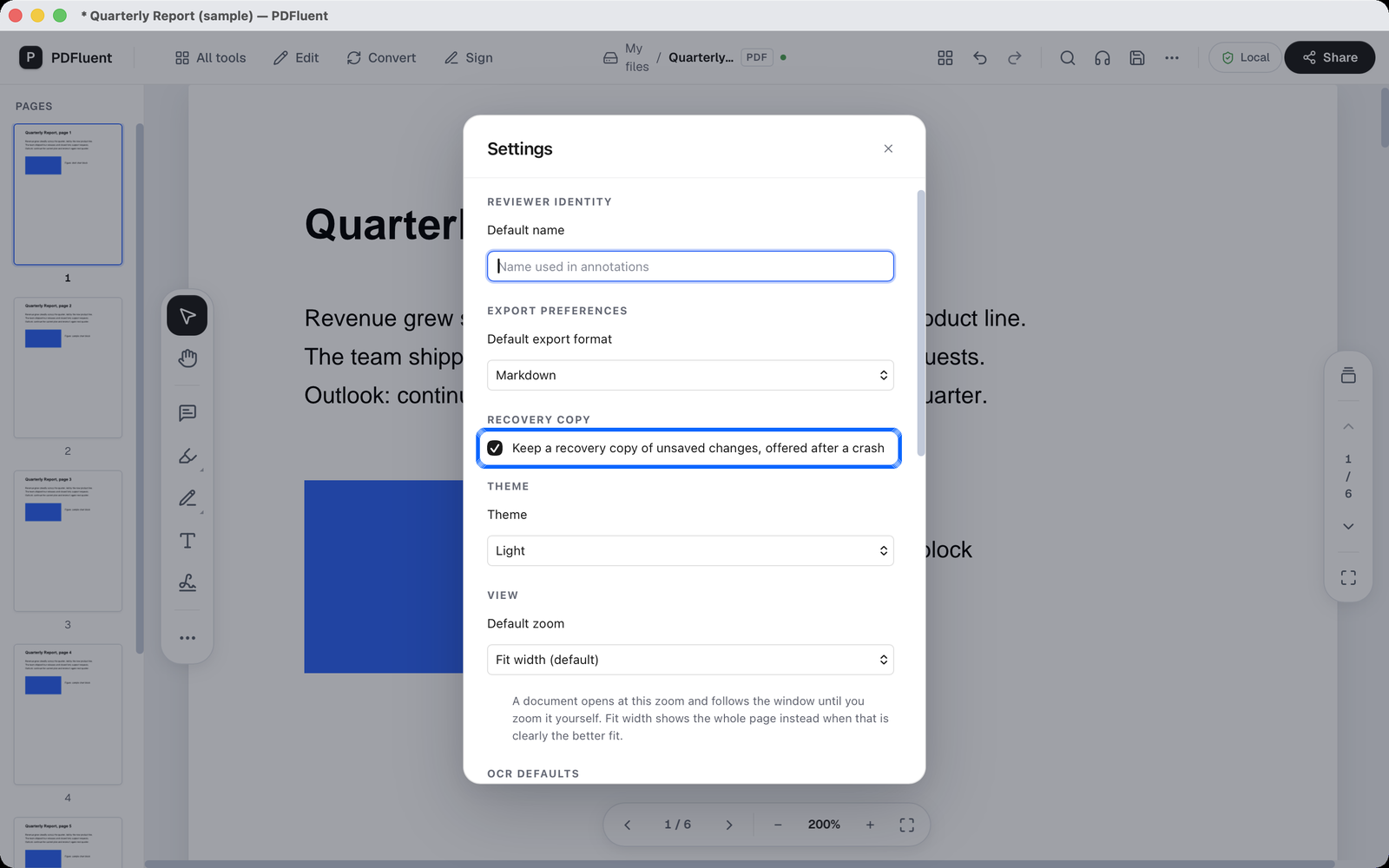
The recovery copy only exists if the setting is on. It was on in our copy of the app. You can check it before anything goes wrong.
Open Settings and find Recovery copy
Press Command-K to open the command palette, type "Settings" and press Return. In the Settings window, find the "Recovery copy" section. Make sure the box "Keep a recovery copy of unsaved changes, offered after a crash" is ticked.

PDFluent Editor is free for everyone, including commercial and business use. There is no licence key, no trial, no tier and no subscription, and you do not need an account.
PDFluent Editor is free for everyone, including commercial use, and your documents stay on your computer.
What it does and does not do
- It keeps a recovery copy of a document while it has unsaved changes, and offers it back after a crash.
- It writes that copy on a timer. Work from the last moments before a crash may not be in it.
- It does not replace saving. Saving is still the only way to change the file itself.
- It is not version history. It does not let you go back to older saved versions of a file.
- With the checkbox off, there is no recovery copy to offer.
- Nothing changes in the original file until you save the recovered tab.
- On macOS, your documents never leave your device, and PDFluent Editor works without an internet connection.
- The steps and screenshots in this guide are from a Mac.
| Action | Where | What happens |
|---|---|---|
| Restore | Recovery file found window | The recovered document opens in its own tab as unsaved work; the file on disk does not change yet |
| Discard | Recovery file found window | The choice for when you do not want the recovered version; we did not test it |
| Save | Command-S in the recovered tab | The recovered work is saved into the original file and "Saved on this device." appears |
How to check it worked
After saving, we opened the file in a separate PDF tool. The saved file contained the comment. You can check the same thing in the editor.
- Look at the tab and the window title. After saving, the asterisk is gone.
- Close the PDF and open it again in PDFluent Editor.
- Look for your change on the page. In our test the yellow note icon was there, with the comment inside.
Free, at home and at work
PDFluent Editor is free for everyone, including commercial use. No account, no licence key, no trial. Version 1.1 runs on macOS and Windows.
Frequently asked questions
Where are my unsaved changes after a crash?
If the recovery setting is on, PDFluent Editor keeps a recovery copy of a document while it has unsaved changes. When you start the app again and open the file, a window called "Recovery file found" offers it back. Click "Restore" to open it in its own tab, then save.
What happens if I click Discard?
"Discard" is the choice for when you do not want the recovered version. We did not test it, so we do not describe what it does beyond that. If you are not sure, click "Restore" first and look at the recovered tab.
Do I still need to save?
Yes. The recovery copy does not replace saving. It is written on a timer, so recent work may be missing, and nothing changes in the original file until you save.
Is it free?
Yes. PDFluent Editor is free for everyone, including commercial use, and needs no account. The recovery copy is part of the free editor.
Does it work on Windows?
PDFluent Editor 1.1 is available for Windows as well as macOS. The steps and screenshots in this guide were taken on a Mac.
Can I turn it off?
Yes. Press Command-K, type "Settings" and press Return. Under "Recovery copy", untick "Keep a recovery copy of unsaved changes, offered after a crash". With the box off, there is no recovery copy after a crash.
Keep reading
Building software? Get the SDK.