How to extract pages from a PDF into one new file
Open the PDF in PDFluent Editor, go to "All tools" > "Split PDF", choose "Split by page range" and type the pages you want, such as "2-4". Press "Split PDF" and pick an empty folder: you get one new PDF with only those pages, and the original file stays as it was. The editor is free for everyone, including commercial use, and you do not need an account.
You need pages 2 to 4 of a handbook as their own file. Or one page of a long contract, to send on its own. You do not want the whole document, and you do not want a pile of single-page files either. You want one new PDF that holds only those pages.
This guide shows how to extract pages from a PDF in PDFluent Editor, using the real labels from the app. It covers a page range, a single page, and pages that are not next to each other. At the end you check the new file before you send it.
PDFluent Editor is free for everyone, including at work, and you do not need an account. Version 1.1 is available for macOS and Windows.
Where the editor extracts pages
PDFluent Editor extracts pages with its split tool. You find it under "All tools" in the PAGES section, as "Split PDF" with the subtitle "By range or per page". Give it one range and you get one new file.
If you type several ranges separated by commas, you get one file per range. That is splitting a document into parts, which the guide on splitting a PDF by pages covers.
PDFluent Editor is free, including for commercial use: no licence key, no trial, no tier and no subscription. No account is needed. Download it, open the PDF and take out the pages you need.
Extract pages from a PDF, step by step
The steps use PDFluent Editor 1.1 and a 5-page sample handbook. The goal is one new PDF with pages 2, 3 and 4.
Open the PDF and go to All tools
Open the file in PDFluent Editor. Click "All tools" in the top bar. Under PAGES you see "Split PDF" with the line "By range or per page". Note the page numbers in the thumbnails on the left: the range you type uses these numbers, starting at 1.
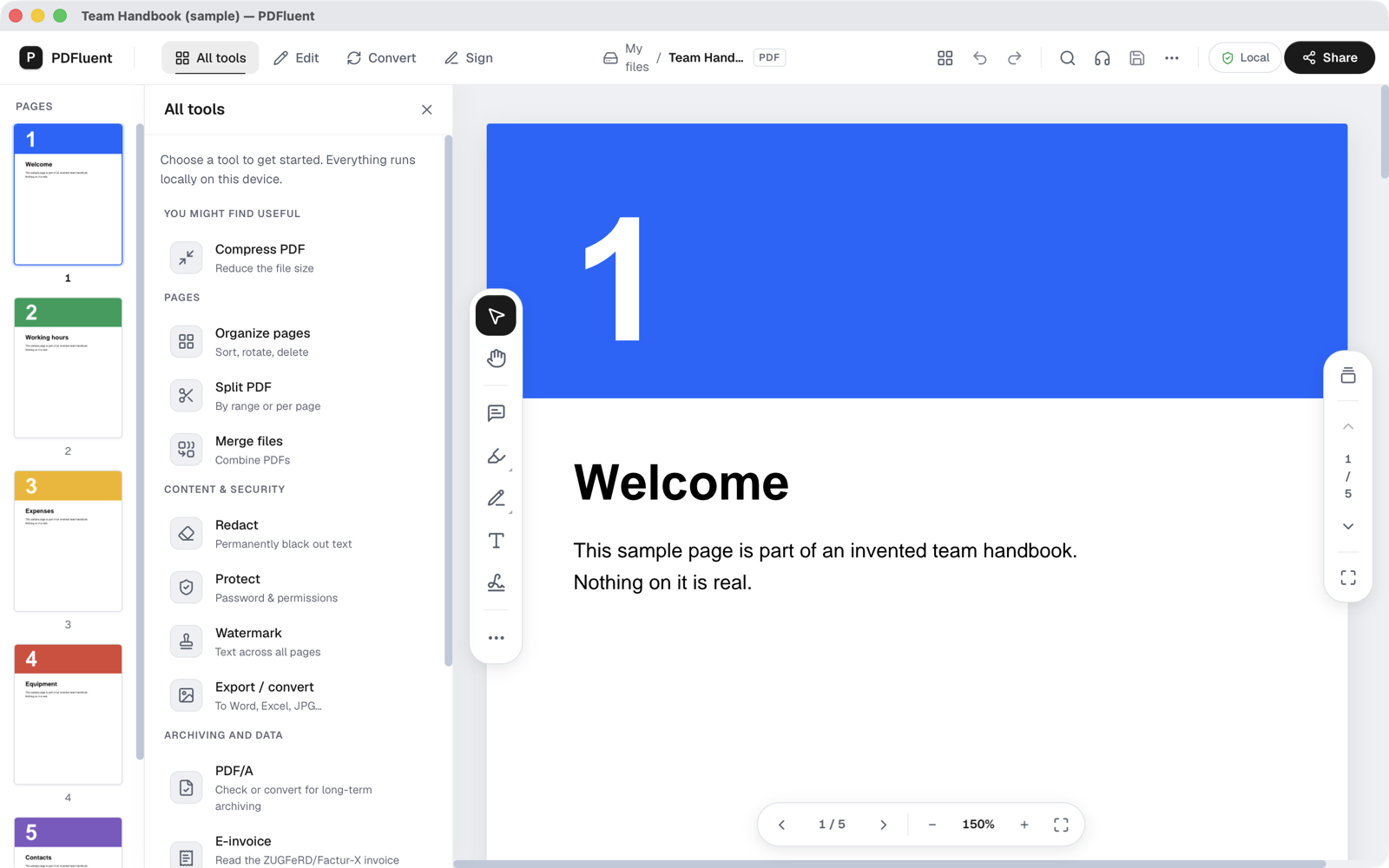
Choose Split PDF, then Split by page range
Click "Split PDF". A panel titled "Split" opens with the text "Split your document into separate PDF files per page or by a specific page range." Under SPLIT METHOD, choose "Split by page range" ("Split by specific ranges (e.g. 1-2, 3-4)"), not "Split per page". A field "Ranges (comma-separated)" appears, showing "1-2, 3-4".
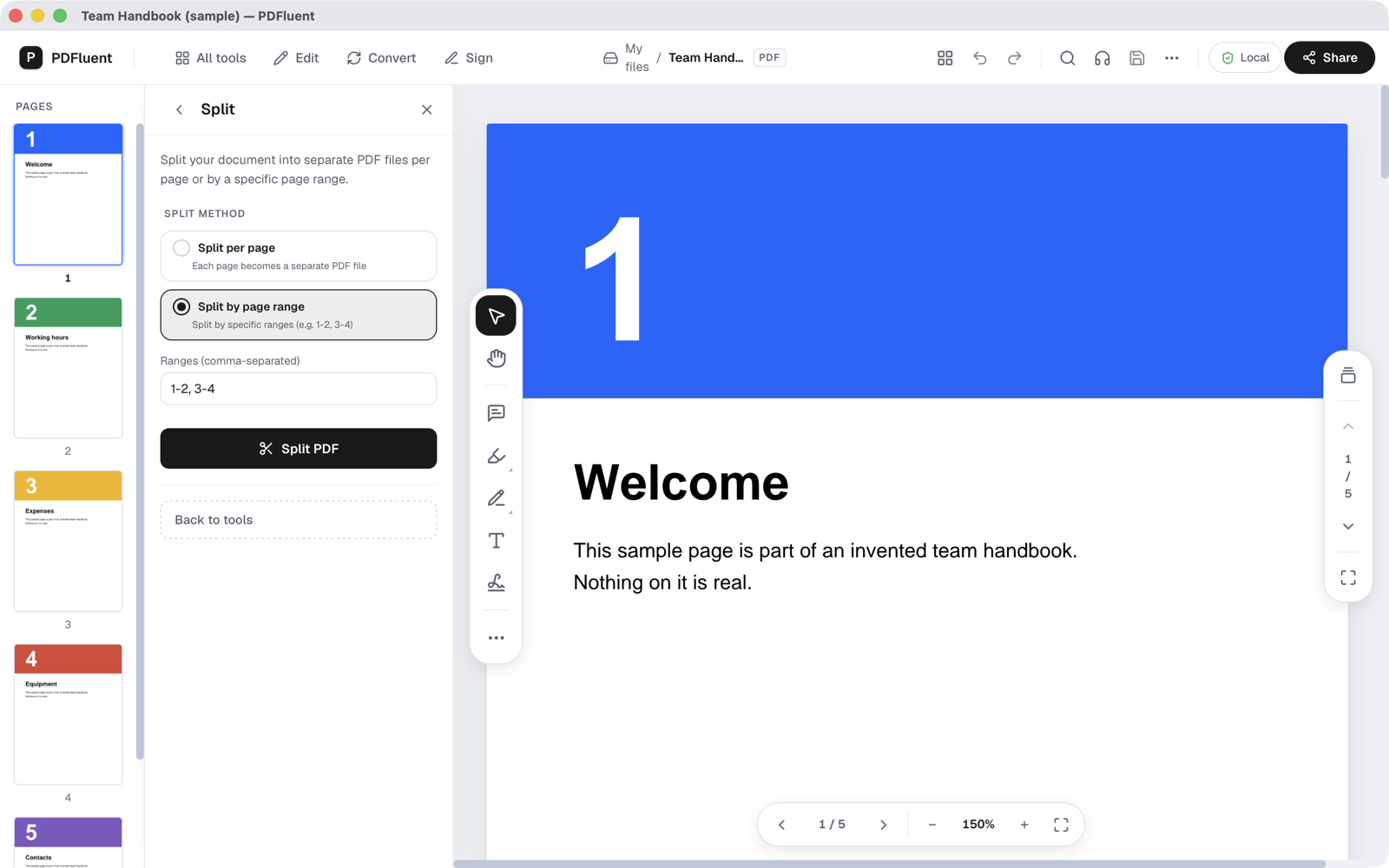
Type the pages you want
Select the text in the "Ranges (comma-separated)" field and type your own range, here "2-4". Type one range only, so the result is one file.
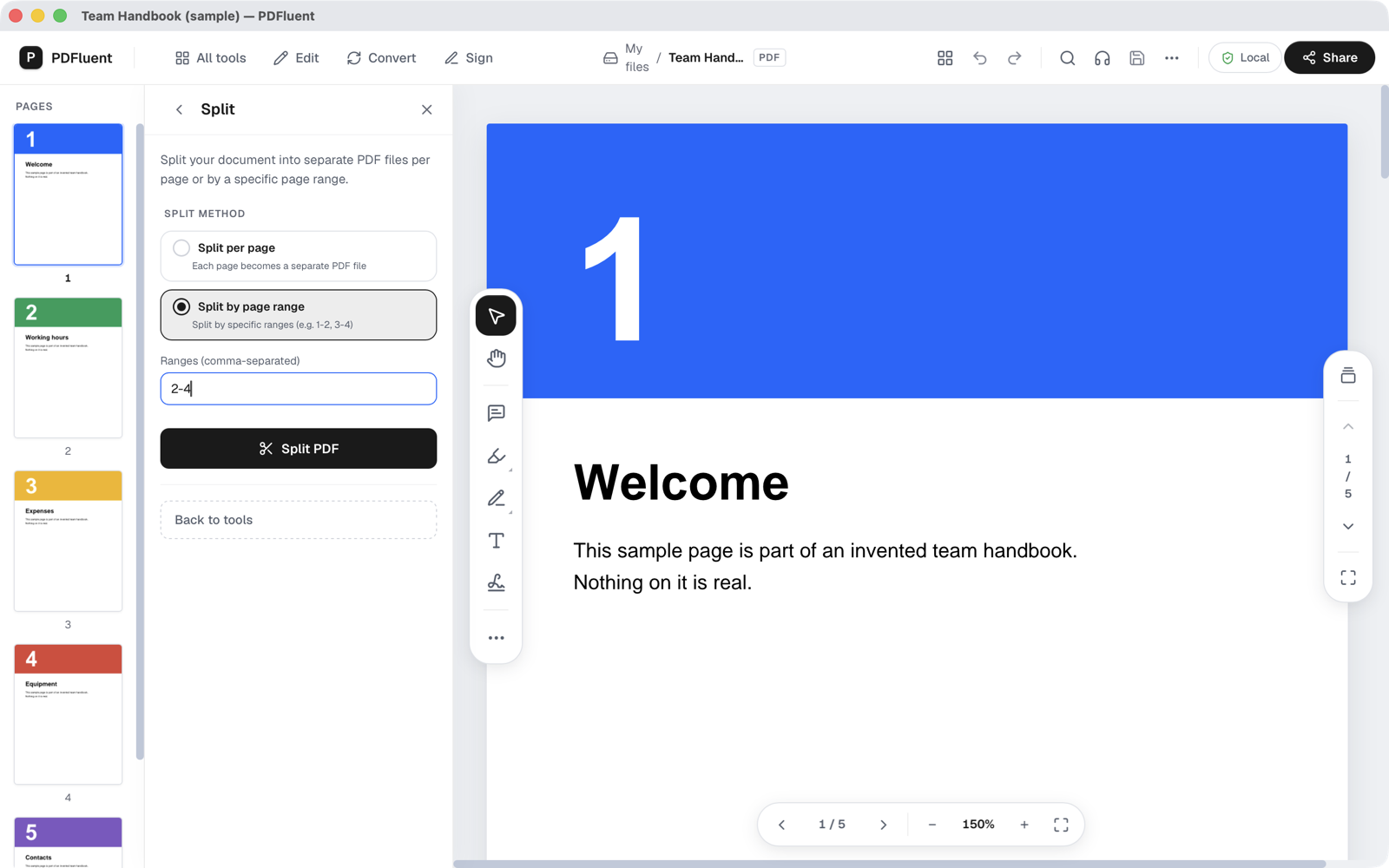
Press Split PDF and pick a folder
Press "Split PDF". On macOS, a window titled "Folder for split PDF files" opens, with "New Folder", "Cancel" and "Open". Pick an empty folder, or make one with "New Folder", and press "Open".
Wait for the message
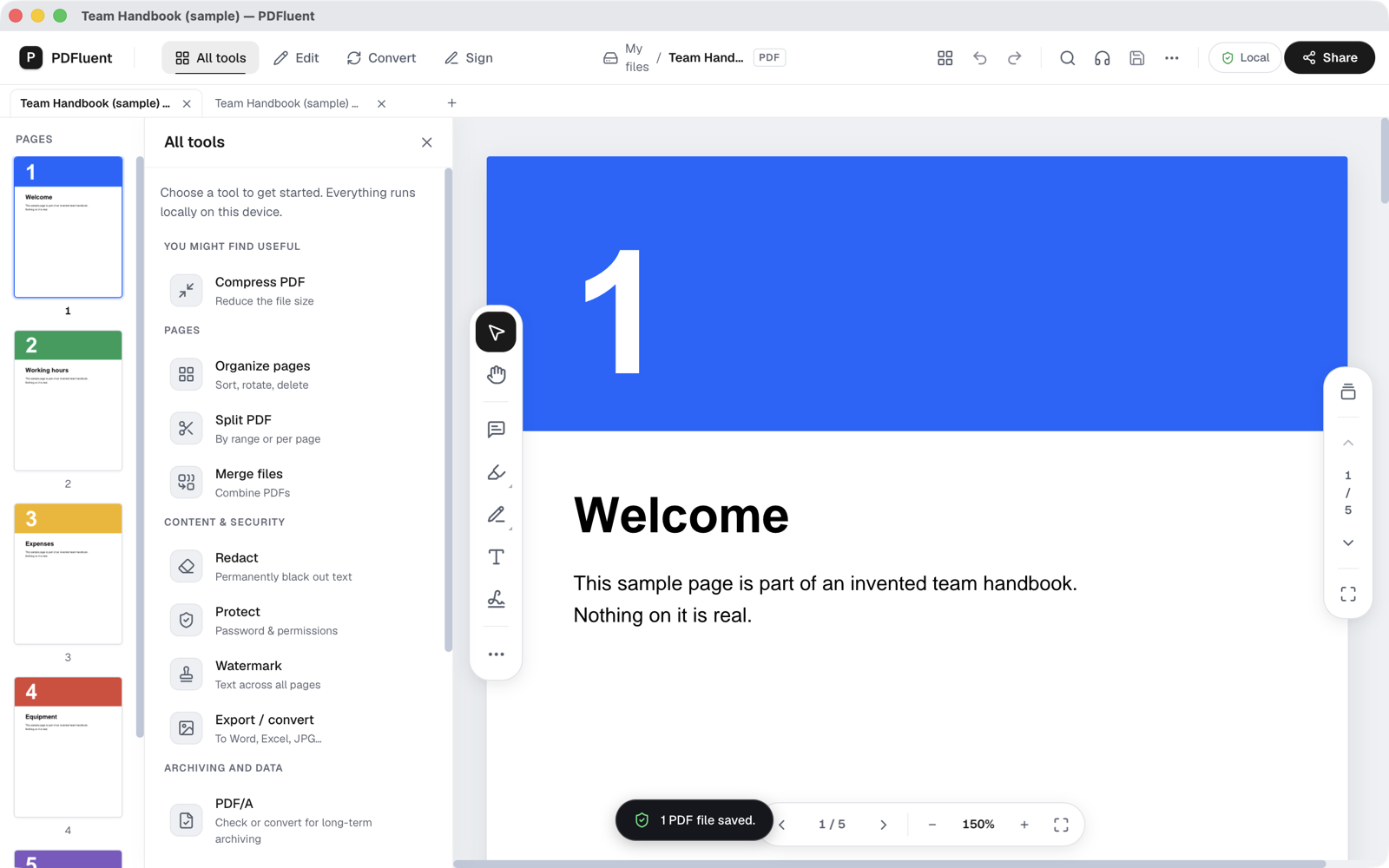
The editor shows "1 PDF file saved." and the panel goes back to "All tools". The folder now holds split_1.pdf with pages 2, 3 and 4, in that order.
Rename the new file
The file is called split_1.pdf. Rename it in Finder or File Explorer so the name says what it holds, for example handbook-pages-2-4.pdf.


One page, or pages that are not next to each other
To save one page of a PDF, type only that page number as the range. In the sample, the range "5" gave one file with only page 5.
Pages that are not next to each other, say pages 1 and 4, do not go into one file in one step. Extract each page or range on its own, each into its own empty folder, because every run names its file split_1.pdf. Then join the files with "Merge files" ("Combine PDFs"), which sits in the same "All tools" list. The guide on merging PDF files shows those steps.
PDFluent Editor is free for everyone, including commercial use, and your documents stay on your computer.
What it does and does not do
- It writes a new PDF with the pages in your range, in their original order.
- It does not change the original PDF. In the test, the original file was byte for byte the same after the run.
- One range gives one file. Several ranges separated by commas give one file per range.
- It does not put pages that are apart into one file in one step. Extract them one by one and combine them with "Merge files".
- It names the file split_1.pdf. It does not ask for a name, so rename it afterwards.
- The new file keeps the original document's title in its properties. To change or remove that, see the guide on removing metadata from a PDF.
- To change the page order in the new file, open it and reorder the pages.
How to check it worked
- Open split_1.pdf from the folder you picked. It opens in its own tab next to the original.
- Count the pages. In the example the page counter shows 1 / 3, and the thumbnails show pages 1 to 3.
- Look at the first and last page. They should be the first and last page of your range, here pages 2 and 4 of the handbook.
- Switch to the original's tab and check it still has all its pages. In the example that is 5.
The new file in its own tab
Here the new file is open in a second tab. It has three pages: pages 2, 3 and 4 of the handbook, now pages 1 to 3.
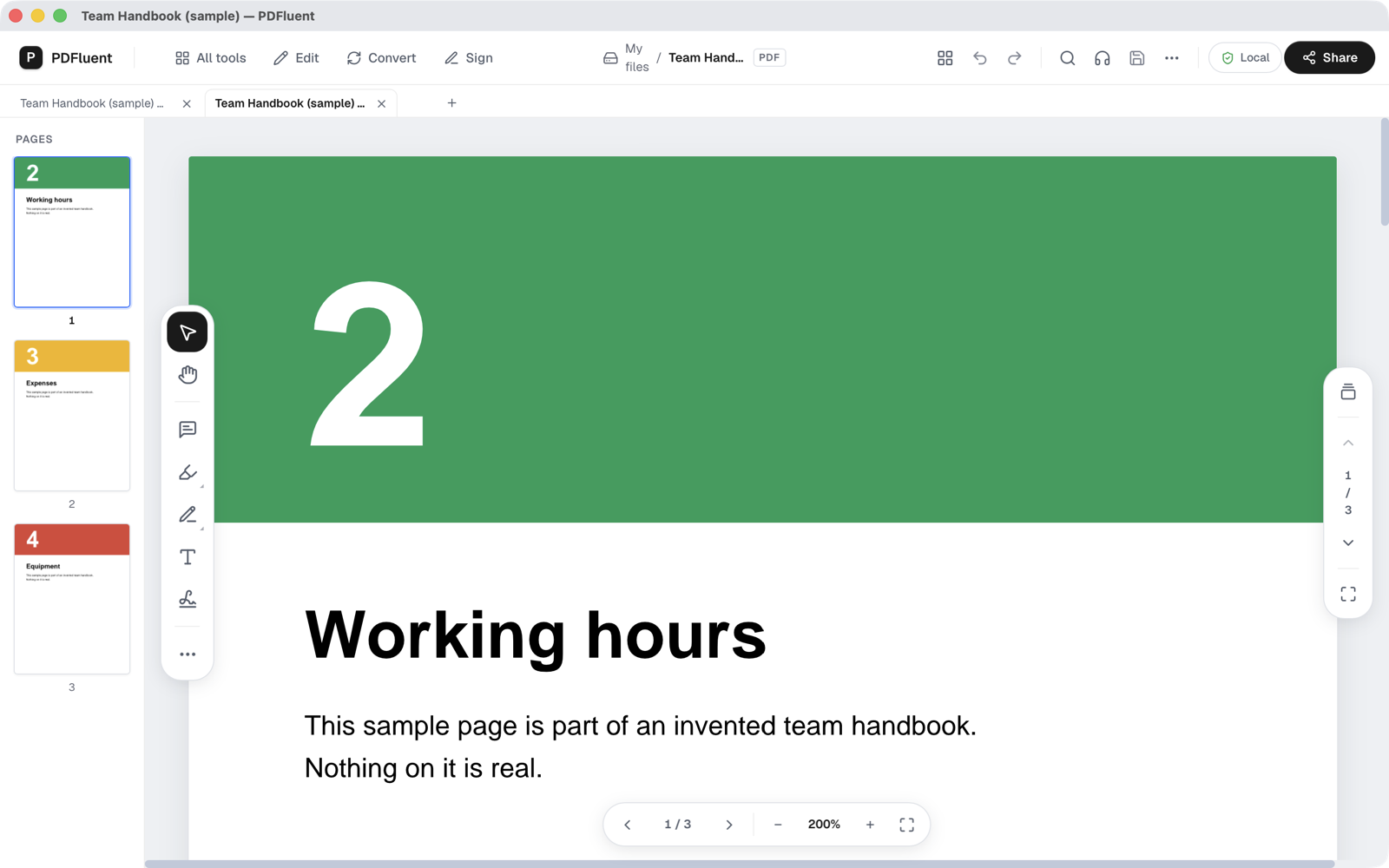

If the file starts or ends on the wrong page, check the range you typed against the thumbnail numbers. Run it again into a new empty folder.
Free, and on your own computer
PDFluent Editor is free for everyone, at home and at work, including commercial use: no licence key, no trial, no tier and no subscription. No account is needed. Version 1.1 runs on macOS and Windows.
On macOS, documents are processed on your computer and the editor works without an internet connection.
Frequently asked questions
How do I save only one page of a PDF?
Open the PDF in PDFluent Editor, go to "All tools" > "Split PDF" and choose "Split by page range". Type the page number, for example "5", in "Ranges (comma-separated)" and press "Split PDF". Pick an empty folder. You get one file with only that page.
How do I extract pages 1 and 4 into one file?
Not in one step. Extract page 1 and page 4 as separate files, then join them with "Merge files" ("Combine PDFs") in the same "All tools" list.
Does extracting pages change the original PDF?
No. The editor writes a new file and leaves the original as it was. In the test, the original file was byte for byte the same afterwards.
What is the new file called?
split_1.pdf, in the folder you picked. Rename it in Finder or File Explorer. The new file also keeps the original document's title in its properties.
Does this work on Windows?
Yes. PDFluent Editor 1.1 runs on macOS and Windows. The steps in this guide were checked on macOS. On Windows, a folder window asks where to save the file after you press "Split PDF".
Is it free, and do I need an account?
It is free for everyone, including commercial use: no licence key, no trial, no tier and no subscription. No account is needed.
Keep reading
Building software? Get the SDK.