How to attach a file to a PDF
Open the PDF in PDFluent Editor, click "Edit", open the three-dot menu in the tool bar, choose "Add attachment", pick the file and save the PDF. It is for anyone who needs to send a spreadsheet, a source file or a price list inside the PDF it belongs to, and the editor is free for everyone, including commercial use, with no account. The file is attached to the document as a whole, and anyone who gets the PDF gets the file too.
You have a PDF and a file that belongs with it: a price list next to a product sheet, the data behind a report, a signed form next to its cover letter. Sending two files means one of them gets lost. Putting the file inside the PDF keeps them together.
This guide shows how to add an attachment to a PDF with PDFluent Editor 1.1, using the labels from the app. It also shows where the attachment shows up, how to check it is in the saved file, and how to get it back out or remove it.
PDFluent Editor is a free desktop PDF editor for macOS and Windows. It is free for everyone, including at work, and you do not need an account.
Attach a file to a PDF, step by step
The steps use PDFluent Editor 1.1 on a Mac. In our test we used a one-page product sheet we made up and attached a CSV price list we also made up.
Open the PDF and choose Add attachment
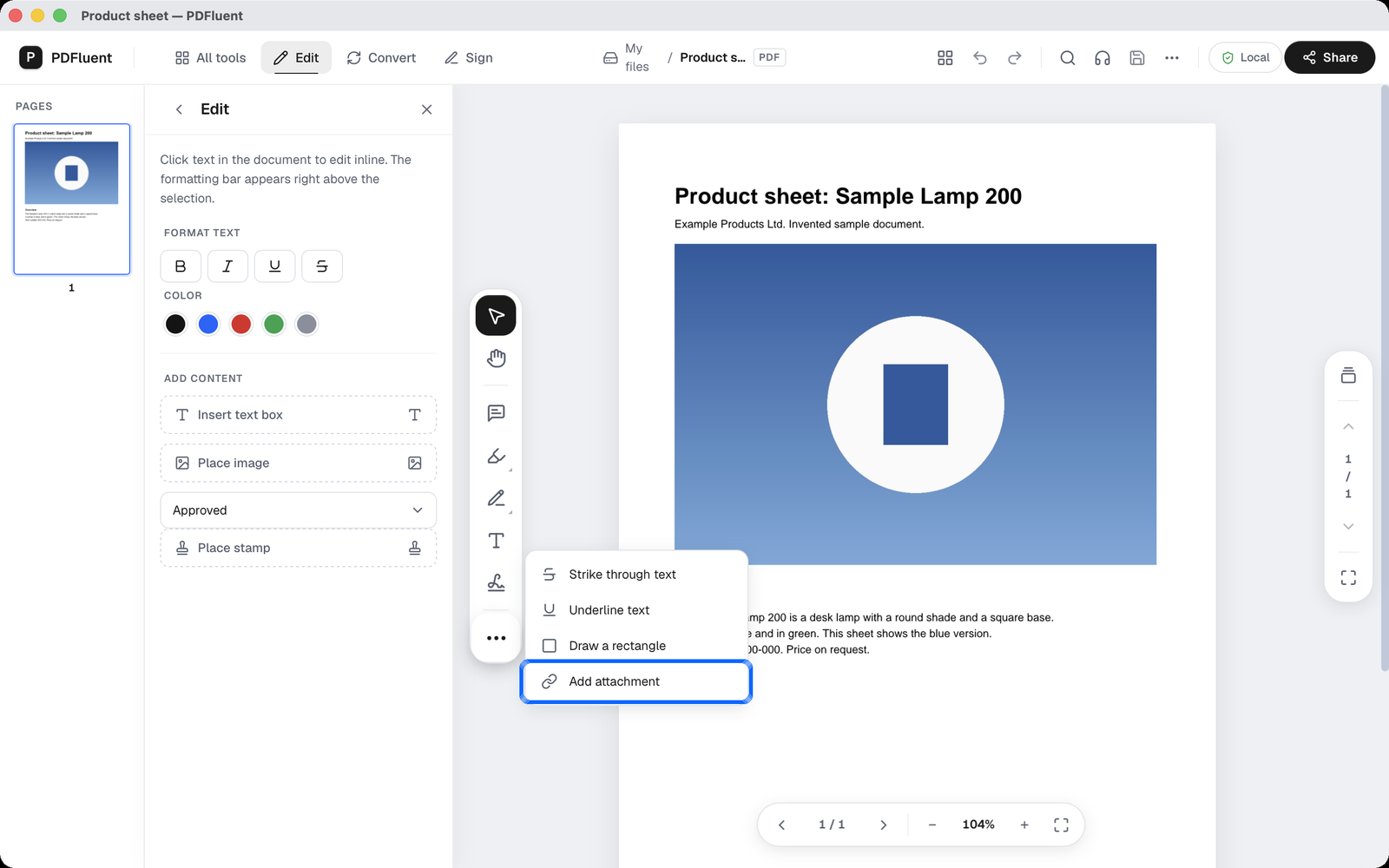
Open the PDF in PDFluent Editor and click "Edit" in the top bar. A vertical tool bar sits next to the page. Click the three-dot button at the bottom of it. A short menu opens with "Strike through text", "Underline text", "Draw a rectangle" and "Add attachment". Click "Add attachment".
Pick the file
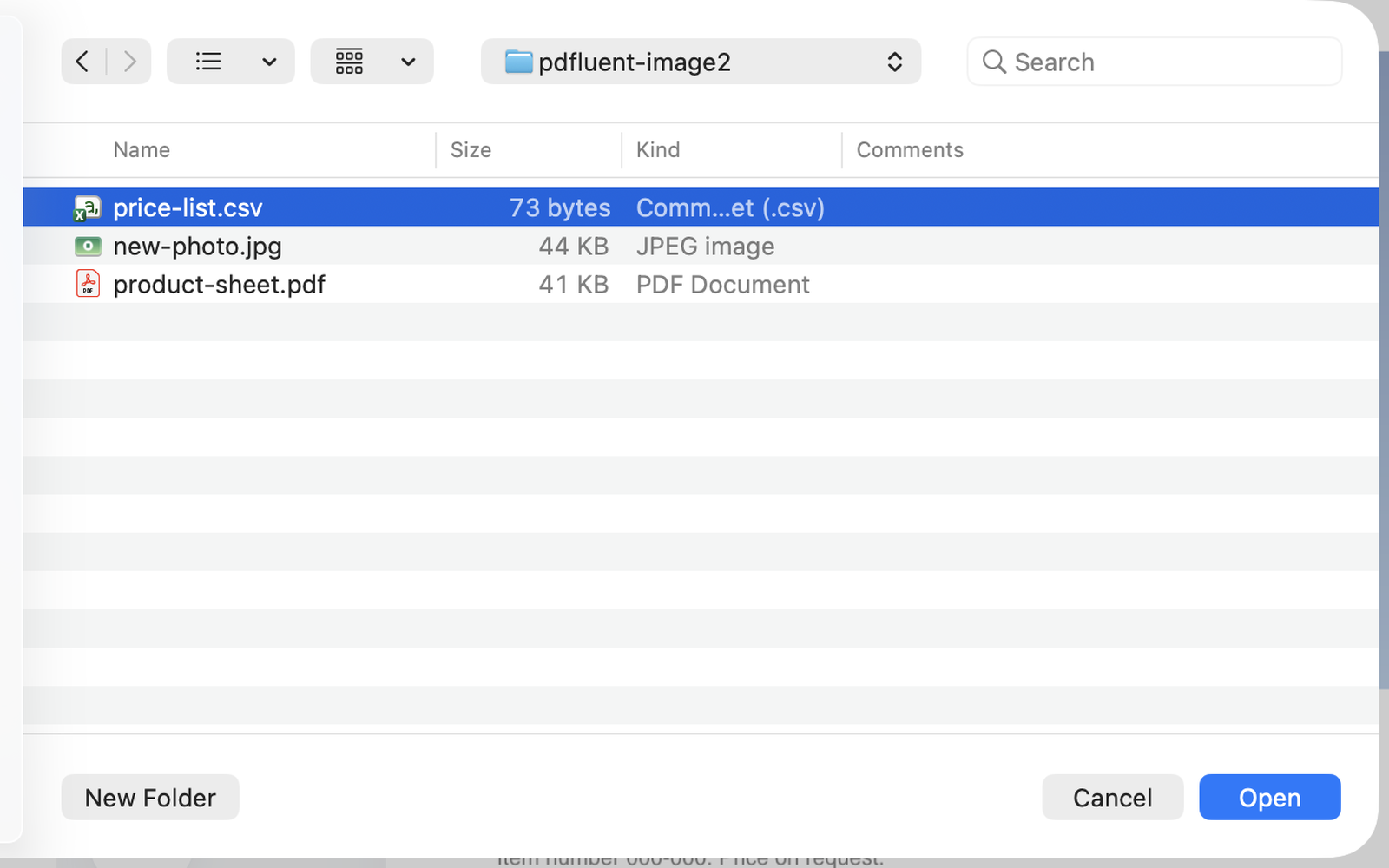
Your Mac shows its Open window. Find the file you want to attach, select it and press "Open". We attached a CSV file.
See the attachment
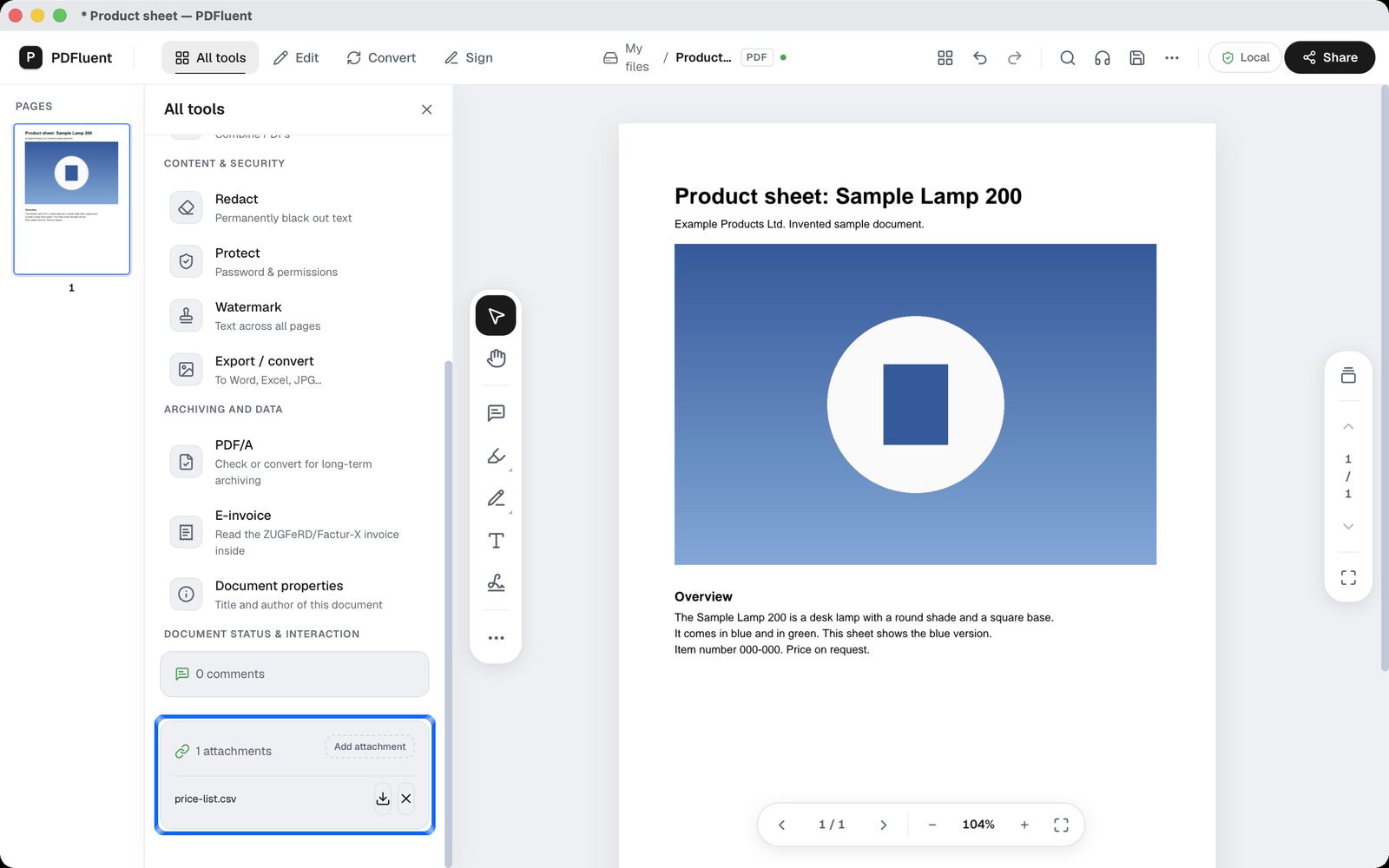
The file is attached straight away. The window title now shows an asterisk before the document name, which means the PDF has unsaved changes. To see the attachment, click "All tools" and scroll to "Document status & interaction". The attachment card shows the count (the app writes "1 attachments") and the file name, with a download button ("Save attachment") and an X button. The card has its own "Add attachment" button too, a second way to add a file.
Save the PDF
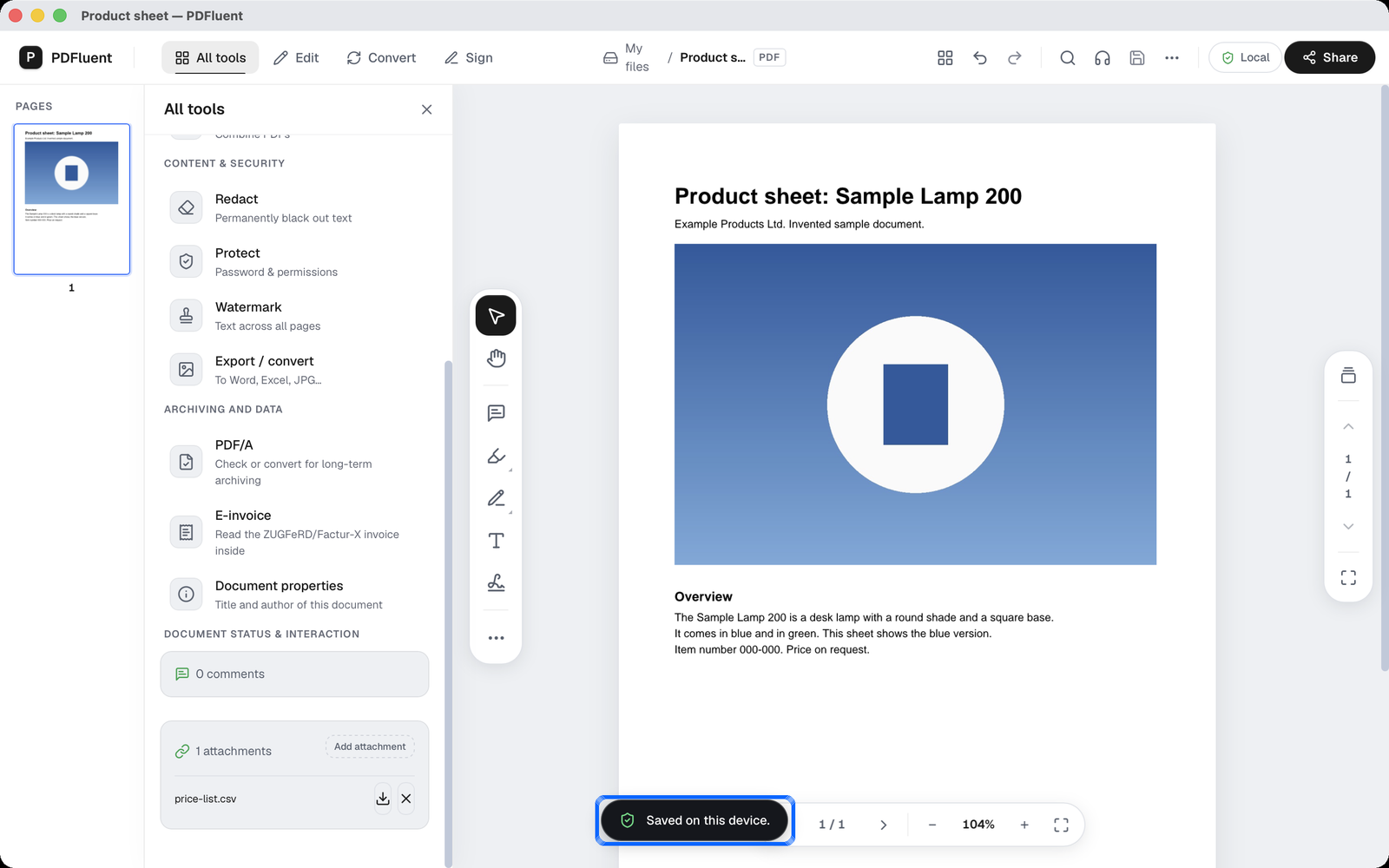
Click the save icon in the top bar or press Command-S. The message "Saved on this device." appears. The editor saves into the same PDF file, so the attachment is now part of it.


PDFluent Editor is free for everyone, including commercial and business use. There is no licence key, no trial and no subscription, and you do not need an account.
What it does and does not do
- It attaches the file to the document as a whole. In our test the file showed up in the attachment card, not as an icon on a page.
- It puts a copy of the file inside the PDF. Whoever gets the PDF gets the attached file too. Remove anything that should not be shared before you send it.
- It does not encrypt or hide the file. Attaching is not a way to protect it. For that, see the guide on password protecting a PDF, and check the result yourself.
- We tested one small CSV file. We do not promise anything about very large files or about every file type.
- Nothing is stored in the PDF on disk until you save.
- On macOS, your documents never leave your device, and PDFluent Editor works without an internet connection.
| Action | Where | What happens |
|---|---|---|
| Add attachment | Three-dot menu in the Edit tool bar, or the attachment card | The file is attached; save to keep it |
| Save attachment | Attachment card under Document status & interaction | A copy of the file is saved to a folder you choose; the PDF stays as it is |
| X button | Attachment card | The attachment is removed at once, without asking; save to make it final |
PDFluent Editor is free for everyone, including commercial use, and your documents stay on your computer.
How to check the file is attached
After saving, we opened the PDF in a separate PDF tool. It listed one embedded file in the saved PDF, named price-list.csv. You can check the same thing in the editor.
- Close the PDF and open it again in PDFluent Editor.
- Click "All tools" and scroll to "Document status & interaction".
- Look for the file name in the attachment card.
- To be sure the file itself is intact, use "Save attachment" to get a copy out and open that copy.
Get the file back out or remove it
To get a copy out, click the download button ("Save attachment") in the attachment card. Your Mac shows its save window with the attachment's name filled in. Choose a folder and save. This writes a copy of the attached file. The PDF stays as it is.
To remove the attachment, click the X button in the card. It goes at once, without a question. The PDF file on disk only changes when you save.
Free, at home and at work
PDFluent Editor is free for everyone, including commercial use. No account, no licence key, no trial. Version 1.1 runs on macOS and Windows.
Frequently asked questions
Can I attach any type of file to a PDF?
We tested a CSV file, and it worked. We do not promise every file type or very large files, so check the result with the file you need to attach.
Does the attachment travel with the PDF when I email it?
Yes. The file is inside the PDF, so whoever gets the PDF gets the attachment too. Remove anything they should not see before you send it.
Can I remove an attachment again?
Yes. Click "All tools", scroll to "Document status & interaction" and click the X button next to the file. It is removed at once, without asking. Save the PDF to make it final.
Does attaching a file change the pages?
In our test the page looked the same after attaching. The file showed up in the attachment card, not as an icon on the page.
Is it free to attach a file to a PDF?
Yes. PDFluent Editor is free for everyone, including commercial use, and needs no account. Click "Edit", open the three-dot menu, choose "Add attachment", pick the file and save.
Does this work on Windows?
PDFluent Editor 1.1 is available for Windows as well as macOS. The steps and screenshots in this guide were taken on a Mac.
Keep reading
Building software? Get the SDK.