How to read a PDF in dark mode
Open a PDF in PDFluent Editor, click the three dots ("More") at the top right of the window and click "Dark mode" so it shows "On". This is for anyone who reads PDFs in the evening and wants a dark interface around the page. The editor is free for everyone, including commercial use, and you do not need an account.

You read reports in the evening and the bright toolbars around the page feel harsh. You want the app to go dark without changing the file.
This guide shows how to turn on dark mode in PDFluent Editor 1.1.2, with the real labels from the app. It also shows what dark mode changes and what it leaves alone.
Turn on dark mode, step by step
PDFluent Editor is free for everyone, including commercial use. There is no licence key, no trial and no subscription, and you do not need an account.
The steps and screenshots use PDFluent Editor 1.1.2 on a Mac. We used an invented quarterly report as the sample file.
Open a PDF
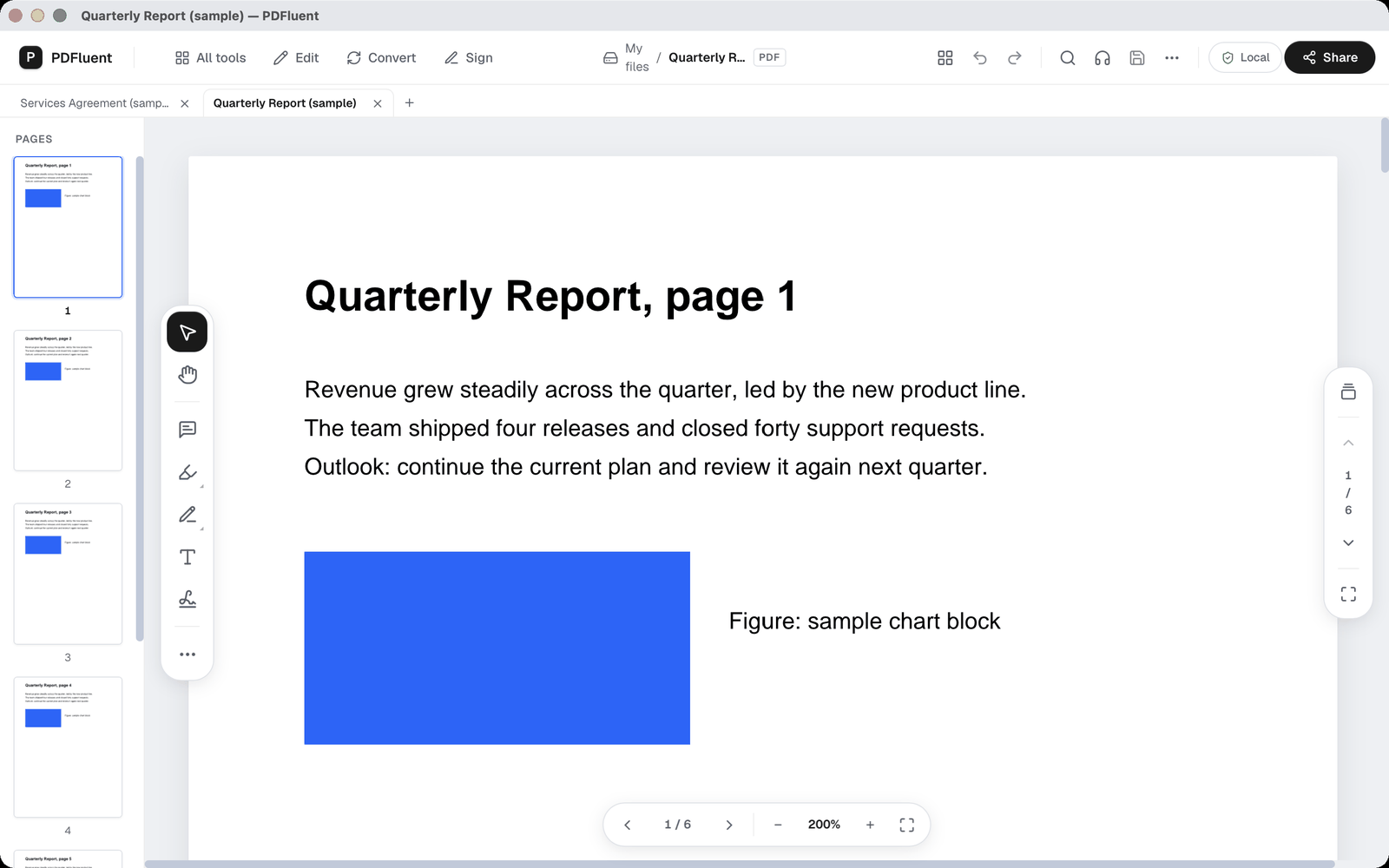
Open the file in PDFluent Editor. The interface is light by default. You can have several PDFs open at once, each in its own tab.
Open the More menu
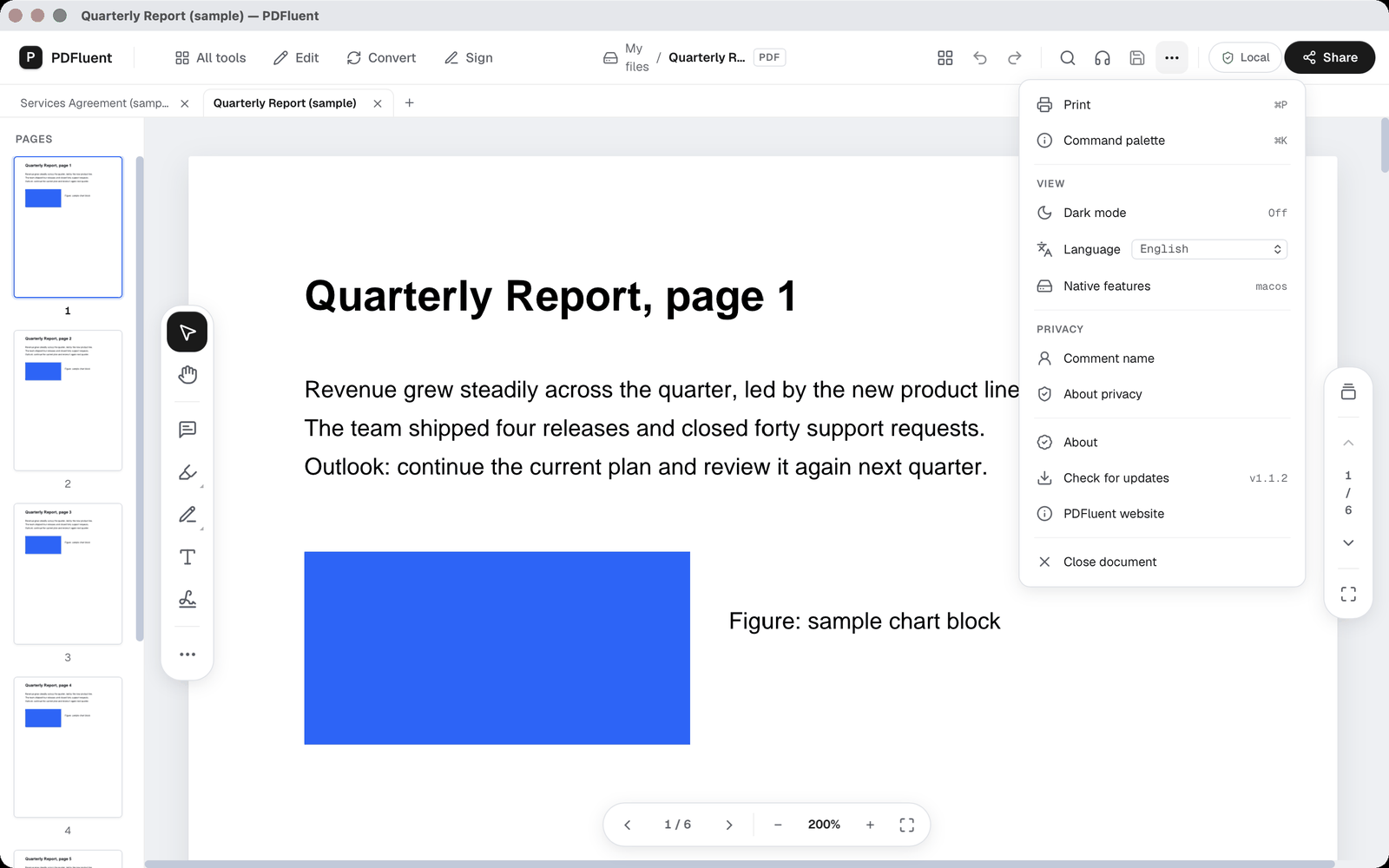
Click the three dots at the top right of the window. This is the "More" button. A menu opens. Under "View" you see "Dark mode" with "Off" next to it.
Click Dark mode
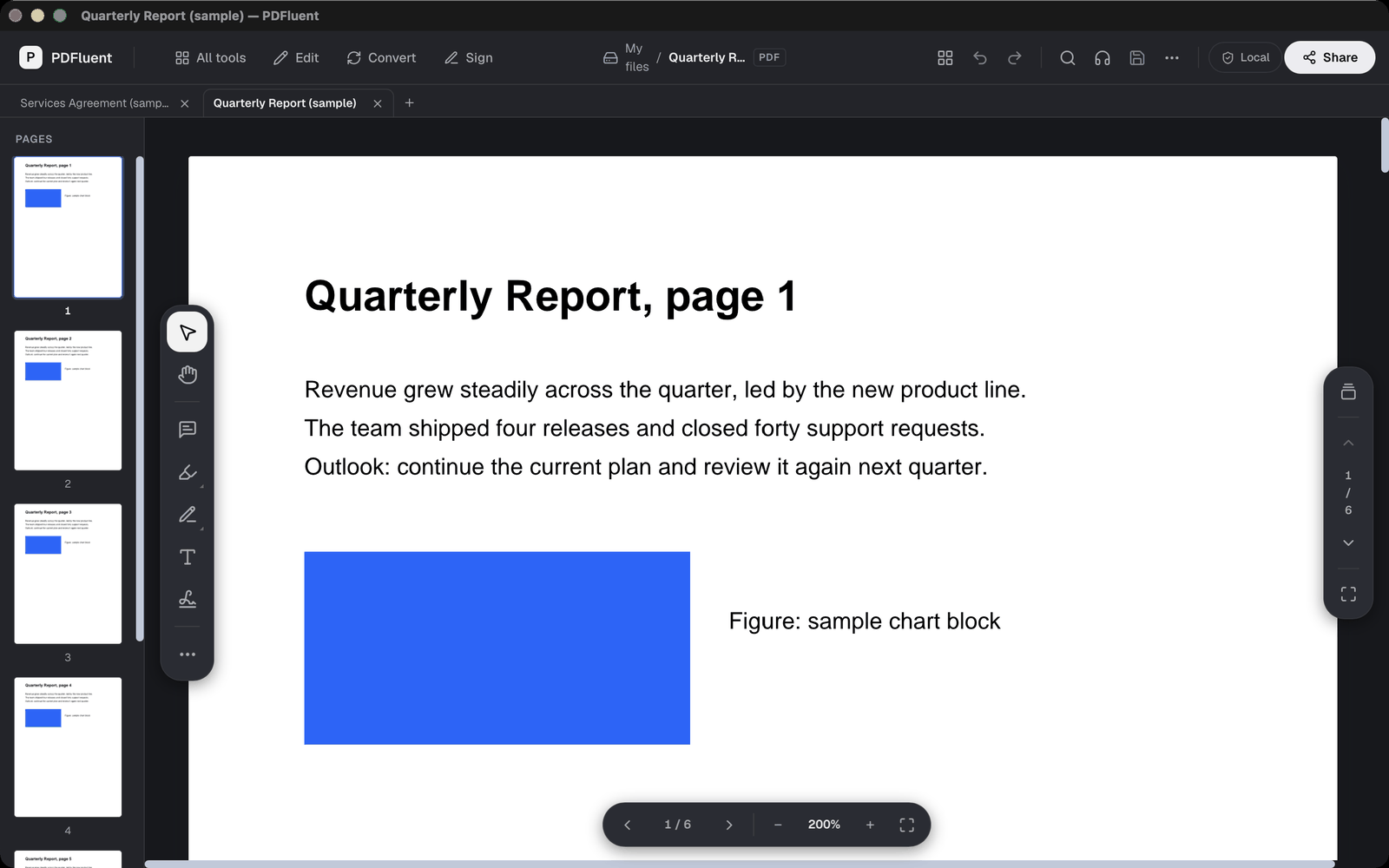
Click "Dark mode". It switches to "On" and the interface turns dark at once: the toolbar, the tab bar, the page list, the tool bar and the page controls. The page itself keeps its own colours.
Open the editor again
Quit PDFluent Editor and open it again. It opens in dark mode. The setting is remembered, so you do not have to turn it on each time.


What it does and does not do
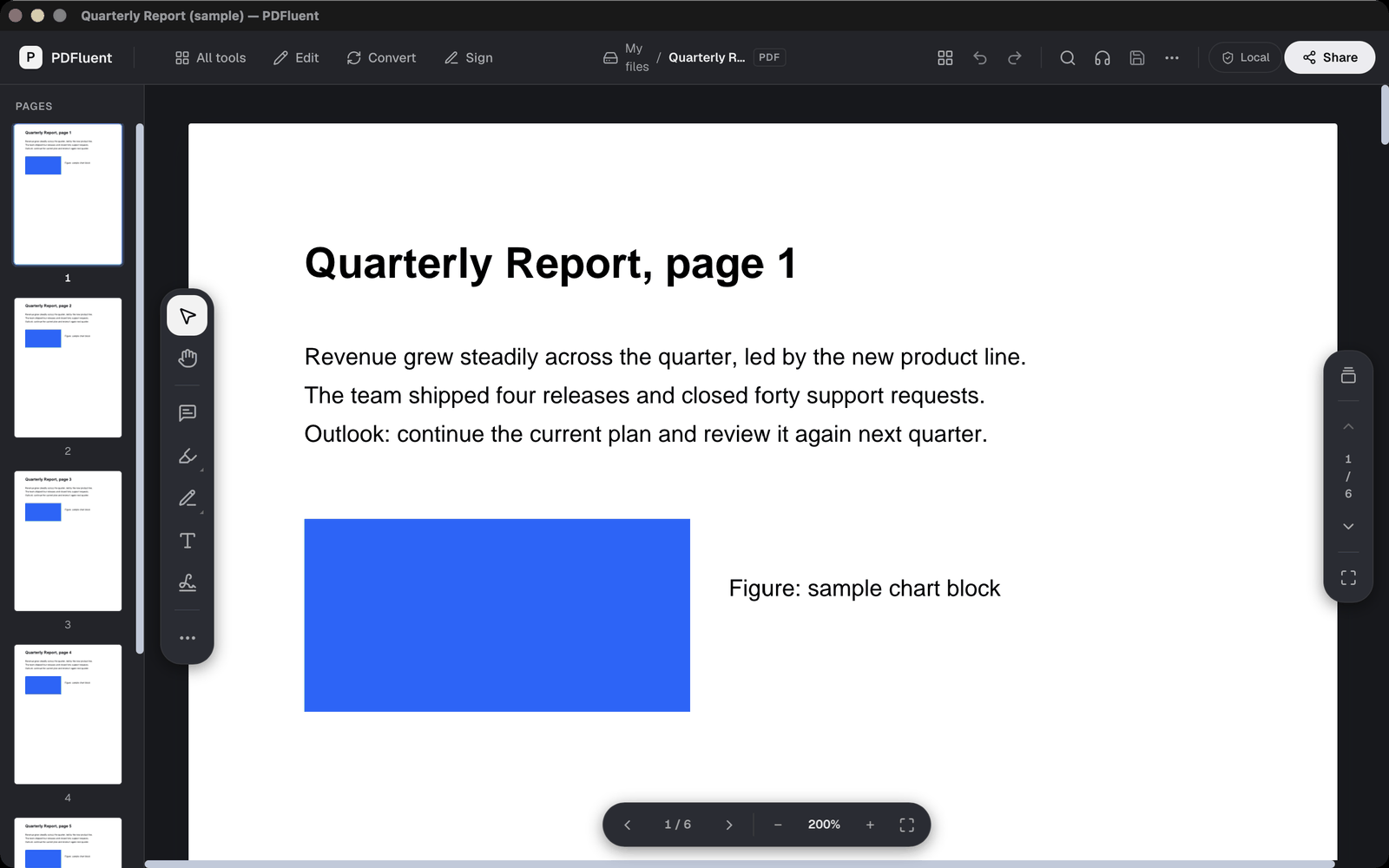
- It turns the app interface dark: the toolbar, the tab bar, the page list, the tool bar and the page controls.
- It does not change the colours of the page. A white page with black text stays white with black text.
- It does not change the file. Nothing in the PDF is edited when you turn dark mode on or off.
- It is remembered. The editor opens dark until you turn dark mode off.
PDFluent Editor is free for everyone, including commercial use, and your documents stay on your computer.
How to check it worked
Open the "More" menu. "Dark mode" shows "On". The bars around the page are dark. Quit and open the editor again: it should still be dark.
To go back to the light interface, open "More" and click "Dark mode" again. It shows "Off" and the interface turns light.
Free, at home and at work
PDFluent Editor is free for everyone, including commercial use. There is no licence key, no trial, no tier and no subscription, and you do not need an account. On a Mac, documents are processed on your computer and the editor works without an internet connection.
Frequently asked questions
Does dark mode make the PDF page dark?
No. Dark mode changes the app around the page. The page keeps its own colours, so a white page with black text stays white. Nothing in the file changes.
Is dark mode remembered?
Yes. After you turn it on, the editor opens in dark mode the next time, until you turn it off.
How do I turn dark mode off?
Click the three dots ("More") at the top right of the window and click "Dark mode". It shows "Off" and the interface turns light again.
Does dark mode work on Windows?
PDFluent Editor also runs on Windows. The steps and screenshots in this guide are from a Mac.
Is PDFluent Editor free?
Yes. It is free for everyone, including commercial use. There is no licence key, no trial, no tier and no subscription.
Do I need an account?
No. You do not need an account or a sign-in to use PDFluent Editor.
Keep reading
Building software? Get the SDK.