How to go to a page in a PDF
In PDFluent Editor, click the page thumbnail in the "Pages" list, or click the page counter at the bottom of the window, type the page number and click "Go to". This is for anyone reading a long report or contract who needs one page without scrolling through the rest. The editor is free for everyone, including commercial use, and you do not need an account.

A colleague asks about the figures on page 6 of the quarterly report. You do not want to scroll through every page to find it.
This guide shows two ways to go to a page in PDFluent Editor 1.1.2, with the real labels from the app: click a thumbnail, or type the page number.
Go to a page, step by step
PDFluent Editor is free for everyone, including commercial use. There is no licence key, no trial and no subscription, and you do not need an account.
The steps and screenshots use PDFluent Editor 1.1.2 on a Mac. The editor also runs on Windows. We used an invented six-page quarterly report as the sample file.
Open the PDF
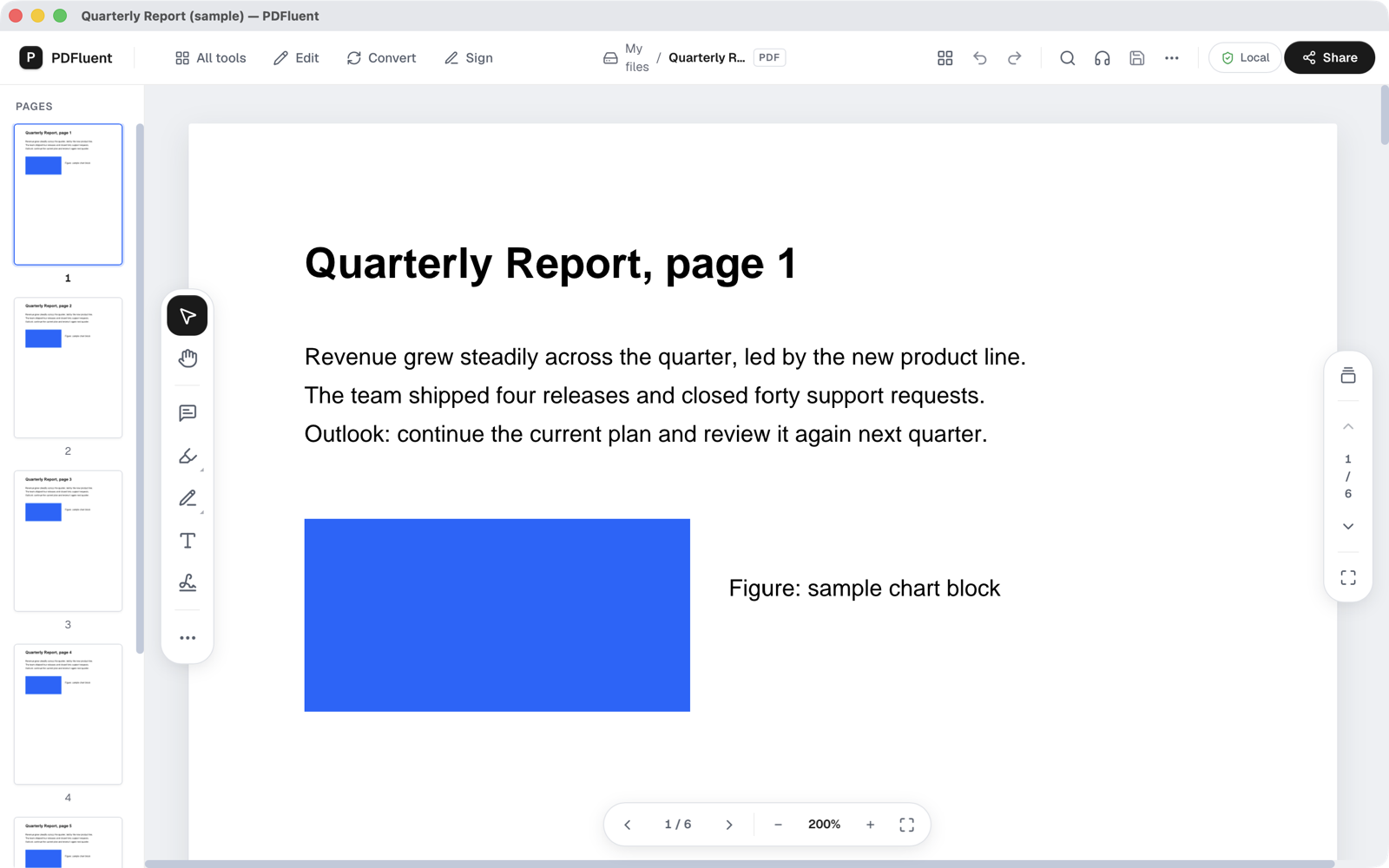
Open the file in PDFluent Editor. The "Pages" list on the left shows a small picture, a thumbnail, of every page with its number. The current page has a blue outline and a bold number. The page counter at the bottom of the window shows "1 / 6".
Click a thumbnail
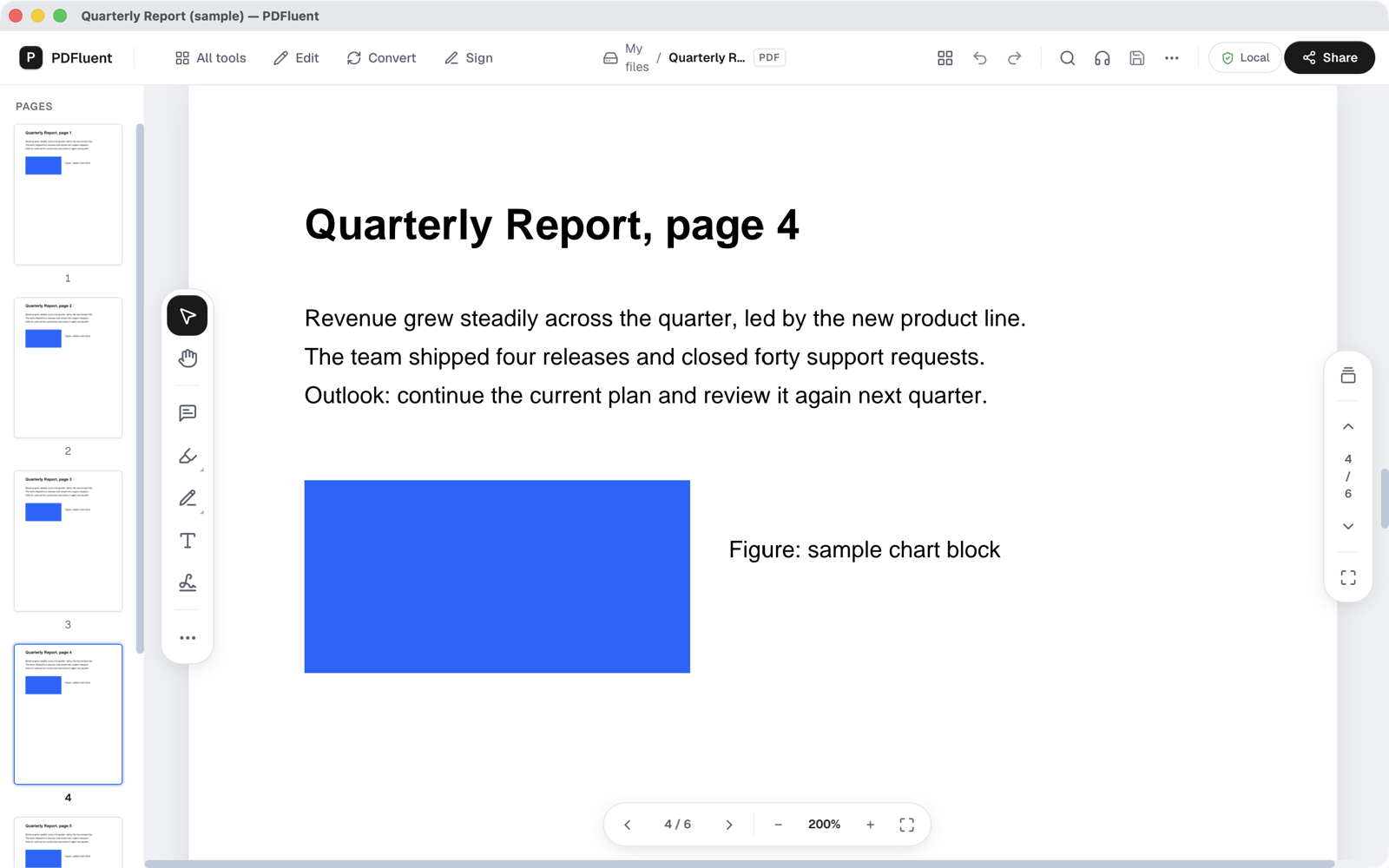
Click the thumbnail of page 4 in the "Pages" list. The document jumps to page 4. That thumbnail gets the blue outline and the counter shows "4 / 6".
Or type a page number
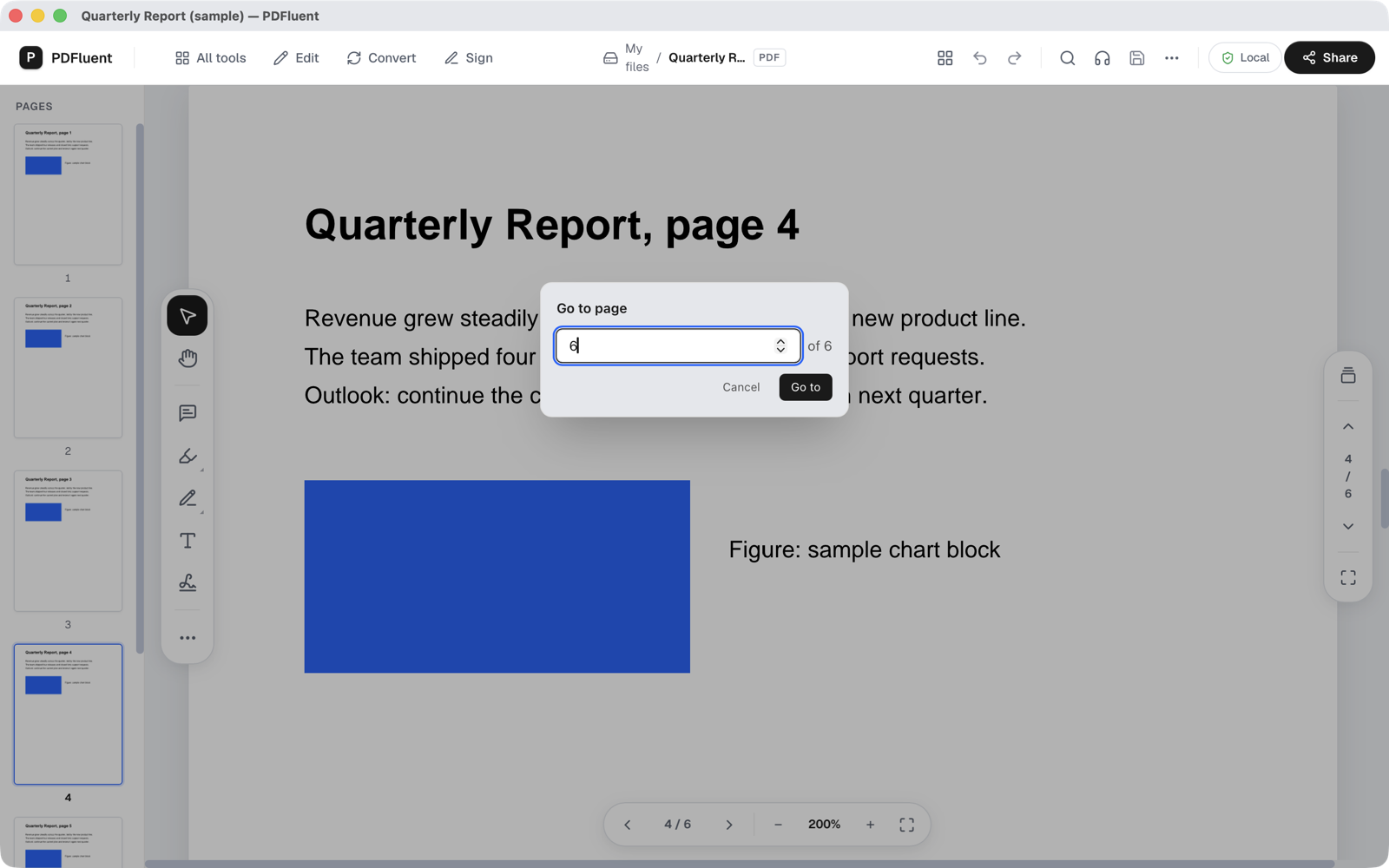
Click the page counter at the bottom of the window. A small dialog "Go to page" opens. It has a "Page number" field, the text "of 6", and the buttons "Cancel" and "Go to". Type 6.
Click Go to
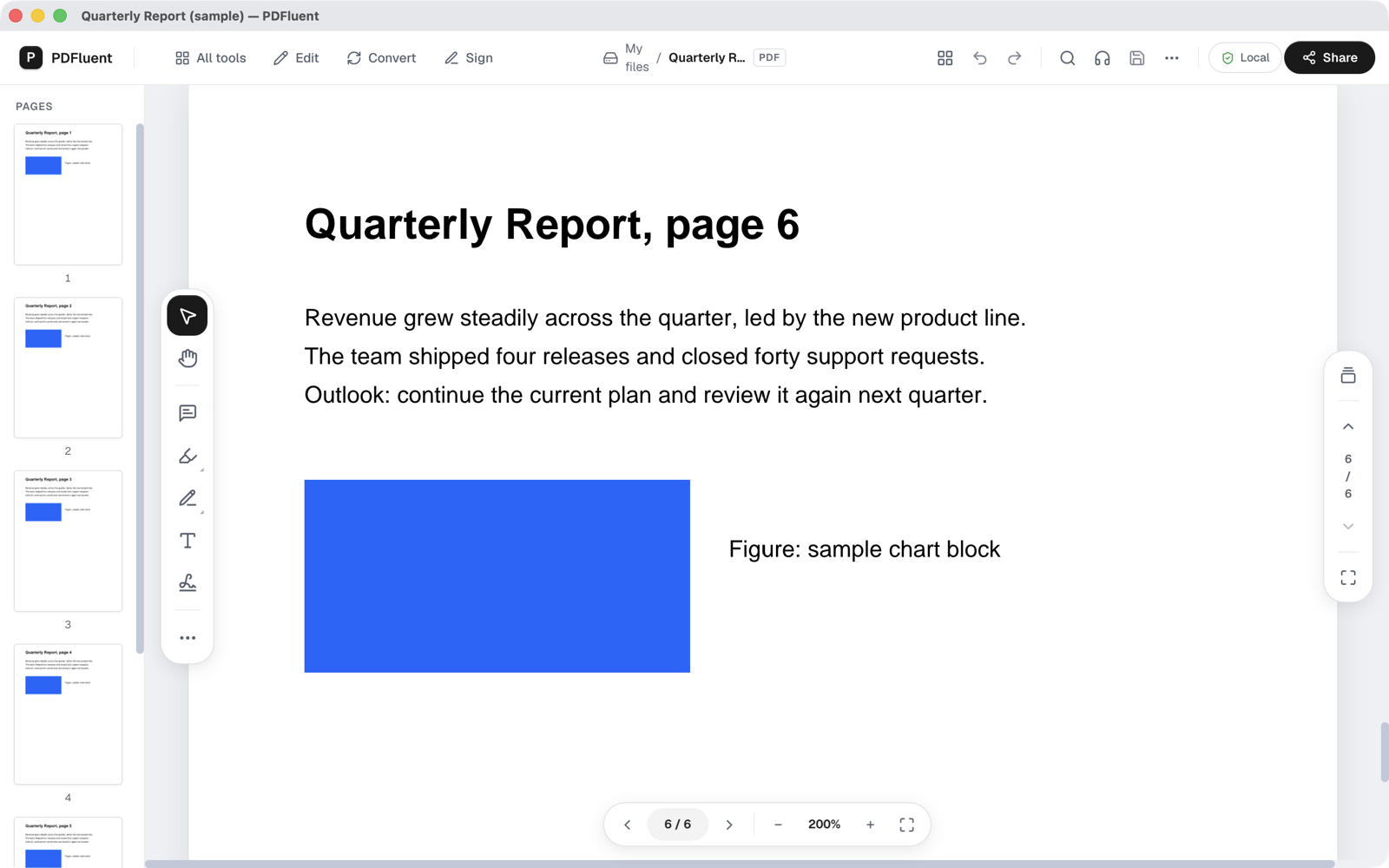
Click "Go to" or press Return. The document shows page 6 and the counter shows "6 / 6".


What it does and does not do
- It moves you to the page you pick, by thumbnail or by page number.
- It does not change the file. Nothing in the PDF is edited when you jump to a page.
- When you jump with "Go to page", the "Pages" list does not scroll along. In a long file, scroll the list yourself to see the current thumbnail.
- This guide does not cover bookmarks or an outline.
PDFluent Editor is free for everyone, including commercial use, and your documents stay on your computer.
How to check it worked
Look at the page counter at the bottom of the window. It shows the page you asked for, such as "6 / 6". In the "Pages" list, that page has the blue outline and a bold number.
Free, at home and at work
PDFluent Editor is free for everyone, including commercial use. There is no licence key, no trial, no tier and no subscription, and you do not need an account. On a Mac, documents are processed on your computer and the editor works without an internet connection.
Frequently asked questions
How do I jump to a page number in a PDF?
Click the page counter at the bottom of the window. In the "Go to page" dialog, type the number in the "Page number" field and click "Go to" or press Return.
Can I click a page to go to it?
Yes. Click its thumbnail in the "Pages" list on the left. The document jumps to that page.
Why does the Pages list not show the page I jumped to?
When you jump with "Go to page", the "Pages" list does not scroll along. Scroll the list yourself to see the current thumbnail with its blue outline.
Does going to a page change my PDF?
No. Jumping to a page changes nothing in the file.
Does this work on Windows?
PDFluent Editor also runs on Windows. The steps and screenshots in this guide are from a Mac.
Is PDFluent Editor free, and do I need an account?
It is free for everyone, including commercial use. There is no licence key, no trial, no tier and no subscription. You do not need an account or a sign-in.
Keep reading
Building software? Get the SDK.